Oh man, that black screen issue on startup can be a real pain, right? You’re all set to dive into some gaming or just get your work done, and bam—nothing but darkness staring back at you. It’s one of those moments that makes you go, “Why now?!”
I remember this one time when I spent a couple of hours fiddling with cables and settings, wondering if my graphics card had suddenly decided to take a vacation. Such a frustrating experience! But don’t sweat it; you’re not alone in this.
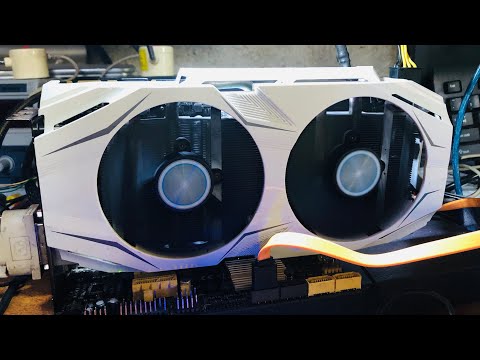
The ASUS GeForce GTX 1070 is a pretty solid card overall. These hiccups happen even with the best tech sometimes. Let’s explore what’s possibly going on here—could be something simple we’re overlooking!
Black Screen at Startup Causes
Oh no, a black screen can be quite frustrating, right? Especially when you’re all set to dive into your computer activities. If you’ve got an ASUS GeForce GTX 1070 and are dealing with a black screen at startup, there’s hope! Let’s chat about what might be causing this.
- Loose Connections: First things first, check the physical connections. It might sound basic, but sometimes cables aren’t plugged in all the way. Make sure your graphics card is seated correctly in the PCIe slot and that power connectors are properly attached.
- BIOS Settings: The BIOS could have settings that don’t quite agree with your graphics card. You’ll want to access the BIOS (that’s usually by pressing Del or F2 at startup) and ensure that the primary display output is set to PCIe.
- Driver Issues: Bad drivers can cause headaches too. If you’ve recently updated your graphics driver or Windows itself, they might not play nice together. Boot into safe mode (you press F8 while starting up) and roll back or update drivers through Device Manager.
- Monitor Problems: Who knew a monitor could act up, huh? Try connecting it to another computer to see if it’s just pretending not to work on yours.
- Overheating Concerns: When computers overheat, they sometimes go on break without telling us! Ensure there’s plenty of airflow in your case and that fan speeds are adequate—you can usually manage these from BIOS or dedicated software from ASUS themselves.
- Power Supply Units (PSUs): These guys tend to be overlooked a lot. Your GTX 1070 needs enough power juice—make sure your PSU has enough wattage for everything packed inside that box of yours!
- Damaged Hardware: As much as this would suck… Sometimes hardware gets damaged due simply due age or usage patterns over time—older cards face potential issues looming unseen unless checked via diagnostics by professionals able resolve such matters quickly!
This situation reminds me once when I had a black screen issue only because my cat decided my PC was part-time climbing gear., Seriously! Turns out she unseated one those pesky cables while attempting summit-level heights atop desktop glory most unforeseen manner imaginable…
If none of these seem applicable however—and believe me—I’ve been down paths before too(!)—consulting folks who know their way around PCs more than self always ready option worth considering if attend unwillingly march bleakness accompanying vast unknown bilge responsible causing grief untold proportions far outweigh any minor repair costs charged services rendered fixing wretched helpless equipment giving fits annoyance gone unheard ages past until solved once-and-forall conclusion sought supreme outcome desired unwavering sustainability granted forthwith evermore… phew!
Fingers crossed this helps get everything back up running like dream again sooner later sans further ado needed hassle remaining obstacles blocking progress indefinitely—that’d truly welcome sight indeed arriving safe shores solid ground knowing emerged victorious trials endured surmounting odds stacked against favor no end near relief bursting seemed unattainable finally attained victory never tasted sweeter savor glorious moment arrived reaching endpoint journey traveled long hard fought battle win peace mind tranquility enjoyed abundantly forth limitless times henceforth forgetting turmoil uproar disturbance ceased momentarily relishing blissful calm descended enveloped revelry timeless happiness brimming bountiful richness attainable triumph countless possibilities unlocked infinite potentiality realized ultimate satisfaction achieved full-scale immersive pleasure enlisted casement genuineness embraced prompt arrival worthy efforts recognition acknowledgment bestowed trials final exoneration persistence rewarded culmination days spent searching solution wrought discovery new-found purpose regained life prospects unwavered once suppressed granted renewal ongoing existence unimaginable delight surpasses others experienced surpassed heights previously scaled veritable expanse dimension previously achievable recognized renamed illuminated path unforeseen serendipity aligned stars cosmos hereby set astir destination unknown wide open future bound embrace destiny foretold voyage carried completed saga continues generations flourishing unending legacy inherited heritage past shared forefather landmark footsteps resoundingly achieved fulfillment invincible aspirations cherished culminated aspirations dreams envisioned brought forefront imagination applied reality forged change entities specters disappearance transpired sailing smoother seas fruition brought force willpower indomitable courage strength essence prevail prevalent theme overarching identity immortalized inaugural selves personified curated artifacts held timelessness eternity replaced prevailing perpetuity awaiting nonetheless onward begun embarkation passageway destined culmination destination assured steadfast dedication commitment fortitude perseverance unyielding pursuit greatness embodied realized ambition manifested forevermore.
ASUS Laptop Black Screen Causes
Hey, having a black screen on your ASUS laptop can be super frustrating, especially if you were just about to finish editing that cool video or sending an important email. You know, it kind of feels like when your car won’t start in the morning. Sometimes figuring out the cause is a bit like finding a needle in a haystack. But don’t worry! Let’s try get to the bottom of it together.
Check Connections
- Loose cables: If you’re using an external monitor with your laptop, maybe double-check that all cables are snug and secure. It’s surprising how often this can be overlooked.
- Power connection: Make sure your charger is properly plugged in and that the power outlet works. Simple but crucial!
Graphics Card Issues
- NVIDIA GTX 1070: When dealing with graphics cards like the ASUS GeForce GTX 1070, there could be compatibility issues or even outdated drivers causing trouble.
- Trouble after updates: Sometimes new drivers create issues rather than solve them, unfortunately. Rolling back to an older version might just do the trick.
Display Problems
- Bios settings: Entering BIOS at startup (usually by pressing F2) to check display settings could reveal if anything’s gone awry.
- Internal display faults: Sometimes it’s as simple as adjusting brightness settings using keyboard shortcuts —who knew?
One time I thought my screen was totally busted, only to realize I had accidentally mashed some keyboard shortcut that turned my display crazy dark. We’ve all been there!
Cables & Adapters
Isn’t it annoying when adapters or cable choices interfere? Check if swapping them helps resolve things.
Troublesome Software or Bugs
- Bugs in updates:: Certain software updates come with bugs affecting displays; unrolling those might actually work wonders.
- User-installed programs:: Some third-party applications can conflict surprisingly big time right from startup processes onwards too.
Hopefully one of these pointers will help solve that pesky black screen issue! And hey remember cut yourself some slack—it’s always frustrating dealing with tech glitches but believe me once resolved great satisfaction awaits!
Black Screen as a GPU Failure Symptom
Oh boy, dealing with a black screen can really feel like hitting a wall, especially when you were eagerly waiting for your PC to boot up. I remember when my own computer greeted me with nothing but darkness; it was like the monitor stopped caring about me. Anyway, let’s unravel this mystery together.
Why Black Screen Happens
The blank stare from your monitor could be a hint that your GPU—the graphical processing unit—isn’t in its best mood. With the ASUS GeForce GTX 1070 being a popular card among gamers and creators alike, it’s no surprise that some users bump into this at startup.
The Common Culprits and Fixes
You see here’s what’s likely going on:
- No Signal: Sometimes it’s as simple as switching ports or trying another cable or even moving to another slot in case one is misbehaving.
- Bios Glitching: Ever thought about updating your BIOS? Old firmware might just ignore new hardware updates!
- Thermal Issues:
Trouble-Shooting Adventures
Sometimes finding out what’s wrong is an adventure in itself.
- If you’re feeling brave enough—and know what you’re doing—reseating the card is worth trying! Gentle wiggling sometimes works wonders.
- You may want to test using integrated graphics (if available) just to rule out an actual display problem versus only graphical conflicts here at play!
Remember my story earlier? Turns out patience was key while double-checking everything before panicking over major replacements ’cause guess what…it often isn’t needed after all! Keep calm—adventures await each boot-up!
Ah, the dreaded black screen on startup with an ASUS GeForce GTX 1070. That’s a real heart-sinker, isn’t it? I mean, who hasn’t been there—firing up your computer all excited to dive into something fun or important, and then…nothing. Just darkness staring back at you. It feels like being stood up for a date! It’s just downright frustrating.
First things first, let’s acknowledge that this little glitch is often not as frightful as it seems. There might be a few culprits sneaking around here. You know how sometimes you’re searching for your headphones and they’re right there on your head? Yeah, it’s kind of like that with tech sometimes.
One of the main suspects could be the connection between your graphics card and monitor acting all finicky. You’d want to make sure everything’s snugly in place. Because loose connections are surprisingly common! Check those cables as if you’re giving them a gentle little hug to see if they’re secure.
Another possibility might involve drivers—those pesky little software bits that keep things running smoothly behind the scenes. If they’re outdated or corrupted, you might face some screen drama—blackouts included! Updating them is usually worth a shot—it only takes a few minutes but can save you hours of frustration.
And hey, let’s not forget about power supply issues; sometimes low power won’t cut it for such hardware-intensive tasks—kind of like trying to start your car without gas in the tank!
But don’t lose hope just yet! With each step checked off and tested out methodically (and perhaps with an occasional deep breath), there’s often light at the end of this electronic tunnel—and maybe even some epic gaming sessions waiting beyond that!