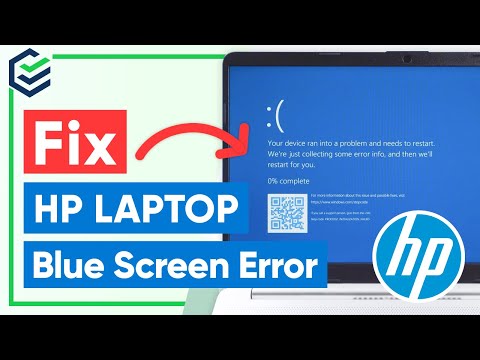
Oh man, your HP laptop is acting up? I’ve been there, and it’s not fun. It’s like one moment everything’s perfect, then boom! That dreaded blue screen shows up. You know what I’m talking about, right? It’s a total day-wrecker.
So there you are staring at your laptop like “come on dude, just work!” But it’s just not having it. No matter how many times you press that power button, nothing happens. Yeah, it’s frustrating as heck.
But don’t panic just yet! Before you start thinking about tossing it out the window or calling in the cavalry, let’s see if we can sort this out together. After all, sometimes it’s something simple that we’re overlooking. You got this!
Troubleshooting Blue Screen on HP Computers
Ah, the dreaded blue screen! When your HP laptop suddenly decides not to cooperate and flashes that blue screen, it can be a real heart-stopper. You know how it feels—one minute you’re typing away, and the next…boom! Panic sets in. But take a deep breath; let’s make sense of this.
What’s causing this? Well, several things might be behind that blue screen—and they aren’t all catastrophic. Sometimes it’s just a hiccup with your software or a tiny hardware glitch.
- Software Issues: Programs sometimes run into conflicts or drivers get outdated. Say you’ve installed new software recently—that might clash with something else on your computer.
- Hardware Glitches: Maybe it’s something like faulty RAM or an overheating issue? Computers are touchy with temperature; trust me.
Tackling the Recovery: It’s all about narrowing down what’s bugging your laptop.
- Safe Mode First: Booting into Safe Mode can help you figure out if it’s a driver problem.
- Driver Updates: Check for any pending updates—these can fix compatibility problems. It’s like giving your computer some vitamins!
- Error Codes Matter: That code on the blue screen isn’t gibberish! Jot it down, ’cause it might clue you in on what’s wrong.
And when the laptop doesn’t even start up after crashing, relax—you’ve got options:
- Troubleshoot from BIOS/UEFI: Access these settings to perform diagnostic tests directly from your machine’s firmware.
- Create Recovery Media: If stuff gets sticky and won’t boot normally, using recovery media could help you restore things.
Finally, without getting too fancy: have backups ready at all times (learned that one from personal experience!). It’s a lifesaver ‘cause computers love surprises.
No need for tech panic attacks—stay patient and methodical while working through these steps. So when next time that blue screen pops up? You’ll totally handle it like a pro!
Laptop Blue Screen of Death Causes
Ah, the infamous Blue Screen of Death (BSOD). It can really give you a scare, almost like seeing your favorite vase topple over in slow motion. If your HP laptop meets this dreaded blue screen and then just refuses to start up, well, that’s frustrating for sure! Let’s unravel what might be causing it.
Common Causes of BSOD
When your laptop throws one of these tantrums, it’s usually due to some pesky issues under the hood. Here’s a quick look at what could be going on:
- Driver Issues: Sometimes those tiny software bits that help your hardware chat with Windows get messed up. Imagine if two people tried having a conversation but kept speaking at the same time.
- Hardware Failures: Your laptop’s components might have taken a hit. Whether it’s overheating or just ol’ age catchin’ up with it.
- Software Conflicts: Oh boy, when programs don’t play nice with each other or clash with Windows updates—it can cause quite the chaos!
- Malware Threats: Nasty little bugs trying to corrupt everything—they’re like unwanted house guests who break stuff.
Troubleshooting Steps
Let me share some steps that could steer you back onto smoother roads.
- Update Drivers: Ensuring all drivers are up-to-date helps keep communication clear within your machine. It’s like making sure everyone in a group text has the latest emojis!
- Check for Overheating: Gently touch around vents or use tools that show temperature stats—like checking if someone’s running a fever—because temperatures too high spell trouble.
- Error Codes Matter: When you catch sight of those cryptic numbers on the blue screen? Write ’em down! They’re clues pointing towards specific problems needing solving.
- SFC and CHKDSK Scans:You can initiate these through Command Prompt by typing “sfc /scannow” and “chkdsk” commands respectively; think of them as diagnostics searching imperfections within windows filesystems & hard drives..
Example dialogues: If unsure how start Command Prompt try typing cmd into search bar right-clicking results choosing “Run As Administrator” option before proceeding further actions suggested here
- Remember safety first back-up important files regularly less efforts go wasted worst-case scenario unfolds unexpectedly sometimes despite best preparations possible beforehand keeping mindset open will aid navigating whatever future holds gracefully together!
If neither suggestions above guide desired resolutions technical expertise indeed necessary seek professional assistance engage certified technician experienced handling complexities dealing diagnosed proven troublesome issues effectively efficiently specific problem’s nature better understanding knowledge gained time guarantee full recovery smooth operation restored accordingly proper diagnosis achieved comprehensive peace mind offered long-lasting outcomes anticipated hoped while working closely experts sharing insights based individual unique situation cases similar past remedy similarly successfully end result chosen wisely step ultimately decided upon…
Well now fancy distance achieves presence interventions! wheeewww everybody alright taking breaths ourselves relax gather thoughts realign focus breathe deeply confident knowing crucial learning invaluable lesson throughout journey patience persistence integrated skills next endeavors tackle similar hurdles faced future calmly knowingly already conquered once before skillset improvement embrace new beginnings challenges unfolding present moment shared valuable resourcefulness nodogooder won’t resist temptations put forward again remember not alone world filled people outside eager willing lend helpful hand anytime anywhere shouldn’t hesitate seize opportunity reach out connections forge strong safe networks benefit lifetime ahead noble pursuits worthy adventurous spirit curious minds willingness explore discover possibilities ideas waiting treasure troves unearthed joyously unravel paths unknown quite extraordinary adventures awaiting embarkments beckoning hopeful travelers across lands expand imaginations thrive awakenings new terrains…
Causes of HP Laptop Blue Screen of Death
Oh, the dreaded Blue Screen of Death (BSOD). It’s one of those moments when your heart skips a beat, right? You’re busy on your HP laptop and bam! That blue screen pops up out of nowhere. Let’s dig into what might be causing this.
- Hardware Issues: Sometimes, the BSOD is like that unwelcome guest crashing a party. It can happen due to failing hardware components such as RAM or hard drives. One day, I had my old laptop just freeze up because the RAM decided it had enough. It was pretty frustrating until I swapped in a new stick.
- Driver Conflicts: HP laptops come with all sorts of drivers to keep everything running smoothly. If one gets outdated or buggy—like when I updated my graphics driver only to have my screen start acting weird—it can lead to that infamous blue screen.
- Overheating: Think about those summers when you’re just sweating and can’t quite function properly? Your laptop feels the same way if it’s overheating; it’ll shut down as a defense mechanism.
- Malware Invasion: Nasty software can sneak into your system and wreak havoc. Imagine your laptop as a house and malware as unwanted guests who mess around with everything—leading to more BSODs than you’d care for.
- Corrupted Files: Every once in awhile, important files needed by Windows go haywire or get corrupted—that’s when trouble starts brewing up on your screen!
- Bios Configuration Errors: Messing around in BIOS without knowing exactly what you’re doing might lead to misconfigurations that make starting up impossible later—which is why being cautious there isn’t such bad advice afterall!
The key here though isn’t just reading this list—it’s figuring out which cause relates specifically YOUR situation at hand so troubleshooting becomes much easier down road!
Take care who knows maybe next time we chat; no more blue screens will haunt us anymore! 🍀
Oh, the dreaded blue screen on an HP laptop. Isn’t it just a heart-stopper when you’re all set to dive into work or watch that new show? Bam! A blue screen appears and you’re left with a computer that won’t boot up. It’s like the universe is saying, “Not today!”
I remember one time, I had this major project deadline approaching—that kind of make-or-break moment—and there it was, the notorious blue screen of death (BSOD). My brain went into full-on panic mode. You ever been in that spot? It really feels like your laptop has betrayed you at the worst possible moment.
So, what’s usually behind this tricky situation? It could be a hardware failure or maybe a software issue—like Windows getting tangled up somehow. When your HP laptop won’t start after showing you that ominous blue hue, it might have encountered some errors during startup.
One thing you can try is a power reset. Just take out the battery and unplug your charger. Hold down the power button for about 15 seconds—kind of like giving it a little shake to wake up properly next time.
There’s also checking those hardware connections too. Making sure everything’s snugly fit can sometimes be all it takes to set things right again.
Dealing with these hiccups can teach us patience, for sure. And there’s usually stuff we can do before hitting panic mode: simple resets or reseating RAM might get our buddy back in action without needing expert help straightaway.
And hey, if all else fails, there’s always tech support—but fingers crossed sometimes these little tricks might just save us from having to call them!