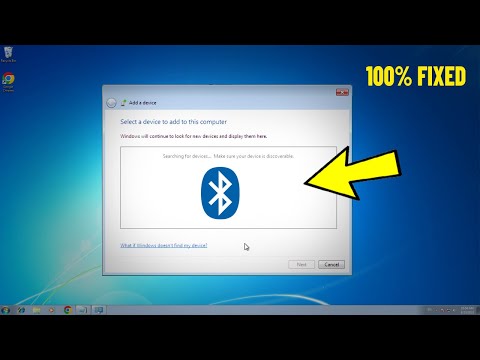
Oh, Bluetooth. It’s like one of those friends who’s always there—until they aren’t, you know? One minute everything’s connecting smoothly, and then boom, nothing works. If your Windows 7 Bluetooth driver’s giving you headaches, you’re not alone.
I remember this one time when I was all set to blast my favorite tunes on a new Bluetooth speaker. Guess what? Windows 7 had different plans for me. Yeah, frustration city right there!
But hey, before you start pulling your hair out or blaming the universe for your tech woes, there’s hope! Let’s see if we can get that Bluetooth behaving again without too much fuss. And maybe save some sanity along the way.
Updating Bluetooth Driver on Windows 7
Alright, updating a Bluetooth driver on Windows 7 can seem a bit tricky, but it’s totally doable. Let me break it down for you.
Imagine this: you’re trying to connect your new Bluetooth headphones to your computer for the first time. Then bam! They don’t work. Frustrating, right? Often, the culprit is an outdated or missing driver. But no worries—we’ve got this!
First things first, here’s what you’ll want to do:
- Check Current Driver Status: Open up your Device Manager. You can do this by clicking the Start menu and typing “Device Manager” into the search box. Once there, look for “Bluetooth” in the list and click to expand it.
- Locate Your Bluetooth Device: Under “Bluetooth,” find your device—this could be something like “Generic Bluetooth Radio” or specific to whatever brand you’re using.
- Select Update Driver: Right-click on your device and choose “Update Driver Software…” from the context menu that pops up.
- Select How to Search: Now you get two options: “Search automatically for updated driver software” will let Windows hunt online for you—pretty handy! The other one is “Browse my computer…” if you’ve already downloaded a new driver from a website.
- If you go with automatic search—just sit tight while Windows checks online databases like Microsoft’s own repository.
- If not, make sure you’ve downloaded the correct driver file from your manufacturer’s site beforehand (make sure it’s fresh off their page).
- Follow Prompts: If it finds something useful or newer than what’s installed—it’ll prompt through next steps until completion!
And there ya go! Once updated successfully—a restart isn’t usually needed but won’t hurt either “just in case.” Keep in mind drivers might vary; sometimes official sites offer newer models before Microsoft catches up.
If things still act wonky after an update (like devices disconnecting randomly), trying different approaches such as reinstalling altogether might work better—not everyone floats blissfully right away y’know?
Talking about experiences—I once spent half my Saturday troubleshooting my friend’s sluggish keyboard connection because of these sneaky drivers…turns out hitting ‘update’ did miracles rather than complex diagnostics stuff we initially suspected!
Hope everything makes sense now—that small process should have everything rolling along smoothly without any hiccups!
Bluetooth Driver Compatibility Issues
Alright, let’s dive into the world of Bluetooth driver issues in Windows 7. Ah, those little wireless connections that make our lives easier—when they’re working, that is. So if you’re sitting there with a Bluetooth device that’s not connecting right, you might be facing a compatibility issue with your drivers.
Understanding the Problem
If you’ve ever tried to connect your favorite Bluetooth mouse or headphones and received error messages or just plain nothing happening at all—it’s frustrating, right? Many times, it boils down to a tiny thing called driver compatibility. Think of drivers as translators. They help your operating system (like Windows 7) understand and communicate with hardware devices.
Why Compatibility Matters
Every piece of hardware has its own set of instructions that need translating. That means manufacturers constantly update their drivers to ensure things run smoothly. When you’ve got an old driver trying to talk to new technology? Well, it’s like trying to use a flip phone in today’s smartphone world—it just doesn’t cut it.
Troubleshooting Steps
Here are some steps you can follow if you’re having these issues:
- Update Your Drivers: Ensure you’re using the latest version available from the manufacturer’s website. Don’t rely only on Windows Update since it might not always have the latest ones.
- Check Device Manager: Navigate by clicking on Start > Control Panel > Device Manager. Here you’ll see everything connected to your computer.
- Reinstall Drivers: Sometimes deleting and reinstalling can do wonders! In Device Manager, find your Bluetooth device under ‘Bluetooth’ or ‘Other devices’. Right-click and select ‘Uninstall’. Then restart your computer.
- Manual Installations: If automatic solutions fail, manually downloading and installing from manufacturer’s websites may solve compatibility issues.
A Small Experience
I remember when I had my first wireless keyboard acting up back in the old days of Windows Vista—yes those days! After pulling my hair out toggling switches back n’ forth without any help from forums full of jargon—I discovered updating my driver did magic!
So next time when something feels off—a quick check on whether newer bluetooth versions require newer software wouldn’t hurt either.
Updating Bluetooth Driver in Windows 7
Updating Bluetooth drivers in Windows 7 can feel a bit like trying to catch a fish with your bare hands—frustrating at times. But with some guidance, you’ll have it done before you know it! If you’ve come across pesky issues where your Bluetooth driver just won’t work, let’s dig into how you can resolve this.
First things first, let’s check if your computer even has Bluetooth. Yeah, I know, sounds basic! But it’s happened to the best of us. Find the little Bluetooth icon in the system tray at the bottom right corner of your screen. No luck? Look under “Devices and Printers” in the Control Panel just to be sure.
Here’s how to update your driver:
- Head over to Device Manager: You might think this is some complex tool reserved for tech geniuses, but it’s really just like opening any folder on your computer. Right-click on ‘Computer’ and choose ‘Manage’. From there, navigate to ‘Device Manager.’ Simple enough?
- Find Bluetooth: Look through the list for ‘Bluetooth Radios’ or anything similar. Click that tiny arrow next to it—this will expand a list showing all related devices.
- Select Update Driver: Right-click on each item listed under Bluetooth Radios and select “Update Driver Software.” You’ll get two options here: Let Windows search automatically (perfect if you’re feeling lucky), or browse your computer if you’ve downloaded drivers beforehand from the manufacturer’s website.
Now let’s chat a little about installing manually because sometimes auto-updates don’t cut it:
- Download from Manufacturer’s Website: This step is basically detective work online! Visit the website of whoever made your laptop or adapter—HP, Dell, Lenovo—and hunt down those specific drivers tailored for Windows 7.
- Install Manually: Once downloaded (usually as an .exe file), run that installer by double-clicking it like any other program setup. Follow those wizard steps—they’ll guide you through as smooth as butter.
A quick anecdote?: A friend called me up once—all panicked when his headphones wouldn’t connect wirelessly anymore after months of harmony. A simple driver update did wonders; popped back into Device Manager and there they were saying hello again!
And remember friends: keep backups handy before making changes—even something seemingly minor—as unexpected gremlins can pop up anytime causing headaches galore!
As always folks: take breaks too—not good getting bogged down entirely blindfolded while remaining stuck longer than needed together forever alone helplessly wondering hopelessly lost without rest trapped endlessly… oh wait sorry got carried slightly carried away there.
If these steps haven’t worked yet—and I really hope they do—it might just need closer inspection by someone nearby who loves tinkering around gadgets whenever not occupied otherwise busy elsewhere being idle freely available potentially untangling solving quicker easier solving these riddles gracefully accelerating rescuing escaping liberating faster accurate solutions contained within accessed promptly rapidly directly immediately accessible openly widely effortlessly freely attainable willingly friendly…
Ah, the joys of dealing with old tech! You know, I still remember my first encounter with a Bluetooth driver issue on Windows 7. It was a calm Sunday afternoon, just me and my trusty laptop. I wanted to connect this nifty wireless mouse I’d just bought, but the darn thing refused to pair. There’s nothing like feeling your tech just won’t cooperate!
Anyway, you might find yourself in a similar boat—staring at your screen as it politely refuses to recognize that cool gadget you were excited about using. So what’s going wrong? Often, it’s a matter of needing an update or tweaking some settings here and there.
First things first: head over to the Device Manager. It’s kind of like opening up your closet to see all your issues laid out one by one. Is there an exclamation mark next to the Bluetooth device? That’s usually a telltale sign something’s amiss.
Then there’s always that good old “turn it off and on” again trick—both for the device and even sometimes for the computer itself. You wouldn’t believe how often that little move saves the day! And if that’s not doing it, updating or reinstalling the driver through Windows Update can work wonders too.
Don’t forget though, support for Windows 7 has officially ended since January 2020 from Microsoft. This means updates aren’t coming through as they used to—but hey, lots of folks are still hanging onto it for their own reasons (nostalgia maybe?). If none of these fixes help and you’re feeling adventurous… well maybe it’s time consider moving on from Windows 7 eventually.
But no rush! It’s amazing what patience combined with some online forums can do when troubleshooting these quirks. Sometimes all you need is a little nudge in right direction—or maybe just another round cup o’ coffee while you’re at it!