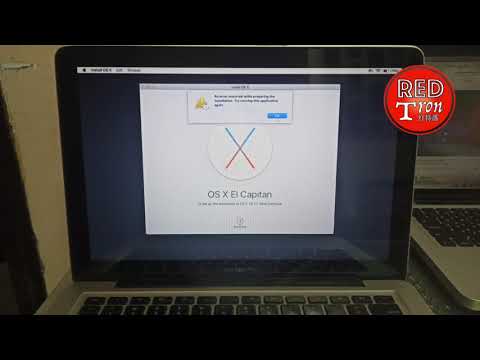
Oh man, using an older Mac OS can be a bit like trying to fit a square peg in a round hole sometimes, you know? Especially when those apps just won’t cooperate. It’s kinda frustrating, right?
You have your favorite app you’ve been using forever. Then one day—boom—it won’t work on your Mac OS X 10. Happens to the best of us.
Suddenly you’re hunting for answers, maybe pulling out your hair a little. But hang in there—you’re not alone!
So grab a comfy chair and let’s chat about getting things back on track. Because who doesn’t love some good old problem-solving?
Updating Software on Mac
Updating software on a Mac, especially when you’re dealing with older versions like Mac OS X 10, can sometimes be tricky. If you’ve ever found yourself banging your head against the wall because of app compatibility issues, you’re in the right place. Let me walk you through it!
First things first, keeping your software updated is crucial—not just for getting new features but also for security reasons. Now, when you’re on an older OS like Mac OS X 10, some apps might throw a little tantrum and refuse to run properly. But let’s see what you can do about it.
1. Check for Software Updates
Make sure you’re running the latest version available for your system.
- Click on the Apple menu at the top left of your screen.
- Select Software Update. This will show if any system updates are available.
2. Update Your Apps
Sometimes it’s not the OS but the apps themselves that need updating.
- Open the App Store.
- Click on Updates. Install any app updates that pop up.
3. Compatibility Issues? Try Alternative Apps!
When apps stop supporting older macOS versions like yours, they often release newer versions exclusively for more recent systems.
- AlternativeTo.net: This website is awesome! It helps you find similar apps that might still work with your system.
A Story About Compatibility Frustrations!: I once had this ancient MacBook from a friend and tried installing a newer app version—it simply wouldn’t open! The solution was to fetch an earlier release compatible with my relic of a computer.
Now let’s move to something else that’s super important…
The Power of Third-Party Software Managers!
Applications like Homebrew can be real lifesavers in situations where traditional updates just don’t cut it. It’s like magic!
- Homebrew’s website: Follow their instructions carefully to get started.
- This package manager helps install various tools and keeps them updated even if other methods fail.
Hopefully by now those pesky compatibility issues are starting to clear up! Remember always back-up any data before making big changes—you never know when technology might give us a surprise visit from Murphy’s Law!
Now that we’ve gone through these steps together – take courage facing down quirky old Macs—I’ve been there longer than I’d care admit myself too sometimes!
Mac OS X 10 iPhone App Compatibility Fix
Let’s dive into the world where your old Mac OS X 10 unexpectedly meets the shiny world of newer iPhone apps. If you’ve ever tried running a recent app and found yourself tangled in a web of compatibility issues, you’re not alone. This is like trying to fit a square peg in a round hole sometimes, but don’t worry! We’ll navigate through this together.
Understanding Compatibility Hiccups
So, what’s the deal with compatibility? It’s basically about whether your device’s software can handle new stuff. When iOS apps keep updating, they often require later versions of Mac OS for synchronization or various functions. Your good old Mac OS X 10 might feel left behind at times.
Here’s what you can do:
- **Check for Updates:** First things first, see if your Mac has any available software updates. Go to “System Preferences,” then “Software Update.” Sometimes there might be patches that bridge these gaps.
- **Using Emulators:** For some stubborn cases, try using an emulator like “BlueStacks” to run those apps on your Mac. It mimics mobile systems right on your desktop.
- **Remote Access:** You could access such apps remotely through another device that supports them and control it from your Mac using tools like “TeamViewer.” I once had to do this with my favorite gaming app – it was quite the adventure!
- **File Sharing Apps:** Some applications may just need transferring files rather than full integration. Look into compatible file-sharing solutions between devices.
A Little Patience Goes a Long Way
Sometimes exploring other options makes all the difference too! Collaborate with friends who keep their supplies up-to-date if they’re willing—kindness plus tech-savvy advice work wonders occasionally!
Remember when cassette tapes didn’t fit CDs initially (yes really!), yet we found ways around? Just stay open-minded—it’ll eventually click again just fine!
Hopefully these tips bring you closer towards harmonizing those feisty platforms.
Fixing Mac OS X 10 App Compatibility with Android
Hey there! So, you’re looking to fix some compatibility issues between Mac OS X 10 and Android apps? I’ve got you covered. It can be a head-scratcher sometimes. Let me break it down for you.
First off, why are these compatibility issues happening? Mac OS X 10, also known as Yosemite, was released way back in 2014. It’s a bit like trying to fit a square peg in a round hole when you want an older system to play nice with modern Android apps.
Here’s what usually happens: Android apps are designed to run on devices with the Android OS, which is different from macOS. This is like trying to run your Xbox game on a PlayStation—just doesn’t work natively.
However, here’s a cool workaround:
- An emulator could be your best friend.
An emulator acts like an interpreter between your Mac and the app. On your Mac running OS X 10, you can download an Android emulator such as BlueStacks or Genymotion. These tools create a virtual environment mimicking the Android operating system on your Mac.
How do you get started?
- Download and install the emulator: Head over to the emulator’s website and click on that trusty download button. Follow instructions, simple stuff!
- Set up your Google account: Just like setting up an Android device, you’ll need your Google account info.
- Search and install apps: Now that you’ve navigated all that setup magic, just search for the app you’re interested in from within the emulator’s interface.
Now let’s say you’re not into having another bulky program just hanging around… Well there are other minimal solutions!
If you’re okay without using every single feature of an app:
- You might find out if there’s a corresponding web version of it.
Some developers provide web-based versions accessible through browsers such as Chrome or Firefox—like WhatsApp Web! This might not give full functionality though – think about access issues related specifically toward push notifications et cetera—but hey at least something is better than nothing!
Ah, Mac OS X 10. Those were the days, right? If you have an older Mac running this classic operating system, you might have noticed that some apps don’t seem to play nicely anymore. It’s a bit like when you’ve got an old favorite jacket you love wearing, but it just doesn’t have the same buttons for new styles and trends.
First things first, if you’re facing compatibility issues with apps on your old Mac OS X 10—maybe they’re just not launching, or they’re being downright stubborn—it’s important to check whether those apps are even supported on this version anymore. You see, as developers update their software to add new features and improve security (kind of like putting better locks on your front door), they often stop supporting older versions of operating systems. It’s nobody’s fault per se; it’s just the way things move forward in the tech world.
I remember helping a friend whose beloved graphic design app simply refused to open after one of those “big” updates came down the pike. The frustration was real! You try everything from restarting the computer to uninstalling and reinstalling—classic moves we all attempt when our digital tools go awry.
Here are a couple tips: Make sure your system is up-to-date with any security patches Apple may still offer for that version; sometimes these can help smooth over glitches with newer software trying its best in a more “vintage” setting! Also, if possible consider alternatives or older versions of apps that were specifically designed with OS X 10 in mind—these can be lifesavers.
Another potential fix is checking for compatibility mode settings within the app itself. Yeah!, some applications have options tucked away in their menus allowing them to run under different settings more suited for earlier systems.
And let’s not forget virtualization tools as another workaround: these magical pieces of software create mini virtual computers within yours where modern operating systems could reside temporarily—a little like having two-in-one capabilities without altering existing setup permanently!
But at end day remember patience always comes handy dealing tech tantrums–after all no gadget perfect!