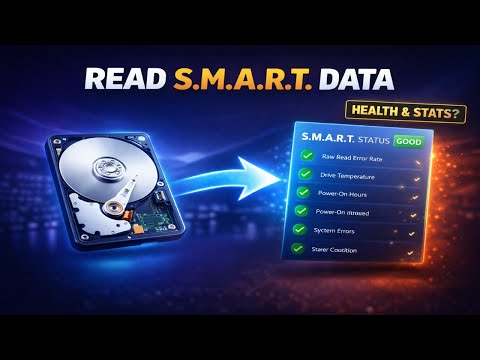
You ever had that moment when your computer just freezes, and you’re like, “Not again!”? Yeah, it’s a total bummer. Especially when it’s something weird you can’t quite put your finger on.
So, let’s say you’ve got an NVMe drive acting up. It’s supposed to be fast, but now it’s dragging its feet. You remember hearing about SMART errors somewhere—sounds technical, right? It’s like the drive’s way of waving a little flag saying it needs help.
But don’t worry! It’s not too hard to sort out once you know what you’re looking for. You’ll feel like a tech wizard in no time! Just think of all those pros out there who’ve got your back with their advice and tips.
And hey, if you’ve ever cracked open a computer or fixed something with duct tape—or even if you haven’t—you got this! Just stick around and we’ll figure it out together, no stress involved!
SMART Detection Error Troubleshooting Steps
Ah, the good old days when your computer ran smoothly, right? And then suddenly, bam! You see an error message pop-up about a SMART detection error. It’s like your computer is trying to warn you about something important. But hey, no worries! Let’s dive into what this means and how you can handle it.
What is a SMART Detection Error?
SMART stands for Self-Monitoring, Analysis, and Reporting Technology. It’s like your hard drive’s personal doctor that checks on its health. When it senses something off with the NVMe SSD (that super-fast storage that makes your computer boot up in seconds), it sends out these error warnings.
Why does this happen?
It could be due to wear and tear over time. Like, remember those shoes you’ve had forever? They start showing signs of aging eventually. It might also be because of overheating or physical damage—stuff happens!
If you’re seeing these errors pop up more frequently, here’s what you can do:
- Backup Your Data: This can’t be stressed enough! Before tinkering with anything else backup all-important files somewhere safe. Imagine losing those vacation photos!
- Run Diagnostic Tools: Many manufacturers offer specific diagnostic tools for their drives. Use them to get a better idea of what’s going wrong.
- Check for Overheating: Ensure your system’s cooling mechanisms are working properly—a overheated drive often triggers warnings.
- Firmware Updates: Sometimes it’s just software bugs causing chaos—check if there are any updates available from the manufacturer.
- Consider Disk Replacement: If diagnostics hint at inevitable failure soon (cue dramatic music), think seriously ’bout replacing the drive sooner rather than later.
Here’s hoping these steps help keep things running smoothly till next time life throws technology curveballs toward us again!
Diagnosing NVMe SMART Errors on Windows
Sure thing! Figuring out NVMe SMART errors on Windows can feel like you’re trying to decode some alien language, right? But don’t worry too much, it’s a bit technical but nothing you can’t handle! Let’s make sense of it.
What Are NVMe SMART Errors?
So, let’s start simple. NVMe stands for Non-Volatile Memory Express. It’s a fancy term for those super-fast storage devices you use to save stuff on your computer. Now, SMART (Self-Monitoring, Analysis and Reporting Technology) is a neat feature that checks the health of your storage. Think of it as your drive’s way of telling you “Hey buddy, something’s up here.”
The Usual Suspects
Now if you see an error popping up, it’s usually one of these things:
- Read Errors: Your drive might be struggling to read data properly.
- Write Errors: It could be having trouble saving new info.
- Temperature Issues: Sometimes drives get really hot – not ideal!
- Total Lifetime: Every drive has an expiry date.
It’s a lot just with those bullet points alone huh? Yeah, but don’t sweat it.
Tackling the Troubles
Okie dokie. You know what’s going wrong; time to see what you can do about it:
1. **Use Windows’ Tools**: You can check the health using built-in tools.
– Open **Command Prompt** and type `wmic diskdrive get model,status`.
– It gives you basic status like “OK” or “Pred Fail”.
2. **Third-Party Software**: These programs dig deeper into what’s happening.
– Apps like CrystalDiskInfo let you see detailed SMART data.
– They may show values in hexadecimals—don’t worry though; just focus on anything marked as critical.
3. **Temperature Check**: If overheating is the issue:
– Ensure good airflow in your case.
– Maybe clean the dust off your fans?
4. **Backup Regularly:** Imagine losing all your cherished photos because oops! Hardly cool right?
5. **Firmware Updates:** Manufacturers often release updates that fix known issues.
And who hasn’t heard from tech-savvy friends saying update firmware blah blah? Turns out they’re onto something!
Just remember—you’re not alone hereand even if things seem wonky sometimes these steps will set ya straight again…
Resolving SMART Hard Disk Error 301 on HP
Alright, let’s chat about this pesky SMART Hard Disk Error 301 you might bump into on an HP computer. It’s one of those messages that can stir a bit of panic, yet understanding what it is and how to tackle it really helps to ease the stress.
Now, when you see this SMART Hard Disk Error 301, it’s essentially your computer’s way of warning you. Think of it like that time your car’s check engine light pops on. It doesn’t mean it’s the end of the road, but rather a signal that something needs attention.
So what’s causing this error? Well, it usually points to a problem with your hard drive. HP laptops use a technology called SMART (Self-Monitoring, Analysis, and Reporting Technology) to keep tabs on their health. If there’s something amiss—like potential failure due to bad sectors or some oddball hardware inconsistency—you’ll see that 301 error.
Steps to take:
- Backup Data Immediately: The first thing you’ll want to do—seriously—is back up all important data. Like right now! This error suggests there’s a risk things might go sideways soon.
- Check Connections: Make sure your cables are snugly connected, especially if you’re handy and comfortable opening up your laptop.
- Run Diagnostics: HP usually provides built-in diagnostics tools accessible during startup (often by pressing F2 or Esc). Run these tests as they can sometimes pinpoint specific issues.
- Consider Replacing the Drive: If diagnostics hint at drive failure or if errors persist despite troubleshooting steps, replacing the hard drive may be necessary.
Oh! And why does NVMe come into play? Nowadays most newer machines use NVMe drives instead of older HDDs or SATA SSDs owing to their speed boost and reliability perks. These drives also utilize SMART monitoring; hence keeping them in check is equally vital.
You’re not alone facing this as it’s a common issue many have navigated through before with success by following these suggestions above without delay—a lesson learned from past experiences where ignoring signs led otherwise stable systems down unrepairable paths eventually.
Last point: Always consider reaching out for professional help if you’re unsure handling physical components yourself ensures nothing gets accidentally messed up further while we’re sorting things out here hoping brighter days are ahead once more soon enough!
Oh man, dealing with NVMe SMART errors, huh? That’s definitely a journey. If you’ve ever tinkered around in the world of computing, you know that storage devices can sometimes play hard to get. NVMe drives might sound like something from a sci-fi movie, but they’re actually these super high-speed storage solutions we have nowadays. And just like any other tech, they occasionally throw us a curveball.
So here’s what happens. Imagine you’re trying to access some files on your computer and suddenly get hit with an error message about SMART errors on your NVMe drive. It feels like when your car’s check engine light pops on out of nowhere—it’s a little nerve-wracking!
SMART stands for Self-Monitoring, Analysis and Reporting Technology. It’s basically your drive’s way of communicating if there’s something fishy going on inside—a bit like its own SOS signal.
When you get these errors, it might signal issues like bad blocks or overheating. Think of it as the drive having its own temperature tantrum or maybe dealing with some hiccups in storing data properly.
But look, even though it sounds alarming at first—like who wants a finicky storage device when you have important stuff stored away?—there are ways to deal with it without too much stress.
The first step is to check what type of error it’s throwing at ya. Some software out there can read these SMART reports and tell you what might be running amok inside the drive.
And yeah, sometimes simply updating firmware or ensuring adequate cooling can resolve things pretty smoothly! Almost like giving your computer that much-needed cup of coffee so it gets moving again without complaints.
If worse comes to worst (let’s hope not!), having backups ready could save you from losing precious data if replacing becomes necessary down the line.
But hey—in my experience—tackling issues head-on tends to make them less scary over time; plus learning more gets easier each round! So next time those pesky errors show up unexpectedly cozy amidst all those fancy numbers don’t fret—you’ve got this under control!