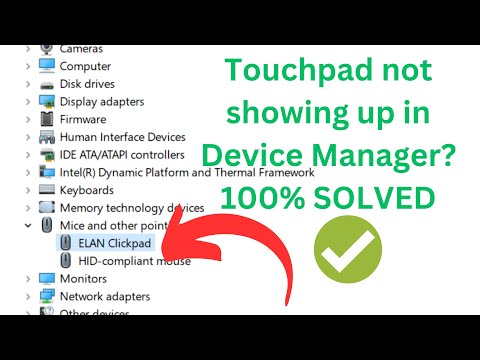
So, here’s the thing. You know when you’re all ready to binge those cat videos or get some serious work done, and then bam! Your touchpad just doesn’t feel like cooperating? Ugh, right? I can totally relate.
The Asus Precision Touchpad driver on Windows sometimes has this funny way of giving you the silent treatment. It’s like it decides that today isn’t the day to respond. Annoying as heck!
But don’t worry too much, it’s usually something we can figure out. We’re gonna roll through some stuff together and try to nudge that touchpad back into action.
Trust me, we’ll sort this out. Just imagine tapping around smoothly again soon!
ASUS Precision Touchpad Malfunction Causes
Ah, touchpads. They can be a real headache sometimes, can’t they? Especially when your ASUS Precision Touchpad starts acting all glitchy on your Windows machine. Have you ever had one of those days when it’s just not responding? Let’s dive into what might be messing with it!
Driver Issues: This is probably the most common cause. Sometimes the software that makes your touchpad work, known as a driver, gets out of date or corrupt. Imagine it like trying to play a CD on a player meant for records – compatibility issues galore!
Solutions:
- Update Your Driver: Go to the ASUS website or use Windows Update to find the latest version.
- Reinstall the Driver: If an update alone doesn’t cut it, uninstalling and then reinstalling can often reset things.
Troublesome Settings: Windows updates or software changes can reset your configurations without asking you first. Annoying right? Maybe some settings were changed accidentally.
Tinker and Fix:
- Check Touchpad Settings: Open settings via Control Panel and ensure everything is still set up correctly according to your preference.
- Sensitivity Adjustments: Sometimes tweaking how sensitive the touchpad is can make a world of difference.
A Sticky Mess:: Sounds gross but yeah, physical dirt or moisture could be affecting sensitivity levels on your touchpad as well. It happens!
Squeaky Clean Solution:
- Cautious Cleaning: A little careful cleaning with a microfiber cloth might just clear away any dust or dirt causing trouble.
So remember, drivers are huge culprits for misbehaving hardware part especially with something precise like an ASUS Precision Touchpad! Here’s hoping one of these tricks sorts things out and gets everything sliding smoothly again for ya!
Touchpad Unresponsive on Windows: Possible Causes
Oh, dealing with an unresponsive touchpad can be so frustrating, right? You’re just sitting there, maybe with a hot cup of coffee ready to get some work done, and then your touchpad decides to not cooperate. Ugh! Don’t worry—we’ve all been there. It’s a common issue on Windows laptops, especially if you have an ASUS device.
First thing’s first, let’s check some of the *basic causes*. Many times, it’s just a simple setting or a small driver glitch that can be fixed quickly.
- **Driver Issues:** Sometimes your touchpad might stop working because the drivers are outdated or corrupted. Drivers are like translators between your computer and its hardware. When they’re not speaking the same language anymore—poof—things go amiss.
- Accidental Disablement: It can happen—you might press the wrong combination of keys. Usually, it involves the “Fn” key combined with one of the function keys (F1-F12). Check these to make sure you didn’t accidentally turn off your touchpad.
- Windows Updates: Believe it or not, automatic updates could sometimes mess things up. The new update might be incompatible with existing drivers until they’re updated too.
Diving a bit deeper, let’s consider more specific reasons why this is happening:
- The Asus Precision Touchpad Driver: This particular driver is known to cause issues on occasion. It might simply fail due to compatibility glitches. Reinstalling or updating it typically helps set things straight again.
- Bios Settings: Sometimes settings in your BIOS could inadvertently disable it. But hey—not everybody likes snooping around in BIOS menus—it sounds intimidating! Just remember: approach with caution if you’re checking here!
Now let’s look into what steps you can take:
Check for any pending updates for both Windows and device drivers by visiting Device Manager – that’s where all devices’ statuses show up like those at security checkpoints!
If reinstalling doesn’t do much good—the problem persists—it may point toward deeper technical concerns needing additional software troubleshooting support from tech-savvy friends (or services).
Finally remember—you aren’t alone tackling these technology gremlins; always loads online resources eager helping hands available assist navigational rocks get back smooth sailing using trusty laptop once more!
Asus Precision Touchpad Driver Unresponsive on Windows
Having trouble with your Asus precision touchpad on Windows? That can be super frustrating, especially when you’re all set to get some work done or maybe dive into a bit of online shopping. Let me give you a hand.
Understanding the Issue
Sometimes, the Asus Precision Touchpad might not respond as it should. You might find it lagging or just plain not working at all. It feels like when you’ve got an itch on your foot, and you can’t scratch it because you’re wearing shoes! But don’t worry, there are a few things you can try to get that touchpad back in action.
Basic Checks
First off, let’s ensure we have the basics covered:
- Restart Your Device: Sounds simple but restarting often fixes minor glitches.
- Double-Check Hardware Connections: If it’s a removable touchpad or connected through USB, ensure all cables are firmly plugged in.
Dive Into Settings
Sometimes it’s just about tweaking some settings:
- Enable Touchpad: Head over to Settings > Devices > Touchpad, and check if it’s turned on.
- Sensitivity Adjustments: While you’re there, adjust sensitivity settings. Sometimes increasing sensitivity can kickstart things.
Driver Playtime
Drivers are like software teachers – they enable hardware components (like your touchpad) to communicate effectively with Windows:
- Check for Driver Updates: Go to the Device Manager (you can search for it in the start menu), find ‘Mice and other pointing devices,’ right-click on your Asus Precision Touchpad driver, and select ‘Update driver.’
- Add A Rollback Step:If updating doesn’t do the trick, consider rolling back to a previous version if available by selecting ‘Properties’ after right-clicking and visiting the ‘Driver’ tab.
Troubleshooting Magic!
Windows comes with its own bag of tricks too:
- Troubleshooters can be accessed via Settings > Update & Security > Troubleshoot. Run these under “Find and fix other problems” section where you’ll spot “Hardware & Devices.”
One time my own laptop had this issue – during finals week no less! I was stressing big time; turns out updating solved everything for me.
See? Not too intimidating once broken down right?, tackle each step one-by-one till that yawning cursor’s moving again across screens effortlessly! Don’t let computer hiccups slow ya long-term progressions dude!
Oh, that pesky issue of the Asus Precision Touchpad Driver not responding—such a pain, right? It’s like when you’re all set for a cozy movie night and the remote just won’t work. Frustrating, isn’t it?
I remember my cousin dealing with this once. She sat down with her new laptop, excited about the day ahead. But guess what? The touchpad was acting up and not doing its job at all. Watching her figuring it out was quite a scene!
First things first: why does this even happen? Well, sometimes Windows updates mess with drivers—those little programs that help hardware talk to your computer—causing them to malfunction. Other times it’s just random glitches or software conflicts.
So what can you do? One option is checking if your drivers are up-to-date through Device Manager. Sounds techy when I say it like that but basically you’re just going into settings to see if everything’s working as it should be.
Another trick is restarting the computer after uninstalling then reinstalling the touchpad driver. Kinda like giving your laptop a little nap before getting back to business!
And hey if things get overwhelming there’s always reaching out for Asus support too! Sometimes having someone guide you gives peace of mind knowing help is nearby.
Amazing how technology today has all these quirks yet we can’t live without them huh? Hope those stubborn drivers behave soon!