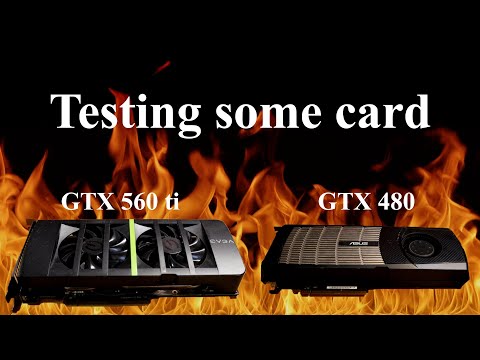
Oh man, you’ve got that GTX 560 Ti and it’s making things toastier than a summer day, right? It’s like, you’re just trying to enjoy your game, but suddenly the fans are louder than a rock concert. Ugh! Been there.
So here’s the scoop: Your graphics card is feeling the heat. Like, literally. It can totally mess with your gaming vibe. I remember this one time my own rig sounded like it was going to take off—scary stuff!
You’re probably wondering why on earth it’s happening now and what can you do about it? Let’s chill out for a moment and figure out some cool moves to tackle this issue. It’s gonna be okay!
GPU Temperature Safety While Gaming
Gaming with the GTX 560 Ti is a lot like having an old friend. Reliable, but sometimes, well, a bit too hot to handle! If you notice it overheating during your intense gaming sessions, don’t worry too much. It’s a common thing with older GPUs (Graphics Processing Units), and there are ways to keep them cool and happy.
Why does overheating happen? Simply put, when you play games, your GPU is like a sprinter running at full speed. All those graphics and details require power and generate heat. The more complex the game’s graphics are, the harder your GPU works — and boy, it can get hot!
- Recommended temperatures: Ideally, you want your GTX 560 Ti to stay below 80°C while gaming. Once it starts creeping above that… That’s when you need to take action.
- Airflow matters: Make sure your computer case has good airflow. Sometimes just rearranging things for better circulation helps! Think of it as giving your PC room to breathe.
- Dust can be a villain: Dust bunnies love warm places like fans and heatsinks. Regularly cleaning them out will prevent any obstructions that might make cooling less effective.
What can be done?
Hey look: if you’re seeing red flags with temperature spikes here are some simple yet effective ways:
- Add more fans: Installing additional case fans or upgrading existing ones might improve cooling significantly. More fans mean more fresh air circulating around.
- Tweak fan speeds: You can adjust fan speeds using software tools like MSI Afterburner which allows tailoring how fast those little helpers spin based on temperature thresholds set by—you guessed it—you!
- Pastes importance cannot be overstated!: Over time thermal paste dries out becoming less efficient in conducting heat between components’s surfaces—it’s always good practice replacing every couple years unless type used dictates otherwise; consider ceramic pastes over metallic options due personal preferences regarding usage conditions (they aren’t conductive so no accidental short circuits)…
Maximum Temperature for GTX 560
Oh, I understand the frustration when your GTX 560 Ti starts heating up like a July afternoon. I’ve been there, and it’s no fun at all. Let’s chat about what might be going on with it.
Maximum Temperature
First off, let’s address how hot this card should be getting during those intense gaming sessions. The GTX 560 Ti isn’t exactly new tech, but it can still pack a punch. Now, under stress—like when you’re deep into a game—it tends to heat up. The recommended maximum temperature for this GPU is around 99 degrees Celsius. That’s pretty toasty!
But here’s the thing: You really want to keep it cooler than that most of the time. A range between 70-85 degrees Celsius during gaming would make your graphics card happier and you’d avoid potential issues down the line.
- Avoid exceeding 99°C: That’s more or less the absolute limit before things could start getting problematic.
- Aim for 70-85°C: This is healthier for long-term use.
Why is Overheating Happening?
There could be several reasons why your GTX 560 Ti is overheating:
- Dirt Build-up: Dust and dirt can clog fans and obstruct airflow, making cooling inefficient.
- Poor Ventilation: If your PC case doesn’t have enough airflow, hot air gets trapped.
- Overclocking: Pushing your GPU beyond its limits for extra performance also means extra heat.
Tackling the Heat Problem
Now that you know why it’s happening let’s chill things down a bit:
- Dusting Off: A good clean-up can do wonders. Shut down your system, open up the case (carefully!), and use some canned air to blow dust away from vents and fans.
- Loving Care for Fans: Make sure all fans in your system are working properly; upgrading them might even be an option if they’re too old or weak!
- Add More Cooling:If possible invest in better cooling solutions like aftermarket GPU coolers or additional case fans to improve airflow inside our rig. li >
ul >Remember once my friend’s PC was literally roasted because he ignored those dusty fans long enough… crazy right? Don’t let that happen! Keep an eye on temperatures using monitoring software provided by NVIDIA itself – these tools will give you real-time data about how hard everything’s working under hood!
Keep things cool out there!
Oh, the memories! I remember back in the day when I was using my GTX 560 Ti. Such a beast of a card for its time, right? However, I often found myself dealing with this pesky heating issue during intense gaming sessions. It was like clockwork: as soon as I fired up one of my favorites—maybe Skyrim or some heavy shooter—you could almost feel the card starting to sweat.
You know what it’s like: you’re right in the middle of a crucial battle scene or about to conquer that stubborn dragon, and suddenly everything starts lagging. It’s like your computer’s saying “Hey, I’m feeling this too!” The fans revving up sounded almost like a mini airplane taking off from under your desk.
At first, it’s easy to panic and think you’ve broken something. But hey, don’t worry too much. It’s kind of common with older hardware to get warm under pressure. What happens is that all those graphic processes generate heat and if not managed properly, things can get hot quickly.
One trick that saved my day was tinkering inside the case—making sure all those cables weren’t blocking airflow. Seriously! Just tidying things up made quite a difference. And then there’s always cleaning out dust bunnies from fans; you’d be surprised how much those little critters can slow down cooling efforts!
Another common tweak is adjusting fan speeds through software tools—those can kickstart extra cooling when temperatures rise beyond comfort zones. Plus you might want to check if maybe reapplying thermal paste on GPU helps—though I’d probably leave such surgical tasks for when truly necessary.