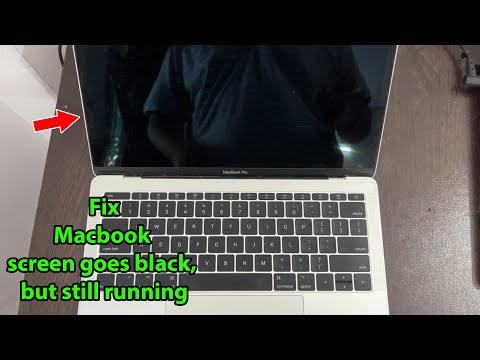
Oh no, there you are, right in the middle of binge-watching your favorite series or typing up that crucial report. Then bam! Your MacBook Air screen suddenly goes black. It’s like your laptop decided it needed a quick nap without asking if you’re okay with it. Annoying, right?
Seriously, it’s enough to make anyone throw their hands up and let out a big sigh. You know that feeling of panic as you’re trying to figure out what went wrong. Is it the battery? A software glitch? Did some alien invade your computer? Ah, tech issues can feel like they’re here just to test your patience!
But don’t worry—there’s hope! With just a bit of fiddling around (and maybe a sprinkle of luck), you might just get that screen back on and working. Just like when my old laptop suddenly powered down during an important Zoom meeting, I managed to revive it with a few tweaks.
So grab some coffee or tea—and let’s dive into this together!
MacBook Air Black Screen Issue
Oh man, encountering a black screen on your MacBook Air can be pretty frustrating, right? You’re just typing away, and bam—the screen’s as dark as night. Let’s look at why this might happen and how you can fix it.
Why does the screen go black?
This issue often stems from either software glitches or hardware malfunctions. Sometimes it’s a matter of the system freezing up or experiencing an overload. It might sound scary, but just hang in there.
Software-Related Causes:
Imagine you’ve got multiple programs running at once, right? This situation can occasionally lead to your MacBook deciding it’s had enough. Your system can become unresponsive causing that dreaded black screen.
Hardware-Related Causes:
On the other hand, it could be something physical like a loose connection. Maybe the battery’s not charging properly if the charger isn’t securely plugged in—or worse, faulty hardware components.
Here’s how you whip your MacBook Air back into action:
- Restart Your MacBook: First off, try pressing and holding the power button for about 10 seconds until it turns off completely. Then press it again to restart.
- Check Brightness Settings: Believe it or not sometimes it’s just about adjusting that brightness level! Press those F1/F2 keys to see if it’s all turned down.
- Reset System Management Controller (SMC): This one’s a bit technical but stick with me here. For Intel-based Macs: turn off your device then press Shift + Control + Option along with power button for 10 seconds before releasing all keys together.
- NVRAM/PRAM Reset: Restart while holding Option + Command + P + R until hearing startup chime twice—does wonders for little gremlins stuck inside memory!
Now our friend Sarah had this exact problem during finals week (of course!). She was ready to toss her laptop out till she realized…oh wait maybe resetting those settings wouldn’t hurt!
If these solutions don’t work though—it might be best contacting Apple support itself since deeper technical issues sometimes require professional interventions as annoying as they are!.
Hang tight—you’ll get through this!
MacBook Black Screen While Running
Oh, so you’re dealing with a black screen on your MacBook Air, huh? That can be downright annoying. Imagine settling down with your favorite coffee, ready to dive into some work or relaxation time, and then—bam!—the screen goes dark for no apparent reason. Well, you’re in the right place because we’re going to dig into this issue together.
What’s Happening?
The main thing you need to know is that when your MacBook’s screen turns black out of nowhere, it’s like the laptop is playing hide and seek. But it can sometimes mean there’s a problem that needs fixing.
- Battery Issues: Sometimes it’s just a matter of low battery or a faulty charging mechanism. Make sure it’s plugged in properly.
- Software Glitch: Your Mac might have encountered a software hiccup. Like when an app freezes without any warning.
- Hardware Problems: Not common but worth mentioning—there could be something off under the hood. A loose connection maybe?
Quick Fixes!
You don’t need to panic just yet! There are some things you can try at home before considering calling in reinforcements.
- Sipping Some Juice: Check if your MacBook Air needs charging. Connect it to the charger and see if it springs back to life.
- A Gentle Restart: It’s as simple as pressing and holding the power button for about 10 seconds till it powers off completely. Then turn it back on; fingers crossed!
- NVRAM/PRAM Reset: This one can sound a bit techy, but resetting these little memory chips often helps. Press Command + Option + P + R keys right after turning on your Mac until you hear the startup chime twice.
If It Persists…
Okay, if things are still gloomy after those steps:
- SOS Time: Seek help from Apple Support or visit an authorised service provider—you know they’ve got our backs!
Hope that brightens up your day (and screen) soon!
MacBook Air Display Black Issue
There’s nothing as frustrating, right?, as when you’re happily working on your MacBook Air and boom! The screen goes black. It’s like it fell asleep on you. You’re left staring at a blank screen, and naturally, your mind goes into overdrive thinking what’s wrong. Let’s untangle this black screen mystery together.
First things first, when the display turns black, don’t panic. It might just be a small glitch or something that needs a little tweak.
Check the Power
- Charger Connection: Ensure your charger is properly connected to both the MacBook Air and power source. Sometimes the battery runs so low that it shuts down without warning.
- MagSafe Indicator: If using a MagSafe connector, check if its LED light is lit. A green or amber light means it’s charging; if not lit at all, there might be an issue with the charger.
When my buddy’s MacBook did this last month during an online meeting (yikes!), checking his power connection helped him realize his adapter was unplugged behind his desk! A simple fix that saved him a lot of stress.
Try Force Restarting
- Step 1: Press and hold the power button for about 10 seconds.
- Step 2: Release it and pause for a few seconds before turning it back on.
Now if everything seems fine with power but nada happens—no worries—try forcing it to restart. You know, it’s like waking someone up from a nap by calling their name loudly.
NVRAM/PRAM Reset
- NVRAM Reset:
- (i). Shut down your MacBook Air completely.
- (ii). Turn it back on while holding Option + Command + P + R keys find them pressed together right away after pressing start-up button.
- (iii).The system should reboot again; let go of these keys once hearing an additional chime sound from speaker area ensure NVRAM reset has been effective!
NVRAM stores settings related display brightness sound volume some users have found resetting solves many annoying issues including strange crashes reboots during boot-up sequences.
The system should reboot again; let go of these keys once hearing an additional chime sound amplifies success in NVRAM reset effectiveness!
Sick Software Updates?
Sometimes outdated software messes with operation stability leading unpredictable behaviors no matter how minor up-to-date OS X ensures proper compatibility all components hardware bridges them communication pathways so always keeping updated patches application releases important step iron-clad performance security maintenance regimen perform periodic checks remember stick reminders whenever possible access software directly through Apple menu selecting updates section browsing any available installations waiting batch processing tasks automatically whenever confirmed connected Wi-Fi network saving potential downtime valuable productive hours ensuring everything works problem bristling bristling tasks efficiently intended usage certain exhilarating functionality drastically reduced avoided altogether full benefits functional optimizations architectural advancements streamlined processes reliant emphasis resourceful intending enthusiast seamless engagement appropriate platform connectivity embrace standard offerings extended capabilities present versatility desired?
Anyway hopefully troubleshooting approaches remedies help promote stable environment imagine uninterrupted experience compared dreadingly blank dismay current misalignment perplexing darkness display previously occupied cheerful illumination welcomed daylight-ish essence activities practical purposes hinder productivity frustrated aspirations heart desires undeterred pursue objectives regardless feline curious persistence unravel solutions celebrate each victory thereafter revitalized journey consistently optical transformations inviting digital challenges triumph comprehensive conquering!
Ah, the good ol’ “MacBook Air screen suddenly turns black” saga, right? Picture this: you’re deep into an important email or maybe binge-watching your favorite series, and poof! Your screen just decides to take a little nap. It’s like it’s got a mind of its own. I mean, we’ve all been there, and it’s never at a convenient time!
So what gives? Macs are supposed to be these sleek machines that just work flawlessly—or at least that’s what we hope for when we shell out the big bucks for them. When my screen went dark on me once, I remember feeling a mix of panic and frustration. Like, “Is my Mac tired? Did I do something wrong?”
A sudden black screen can happen because of a few things. Sometimes it’s as simple as the battery being low—yep, even those little powerhouses need fuel! Or maybe your MacBook’s asleep but didn’t tell you first. There could also be software glitches causing it to act up.
Now imagine this: you’ve got your charger plugged in—you checked that twice—and maybe even tried the classic “turn it off and on again” trick. If things still aren’t lighting up (literally), don’t freak out just yet.
You know what really helped me when this happened? Doing some resets. There’s this thing called resetting the System Management Controller (SMC) and NVRAM/PRAM (sounds fancy), which sometimes does the trick if there are funky issues like volume messing up or display bugs.
Another sneakier culprit could be external monitors or cables behaving badly if you’ve got those connected; disconnect them just in case they’re throwing shade on your Mac’s vibes.
But really—nothing beats reaching out to someone who knows their stuff if these quick fixes don’t cut it; help is always available from those folks wearing blue shirts at Apple Stores or through their support chat!
After all that drama settles down, you might find yourself appreciating when everything works smoothly again—it feels almost magical having your bright screen back lighting up whatever world you’re diving into next!
Anyway talk soon—I’m keeping fingers crossed for smooth sailing with no spontaneous blackouts ahead!