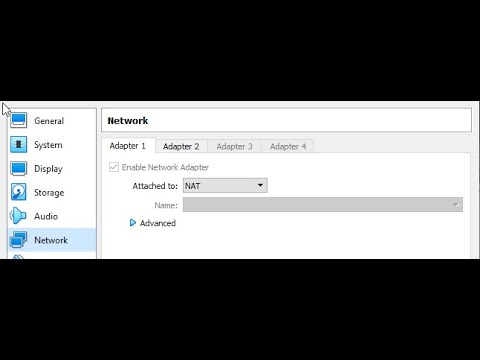
Oh man, you’re diving into VirtualBox and Ubuntu Server? That’s awesome! But hey, networking issues can sometimes feel like trying to untangle a set of those funky old Christmas lights. You know what I mean?
I remember this one time, I was all pumped up to work on my Ubuntu server project, and bam! Strange network glitches started popping up. It felt like the universe was testing my patience. Ever been there?
But hey don’t sweat it too much. These things happen. Let’s chat a bit about how we can sort it out together, step by step—just like chatting over coffee, right? We’ll figure it out and get that network running smoothly in no time!
Ubuntu Server Networking Issues in VirtualBox
Having trouble with Ubuntu Server networking inside VirtualBox? You’re definitely not alone. It can feel like wrestling a wild beast sometimes, right? Let’s break it down into bite-sized pieces to make things easier.
Understanding Your Network Settings
First things first, you need to know which kind of network adapter you’re using in VirtualBox. It’s like choosing a tool from your toolbox, each one is for something different. You can find this in the Network settings of your virtual machine. Commonly, you have options such as NAT, Bridged Adapter, and Host-only Adapter.
- NAT (Network Address Translation): This setting makes your virtual machine act like it’s in its own little world. The host handles all its network traffic so it helps when you just want internet access without dealing much with setup.
- Bridged Adapter: If you need your VM to be part of the same network as your host (like they’re roommates), go with this one. It’s great for accessing shared resources.
- Host-Only Adapter: This isolates the VM from the internet but allows connections between the host and VM.
Troubleshooting Common Problems
One common hiccup seen often is that after all settings look good—no internet access! Argh! Well check if you’ve installed “Guest Additions” on Ubuntu Server; it’s crucial for smooth operation inside VirtualBox.
Check Your Configuration Files
To start investigating further into fixes on Ubuntu’s side:
- Edit `/etc/network/interfaces` or use `netplan` (depends which version) by typing `sudo nano /etc/network/interfaces` or `sudo nano /etc/netplan/*.yaml`. Make sure everything looks peachy keen; settings not reflecting correctly here mean trouble connecting.
- If using netplan instead: ensure proper YAML syntax there because even tiny errors lead to big headaches!
# Example configuration snippet - change according to setup
network:
    version: 2
    ethernets:
        enp0s3:
            dhcp4: true
            optional: true
Now don’t panic if still no joy here yet…
Pinging Around—So-to-Speak!
Try pinging from both directions once configs saved properly just ping IP addresses involved see who replies back:
- `ping google.com` within guest checks external reachability while trying pinging directly numbers known local devices e.g., router via internal addressing scheme helps verify routing works well internally too…
- `ping [host-ip-address]` tests communication bridge between guest-host networks themselves useful diagnosing why cannot talk directly each other despite configurations suggest should.
- Bridged Network: This setting makes your VM act like its own separate computer within the network. It directly connects through your host’s physical network card.
- NAT (Network Address Translation): Here, the VM uses your host machine’s IP address to access external networks; it’s like they share a spot in line.
- Host-Only: This is where many people mess up—this setting isolates your VM from any external networks!
- Network Adapter: Make sure it’s connected properly. Go into the settings of your virtual machine in VirtualBox. Look for the “Network” section.
- NAT: This is great if you want easy setup without much networking drama. It works like magic most times.
- Bridged Adapter: Think of this as giving more independence to the virtual machine’s network connection so it looks like just another device on your actual network.
- Your Host Network: Ensure your host machine is connected to the internet properly before expecting miracles from VBox.
- Your IP Settings in Ubuntu: Sometimes Ubuntu needs a little nudge with an IP address update or DNS check-up.
Through diagnosis above likely narrow down culprit whether hardware layer outside control versus simply needing adjust few digital knobs levers reside locally behind scenes making magic happen again seamlessly connecting effortlessly world wide web without hassle!
And finally remember patience perseverance vital during troubleshooting journeys especially those involving technology fickle friends result ultimately worth satisfying sweet fruitful success achieved figuring resolving connectivity issues beforehand might’ve seemed monumental task daunting massively impossible altogether impossible squeak thousand words write fast smooth finish line organically naturally charmingly intepidiously fast endings too quick weren’t they?
VMware Ubuntu VM Internet Connection Issues
Dealing with an Ubuntu VM on VMware that won’t connect to the Internet can be a bit annoying, you know? Whether you’re experiencing this in VMware or have ever encountered something similar with VirtualBox’s networking issues on an Ubuntu server, the struggle is real. Let’s see what’s going on and how we might fix it.
First, make sure your Network Adapter in VMware is set up right. The setting you choose here acts like a bridge between your virtual machine (VM) and the actual network it’s supposed to connect to. If set improperly, no internet for you!
I remember spending hours troubleshooting only to find my VM stuck on “host-only” mode; it was just sitting there all isolated! So make sure it’s neither that nor any other restrictive option unless that’s what you want.
Alrighty then! Once you’ve double-checked those settings and still no luck? Time to poke around inside Ubuntu itself! A classic trick is checking interface configurations using Terminal. You simply type:
“`sh
ifconfig
“`
This nifty command shows if interfaces are configured correctly or if they’re sulking silently. Also, give this one a shot:
“`sh
ping 8.8.8.8
“`
If pings go through fine but browsers don’t open websites—dns may be acting up (that thing translates funky web addresses into numbers computers love).
For DNS woes:
– Open ‘/etc/resolv.conf’ as root.
– Ensure proper nameservers appear (like Google’s 8.8 . 8 . 8, right?)
Lastly maybe ensure firewall rules are not staunchly blocking things they oughtn’t block!
Honestly after jumping through all these hoops: still nothing working?? Try restarting services just-sometimes VMs get moody:
“`sh
sudo systemctl restart networking.service
“`
Like rekindling an old TV or giving gadgets some TLC—a simple nudge might snap them awake again!
VirtualBox Internet Connectivity Issue
Oh, VirtualBox can be a bit of a head-scratcher sometimes, can’t it? You set up your Ubuntu server, all excited to get things rolling, and then—boom! No internet. We’ve all been there. Let’s untangle this together.
First things first, you’ve got to make sure your network settings are in order. The biggest culprits usually hide there. Here’s what you should check:
Inside this section, you’ll see options like NAT or Bridged Adapter. Which one you choose really depends on what you need:
If you’re feeling adventurous and choose Bridged Adapter but things still aren’t connecting smoothly, take a breath and check:
To make Ubuntu dance along nicely with these settings, try running network tests directly inside it:
$ ifconfig
Look for whether or not an IP is assigned properly—because sometimes that’s where The mystery begins! If there’s no IP there at all? Yeah…your VM isn’t getting through.
What I personally found helpful once was restarting both VBox services AND then power cycling my modem/router just real quick—you know—and voila: There’s light again at that end!
Also checking firewall rules on host systems – they can gatecrash connectivity efforts by blocking traffic from reaching VMs where it’s needed most…
And voilà! Hopefully getting back online feels way less complicated now.. Isn’t tech grand when little tweaks solve big troubles?! Keep experimenting … remember nothing gets fixed until tweaked around bit here-n-there– keep tinkering away until smooth sailing beckons again soon enough!!
So, you’re dealing with networking issues on your VirtualBox Ubuntu Server? Oh, boy, I feel you! At some point, we all find ourselves tangled in the web (pun intended) of obscure network settings.
Imagine this: You’re working late at night—coffee in one hand, a sense of determination in the other. You’ve set up your virtual environment in VirtualBox and it’s time to connect your Ubuntu Server to the outside world. You try pinging an external server and… nothing happens. Uh-oh! It’s as if your server decided to play hide and seek with the network.
Seriously though, networking problems can be a real headache. VirtualBox provides several networking modes like NAT (Network Address Translation), Bridged Adapter, and Host-only Adapter. Each of these has its own quirks and ideal use cases.
The NAT mode is useful for simple outbound connections but can sometimes act as a roadblock for inbound traffic unless ports are forwarded correctly—sounds simple but tricky to get right if you’re new to it. Bridged mode connects directly through the host’s physical interface which usually works great unless there’s a conflict with IP addresses or firewall settings—not that uncommon!
I remember once being completely stumped because my firewall was silently blocking traffic without giving me any hints… Gosh, that was a nightmare until I figured it out! Anyway, it’s important to check those little details: Is DHCP enabled? Are you assigning static IPs correctly? Is there an overzealous firewall policy somewhere?
And oh! One quick tip while we’re chatting about this: always double-check VirtualBox’s network adapter settings under each VM’s configuration window; it’s easy for them to sneakily reset themselves when tweaking other unrelated options.
Trust me when I say troubleshooting network issues is worth every moment spent pulling hair out—it’s like unlocking another level in tech-savvy skills badge collection… Just hang tight and keep experimenting—you got this!