You know that feeling when you just want to get something done on your computer, but instead, you get hit with some tech hiccup? Yeah, we’ve all been there. One moment you’re buzzing along, the next your trusty Windows machine decides to throw a little tantrum over this thing called the SM Bus Controller.
What’s up with that, right? It’s like it’s speaking a different language! But don’t worry. You’re not alone in this. Many folks have faced those mysterious driver errors before and managed to come out stronger on the other side!
I remember once I was knee-deep in preparing for a big presentation when bam—out pops this error message. I felt like tossing my laptop out the window! But hey, instead of panicking, let’s tackle this together.
So if you’re ready to give that SMBus controller error the boot and get your machine running smoothly again (trust me it’s possible), stick around! We’ll dive into some easy-to-follow fixes and hopefully turn that frown upside down.
Understanding the SMBus Controller in PCs
Navigating the world of computer hardware can seem like a real adventure, right? One component that might pop up on your radar is the SMBus Controller. So, let’s break it down from a friendly perspective.
First off, this SMBus (System Management Bus) Controller isn’t as mysterious as it sounds. Think of it as a communication tool inside your PC. What does it talk to? The various low-speed devices on your motherboard, like temperature sensors and the fan controls.
Why is it important?
- Temperature and Fan Management: It keeps tabs on how hot things are getting inside your computer.
- Battery Information: In laptops, it’s crucial for monitoring battery health.
Imagine having a little helper that makes sure nothing’s overheating or running out of juice without you knowing. That’s what this piece of tech does!
But you might be scratching your head if you’ve seen an SM Bus Controller Driver Error pop up in Windows’ Device Manager. No need to panic! This usually just means that Windows doesn’t know how to communicate with these little helpers properly until their drivers are installed.
Tackling the SMBus Controller Error
- Check for Drivers: Head over to the manufacturer’s website of your motherboard or laptop. They often have specific drivers ready for download.
- Automatic Updates: Sometimes running Windows Update can help install necessary drivers automatically!
I once had this error myself when building my first PC. I remember my heart skipping a beat seeing those little warning triangles in Device Manager! But downloading drivers from the manufacturer’s page quickly solved it.
And there you go! With these steps and understanding what an SMBus Controller does, you’re more equipped than ever to handle any hiccups along this road we call tech land. Happy computing!
SM Bus Controller Driver Error in Windows 11
Oh no, you’re dealing with the infamous SM Bus Controller Driver Error in Windows 11? That’s kind of a bummer, huh? It typically pops up when there’s an issue with your chipset drivers. These drivers, by the way, are vital little pieces of software that help your computer’s hardware communicate properly.
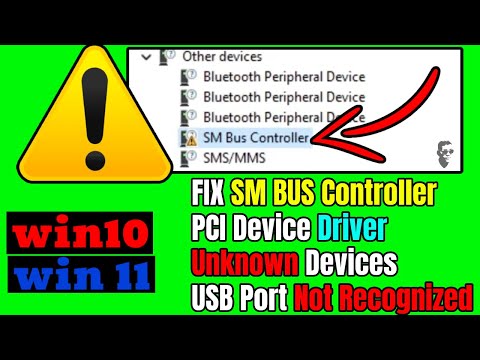
So what does this error look like? You might notice it in your Device Manager. There’ll be a small yellow exclamation mark next to “SM Bus Controller.” It’s like your system is waving its hands saying—“Something’s not quite right here!”
- Check Your Chipset Drivers: Head over to your motherboard manufacturer’s website and download the latest chipset drivers. Once you’ve got ’em, run the installer and follow any on-screen instructions. I know it sounds tedious, but trust me—it can really save some headaches.
- Use Windows Update: Sometimes Windows itself is good at smoothing things out! Open “Settings,” jump into “Update & Security,” and click on check for updates. If you’re lucky, a fresh driver update will be available right there.
- Device Manager Manual Install: For those adventure seekers: right-click on the SM Bus Controller entry in Device Manager, then pick “Update driver.” Choose the option to search automatically for updated driver software if you’re feeling lucky!
Do these ideas ring a bell from past troubleshooting? Sometimes we’ve all been through similar situations where something *just* doesn’t want to work how it should. Maybe there’s a workaround or a URL that offers that perfect piece you need.
If you’ve tried these steps and still can’t shake off that error message — maybe it’s time to reach out for more direct support from your system manufacturer.
And hey, don’t get too worried about this—it happens more often than you’d think! Just take it one step at a time. You’ll have everything sorted out before you know it!
How to Resolve SM Bus Controller Driver Error on Windows 10
Dealing with an SM Bus Controller driver error on Windows 10 might sound complicated at first, but don’t fret. It’s often a straightforward issue you can handle yourself. The SM Bus Controller is a fancy way of saying “System Management Bus,” and it helps your computer communicate with its motherboard, kind of like a translator.
One day, I remember being in the middle of preparing an important presentation when that pesky error popped up on my screen. It felt stressful! But after taking a deep breath and working through it step by step—voilà—it was resolved! Here’s what you can do:
- Check for Windows Updates: Go to Settings, select Update & Security, then click on Windows Update. Run any updates available. Believe me; sometimes the simplest solutions are the most effective!
- Update Drivers via Device Manager: Press the Windows key + X, and choose Device Manager. Look for any yellow exclamation marks; they indicate driver issues. Right-click the SM Bus Controller and choose to update the driver. If you’re connected to the internet, let it search online first.
- Download Drivers from Manufacturer’s Website: Sometimes, Windows might not find updated drivers automatically. In this case, head over to your PC or motherboard manufacturer’s website and look for drivers specific to your model.
- Avoid Unnecessary Software: Some third-party software promises automatic driver updates but could install incorrect versions or worse—something harmful! Stick with official sources.
- If All Else Fails—Chipset Driver Update: The chipset driver package includes SM Bus drivers usually. Downloading and installing this from your manufacturer could resolve lingering issues.
Remember that sense of relief when you finally sort out a computer hiccup? Well that’s what I hope you’ll feel soon tackling this error. Just take your time; it’s worth doing slowly than rushing through steps—which saves hassle later on!
And hey if things still seem stuck—or overwhelming—you’re not alone in seeking help from tech support professionals who can lend their expertise one-on-one whether online or at a local repair shop nearby!
Oh, the ol’ SM Bus Controller Driver Error—it’s one of those little computer hiccups that can sneak up on you when you’re least expecting it. You’re having a regular day, maybe downloading some tunes or finishing up a spreadsheet, and bam! There it is. It reminds me of this time my buddy was trying to set up his new printer, and everything just stopped… like mid-installation! We scratched our heads for a good hour before realizing it was as simple as an outdated driver.
First things first: what even is this SM Bus Controller? Think of it as a translator for your computer’s motherboard. It helps different components chat with each other smoothly and plays nicely with stuff like power management. When it’s not working right, your device manager might throw you this error.
To get things back on track, you’ll want to update the driver. If your PC came with a bunch of discs or instructions (yes, sometimes they do!), hunt those down first. But most folks go online these days—hop over to the manufacturer’s site for your motherboard or computer brand and look for driver downloads. Install any updates and restart your machine. Nine times outta ten, that does the trick!
But if you’re still in tech limbo after updating drivers, there’s another option: Windows Update itself can sometimes spot these things during its updates checks—just be sure you’ve got them turned on!
Oh man! I remember panicking thinking I’d broken something valuable inside my friend’s laptop when we couldn’t fix his issue immediately—but once we did sort out the driver problem? Nothing but high-fives all ’round.
Just remember not to install random software from dubious sources; stick with trusted manufacturers’ sites whenever possible—or contact customer service if something feels off about installing them yourself—which could save all kinds extra headaches long term!