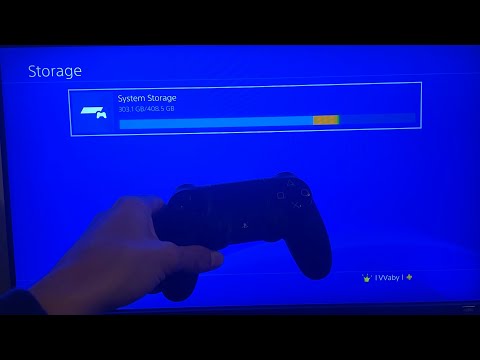
Oh man, that’s such a bummer when your PS4 suddenly acts up, right? You’ve got this shiny new 2TB HDD and boom—your console just goes all “Sorry, can’t find it!” It’s like it’s playing hide-and-seek with you. And not the fun kind!
I remember this one time my friend Dave was all set for a weekend gaming marathon. Everything was ready—a pile of snacks, comfy couch—but then the PS4 went on strike because it didn’t see his HDD. Talk about a mood killer!
But hang in there! You can totally get this sorted out. You might just need to give your PS4 a little nudge in the right direction. You follow me? Let’s dive into what might be going on and get you back to gaming in no time.
PS4 Hard Drive Detection Fix
Oh, dealing with a hard drive issue can be a real headache, huh? Especially when you’re all set for a gaming session and your PS4 decides not to play ball. Let’s see what can be done if your PS4 isn’t detecting that shiny new 2TB HDD you just installed.
First off, this type of issue could happen for a few reasons. Hard drives, like people, sometimes have their quirks. But hey, don’t worry just yet. Let’s go through some steps to get things back on track.
- Check the Connection: Sometimes it’s as simple as making sure the hard drive is properly connected. When you plug it in, make sure it fits snugly into the port. If it feels loose, that might be part of the problem.
- Format the Drive: Your PS4 needs its hard drive formatted in a specific way—FAT32 or exFAT—for games and files to work properly. You’ll probably need a computer for this part; connect your HDD there first.
- Initialize PS4 System: Here’s an emotional one—you might need to initialize (reset) your PS4 system software from scratch if it’s not recognizing the HDD even after formatting. Go to “Settings,” select “Initialization,” and choose “Initialize PS4.” But whoa! This wipes everything off… like starting fresh!
- Update System Software: Make certain your console’s running on its latest update by going into settings under “System Software Update”. New updates often include fixes for these pesky issues!
If none of these resolve anything then we may delve deeper into compatibility concerns—especially regarding third-party storage devices or power supply capabilities within older console versions which can affect performance too!
As frustrating as tech troubles seem at times – remember even small tweaks make huge differences during gameplay experiences later down road once sorted out perfectly fine!
PS4 Hard Drive Detection Error
Alright, let’s dig into what happens when your PS4 throws a fit and can’t detect that shiny new 2TB hard drive. Oh boy, it can be a bit of a pain, right? Imagine you’re all set to download the latest game, but your console decides to play hide and seek with your hard drive. No need to panic—I’ve got some tips that might just help you get things back on track.
Understanding Hard Drive Detection Errors
First off, let’s break down what’s going on. Your PS4’s having trouble recognizing the external hard disk you’ve connected. This is more common than you might think and can usually be fixed without much hassle.
- Compatibility Check: Did you know not all HDDs are best buddies with the PS4? Yeah, really. Make sure your HDD is compatible with USB 3.0 ports because those older models won’t cut it.
- Formatting Woes: The PS4 likes its external friends formatted in exFAT or FAT32. If yours isn’t cozying up because it’s in NTFS or something exotic like HFS+, converting it should do the trick.
Troubleshooting Steps
Now, let’s roll up our sleeves and fix this:
- Check Connections: I know it sounds too simple, but start by ensuring everything’s plugged in nicely. A loose connection might just be your sneaky culprit.
- Power Reset: Unplug both the PS4 and HDD from power—trust me this one’s worth trying—and leave them hanging out unplugged for about five minutes before giving it another shot.
- Scoot over to Settings: Pop into ‘Storage’, see if the system can locate any other devices or indicates errors there.
- If detected: Awesome! Reformat using on-screen options (remember—we talked about exFAT!). It should align everything perfectly.
- If not: Maybe try plugging directly into a different USB port on the console. Ports sometimes get quirky too!
- Trouble Spotting?: If none of these steps does anything magical yet (fingers crossed), check out if there are available software updates for either hardware—might sound silly—but keeping updated minimizes mysterious hiccups like these!
A Personal Anecdote
One time my friend Paul was gearing up for a gaming marathon only realizing his new HDD wasn’t getting along with his beloved console! He nearly tossed everything outta window!, Luckily after fiddling around as described above–he finally made peace between them.
So remember friends don’t lose hope: troubleshooting demands patience sometimes; especially true while dealing tech gear acting wonky at worst possible moment huh?
Anyway take care–keep those games rolling smoothly from here onwards alright?!
Compatibility of PS4 External Hard Drives with PS5
Let’s dive into the exciting world of gaming and tackle the question: How compatible are PS4 external hard drives with your shiny new PS5? And if you’re facing issues with your PS4 not detecting a 2TB HDD, I’ve got some insights to help you out.
First off, it’s pretty good news here. Your PS4 external hard drive is indeed compatible with the PS5, but there’s a catch. On the PS5, you can use that external drive to play backward-compatible PS4 games directly from it. Think of it like this: your beloved library of older games won’t gather dust while you indulge in all those new-gen adventures.
Here’s where it gets interesting:
- Save Space: Using your external hard drive for PS4 games frees up precious space on the internal SSD of your PS5. Quite handy!
- No Updates Required: If you’ve been keeping everything updated on the external drive, they remain there ready for action.
Now, touching on that pesky issue where a PS4 can’t detect a 2TB HDD, here’s what might be happening and how to deal with it:
- Cable Connection: Double-check if those USB cables are snugly fitted. Sometimes they jiggle loose; happened to me last week.
- Format Matters: Your drive needs to be formatted correctly (FAT32 or exFAT). Keep an eye out when setting things up.
- No Overloading: Occasionally, if you’ve loaded way too much stuff onto that 2TB HDD without organizing files or leaving space for system updates, things can go wonky.
Remember my friend Joe? He once spent hours wrestling with his PlayStation simply because his cat dislodged his cable during one energetic leap. Hardware issues often have straightforward fixes!
To ensure smooth sailing:
– Always double-check every connection.
– Periodically update any firmware from Sony.
– Be gentle when moving around drives and avoid unplugging them abruptly—trust me on this one.
Hope these pointers make gaming life easier! If any more questions pop up while jumping between consoles, hit me up anytime!
So, you’ve got your PS4 all set up and you’re ready to dive into some epic gaming sessions. You’ve even gone the extra mile and invested in a 2TB HDD to have more room for all those games you can’t wait to play. You plug it in, expecting everything to work like a charm, but surprise! The PS4 just doesn’t want to detect the darn thing. Frustrating, right?
I remember once trying to fix a similar issue with my external drive for my computer. I had so many photos and music files I wanted on there. I was convinced it would be a straightforward process—plug it in and watch it work its magic. Nope. It turned into an afternoon of troubleshooting that, let’s just say, tested my patience.
Now back to your PS4 dilemma! There are a few reasons this might be happening—and our job is diving into what those could be. First off, simple things first: Are you sure that USB cable’s good? Sometimes it’s just about switching cables or ports—try each one like musical chairs until one works.
Another thing: format matters here too! PS4 likes drives formatted in either FAT32 or exFAT—but not NTFS (which most aren’t set up by default from the store). Crazy little detail can make or break detection.
And hey—not all HDDs are created equal for gaming purposes; if there’s anything too quirky technologically speaking with yours… compatibility issues might arise without warning directly from PlayStation itself!
Jump into settings next–using safe mode can often help resolve these mysterious detection issues (trust me when I say Safe Mode has saved more devices than folks give credit for).
Finally–if after all this familiarity surrounding both hardware intricacies technological limitations doesn’t deliver expected results… maybe ask someone else who knows ins n’ outs better than anyone does alone sometimes going solo gets rather frustrating doing what experts make look oh-so-easy.