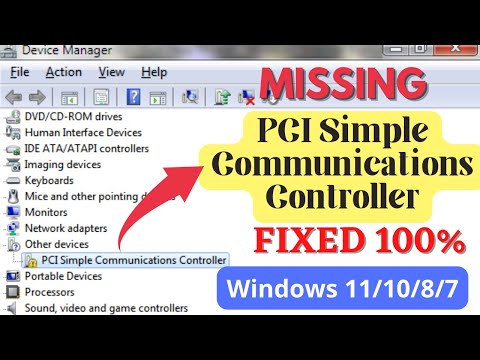
Oh, buddy, ever had one of those moments when your computer throws a curveball at you? You’re in the middle of something important, and wham! A mysterious device pops up in your Device Manager with a cryptic name like “PCI Simple Communications Controller.” Sounds kind of fancy, right? But really, it’s just your PC’s way of saying it needs a driver update.
I’ve been there. Honestly, it’s nothing to panic over. Think of it as your computer whispering for help—a little digital SOS from its hardware heart. It might look all complex and techy, but getting that driver installed on Windows 10 is like fixing a wobbly table leg: simple once you know what you’re doing.
Trust me; I’ve struggled with this myself while sipping my morning coffee. You feel like you’re decoding ancient runes when all you want is smooth sailing. Let’s tackle this together and get everything running smoothly. Your computer will thank you!
Installing Driver for PCI Simple Communications Controller
Oh, the joy of installing drivers! Now imagine this: you’ve got your computer running quite smoothly, all the bells and whistles, when bam! You notice something in the Device Manager. There’s this annoying thing called the PCI Simple Communications Controller showing a yellow triangle. What gives? It’s like a silent cry for help from your PC.
So, what is it? The PCI Simple Communications Controller is not as mysterious as it sounds. Think of it as a tiny bridge connecting your computer to some other device needing communication magic—often related to networking or communications hardware.
Now, onto how you can install the driver on Windows 10 and get rid of that pesky triangle:
- Check in Device Manager: First off, hit that Windows key on your keyboard and type “Device Manager.” Open it up and look for that yellow exclamation mark next to PCI Simple Communications Controller.
- Get Driver Information: Right-click on it. Select “Properties,” then go to the “Details” tab and from the property drop-down list choose “Hardware Ids.” You’ll see some gobbledygook here which actually helps identify what driver you might need!
- Visit Manufacturer’s Website: With those IDs handy (they look something like PCIVEN_XXXX&DEV_XXXX), hop over to your device manufacturer’s site—they usually have a support or downloads section.
- Download & Install: Find the appropriate driver based on those IDs or model number of your system. Download it and run through installation like any typical software setup.
- If Automatic Options Suit You: There’s also Windows Update if you’re feeling adventurous but lazy; sometimes they hit jackpot finding compatible drivers!
- Troubleshooting: Occasionally things won’t work out—like one time I downloaded a wrong driver because everything was in German! Double-check compatibility with OS (make sure it’s for Windows 10) among other factors.
And there ya have it! Just keep calm during this process—it might take some trial-and-error but hey at least we’re learning right? Once installed properly without issue rest assured knowing communication between components should hopefully run smoother than ever before…
Understanding PCI Simple Communications Controller in Windows 10
Oh, the good old PCI Simple Communications Controller… kind of sounds like a mouthful, right? But it’s actually simpler than it sounds, I promise!
You may have come across this when checking your device manager in Windows 10 and saw this mysterious controller marked with an exclamation point. Let’s chat about what it is and why you might need its driver.
What is it?
The PCI Simple Communications Controller is essentially a type of driver that Windows uses to communicate with some hardware connected to your motherboard (the big circuit board inside your computer). This can be things like modems or other communication devices. So, if it’s missing or needs updating, some features might not work as intended.
Common Symptoms
Maybe you’ve noticed your PC acting a bit off — can’t make certain connections or there’s something missing in the communication department. If so, it could be due to this missing driver. Here’s how you might recognize the issue:
- Internet connectivity issues without obvious explanations.
- Devices not recognized properly.
- The yellow exclamation mark next to PCI Simple Communications Controller in Device Manager.
How to Install or Update the Driver
Getting that pesky driver sorted out isn’t too tricky!
- Manual Method: Go into Device Manager by right-clicking on Start and choosing “Device Manager.” Once you’re there, look for Other Devices — that’s where you’ll probably spot our friend with that yellow warning sign. Right-click on it and hit “Update Driver.” You can choose “Search automatically for updated driver software,” and fingers crossed, Windows will find what you need online!
- Automatic Software: There are loads of programs out there designed specifically to keep all your drivers up-to-date without lifting a finger. Just download one from a reputable source and let it do its thing!
Feelings of nostalgia here—I remember back in the day spending hours scouring forums trying to solve my first driver issue! It’s gotten way easier now.
Troubleshooting Tips
If automatic searches don’t cut it:
- You might need to visit the manufacturer’s website directly. They often have sections dedicated just for downloading these drivers.
- If it’s an older device, a quick online search with its model number along with “driver” usually does wonders!
If ever you’re feeling stuck or overwhelmed—take heart—to err is human! We’ve all been there staring blankly at screens wondering where on earth things went haywire.
And there ya go! Hopefully no more mystery around that funky PCI Simple Communications Controller issue now—you got this!
PCI Simple Communications Controller Driver for Windows 10 64-bit
Ah, the PCI Simple Communications Controller Driver. Sounds a bit fancy, doesn’t it? But it’s not as complex as it appears. This mysterious-sounding driver is something that may pop up in your Device Manager with a little yellow warning icon next to it. Don’t worry though! It’s not as intimidating as it sounds.
Let’s break this down: In your Windows 10 operating system, this driver usually comes into play when the system can’t find or recognize the hardware device. Often, this happens with some communication devices like modems or some special cards you might be using (who uses modems these days anyways?). So, you might wonder, “What should I do about that?”
Why Do You Need It?
- This driver ensures that your computer can communicate properly with certain hardware components.
- Lack of this driver often means ether missing functions or reduced performance.
How Do You Install the Driver?
Okay, here’s where many people start scratching their heads. Installing drivers on Windows 10 can be straightforward once we de-mystify the process:
1. **Check Device Manager**: First off, type `Device Manager` in your search bar and hit Enter. Find the ‘PCI Simple Communications Controller’ listed in those categories—usually under “Other devices.”
2. **Updating Automatically**: Now here’s a trick! Right-click on that device and select `Update Driver`. Choose `Search automatically for updated driver software`. Windows will try its best to find what it needs online (though sometimes it’s like searching for socks in a laundry basket).
3. **Manual Download & Installation**:
- Identify Hardware: Take note of specifics from Device Manager—like hardware IDs—which you can find under ‘Details’. This helps when searching on manufacturer’s site.
- Manufacturer’s Website: If Windows didn’t find anything useful earlier (which happens), head over to your motherboard or device’s manufacturer website.
Look specifically under their support section where they host drivers. - Install: Once downloaded – open and run setup files usually provided by manufacturers; follow instructions given during installation process just like installing any other software!
Ever tried fixing something on your computer by hoping it’ll fix itself next reboot? Yeah…doesn’t always work out too well! Better give these steps above an honest shot.
And hey!, in my own attempt at setting up an old desktop recently – I encountered exactly similar issue loading communication controller related stuff inside tower case hiding behind layers of cables…wasn’t until accessing official site through another PC felt confident resolving things; patience paid off nicely though!
To sum up:
Your trusty PCI Simple Communications Controller, if nagging from within shadows signaling needful attention—can smoothly return functioning state following guided steps outlined above with ease much akin organizing chaotic mess bringing order life back home sweet tech abode again…you know?
I hope everything goes without hitch now!
Alright, let’s dive into the world of drivers for a moment. So, you’re sitting there with your Windows 10 machine, everything’s humming along and then, out of nowhere, you notice there’s this “PCI Simple Communications Controller” notification staring back at you from the Device Manager. You’re like, “What even is that?” Don’t worry, I’ve been there too.
First off—what is this mysterious PCI Simple Communications Controller? Well, it’s just a fancy term for a piece of hardware that needs a driver to function properly. Sometimes it’s related to things like your computer’s chipset or even some specific Intel Management Engine Interface components. Yeah, sounds complex but it really isn’t as scary as it seems.
There was this one time I helped my cousin install some upgrades on his PC. Everything seemed fine until we noticed something wasn’t quite right with the device manager saying something similar needed attention. We scratched our heads for a while before realizing it was all about getting the right drivers installed.
The good news is solving this is straightforward if you follow these steps:
1. **Update Windows**: Sometimes just keeping your system updated does wonders because new updates often include drivers.
2. **Device Manager**: Head over to the Device Manager (you can get there by typing it into the search bar). Once you’re in there locate and right-click on that “PCI Simple Communications Controller” entry with an exclamation mark next to it.
3. **Online Search**: Choose ‘Update driver’ from the menu and select ‘Search automatically for updated driver software’. Windows will attempt to find appropriate software online which might do the trick!
4. **Manufacturer Help**: If that you’ve had no luck with updating via Windows itself pop over onto your motherboard or laptop manufacturer website—they usually have sections specifically dedicated towards downloading necessary drivers tailored perfectly for their hardware!
Anyway – sometimes technology decides not play nice but once those right pieces fall into place everything runs buttery smooth again! Remember patience really helps—and now armed with these troubleshooting tips hopefully what’s got things going smoothly once more!