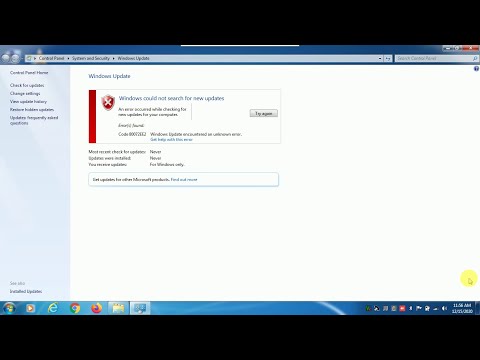
Oh man, nothing’s more frustrating than sitting down to update your computer and—bam!—you hit a roadblock. We’ve all been there, right? You’re all set to get things running smoothly and then this dreaded Windows 7 error 80072EE2 pops up. It feels like your computer is speaking another language.
And I get it, you just want things to work without a hitch. This error can seriously put a crimp in your day (or night!). But hang tight, cause we’re gonna figure out how to dodge this digital hiccup together.
It’s kinda like when you’re heading out for ice cream and the shop suddenly closes—even though the sign says they’re open! Yeah… it’s annoying. But don’t worry, we’re here to sort it out, step by step, without any of that technical mumbo jumbo. Ready?
Resolving Windows Update Error 80072ee2
Hey there! Struggling with that pesky Windows 7 Update Error 80072EE2? It’s one of those annoying little hiccups that can really get on your nerves, isn’t it? We’ve all been there. But don’t sweat it; there’s light at the end of this tunnel.
What’s the deal with Windows Update Error 80072EE2?
This error usually happens when your computer can’t connect to the Windows update servers. Picture you’re trying to call a friend, and their line’s busy—that’s kinda what’s going on here. Your computer’s trying to reach out, but something’s in the way.
So, let’s take a look at a few things you can try to get this sorted out:
- Check Your Internet Connection: Make sure your internet is working smoothly. Sometimes a simple fix like resetting your router can do wonders.
- Review Firewall and Antivirus Settings: These programs might be blocking the update. You could temporarily disable them or add an exception for Windows Update.
- Clear Cache: Sometimes old files get in the way. Head into settings and clear those temporary files—the ones that make things stuck.
- Run Windows Update Troubleshooter: Built right into Windows 7, this tool can automatically find and fix some issues for you.
A bit more technical help?
If you’ve tried everything above and still no luck, digging deeper might be needed:
- Edit Registry Settings (with caution!): Manually editing registry settings might sometimes help if there’s corruption—but be super careful here; wrong steps could cause trouble!
Nostalgic Tips from Personal Experience:
Once upon a time, I faced this same challenge while helping my neighbor set up their old laptop before handing it down to their grandkid. We cracked open those logs like detectives looking for clues—until we figured out that an ancient router had been playing tricks on us! Just unplugging it did wonders.
Anyway, if nothing works or you’re uncomfortable tinkering too much under the hood—it’s never too late for calling up support from someone nearby who’s got experience dealing with these things—they’ll have you back online without breaking much sweat!
Procedure to Fix Error Code 0x80072ee2
Oh, error codes. They can be pesky little things, right? So you’re dealing with the Windows 7 Update Error Code 0x80072ee2. This particular error is like a stubborn hiccup when trying to update your system. But don’t worry, we’ll work through it.
What Causes Error Code 0x80072ee2?
You might wonder why this error even pops up. Often it’s a network connection issue, or the Windows Update server is just being uncooperative. Sometimes, your firewall settings might create a barricade that blocks you from reaching out to those servers.
Steps to Fix Error Code 0x80072ee2:
- Check Your Internet Connection:
It’s crucial—make sure your internet is on point! If there’s an issue with connectivity, that’s the first place you should look. - Disable Firewall Temporarily:
Sometimes the firewall sets up too tight a defense perimeter around your system. Disable it just for a moment and see if that solves the problem. - Add Windows Update Website to Trusted Sites:
This one’s simple but effective:- Open Internet Explorer.
- Nudge over to Tools, then select Internet Options.
- Sneak into the Security tab and hit Trusted sites.
- Add these URLs:
- Reset Windows Update Components:
This step might feel daunting, but it’s like hitting refresh:(Direct link) or manually reset using Command Prompt.Anecdote Time:
Let me tell you about my pal Joe. He spent hours tackling this exact problem one weekend only to find out his Wi-Fi router needed a restart! Before doing anything drastic, double-check simple things like that—it saves headaches!
Anyway! If you’ve tried all these things and still face issues? It’s not unheard of—sometimes getting another pair of eyes helps sort things out faster than banging your head against brick walls via trial-and-error methods alone… Ohh And there y’go—a friendly overview designed purely informative while avoiding promotional fluffiness altogether… Happy updating friend!
Procedure for Resolving Windows Update Error
Hey there! So, you’re dealing with that pesky Windows 7 Update Error 80072EE2, huh? Yeah, it can be a real headache. Let’s walk through this together and get it sorted out.
First things first, you might wonder why this even happens. Well, Windows updates often go off track due to network hiccups or settings that aren’t quite right. This specific error usually means the connection to the server took too long.
Alright, let’s get down to business:
- Check Your Internet Connection: Make sure you’re connected. Sometimes it’s as basic as that! Restart your router or just unplug and plug back in.
- Adjust Windows Firewall Settings: Your firewall might be blocking those updates. Head over to the Control Panel, and search for “Windows Firewall.” Click on “Allow an app through Windows Firewall” and make sure *Windows Update* is allowed.
- Tweak Proxy Settings: If you’re using a proxy, these settings can mess with updates. Go to Internet Options in the Control Panel, click on the Connections tab, then LAN settings. If “Use a proxy server for your LAN” is checked but shouldn’t be—or vice versa—fix it!
- Run Windows Update Troubleshooter: This tool can automatically diagnose and solve update problems. You can find it by searching “Troubleshooting” in the Control Panel and clicking on “Fix problems with Windows Update.”
- Edit Registry Timers (Advanced): Okay, if you’re feeling brave: hit Win+R to open Run dialog > type `regedit`. Navigate through *HKEY_LOCAL_MACHINESOFTWAREMicrosoftWindowsCurrentVersionWindowsUpdate* then look for *TimeoutSeconds*. Adjusting this value could help increase wait time before timeout issues hit.
- Restore Necessary Services: Your services related to updates might’ve been stopped accidentally—restart them! Go into Services (type *services.msc*), find “Background Intelligent Transfer Service” or “Cryptographic Services,” click restart if they aren’t already running.
A quick anecdote: One day I was helping my grandma scan her old pictures when her computer popped up this error during an update check—her face fell like she’d dropped a priceless vase! It was hilarious because all we needed was Wi-Fi tweak; now she thinks I’m some tech magician!
An extra tip!: Before diving in deep waters like registry editing always safeguard important data. Better safe than scrambling for recovery tools later!
Hoping things roll smoothly post these steps; remember patience pays here since some processes will take their own sweet time updating again afterward once errors clear out finally—and voilà!
Oh, the joy of dealing with Windows updates! There’s this one pesky error code, 80072EE2, that seems to pop up like an unwelcome surprise when you’re trying to update your good old Windows 7. I remember a time when I was all set to watch my favorite movie online, and boom—my laptop decided it wanted to update first. And then came the error! It was like a tech soap opera.
So what’s going on with this mysterious code? Well, at its heart, Error 80072EE2 generally means there’s a hiccup between your computer and the Windows Update servers. Kind of like trying to send a postcard during a blizzard and not being sure if it’ll reach its destination.
One thing you could check is your internet connection. Sounds obvious right? But sometimes the simplest things get overlooked. Make sure everything’s connected smoothly, no loose wires or anything silly like that.
Another trick is tweaking your system’s firewall settings. Imagine it like opening a door for someone who’s mistakenly stopped at security—the update needs permission to go through!
Then there’s adjusting some configurations in the Windows Update settings itself. You ever mess around with those options? It’s almost therapeutic switching things on and off sometimes—feels like finding control in chaos.
A little patience goes a long way too; these solutions take some trial and error before hitting that sweet success screen saying “updates completed.” Who knew updating could be such an emotional rollercoaster?
If nothing works though… might be worth checking if it’s time for an upgrade—Windows 7 is pretty much considered vintage now!