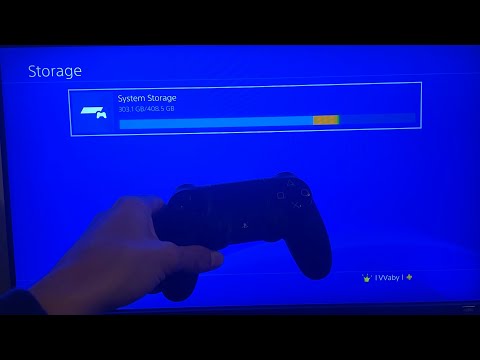
Oh man, that’s such a bummer when your PS4 suddenly acts up, right? You’ve got this shiny new 2TB HDD and boom—your console just goes all “Sorry, can’t find it!” It’s like it’s playing hide-and-seek with you. And not the fun kind!
I remember this one time my friend Dave was all set for a weekend gaming marathon. Everything was ready—a pile of snacks, comfy couch—but then the PS4 went on strike because it didn’t see his HDD. Talk about a mood killer!
But hang in there! You can totally get this sorted out. You might just need to give your PS4 a little nudge in the right direction. You follow me? Let’s dive into what might be going on and get you back to gaming in no time.
PS4 Hard Drive Detection Issue
Oh dear, dealing with a PS4 that can’t detect your 2TB hard drive can be quite a headache, can’t it? It’s like you’re all set for a gaming marathon, and suddenly––bam! No storage detected. But hey, let’s try and sort this out.
First things first, check the basics. Are the connections snug? Sometimes it’s just a cable that’s not fully plugged in. Make sure both ends are secure.
Now, if everything is connected tightly but there’s still no detection, it could be time to look into the formatting of your hard drive. Not all drives play nice straight out of the box.
- File System: PS4 likes FAT32 or exFAT. If your drive’s formatted otherwise (like NTFS), your console might give you the cold shoulder.
- Reformatting: You can use a computer for this. Hook up your HDD to a PC or Mac, format it to exFAT (since it’s more flexible with file sizes), and then reconnect to your PS4.
Is the issue still bugging you? Double-check if there’s enough power going through that USB port because sometimes high-capacity drives get power-hungry! If it’s an external HDD that needs more juice than usual, plugging in both USB connectors can help if they come with dual cables.
Let’s not forget software updates either. It sounds trivial but make sure your PS4’s system software is fully up-to-date. Manufacturers tweak system compatibility quite often in updates––you’d be amazed at what simple update can do!
Now here’s one last thing: swap cables or try another USB port on the PS4 itself as these ports can sometimes go kaput without any warning signs.
These little tips tend to help most folk I know when their hardware gets picky like this. Hope it gets yours purring again too! And hey—don’t hesitate reach out further if still stuck; after all it’s never fun losing to tech gremlins alone.
PS4 Hard Drive Detection Issue
Oh, the struggle with technology! You know, having your PS4 not detect a 2TB hard drive can be frustrating. This kind of thing happens more often than you’d think and can really dampen your gaming spirit. But hey, let’s look at some ways to tackle this problem.
Check Your Connections
First things first: make sure everything’s plugged in properly. I remember a time when my printer wouldn’t work because the cable was just halfway in! You’d be amazed how often connection issues cause trouble. Double-check that your hard drive is securely connected to the PS4’s USB port.
Compatibility Matters
Not all hard drives are created equal, you see? It’s crucial that your hard drive is compatible with the PS4 system. The console typically supports USB 3.0 drives formatted as exFAT or FAT32.
Format the Drive Correctly
Formatting might sound intimidating but it’s pretty straightforward. If your PS4 can’t detect the drive, it could mean it needs to be formatted again in a way the console understands.
- Step 1: Connect your HDD to a computer.
- Step 2: Right-click on its icon and select “Format.”
- Step 3: Choose either exFAT or FAT32 as the file system.
- Step 4: Once done, connect back to your PS4.
Update System Software
Outdated software can cause detection issues too! I had this happen with my phone once; it simply refused to connect until I updated it.
- Select ‘Settings’ from the main menu.
- Navigate down and select ‘System Software Update.’
- Your console will check for any updates available.
Troubleshoot Safe Mode Issues
If nothing works yet (and you’re feeling adventurous), entering Safe Mode on your PS4 might help resolve deeper issues. Here’s how you do that:
- Turn off your console completely (not Rest Mode).
- Press and hold power button until you hear two beeps (7-8 seconds apart).
- Compatibility Check: Make sure the external hard drive is USB 3.0 or later. Older versions might not work properly or at all.
- Connecting It Right: Simply plug it into one of the USB ports on your console. You’ll see them hanging out at the back and front of your new console.
- Format Before Use?: If this hard drive was specifically formatted for a different system, like a PC, you might need to format it for use with PlayStation consoles again for games storage.
- Cable Check: Make sure cables are connected tightly and check for any wear or damage.
- Troubleshoot Method: Plug it into another device—like a computer—to see if it’s recognized there. This helps you pinpoint if it’s a cable issue or something else.
- Select ‘Settings’ on your PlayStation menu.
- Navigate down to ‘Storage’, then ‘External Storage’.
You’ll see options like ‘Rebuild Database’—which cleans up file data without deleting games—or ‘Restore Default Settings.’
As always though take care; these options can affect console settings if misused! Hopefully one of these solutions gets things working again—and brings much relief once everything runs smoothly once more!
PS5 Compatibility for PS4 External Hard Drives
Hey, there! So, you’ve got a PS5 and you’re trying to figure out if that trusty PS4 external hard drive can still be your sidekick? Let’s get into it!
First things first: The PS5 is meant to be backwards compatible with most of the PS4 games. This means you can play those games directly from an external hard drive originally used with your PS4. Just imagine having all your favorite games readily available without fussing around!
You know how when you’re moving to a new place and bring along stuff from your old house? It’s sometimes necessary to rearrange things so they fit better in the new space, that’s what formatting does.
If the HDD isn’t detected:
Sometimes tech just doesn’t want to cooperate. If your PS4 says “nah” when you plug in that 2TB HDD (hard disk drive), don’t worry.
And hey, remember that one time I tried setting up an old printer repeatedly on my shiny new laptop only to realize I had the wrong cable? Sometimes it’s just tiny details messing up our plans!
If Formatting Becomes Necessary:
This step will erase any data on the drive:
If it appears there but not elsewhere, format directly through these settings.
Anyway, keep in mind once formatted for game storage on PlayStation—you can’t use this space for music or movies via other devices unless reformatted again.
That being said . . . make sure everything important is backed up somewhere safe first! Trust me; losing data feels close to dropping an ice-cream cone face-down in summer heat—ouch.
Enjoy gaming and hit that restart button whenever reality gets overwhelming; have fun exploring with both classics along brand-new adventures!
Ah, the age-old struggle between technology and our best-laid plans! You finally got that shiny 2TB hard drive to expand your PS4 storage, anticipating those glorious extra gigabytes for all your games, only to find out… your PS4 just won’t recognize it. What a bummer, right?
It’s kind of like getting your dream dining table delivered and realizing that you accidentally ordered a size too big for the room. Frustrating yet kind of amusing once you solve it.
Okay, let’s walk through this like I’m explaining to a friend. First thing’s first: check if the hard drive is formatted correctly. Your PS4 needs it in a format called ‘exFAT’ or sometimes ‘FAT32’. It’s like ensuring your new table has the right dimensions before trying to fit it into an awkward space. Easy fix here—connect the drive to a computer and reformat.
Now if that doesn’t do the trick, there might be some connection issues at play. Have you considered testing with another cable or port? Just in case there’s something fussy going on there.
Sometimes even something as trivial as updating system software can work wonders. It’s odd how many issues get fixed with updates—they’re like those all-encompassing toolkits for small house repairs!
And if after trying everything still nada, maybe checking in with support’s worth it—or even consulting someone who knows their tech from their elbow could offer another perspective.
Nothing quite beats the satisfaction of seeing that “unknown” device suddenly spring to life on-screen when things finally click into place!