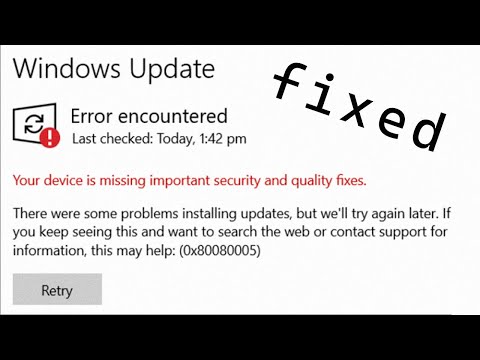
Oh man, you ever had one of those days where nothing goes right? You’re all set to update your Windows, thinking it’s gonna be a smooth ride, and boom—error 0x80080005 hits you like a ton of bricks. It’s the digital equivalent of stepping on a Lego barefoot at midnight. Ouch!
This pesky little error can drive anyone up the wall. The good news? You’re not alone, and this problem has some fixes! It’s kinda like when your car stalls for no reason; frustrating but solvable. Let’s uncover what might be causing this hiccup in your update party.
Honestly, it could be anything from messed-up system files to services being all wonky. Sometimes Windows just decides it needs extra attention—like an overly dramatic cat at dinner time.
But hey, don’t throw in the towel just yet! There are some steps we can take to sort things out and get that update rolling smoothly again. Stick around, and we’ll dive into how you can tackle this annoying error head-on.
Procedures for Resolving Error Code 0x80080005
Alright, let’s dive into this pesky error code 0x80080005 related to Windows Update. You know how frustrating these updates can get when they don’t go as planned, right? So here’s what you can do!
Understanding Error Code 0x80080005
The error code 0x80080005 often shows up during a Windows Update and means there’s an issue with permission or registration of some system files. It’s like when you’re trying to enter a room, and the door’s locked because someone forgot to give you the key, you know? If your update keeps failing with this error, let’s chat about some steps that might help clear it up.
Procedures to Handle Error Code 0x80080005
- Restart Your Computer: First thing’s first. Sometimes just restarting your computer clears temporary glitches.
- Check Internet Connection: Ensure your connection is stable. A weak internet can interrupt updates.
- Run Windows Update Troubleshooter: Microsoft includes a built-in tool for these situations. Go to Settings > Update & Security > Troubleshoot, and there you’ll find the troubleshooter for Windows Update.
- Check and Set System Permissions:
- Navigate to the folder: C:WindowsSystem32catroot2.
- Select Properties then Security tab. Make sure SYSTEM has full control permissions.
This step can help if permissions are out of order.
- Reset Windows Update Components:
Resetting certain components can sometimes fix things up:
– Open Command Prompt as Administrator.
– Enter these commands one by one pressing Enter after each:
– net stop wuauserv
– net stop cryptSvc
– net stop bits
– net stop msiserver
Next, restart them in reverse.
This might sound complex but imagine it like giving all these services a fresh start! - File Corruption: Sometimes, files in the update process get corrupted. Maybe they didn’t download properly or something interrupted them.
- Windows Registry Issues: If there’s messed up registry info somewhere in there, that could be your culprit.
- Lack of Administrative Rights: Occasionally, it’s just about not having the right permissions to make changes to your system.
- Antivirus Software Interference: Your antivirus might mistakenly block parts of Windows Update thinking they’re suspicious.
- Check Your Antivirus: First thing you might wanna do is disable your antivirus temporarily and try updating again. But hey! Don’t forget to turn it back on afterward!
- Troubleshooting Tool: Use the built-in Windows Update Troubleshooter. It’s like calling tech support without actually dialing a number. Just go to Settings > Update & Security > Troubleshoot and follow instructions there.
- SFC Scan (System File Checker): This handy tool will scan for corrupt files and repair them if possible:
– Open Command Prompt as an Administrator.
– Type: `sfc /scannow`.
– Hit Enter. - Resetting Windows Update Components:You know sometimes things need a little reset—Microsoft has a few steps for that below:
– Stop services related (BITS service).
– Rename certain folders.
– Restart services again.But let’s face it—if none of these work out well—you may want call friendly tech friend get more professional help evaluate further!
- Insufficient Permissions: Sometimes it’s like Windows needs extra permission to do its thing. If the system doesn’t have the right permissions, you might see this pesky error.
- Corrupt System Files: Windows relies on some core files to run smoothly. If those get corrupted or damaged, errors like 0x80080005 can appear.
- Windows Update Services Not Running: For updates to work properly, certain services need to be up and running. If they aren’t—well there’s your problem!
- Email Antivirus Software Interference: Believe it or not, sometimes antivirus software is overprotective—sort of like that helicopter parent. It can block updates from happening.
An Additional Step: Clean Boot Your PC
Consider performing a clean boot if normal operations don’t work out. A clean boot starts Windows with minimal drivers and startup programs so you can determine if something else is conflicting with your updates.
Remember that troubleshooting this may take multiple attempts before seeing success—but patience (and maybe a little head-scratching) is key! Hope this helps ya get back on track with those essential updates!
Understanding Error Code 0x80004005 on Windows Update
Dealing with error codes can be a real head-scratcher, right? One such pesky problem is the Windows Update error code 0x80004005. This one tends to pop up when you least expect it during an update. But don’t worry, we’re gonna break it down nice and simple.
What Does It Mean?
Basically, this error is a “generic unspecified error”. Sounds vague? Yeah, unfortunately, it doesn’t tell you much on its own. It usually signals some kind of interference in the update process. But why does it happen?
Possible Causes
There are several things that could be causing this little hiccup:
How Do You Fix It?
Alright then! Let’s roll up our sleeves.
So there ya go—a brief glimpse into what behind Error Code *0x80004005* how tackle beast effectively next time runs into path updating adventures run smooth again!
Causes of Windows Update Error 0x80080005
Oh, the infamous Windows Update error 0x80080005! It can leave you scratching your head, right? This little troublemaker tends to pop up when you least expect it. But don’t worry too much—you’re definitely not alone here.
Why does this error happen, anyway? There are a few reasons this error might rear its ugly head:
Now let me share something relatable—I once had this issue while trying to update my grandma’s computer. She called me freaking out because no matter what she did (or didn’t do), her PC just refused updates! Turned out it was an old firewall setting messing everything up.
An example?: Imagine a library trying hard to organize books but each time they try adding new ones someone changes things around without telling anyone else—that confusion sums up what missing permissions feel like in tech land!
So if you’ve been scratching your head (or pulling hair!) over 0x80080005 remember these common mishaps could be behind all frustration… and take solace knowing even seasoned troubleshooters face errors every so often too!
Ah, those pesky Windows Update errors! It’s like they always choose the most inconvenient time to show up, right? One minute you’re thinking everything’s running smoothly, maybe you’re in the middle of watching your favorite series or working on an important document and bam! Error 0x80080005 decides to make an appearance. Frustrating!
Now, this particular error can be a bit of a mystery. It usually pops up when there’s some kind of hiccup with your system files or permission issues are getting in the way. Imagine it as if your computer’s trying to get into a room but the door’s locked because someone forgot to give it the key.
So what can you do when faced with this headache? Well, first things first is not to panic. There are a few tricks you can try. Sometimes, just running the Windows Update Troubleshooter helps it sort itself out—like giving your computer a gentle nudge in the right direction.
Another option is checking if your antivirus software’s being overprotective and blocking updates without asking permission. They’re really helpful at keeping viruses at bay but every once in a while they get overzealous and interfere with updates.
Also, wouldn’t hurt to ensure all relevant services required for Windows Update are actually working properly. If they’re stopped for some reason, you might need to start them manually. There’s something almost satisfying about seeing them back in action after giving ’em a little kick start!
And hey remember that time when my buddy Dave had his update stuck thanks to low disk space? Deleting unnecessary files helped him out big time!
Rebooting might sometimes do wonders too—turning it off and on again is like tech magic sometimes isn’t it?
In any case if these don’t cut it well there’s always doing more technical dives such as tweaking system settings manually through command line tools—but only if ya feel comfortable playing around with those things!
At least having these ideas gives ya few places where solutions may be hiding powered by curiosity mixed perhaps sprinkled along way finding humor amidst occasional computer chaos!