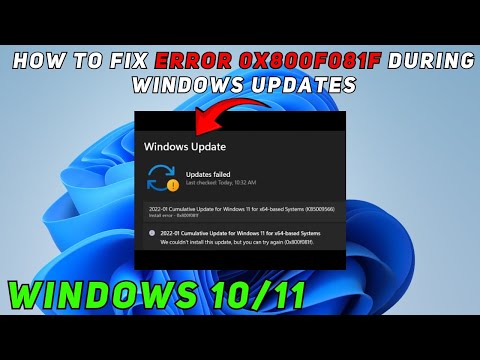
Oh man, Windows updates, right? Love them or hate them, they’re like a box of chocolates—sometimes you get something sweet, and other times… well… you end up with error 0x800f081f. Annoying as heck!
Here’s the thing: the little gremlin behind this error code is tricky. It feels kind of like when you’re trying to find that missing sock after doing laundry. You know it’s somewhere—just not where it should be.
Let’s talk about why this happens and what we can do to kick this annoying thing outta here. Buckle up! Honestly, it’s not rocket science; just a few road bumps on our digital highway and we’ll fix it together.
Error Code 0x800f081f Causes in Windows 11
Oh boy, Windows error codes can feel like another language sometimes, right? Let’s chat a bit about the Error Code 0x800f081f for Windows 11. This little troublemaker is one that pops up when you’re trying to update or install something on your system.
So, let’s dig into what might cause this headache.
- Missing .NET Framework: One of the most common culprits is an absent or outdated .NET Framework. You see, lots of apps and processes depend on this system feature, and if it’s not there, you get problems.
- Corrupted Files: Sometimes files go rogue—to put it simply, they get corrupted. This can happen unexpectedly due to viruses or incomplete downloads.
- Software Conflicts: Now and then software doesn’t play nice with each other. If you’ve got multiple installs or versions of similar apps? Boom! Potential conflict right there.
- Registry Errors: The registry inside Windows is like its brain—all instructions are stored there. A small mistake here can make things go wrong.
Troubleshooting Steps:
First thing first—make sure your .NET Framework version meets the app’s requirements you’re trying to run.
Next up, you want to check those system files for corruption:
- SFC (System File Checker): Open Command Prompt as an administrator and type in: `sfc /scannow`. This scans and fixes corrupted files automatically if possible!
- DISM tool (Deployment Imaging Service Management): Use these commands one after another:
– `DISM /Online /Cleanup-Image /CheckHealth`
– `DISM /Online /Cleanup-Image /ScanHealth`
– `DISM /Online /Cleanup-Image /RestoreHealth`
Just copy-paste these beauties; they work wonders usually!
If that doesn’t help out much—or if software conflicts are suspected –try booting up into Safe Mode through Settings→Select Recovery, choose Advanced Startup Options followed by Restart Now option; pick Safe Mode when prompted thereafter by selecting F4 key during restarted sequence happening shortly thereafter until done loading asked-for session therein!
Error 0x800f081f Causes When Installing Features
Oh, the good ol’ Error 0x800f081f! If you've ever bumped into it while trying to install features on Windows 10, you're in no small company. It's sort of like finding out your favorite ice cream shop is closed for maintenance, you know? Anyway, let's dive deeper into what this pesky error means and how you can kick it to the curb.
Why This Error Happens:
This error usually pops up when there's an issue with Windows Update or the .NET Framework. Think of it like a mismatch in a puzzle; Windows can’t find some files it needs to complete its tasks. Here’s what could be going on:
- Missing or Corrupt Files: Sometimes essential files just play hard to get, and this can trip up installations.
- .NET Framework Issues: This is used by various programs, and if it's not set just right, problems arise.
- Group Policy Settings: These are rules set by system admins. If they're configured tight as a drum, they might block some installations.
Troubleshooting Steps:
You’re probably itching to fix this now. Let's chat about a few steps that might save the day:
- SFC & DISM Scans: Time to play detective! Use these tools to check and repair missing or corrupted system files.
- .NET Framework Reinstallation: Consider reinstalling .NET Framework components from Control Panel. It’s like giving them a fresh start!
- Edit Group Policy Settings (Advanced Users): Dive into group policy settings only if you're comfy following detailed steps—incorrect changes here can lead to more issues!
Anecdote Time:: I remember helping my buddy Tim who was pulling his hair out over this exact issue. Turns out, his .NET Framework was missing some updates! Once we tackled that together over coffee (and spilled jokes), he was up and running smooth as silk.
Every so often technology throws these curveballs our way but hang in there! With patience and maybe another cup of coffee (or two), you'll surely get things sorted out.
Error 0x800f0831 Cause in Windows 10 Update
Oh, the joys of Windows updates, right? It feels like every time you think you're about to have a smooth update experience, something creeps up. One of those pesky errors that can put a wrench in your plans is Error 0x800f0831 on Windows 10.
This error usually pops up when you're trying to install certain updates and they just don't want to cooperate. Let's break down what might be causing it and what you can do about it.
Possible Causes:
- Missing files: Sometimes, the system can't find necessary files for the update. It's like when you try to bake cookies but realize you're out of sugar.
- Corrupted components: Over time, some system components might get corrupted or messed up. This could lead to hiccups during updates.
- Issue with installed .NET Framework: Errors with .NET Framework can cause update problems.
So now you’re probably wondering: how do we fix this? There are a few tricks you can try!
Steps to Resolve Error 0x800f0831:
- Check Windows Update Components:
You could reset Windows Update components using Command Prompt commands.
Open Command Prompt as an administrator and run these commands one by one:
-dism.exe /online /cleanup-image /restorehealth
-sfc /scannow.
These check for corrupted system files. - .NET Framework Repair Tool:
Microsoft provides a handy tool to automatically repair issues with the .NET Framework installations. Download from their official site and run it. - Windows Update Troubleshooter:This is built-in magic! Just type "troubleshoot" in your Start menu search bar, select "Troubleshoot settings," then find "Windows Update" and run it.
- Review Installed Updates History:If an earlier update got botched, you'll need to identify which one caused issues… In “View your update history,” remove problematic updates or uninstall via Control Panel under “Programs & Features.” (Just be cautious what you remove!)
- Clear SoftwareDistribution Folder Contents: Navigating through “C:WindowsSoftwareDistribution” may help--delete its contents after disabling services temporarily (like Background Intelligent Transfer/BITS & Win Updates)… Restart them once done!
: Keep Windows always backed-up…
And sometimes patience will solve wonders too!
.
Hey here's hoping these steps help turn frustrating moments back into peaceful computing sessions! If none works however – seeking professional assistance could save lots trouble down line 🙂
Oh, Windows updates! Who hasn't groaned at their computer screen when something just doesn't go as planned? If you’ve ever encountered the infamous "Windows 10 Update Error 0x800f081f", well, you’re not alone. It’s kind of like when you’re all set and ready to go on a long-awaited road trip, only to find your car won’t start. Frustrating, right?
Let’s dig into this. This error usually pops up when there’s some hiccup with the .NET Framework that's needed for those updates to install smoothly. Sometimes it feels like computers have their own language of glitches and miscommunications! The thing is, the .NET Framework is a bit like that essential tool in your toolbox that makes everything else work smoothly—without it being up-to-date or correctly installed, things can get stuck.
Now picture this: you’ve been eagerly waiting for your favorite software or game to update with snazzy new features, only to be met with this cryptic error code flashing on your screen. Ugh! But hey, every problem has its way around.
One common cause could be those missing files—think of them as puzzle pieces that complete the update picture. Then there's good ol' corruption issues; maybe a file has gone rogue or gotten tangled somewhere in the system.
What can you do? Thankfully there are a few strategies we can try out at home without needing to call in reinforcements. You might need to check if .NET Framework is installed correctly by heading over to “Turn Windows Features on or off” and ensuring that all boxes related to .NET are checked.
Another nifty trick involves using the “DISM” (Deployment Imaging Service Management) tool through command prompt—it’s basically like giving your system a gentle nudge to repair itself using its own resources.
And why stop there? Seeking assistance from Windows Update Troubleshooter could totally save the day—it detects issues automatically!
Remember my friend's story who swore her computer had developed an attitude overnight? She spent ages wrangling settings before realizing she hadn’t rebooted after an initial fail—all it took was one restart for her machine finally cooperate again.