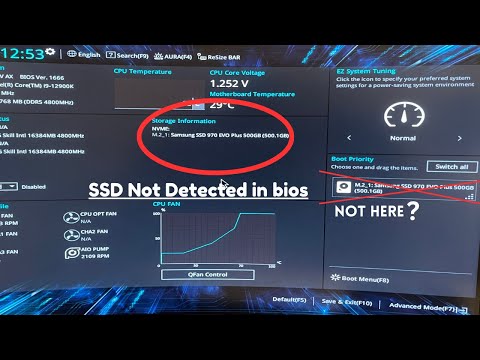
Oh man, isn’t it the worst when technology decides to take an unscheduled break? You get ready to start working (or maybe gaming), and suddenly your computer just… doesn’t wanna wake up. Yeah, we’ve all been there.
Picture this: you power on your PC, and boom! Nothing. It’s like your 230GB SSD has developed a mind of its own. You’ve probably got that sinking feeling in your stomach right now.
Don’t worry too much yet! There’s a whole bunch of reasons why this might be happening, and it’s not always as bad as it seems at first glance. Sometimes the solution is simpler than you’d expect.
Stick with me here; we’ll navigate this little hiccup together. Who knows? You might even pick up some handy bits of tech wisdom along the way!
Intermittent Boot Issues with SSD
Dealing with intermittent boot issues can really throw a wrench into your day, especially when you’ve got a 230GB SSD that’s acting all moody. Been there, done that, and it’s no picnic! Anyway, here’s what you might wanna check out to get that SSD behaving and have Windows 10 doing its thing smoothly.
Check the Connections
Sometimes it’s as simple as making sure everything’s snugly connected. Dive under the hood of your computer and double-check those cables linking your SSD to the motherboard. If something’s loose, just tighten it up a bit.
Firmware Update
Like software on your computer needs updates, SSDs sometimes need their firmware updated too. Head over to the manufacturer’s website for the most recent version specific to your model.
- Visit: Manufacturer’s website.
- Search: Firmware updates section.
- Follow: Instructions provided carefully.
SATA Mode in BIOS
Try checking out if there’s anything funky going on in BIOS settings—sometimes they like to change without asking permission! Look for SATA mode settings; it should be set to AHCI (Advanced Host Controller Interface). This is usually a good option for SSDs.
Lifespan Checkup
SSDs have limited lifespan due to write cycle limits. Smart tools can help give you an idea of how healthy or worn out your drive is:
- Use tools like: CrystalDiskInfo or SSDLife.
- This provides insights into current health status.
The Old Backup Trick
Before things get dicey again—or if they’re already getting dicey—backups are key. External drives, cloud storage… Wherever! Better safe than sorry when dealing with potentially failing components.
And hey—even if none of these seem fancy-schmancy enough—they’re often overlooked steps worth giving another shot before diving into something intense like replacing parts or reinstalling operating systems altogether because let me tell ya—that stuff takes precious time away from life outside troubleshooting tech headaches!
Indicators of SSD Failure in Windows 10
Alright, let’s chat about SSDs, those sleek, fast storage devices that make your computer run like a dream. But when they start acting up, it can turn into a nightmare. Here we go: you might have a 230GB SSD that’s struggling to boot Windows 10. Sounds familiar? Here’s how you can spot the signs of trouble.
- Slow Performance: An SSD is supposed to be super speedy. If you’re noticing sluggish file transfers or laggy opening of apps, it might be waving a red flag.
- Frequent Crashes: Random restarts or crashes while you’re just doing your thing—like watching a video or browsing—can hint at deeper issues with your SSD.
- Error Messages: Ever seen those “Blue Screen of Death” messages? They’re terrifying! They could be pointing fingers at your failing SSD.
- Boot Issues: You’re pressing the power button but your computer just won’t start up? That’s definitely not normal and might be an indicator of an impending failure.
- File Corruption: Saved files suddenly not opening or showing corruption? This is like your SSD saying it’s got some internal issues going on.
- Noises (Even Though Uncommon): While SSDs are usually silent because they have no moving parts, any unusual noises coming from inside your case can be concerning and worth checking out.
Now, catching these signs early can really save the day! You know, reminds me of my old laptop; one minute it was all smiles and fast boots—the next moment, out of nowhere—it wouldn’t even start Windows properly. Had I known then what I do now…
If you’re seeing these symptoms, consider backing up data pronto! You wouldn’t want to lose those precious files you’ve been working on night after night.
Remember patience pays off when dealing with tech quirks (and saving us from pulling our hair out!). Keep that chin up; you’ve got this handled!
Windows Version Linked to SSD Failures
Hey there! So I’ve heard you’re running into some trouble with a 230GB SSD failing to boot Windows 10. That’s gotta be frustrating, right? Let’s dive into what’s happening and see if we can make sense of it, you know?
The Connection Between Windows Versions and SSDs: Sometimes, certain Windows updates or versions have been linked to issues with specific types of hardware, including SSDs. These updates might introduce new features or fixes that can inadvertently cause conflicts particularly with older or less common hardware configurations.
- Compatibility Issues: Not all Windows versions play nicely with every single SSD out there. If an update is released without fully accounting for certain older models, booting problems might arise.
- Wear and Tear: An SSD has a limited number of writes before it starts to wear out. If your drive is nearing the end of its lifespan, even a regular update could push it over the edge.
- Bugs in the Update: Occasionally, an update introduces bugs that weren’t present before. Most times these get ironed out quickly after release but can be a real headache in the meantime.
Troubleshooting Steps You Can Take: Look at this like trying different keys until you find one that unlocks the door.
- Check for Firmware Updates: Head over to your SSD manufacturer’s website and look up any firmware updates for your model. Sometimes they release tweaks specifically designed to handle new Windows quirks.
- SATA Connection Check: Pop open your case (carefully!) And reseat the SATA cable connecting your SSD to the motherboard—it might sound simple but loose connections are more common than you’d think!
- Error Messages on Boot:If there’s a specific error code when you try to boot up jot it down—those can be incredibly useful when seeking help from others or doing online research!
A Personal Story Worth Sharing: A friend once had this ancient laptop see he’d upgraded everything inside except… The OS was stuck on an old version causing constant freezes on his drive swaps. A clean install finally got things playing nice!
Anyway fingers crossed something here helps get things back running smoothly! Keep calm and try each step carefully—computers can throw tantrums now’n’then but patience usually wins!
Oh man, dealing with a computer that won’t boot is like waking up to find out your coffee maker’s on strike. Suddenly, you’re thrown out of routine and everything feels upside down. I remember once running into a similar issue with my old laptop—I’d pressed the power button, ready to dive into work, and bam! Nothing but a stubborn black screen staring back at me.
You might think it’s the end of the road for your SSD, but wait up. Sometimes these things happen due to something simple like a loose cable or an unexpected power surge. One minute you’re jamming out to your favorite playlist, and next thing you know… silence.
A 230GB SSD should have plenty of oomph left in it for Windows 10 unless there’s been some hidden gremlin at play. First up, try checking those connections inside your computer case—they’re sneakier than you’d think—and make sure everything’s snug as a bug in a rug.
If that doesn’t do the trick (and I know this sounds wild), boot from a USB drive loaded with Windows installation media. This can help you see if the SSD shows up there at all—it’s kind of like figuring out if someone’s home by ringing their doorbell! Oh, technology can be so unpredictable – but it can also surprise you when things click back into place seemingly by magic.
Of course there could be deeper issues involved—firmware glitches or wear and tear sneaking in after countless read and write cycles. All those files shuffling around over time take their toll—like putting miles on your car without routine maintenance checks.
In any case don’t lose hope—there are repair tools that might rescue data before thinking about replacements (trust me; data loss is right up there among modern life’s frustrations). It’s all part of our love-hate relationship with tech… sometimes throwing curveballs when we’re least prepared for them!
So yeah if fiddling around doesn’t work out as planned—or this kind of troubleshooting spins ya ‘round willing helpers online abound where folks share experiences tackling similar headaches every day! Isn’t it comforting knowing others have survived these glitches too?