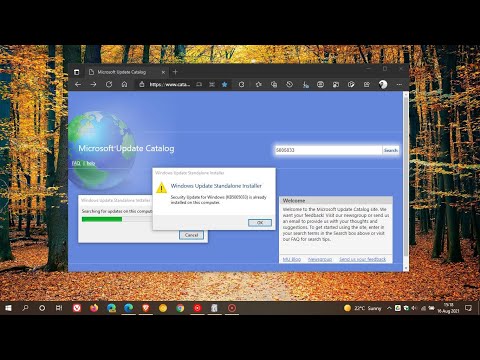
Alright, gather ’round! Let me tell you something. You know that feeling when your computer acts like a grumpy old cat? Just refuses to cooperate. Yeah, we’ve all been there with Windows 7.
Guess what? There’s this nifty thing called the Microsoft Update Catalog. It’s like a secret little treasure chest for updates. I know, not the most glamorous of treasures, but hey—it does the trick!
You might be wondering—why bother managing updates? Well, staying on top of it can mean fewer headaches down the line. The thing is, updates keep your system humming smoothly and keep those pesky bugs at bay.
Trust me on this one; once you get the hang of it, you’ll feel like a tech wizard—or at least a little bit tech-savvier than before! Ready to dive into update-land?
Efficient Management of Windows 7 Updates
Managing Windows 7 updates efficiently can be kind of a puzzle, huh? But don’t worry, it’s not as tricky as you might think. We’ve all been there—sitting in front of the computer, trying to figure out how to keep our system up-to-date without losing our minds. Let’s break this down and make it simple.
First things first: Knowing where to find your updates is crucial. The Microsoft Update Catalog is your best friend here. Think of it like a big library where you can find all the updates for Windows 7. You just have to know what you’re searching for.
- Visit the Microsoft Update Catalog website: Open your web browser and type in “Microsoft Update Catalog”. Once you’re there, you’ll find a search bar that helps you locate specific updates.
- Search for relevant updates: Enter either the name or number of the update you’re looking for—simple as that! If you’re not sure which update you need, check your current system status under Windows Updates.
Have I ever told you about my friend Max? He complained about his aging Windows 7 computer running slower than usual because he never updated it regularly. Well, we sorted him out by diving into this catalog thing together and getting all those needed fixes!
Now, another cool thing is organizing how these updates are installed. You want them timely but without interrupting when you’re binge-watching something or working on important stuff.
Manage Automatic Updates:
- Access Control Panel: Head over to your Control Panel by clicking on ‘Start’ and then on ‘Control Panel’. From here, look for ‘System and Security’.
- Select Windows Update Settings: Click on ‘Windows Update’ and then ‘Change settings’. This page lets you decide how you’d like the updates installed.
- If time allows: It might be smart to choose “Download updates but let me choose whether to install them.” This way those installation pop-ups don’t steal attention at the worst moment!
Maintenance comes down also knowing if something went wrong during an update—like when an error message keeps flashing up saying something didn’t work right (ugh!). Tracking down these notifications helps rectify issues fast before they pile up too high.
So whenever Max remembers checking his notifications tab once every while—voilà! His PC feels nearly brand new again because everything runs smooth thanks precisely handling pesky background stuff such getting suitable patches precisely using aforementioned methods mentioned already above!
Remember: Keeping things tidy behind digital curtains usually grants comfy seamless experience ongoing ahead too darn ensuring optimal settings in stable mode forever practically now won’t anyway inevitably encountering fewer downturns affects anything therein tested path forward!
Windows 7 64-bit Update Compatibility
You got it! Let’s dive into Windows 7 64-bit update compatibility. Crazy how fast tech moves, right? Yet, some folks still stick with trusty Windows 7. But keeping it up-to-date is super important for staying safe and smooth.
Why Updates Matter: Updates aren’t just bells and whistles. They patch security holes, improve performance, and sometimes even add cool features you’ve been waiting for. Without them, you’re leaving the door open for digital nasties.
Windows Update Catalog: The Microsoft Update Catalog is like a treasure cave of updates. It’s all there—from the latest security patches to essential drivers. Here’s where you find every little bit needed to keep things running like they should on a Windows 7 machine.
- Finding Your Way Around: Go to the Microsoft Update Catalog website. Yep, it’s as easy as typing that into your browser.
- Searching for Updates: Type “Windows 7 64-bit” in the search bar to see what’s available.
- Select What You Need: Look through the list and click on those updates you think might help out your machine.
The Compatibility Factor: Not all updates are made equal, especially with older systems like Windows 7. Some might not be compatible if they’re designed exclusively for later versions of Windows. It’s kinda like trying to use modern apps on an old phone—it just doesn’t work sometimes.
Example? Say you’re trying to run a late-2020 update meant more for Windows 10—could lead to some unnecessary headaches!
Smooth Selection Tips:
- Date Matters: Check when an update was released—the newer ones will have recent fixes.
- Description Dive: Read what each update does before downloading; sometimes it spells out exactly what’s changed or improved.
And listen up! Always back up critical data before diving headfirst into a giant bundle of updates—better safe than sorry! I mean who hasn’t clicked “OK” too quickly only to realize something’s gone wonky afterward?
If something goes sideways after updating (it happens!), using System Restore can often rewind the clock without too much fuss.
Windows might seem ancient at this stage but giving it timely tune-ups definitely keeps older devices alive longer than you’d expect—and keeps you from pulling hair trying random fixes down line somewhere with grumpy pop-up errors… phew!
Windows 7 32 Bit Compatibility in Microsoft Update Catalog
Windows 7, remember that? It’s been around for a while and has its own charm, especially if you remember those transparent window effects. When it comes to **Windows 7 32 Bit Compatibility** in the Microsoft Update Catalog, there are a few things you might want to keep in mind.
First off, the whole point of the Microsoft Update Catalog is to let you download Windows updates separately from the usual automatic update system. You know how sometimes you just want control over what’s going on in your computer? This catalog gives you that power!
Compatibility: The big question is about compatibility. If you’re using a 32-bit version of Windows 7, you’ll need to ensure any updates or drivers are specifically for that version. Why? Because there’s a difference between 32-bit and 64-bit systems—they handle data quite differently.
Steps to Access: Oh! Before we forget… To access updates for Windows 7 via the catalog:
- Go online and search for the “Microsoft Update Catalog” website.
- Once there, type “Windows 7” along with any specific update you’re looking for into the search box.
- You’ll see listings that detail if they’re meant for x86 (that’s just another way of saying 32-bit) or x64 systems.
Email Notification: Now here’s a neat trick: You can actually subscribe for email notifications from Microsoft when updates relevant to your system become available. Saves time from having to check manually!
In terms of examples… let’s say you’re hunting down an update labeled as KB1234567 (love those cryptic names, right?). Make sure it reads something like “for Windows 7 x86-based Systems” if you’re on a 32-bit system.
Finally—and this one’s important—always double-check what you’re downloading and installing. Not all updates play nice with older systems. If something ever goes awry during installation (e.g., an error pops up), check Microsoft’s support pages or even forums dedicated to this kind of stuff—real lifesavers out there sharing their experiences!
So there it is—the scoop on managing your updates efficiently through the catalog while making sure everything works smoothly with your good ol’ Windows 7 setup!
Ah, Windows 7! Kind of takes you back, doesn’t it? I remember when it first hit the scene; everyone was so thrilled because it felt like a breath of fresh air after its predecessor. But like most things in tech, keeping it running smoothly over time required a bit of work—especially when it came to updates.
Managing updates efficiently was a big deal for those using Windows 7. You know how you’d be right in the middle of something important and then *boom*, “Windows is updating”? That could be super annoying. That’s where the Microsoft Update Catalog came in handy.
Imagine having this gigantic library where all your updates live. You can browse through them just like you would at a bookstore—you decide which ones to grab and install on your schedule, not Microsoft’s surprise timing.
Here’s what makes it helpful: Sometimes automatic updates miss certain drivers or patches that are crucial for your specific hardware setup or software needs. Digging through the catalog means you can identify exactly what’s missing and download just those bits. No more downloading an entire package if you only need one patch.
A buddy of mine who manages several older PCs at his small business always refers to the Update Catalog as his secret weapon. He swears by its ability to tailor which updates get installed—vital for machines that still serve specific programs only compatible with Windows 7.
Using this catalog isn’t complicated either! It’s pretty intuitive—you search by KB number or update type and download whatever seems necessary directly from your browser window without much fuss at all.
In short? If you’re sticking with Windows 7 (and I totally get why some folks do), navigating through Microsoft’s Update Catalog is practically essential knowledge these days for taking control over keeping things secure without interruption!