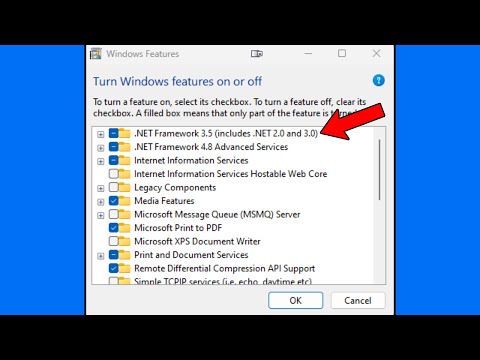
Oh man, remember Windows XP? It was like the cozy old sweater of operating systems. Super familiar and comfy, right?
But, if you’re still using it these days, you might hit a few bumps with the Microsoft .NET Framework. Those pesky errors can pop up outta nowhere!
Don’t worry though. It’s kind of like when your car makes a weird noise – scary at first, but usually fixable. And hey, who doesn’t like solving a little tech mystery now and then?
Stick around and we’ll figure this out together!
.NET Framework Compatibility with Windows XP
Oh, the joys of dealing with older systems like Windows XP! If you’re still using it for some reason, you might run into some issues with the .NET Framework. It happens! Even though XP’s been around for a while, it’s still kicking in many places.
Understanding .NET Framework
Think of the .NET Framework as this cozy home where different applications live. They use it to talk to each other and, just like humans need specific conditions to thrive, apps require certain versions of .NET to run smoothly.
Compatibility Concerns
Here’s where things get a bit tricky. The .NET Framework versions 4.0 and below are compatible with XP. But if you’re trying something newer, well, you might be out of luck—it’s not designed for that old system.
- .NET 1.1: The earliest version you’ll find on most XP machines.
- .NET 2.0: A popular choice that’s widely used.
- .NET 3.x: These versions are also supported without much hassle.
- .NET 4.0: The last version that officially works on XP.
Error Messages Galore!
Ever installed software only to face a barrage of error messages? Yeah, it’s frustrating! Many times these errors occur because the app is calling on a newer version of .NET than what your XP can handle.
This application requires at least .NET Framework version X.X Error: If you see something like this come up on your screen, it means whatever you’re installing needs a more recent .NET than what you’ve got.
Troubleshooting Tips:
Sometimes all you need is an update or reinstalling the framework version compatible with your app—this could be life-saving!
- Download and install .NET 3.5 SP1; it’s often needed by older apps.
- If errors persist after installing updates manually via Microsoft’s website (for those who enjoy that hands-on approach), consider checking for system file corruption within Windows itself; You’d do this through simple commands like
sfc /scannow. (Just remember: Backup first!) You know how unpredictable things can get sometimes?
In short: stick with what’s tried-and-true when working alongside good ol’ trusty—but aging—XP systems!
Microsoft .NET Framework Repair Tool Compatibility
Oh, Microsoft .NET Framework errors on Windows XP can sometimes feel like those stubborn things that just won’t go away, right? But don’t worry, the Microsoft .NET Framework Repair Tool is here to help out. Let’s explore how this tool works and what you need to know about compatibility.
First of all, the .NET Framework is sort of like a foundation that helps run many applications on Windows. Without it working smoothly, some apps might start complaining or stop working altogether. And who wants that?
The good news? The Repair Tool is designed to tackle those pesky .NET issues head-on. Here’s how it can benefit you:
- Detects and fixes common problems: It goes through your system and finds common hiccups in the .NET Framework installation.
- Saves time: You don’t have to manually dig through settings and configurations—phew!
Now, let’s touch on something important: compatibility. Since we’re talking about Windows XP—a real classic!—you need to make sure your version fits well with the repair tool.
Here are a few key points:
- .NET Framework 4 version support: The tool primarily focuses on fixing issues related to version 4. Older versions might need other solutions.
- X86 architecture: Back then, Windows XP mainly used this; double-check since it’s crucial for compatibility.
The process? Simple as pie:
1. Download the Repair Tool from Microsoft’s official site (this ensures safely getting updates).
2. Run it; follow any easy instructions provided by the interface—trust me, they won’t leave you guessing.
3. After finishing up with repairs, maybe reboot if prompted—it helps apply all necessary changes.
Facing technical issues can be frustrating—I’ve been there too! But having such nifty tools makes life easier when dealing with historical systems like Windows XP.
Take heart knowing these steps guide towards smoother computing experiences without tearing apart anymore hair over cryptic error messages blocking favorite software running properly!
.NET Framework Errors on Windows XP and Windows 11
Ah, dealing with .NET Framework errors on Windows XP and Windows 11—quite the nostalgic meets the modern-day scenario, huh? Bet it’s causing some headaches. No worries, though! Let’s walk through this together.
To start off, what’s this .NET thing, anyway? Picture it as a sort of toolbox that Microsoft provides for developers to create applications. It’s like the building blocks for software. Now when there’s an error with it… well, basically nothing built with it works right.
Understanding Errors:
- On Windows XP: Gosh, that OS is a classic! But it’s kind of stubborn about newer tech. The thing is, you might encounter installation errors. It happens mostly because newer versions just don’t get along well with older systems.
- On Windows 11: Here we face compatibility or runtime issues. This usually means something’s getting lost in translation between different software versions.
Tackling Errors on Windows XP:
Oh boy! First off, you’d want to ensure all your system updates are in place. I know it sounds simple, but hey—it often does the trick. For example:
- Check Compatibility: Make sure the version of .NET Framework you’re trying to install jives with XP.
- Error Code Troubleshoot: If you’re seeing something like ‘0x643’ or ‘1603,’ you might need to uninstall previous .NET versions before installing again.
Tackling Errors on Windows 11:
That’s a whole different ball game since it’s cutting-edge stuff (who doesn’t love shiny new tech?). Here’s how you can smooth out those bumps:
- SFC/Scannow Command: In your Command Prompt (Admin), type “sfc /scannow”. This nifty tool checks for corrupted files and attempts repairs.
- .NET Repair Tool: Microsoft has this little guy which can help fix installation issues automatically—it’s like magic!
Now let me throw an anecdote at ya—you’ll appreciate this if you’ve ever sat frustrated before your screen: I once spent hours banging my head against a desk because an ancient app wouldn’t run due to these very issues; only realized later it needed an older .NET version I hadn’t even thought about installing!
Remember although these fixes seem simple-minded; they work wonders more often than not—a trusty ol’ safety net indeed out here battling pesky errors day in day out just remember: patience & good humor make great allies when navigating tech landmines!
Ah, Microsoft .NET Framework errors on Windows XP—those can be a real head-scratcher. Remember the good old days when XP was everywhere? I mean, it was like the comfort food of operating systems. Simple, reliable, and everyone knew their way around it. But .NET Framework errors could really throw a wrench in the works.
I recall a friend from back then who called me over one weekend. He had this bright idea to install some new software on his trusty Windows XP machine. You know how it is—everything seemed fine until he got hit with those annoying error messages about the .NET Framework not being installed properly or missing entirely. All he wanted was to run his cool new application!
The thing is with Windows XP, these issues often popped up because certain applications required specific versions of .NET Framework to run smoothly. And since these frameworks weren’t always bundled with the apps or even Windows itself, installing them became quite a puzzle sometimes.
So what did we do? We dug into downloading all those different framework versions manually from Microsoft’s website and crossing our fingers that they worked together without clashing like cats in a sack! Plus there were times when uninstalling and then reinstalling versions helped clear things up—a bit like rebooting your brain after an all-nighter cramming session! It wasn’t ideal but hey if it solved the problem…
Looking back now it’s interesting how far technology has come since those days—and yet similar challenges seem timeless don’t they? If you’re dealing with this today just remember patience goes hand-in-hand here as much now as ever before!