You know what’s funny? Just when you think your PC is running smoothly, something pops up and says, “Hey, update me!” Yeah, it’s like your computer’s crying for attention sometimes. And if your .NET Framework needs an update, you’re not alone in the boat of head-scratchers.
I remember one time I was all set to binge-watch my favorite show, but the screen froze—guess what? A pesky update was lurking behind all my apps. If that sounds like déjà vu to you, then stick around.
Why should this techy thing matter? Well, updating it can make or break how well everything runs on your system. And trust me, we’ve all hit a snag when trying to get those updates rolling.
In this little chat of ours today—or rather typing session—I’ll share some relatable tales and help nudge that stubborn .NET into playing nice with your system again. Ready for the ride? Here we go!
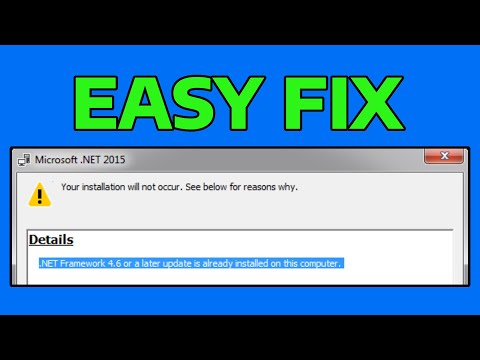
Already Installed .NET Framework 4.6.2 Detection
You’re curious about detecting if the .NET Framework 4.6.2 is already installed on your system? Perfect, I got you covered! It’s kind of a common query when dealing with updates or troubleshooting issues related to software compatibility.
So, the thing is, checking for .NET Framework versions isn’t really as intimidating as it sounds. If you’ve had this happen before, you know sometimes computers don’t play nice when they think they’ve updated stuff but haven’t really done it properly.
- Registry Keys: This is like the heart of checking installed .NET versions. You’ll need to open something called “Registry Editor.” Sounds scarier than it is! Press Windows + R, type in regedit, and hit Enter.
- Navigating Through: You’ll go through these folders:
HKEY_LOCAL_MACHINESOFTWAREMicrosoftNET Framework SetupNDPv4Full. Once there, look for an entry calledRelease. - The Numbers Game: You’ll see some numbers here next to “Release” that tell what version you have. For .NET 4.6.2, you’re looking for a value of “394802” or later.
Why would this matter? Well, say you’ve got an application that insists on using a particular version—it can throw a tantrum if it doesn’t find what it’s looking for.
Sometimes updating can get tangled up with other stuff happening on your computer which means things might say they’re done when they’re not really done. If things get stuck or weird navigating through all this techy stuff, don’t sweat it too much—there are loads of forums and communities out there where folks love helping each other out!
Error Messages or Installation Issues?
Oh boy—ever downloaded something just to be told “hey buddy, that one didn’t work?” It’s like trying to make pancakes without flour; frustrating and leaves you guessing what’s missing from the mix.
- Error Codes: If an update goes wrong or fails outrightly during installation due possibly mis-detected frameworks – having errors handy helps track down where things wobblyed!
- Troubleshooting Tools:The Microsoft website actually has its own troubleshooting tools aimed precisely at solving these framework headaches so do take advantage if you’re feeling brave enough diving deeper into repairs manually… or not—you do what makes life easier!
Keep backups handy (just like keeping spare batteries around).
Automatic Update Setting in .NET Framework
Hey there! Let’s chat about the . You know, it’s pretty handy but can sometimes leave you scratching your head.
Picture this: You’re in the middle of working on an important project, and suddenly, bam! Your computer decides it’s update time. Annoying, right? That’s where controlling those automatic updates comes in super handy.
Why are Automatic Updates Important?
Having the latest updates means better security and new features. It’s kind of like getting all those new gadgets with bigger shields to keep the bad guys out! But you want them happening when it’s convenient for you.
How to Tweak Those Settings
- First off, open the Control Panel from your start menu.
- Then navigate to Programs, and find “Turn Windows features on or off.” This is your golden ticket.
- Deselect or select the .NET Framework versions you’re interested in. It’s like unchecking boxes to say “Not now!” or “Go ahead!” Easy peasy!
The Default Behavior:
By default, Windows thinks it knows best and keeps everything updated automatically. This is good for most people—you get fixes without batting an eye!
Do tweaks stress you out? Don’t worry if things feel a bit tangled at first; it’s totally okay. Every time I fiddle with settings, I feel a bit like I’m defusing a bomb—always nervous my system’s gonna blow up (in day-to-day work terms)!
A little secret: If an update goes wrong and leaves things in a bind—you can find solace in that “Restore” button inside System Restore options under “System Properties.” Like hitting undo on an email!
Tweaking these settings might save you during crunch time moments when you’re knee-deep into that dream project and just can’t be disturbed by unexpected pop-ups saying “Restart Required.”
So yeah… hope this clones some light onto managing automatic updates within .Net frameworks—to bring peace between productivity bursts against forced refresh cycles! Talk about giving control over what happens while staying secure at heart—yay technology progress & user freedom unite!!
.NET Framework Update Errors on Windows 11
Updating the .NET Framework on your Windows 11 machine can sometimes hit a snag. Unexpected errors might pop up, causing frustration and halting your progress. Let’s try to make sense of these hiccups and get things back on track.
Why Do These Errors Happen?
Picture this: you’re ready to run an application, but it needs the latest .NET update. You go for it, and boom! Error message. It could be due to several reasons:
- Compatibility Issues: Sometimes new updates clash with existing software or hardware configurations.
- Corrupted Files: If previous installations didn’t complete properly, files might be damaged.
- Internet Connection Problems: A shaky connection can interrupt downloads.
Troubleshooting Steps
Now, here’s what you can do if faced with these pesky errors:
- Check Your Internet Connection: Ensure that it’s stable before trying again.
- Use Windows Update Troubleshooter: Go to Settings > System > Troubleshoot and see if Windows itself can help identify the problem.
Sometimes I remember when I tried updating late at night—thinking it’d be quick—and it turned out nothing worked due to my poor Wi-Fi! Always check that first.
If Issues Persist…
If that doesn’t solve things, consider more direct actions:
- Manual Installation: If automatic updates fail, download the update manually from Microsoft’s official site. This often bypasses potential blockers you encountered before.
- SFC and DISM Tools: Open Command Prompt as an admin, type in `sfc /scannow`, hit enter—that scans for corrupted system files. Also useful is `DISM /Online /Cleanup-Image /RestoreHealth`, which repairs any found issues through DISM (Deployment Imaging Service Management) tool.
Think: like sprinkling magic into your computer to heal itself!
Registering success during these fixes feels truly rewarding after hours pulling hair over persistent error pop-ups!
A Few Final Pointers
Always restart after making changes or running commands; this ensures everything is saved correctly without leaving old cache behind cluttering up operations next go-round.
And there we are—you’ve got insights tackling .NET Framework update errors effectively under nasty circumstances surrounding them commonly during updates via our dear Windows buddy… always surprising us overtime albeit still dependable champion managing tasks requiring resolution herein endearingly enough eventually anyway nods also recurring reminders entailing curiosity toward exploration growth opportunities along journeys unraveling technical horizons across digital landscapes grander further paths struggling less freeing world-changing adventures lived vibrantly evermore naturally somewhere somehow today together.
Updating the .NET Framework can feel like preparing for a road trip. Sounds strange? Hear me out. You know how you need to check the car’s oil, fill up the tank, and maybe grab some snacks? Updating software is kind of similar. You just want everything to go smoothly.
Now, sometimes when you’re all set to hit the road, unexpected things happen—like a flat tire or your GPS acting weird. That’s how troubleshooting an update can feel too. Maybe you’re trying to install a new version of .NET and suddenly there’s an error message popping up on your screen. It’s frustrating, right?
I remember once when I was updating my own system. Everything seemed fine until I realized I hadn’t closed a running application that was using the old framework version! I sat there staring at that error message like it had personally offended me! And then it clicked—I just needed to close that pesky app and restart the installation.
Let’s break this down with some friendly steps in case you hit similar bumps:
- First thing you’ll wanna do is make sure your operating system is fully updated. Missing patches can mess things up.
- Next, double-check for any other applications using .NET; they might be sneaky culprits causing errors.
- You might also want to clear out temp files on your PC—it’s like tidying before setting up new furniture.
- If issues persist after these checks, log files are where clues may hide—these log files have secret stories about what went wrong during installation!
And look, if all else fails and frustration builds up faster than traffic on Friday evening? Consider reaching out for help online; developer communities are full of folks eager to lend their brains around these twists and turns.
So next time .NET needs an update? Tackle it with patience (and maybe a cup of coffee). These hiccups aren’t forever—they’re just part bumps in our digital journeys!