Oh man, have you ever tangled with .NET Framework compatibility issues on Windows 10? It’s like trying to fit a square peg into a round hole sometimes. You know that feeling when your favorite old video game doesn’t work because it clashes with the latest system updates? Same kind of headache.
I was just thinking about last month when I spent hours trying to run this app on Windows 10. It kept throwing tantrums—error messages popping here and there. You could feel the frustration rising, right? And guess what? It all boiled down to .NET Framework issues!
Let’s be real, operating systems and software updates don’t always play nice together. It’s as if they have their own mind, and that mind is set against making things easy for you! But hey, don’t sweat it too much; you’re definitely not alone in this messy yet oddly fascinating world of software gremlins.
Resolving .NET Framework Errors on Windows 10
Hey, dealing with .NET Framework errors on Windows 10 can be kind of frustrating, right? Especially when you’re just trying to get something done and all you see are those annoying error messages. Let’s chat about how you can tackle these issues and make things work more smoothly.
So here’s the deal: .NET Framework is a software platform used by many applications in Windows 10. Sometimes compatibility issues pop up, especially when you’re working with older or newer versions than what’s installed. The version 5 can sometimes clash with the system’s built-in .NET components, leading to some headaches.
- Check Installed Versions: First off, you’ll want to make sure that both old and new versions of the .NET Frameworks are properly installed on your system. Go into “Control Panel” -> “Programs” -> “Turn Windows features on or off,” and have a look at which ones are enabled.
- Updating Windows: A lot of times, simply updating your Windows could solve most compatibility problems. Head over to “Settings,” go for “Update & Security,” and click on “Check for updates.”
- .NET Repair Tool: Microsoft provides a handy tool called the .NET Repair Tool. You basically download it from Microsoft’s website, run it, and follow its simple instructions. It’s like having a little helper fix common glitches automatically.
- Manual Installations: If you’re still facing issues after trying the above steps, consider manually downloading the specific .NET version needed by your application from Microsoft’s official site. It’s pretty straightforward — just be sure it’s compatible with your system!
Now let me share an example: once I was trying to run an old game I loved which suddenly started throwing errors related to missing .NET components! Turns out my machine had only updated the latest framework but didn’t activate support for older versions needed by this game.
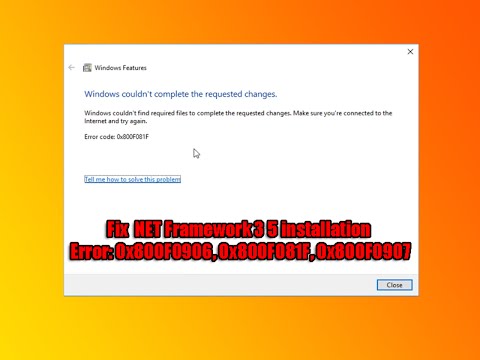
Error Codes: If you’re seeing error codes like 0x800F0954 or similar during installation attempts, they might indicate that specific components aren’t available in your current registry settings or network configuration needs tweaking.
Tweak Registry Settings (with care!):
- You might need administrator privileges before doing this step — registry changes should always come as last resort since wrong edits could mess things up big time! Type ‘regedit’ in Start menu search bar then hit Enter; navigate carefully under “HKEY_LOCAL_MACHINESOFTWAREMicrosoftWindows NTCurrentVersion.”
Nobody likes dealing with tech hiccups—especially those cryptic frameworks messing everything around—but being equipped knowing possible fixes saves day-to-day digital chaos!
.NET 5 Compatibility Status
Hey, you’re curious about the .NET 5 compatibility on Windows 10? Gotcha! It’s always a mix of excitement and confusion when a new version rolls out. I remember spending hours sorting out compatibility issues myself with earlier updates, a bit frustrating yet rewarding at the end.
So here’s the scoop on .NET 5 and its dance with Windows 10. Essentially, .NET 5 is like this big unifier—combining the best bits from various .NET versions to make life simpler for us. But, there might be some bumps along the way.
- Compatibility Issues: With any major update like this, certain older frameworks or libraries might not play nice at first. Older applications built on previous versions may need adjustments.
- Check Dependencies: Before jumping in, you should verify your app dependencies. Not all third-party libraries have caught up with .NET 5 yet. This brings back memories of me having to sift through so many library docs! It felt like detective work.
- Visual Studio Support: Make sure you’re using an updated version of Visual Studio that supports .NET 5. This ensures smooth coding without unnecessary hitches.
- Migrating Projects: If you’re thinking of migrating existing projects to .NET 5, Microsoft’s migration guides are your friend. They give step-by-step help which saves a lot of headaches down the line.
- .NET Core Features Included: One cool thing is that features from .NET Core are included here, making it versatile and powerful for cloud-based applications—a real game-changer if you ask me!
- Regular Updates:. NET releases updates frequently; keeping everything current helps minimize any potential kinks in functionality.
Although adoption isn’t without challenges—just keep patient and enjoy exploring new capabilities that open up with each version! And remember: it’s always okay to reach out to forums or communities whenever things get tricky—that’s what they’re there for.
Hope this gives you clarity on where things stand between .Net 5 & Windows10—happy coding!
Repairing the .NET Framework on Windows 10
Sure thing, let’s dive right into the nitty-gritty of fixing the .NET Framework on Windows 10, especially if you’re dealing with compatibility headaches related to .NET Framework 5. If you’ve ever had your computer act up because of .NET issues, you know how frustrating it can be. It’s like when your car engine refuses to start on a chilly morning—super annoying!
First things first. Why is the .NET Framework so important? Think of it as the scaffolding of many Windows apps. If there’s a hiccup in it, then some apps might crash or refuse to run smoothly.
Steps to Repair the .NET Framework:
- Uninstall and Reinstall: This can often work wonders! Go to your Control Panel, find “Programs and Features,” and look for any installed versions related to “.NET”. Remove them one by one.
- Windows Features: Head over there by typing “Turn Windows features on or off” in your search bar. Make sure all versions of “.NET” are checked.
- .NET Repair Tool: Microsoft offers a handy tool called the “.NET Framework Repair Tool.” Download it from their official site and run it; it’ll usually fix common issues automatically.
- SFC Scan: Sometimes it’s deeper than just .NET itself. Run an SFC (System File Checker) scan by opening Command Prompt as an admin and typing:
sfc /scannow
- Update Windows:: Ensure you have all updates applied since sometimes these help patch over these sorts of problems.
A Real-Life Example?
A friend once had this issue where none her favorite games would launch—kept throwing up error messages linked back requiring specific versions existing alongside new installations done previously but conflicting somewhere along way inside relevant settings menu areas herself… She followed above tips especially around removal + reinstalling parts manually until everything worked fine together again after some effort spent giving extra attention scanning potential conflicts caused elsewhere too perhaps lurking beneath surface unnoticed earlier initially closer look advised here checking thoroughly every possibility shines brighter light leading eventual success ultimately satisfaction reached thereby resolving long-standing troubles felt before now solved completely thanks diligence!
So if you’ve ever been stuck with mysterious app errors or programs refusing due framework mess-ups yourself—take heart knowing solutions are within grasp without needing stress much over technicalities involved since straightforward approach guarantees results most times alike experiences shared earlier—you’ll get past current obstacles soon enough hopefully likely guess wouldn’t hurt trying methods mentioned least worst case scenario guaranteeing functional outcome sooner preferably quicker turnaround available given complications unlike fortunate past elsewhere often suffering longer waits less happy results achieved end result intended resolved quicker ease great happiness thereafter repeat successfully future attempts incidentally occur occasion arise similarly needing handling accordingly preferable paths chosen wisely beforehand success shared similar matters collectively celebrated afterwards mutual understanding everyone included community involved circumstances contained filed away completed resolution accomplished proud moment hallmark achievement attained significant remarkable milestone events recorded forever!
Ah, the joys of software updates, right? You’re cruising along, everything’s working fine. Then BAM!, a new version hits, and suddenly your trusty old applications start acting like rebellious teenagers. The transition to .NET Framework 5 on Windows 10 is kind of like that.
Let me paint you a picture—you’re ready to enjoy this shiny new version with all those improvements and performance boosts. But wait! Some of your older applications just don’t get along with it. They throw tantrums in the form of errors or crash unexpectedly. It’s almost like trying to introduce a new puppy into a house where the old cat reigns supreme (cats really hate disruptions!).
The thing with .NET Framework is that each version tends to be better than the last one in terms of features and efficiency. However, not every app gets the memo on how to behave with these upgrades. You know apps, some are very particular about their environment and refuse to run well without certain ingredients from their original recipe.
Compatibility issues arise when those older applications were built on previous versions like .NET 3.x or 4.x series; maybe they counted on certain functions that got altered or dropped altogether in 5. And now we’ve got ourselves some cranky software.
What can you do? First off—don’t panic! There’s usually some room for negotiation between these ancient apps and flashy software updates.
One approach I tried once was tinkering around with compatibility modes in Windows settings—sometimes coaxing them helps smooth things over temporarily while looking for a more permanent solution (kind of like bribing that old cat with treats). Exploring whether updating those apps would work better together can also help—it could just be they’ve released patches for new compatibility by now!