You’re trying to connect that super handy device through a USB serial converter, right? But oh no, your Windows 10 computer just isn’t playing ball. Been there! It’s like when you’re all set to watch a great movie and bam, you can’t find the remote. Frustrating!
Sometimes, technology just throws these curveballs at us. That little driver installation dance can be so annoying. You click and wait… nothing happens. It’s like waiting for toast that never pops up!
Let’s sort this out together, yeah? Even if it feels like your PC is speaking an alien language right now. We’ll make that stubborn driver discover its purpose in life—connecting your stuff!
Installing USB Serial Converter Driver on Windows 10
Having trouble getting that USB serial converter driver to install on your Windows 10 machine? It can feel a bit like you’re trying to fit a square peg in a round hole, right? But don’t worry, I’ll walk you through it. Let’s see how we can tackle this issue.
First things first, you need the correct driver for your specific USB serial converter. These little guys come in different flavors and each one requires its own driver. It’s just like having different keys for different locks.
Check the Manufacturer’s Website:
This is usually the best source for drivers. Head over to their official website and look for the support or download section.
- Search for your model number—there’s usually a search bar.
- Download the driver compatible with Windows 10.
Installation Process:
Once you’ve got your hands on the driver:
- Extract any files if they’re zipped.
- Run the installer program (usually something ending in .exe).
- Follow on-screen instructions—most of these installers are fairly idiot-proof, just accept terms and keep clicking “Next”.
Troubleshooting Driver Issues:
If you’re still running into hiccups during installation, let’s try a couple of tricks:
- Create System Restore Point: Before getting further into troubleshooting, consider creating a restore point. It gives you a safety net if things go south.
Two sneaky settings that sometimes fix stubborn installs are:
Tweak Installation Settings:
1. **Disable Driver Signature Enforcement**:
– Press ``Windows + X`` then choose `Command Prompt (Admin)` or `Powershell`.
– Type: `BCDEDIT /set nointegritychecks ON`
– Hit Enter.
2..**Use Compatibility Mode**:
– Right-click installer file.
– Choose *Properties*.
– Under *Compatibility* tab, check *Run this program in compatibility mode*.
– Select an older Windows version.
Finally! If this funky business still doesn’t yield results?
**Update through Device Manager**:
– Right-click `Start`, select `Device Manager`.
– Find USB Serial Converter under “Other Devices” or “Ports”.
– Right-click it and choose “Update driver”.
– Opt for *Browse my computer* > *Let me pick…*
If everything fails either your converter is being too high-maintenance or there might be deeper issues at play! Reach out to manufacturer support—sometimes they’ll have newer versions of drivers not yet published online! Trust me—they know their stuff better than anyone!
USB Serial Converter Driver Installation Issue on Windows 10
Oh, the USB Serial Converter Driver issue on Windows 10! It can be one of those hair-tearing moments, right? You find yourself trying to connect that very important device, and voilà, the driver just won’t install. But don’t sweat it! We’ll figure this out step by step.
First thing’s first: make sure your USB cable is connected properly. I know it sounds like something Captain Obvious might say, but you’d be surprised how many issues boil down to a loose connection. Just double-check, okay?
Okay, now if you’re still having problems, here’s what you might want to do:
- Update Windows: Believe it or not, sometimes an outdated version of Windows could just be playing tricks on you with driver installations. Go ahead and check for updates.
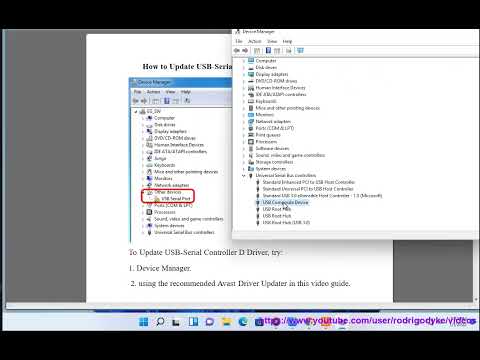
- Check Device Manager: Head over to your Device Manager (just type it in the search bar). Look for any yellow exclamation marks next to your device under “Ports (COM & LPT)” or “Universal Serial Bus controllers”. If there’s one there causing trouble—you’ve found the culprit!
- Download the Latest Driver Manually: Visit the manufacturer’s website for that specific USB Serial Converter. They usually have a support section where you can download drivers manually. Make sure you’re getting the one compatible with Windows 10.
Now imagine this: years ago my buddy Dave had a similar issue with his new gadget; turned out his antivirus was blocking the installation process! So maybe try temporarily disabling your antivirus software if none of these solutions work—sometimes they’re just too protective.
If none of this works? Try a completely different USB port on your computer; you’d think they’re all same but at times they aren’t quite friendly with each other when things get serious!
Let us breathe some life into every tech story—even ones like these—because figuring things out isn’t always about being technical it’s also about patience—and persistence.
USB Serial Converter Driver Installation Failure on Windows 10
Oh boy, isn’t it frustrating when your USB serial converter driver refuses to install on Windows 10? You plug in your nifty little gadget, expecting it to work like a charm, and then nothing—zilch. Let’s face it; technology can be moody sometimes!
So what’s going on, you ask? Drivers are these tiny programs that help your computer talk to its hardware. Without the right driver, your device is like a tourist lost in translation… y’know? Let’s see what’s cooking with this installation hiccup and how you might smooth things out.
Check Compatibility:
Your first move should be checking if the driver is compatible with Windows 10. This operating system can be picky about what it lets through the door. So make sure you’re using a version meant for Windows 10.
Windows Update:
Sometimes, simply updating Windows to its latest version solves this issue. Hit that update button, sip some coffee while it’s doing its thing and when done, try installing again.
- Device Manager:
- Reinstall Driver:
Make sure your USB serial converter shows up here without any yellow triangles or question marks (they’re red flags!). If something looks off there, right-click and select “Update Driver.” Choose “Search automatically,” allowing Windows do the heavy lifting for finding drivers.
If updating doesn’t cut it you may need to uninstall entirely before reinstalling. In Device Manager find your converter under ‘Universal Serial Bus controllers’. Right-click it uninstall! Restarting will prompt Windows attempt detection afresh.
Manufacturer’s Website:
Many times downloading directly from where you bought saves headaches too! Just be sure grab only trusted links—no shady business here.
Ever had an epic moment fixing something after struggling forever? Felt like conquering Mount Everest even if was just tech related eh?
Anyway depending severity troubleshooting aforementioned tips should cover most bases… Remember patience lots needed diving deeper complications arise way unexpected moments test spirit endurance-tech saga continues!
Ah, the never-ending saga of getting gadgets and gizmos to work smoothly on our computers. You know how it goes? You plug in that USB serial converter into your Windows 10 machine, expecting everything to play nice, only to be greeted with that dreaded message: driver not installed. It’s like the digital version of a lost sock.
Remember that time I tried setting up an old printer for my grandpa? Let me tell you, it felt like an epic quest. First the drivers were missing, then they were outdated, and eventually we discovered they weren’t even compatible with his system! We ended up sitting on the floor surrounded by cables and manuals—good times though. Anyway… let’s get back to your USB issue.
When faced with driver installation problems on Windows 10, there are a few things you can try.
- Check if your device is being recognized by heading over to Device Manager (right-click that trusty Start button).
- Look for any ‘yellow triangle’ alerts next to your device—those little icons can be pretty enlightening.
Sometimes the solution lies in downloading fresh drivers directly from the manufacturer’s website instead of relying on Windows Update. It may sound intimidating but trust me it’s just visiting a website and clicking download—you’ve got this!
Another trick is using Windows’ built-in troubleshooter tool aimed specifically at devices and hardware issues—it’s surprising how often this one gets overlooked yet fixes things right up!
If all else fails consider checking forums or community boards specificly catering towards tech support situations like yours—they’re usually chock-full of helpful folks who’ve been through similar roadblocks themselves.
Technology can be finicky at times; tiny hurdles appear whenever we least expect them (just ask my grandpa about his printer). But these challenges teach us perseverance right? So hang in there! Eventually you’ll have everything running seamlessly again—ready for whatever task awaits next!