Oh, USB drivers! You know, those little things we don’t really think about until they’re not working. It’s like when your car suddenly makes a funny noise—you’re just hoping it goes away on its own. But sometimes, you gotta get under the hood and take a look.
Updating USB drivers on Windows 10 might seem a bit daunting at first. Don’t worry though, it’s no rocket science. Kinda like updating an app on your phone really, but with a few extra steps thrown in for fun.
Why bother with this whole driver thing anyway? Well, if your USB devices suddenly decide to stop playing nice or start acting weird, outdated drivers are often the culprits.
We’ve all been there… plug in that trusty old flash drive and nothing happens. Or maybe something funky shows up instead of your favorite files. It’s frustrating as heck!
No need to sweat it though—I’ll walk you through it! It’ll be like fixing that annoying zipper that gets stuck half the time—not super exciting but totally necessary! Ready to tackle this together?
Windows 10 Built-in Driver Updater Functionality
Windows 10 has this neat feature where it can update your drivers on its own, like having a tiny mechanic living in your computer. You’ve probably heard the term “drivers” thrown around—it’s just software talk for little programs that help your hardware, like USB ports, communicate with the rest of your system.
Let’s say you’re trying to plug in a new USB device, maybe like a cool keyboard or a sweet gaming mouse. If it doesn’t work right away, you might need to update the drivers for those USB ports. Windows 10’s built-in driver updater can make this super easy.
Here’s how you might go about it:
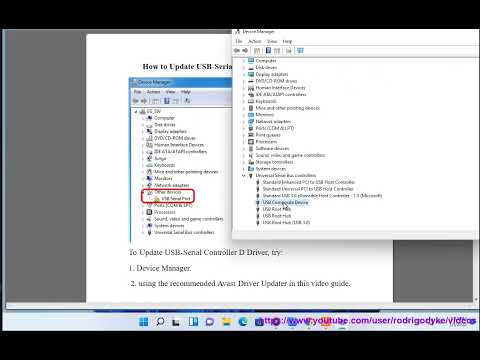
- Open Device Manager: This is your go-to spot for managing all hardware-related stuff. You can right-click the little Start button (or press Windows + X) and pick “Device Manager” from the menu.
- Find Your USB Ports: In Device Manager, look for “Universal Serial Bus controllers.” Click on that to see all related devices.
- Update Drivers: Right-click on one of these devices and select “Update driver.” Don’t worry; you’re just telling Windows what needs modernizing.
But wait—there’s more! When you click “Update driver,” two options pop up.
“Search automatically for updated driver software”: Pick this if you want Windows to do the legwork. It’ll try to find an updated version out there in internet land.
“Browse my computer for driver software”: Use this if you’ve got specific drivers saved somewhere on your computer already. Maybe you downloaded them direct from a manufacturer’s site—pretty clever move!
Now picture yourself in this scenario: You’re just chilling at home when suddenly you remember an old printer sitting behind some boxes. You plug it into a USB port hoping everything works smoothly… but nothing happens! It turns into one of those classic moments where patience starts running thin.
With calm determination (and our new-found knowledge), opening Device Manager becomes part of our routine as easily as making morning coffee—and voilà! Our trusty printer springs back into action after its zillionth firmware refreshment courtesy friendly ol’ drive-updater tool built right inside trusty ol’ Win-10 itself!
Fixing USB Driver Issues on Windows 10
You know, if you’ve ever plugged in a USB device and it just sat there, staring back at you like a confused puppy, you’re not alone. USB driver issues on Windows 10 are more common than we’d like to admit. But hey, the good news is that fixing these can be easier than finding your car keys in the morning.
Let’s break this down.
First off, what usually causes these problems? Sometimes it’s outdated or corrupted drivers. Other times it’s just a funky connection or an unsupported device—like when my external hard drive decided it needed a vacation.
Here’s how you can update those USB drivers:
- Check Device Manager: Hit the Windows key + X, then choose Device Manager from the list. You’ll see all your devices here—it’s like looking into your computer’s soul.
- Find Your USB Controllers: Scroll down to “Universal Serial Bus controllers” and expand that section.
- Select the Problematic Device: Right-click on any USB device that’s causing trouble (you might see a yellow triangle next to it as if shouting “Help!”). Then click “Update driver.”
- Select Update Option: Choose “Search automatically for updated driver software.” Windows will then do some behind-the-scenes magic and fetch what’s needed—hopefully!
If that doesn’t fix things up—don’t worry—you might need to uninstall and reinstall the drivers:
- Select Uninstall: In Device Manager again, right-click on the problematic USB device and select “Uninstall device.”
- Restart Your Computer: A classic move! Restarting forces Windows to reinstall drivers automatically. It’s like hitting refresh on your digi-life.
And here’s something else: sometimes updating Windows itself can solve these glitches too because updates often include fresh drivers.
One time my friend was tearing his hair out over why his new webcam wasn’t working. Turned out he’d accidentally disabled it in Device Manager while fiddling around late at night!
In case you’re still stuck after trying these steps (it happens), visiting the manufacturer’s website for specific driver downloads isn’t such bad idea either—it could save day!
So there ya have it folks; give those steps shot next time uncooperative USB rears its head—you’ll likely be back sharing cat pics no time!
Updating USB Drivers on Windows 10
Updating USB drivers on Windows 10 might sound a little daunting, but it’s really something you can handle with ease. Remember that time when you plugged in your device, and nothing happened? Yeah, pretty frustrating. Often it’s because the drivers aren’t up to date. So let’s tackle this together!
Why Update USB Drivers?
You see, USB drivers are like translators between your device and the computer. If they’re outdated or missing, your computer might not recognize the device at all. Keeping them updated can solve connectivity issues and improve performance.
Steps to Update USB Drivers
- Device Manager: Type “Device Manager” in the search bar next to the Start button, then click on it.
- Find Your Device: Scroll through the list to locate “Universal Serial Bus controllers.” Click on it to expand.
- Select Your Device: Look for the USB driver you want to update. If you’re not sure which one it is, try updating them all from here!
- Update Driver: Right-click on the driver name and pick “Update driver.”
- Automatic Search: Choose “Search automatically for updated driver software.” Windows will do the heavy lifting.
Troubleshooting: What If It Doesn’t Work?
Let’s say you’re unlucky today—your device still isn’t working right after updating. First off, deep breaths! You may need to uninstall and reinstall the driver:
- Select “Uninstall device” after right-clicking on your driver.
- Restart your computer and plug in your USB device again.
A Quick Reminder: Always restart your computer after updates or changes—it sounds simple but helps things settle down nicely.
Updating those drivers doesn’t just fix glitches—it’s like giving new life to old gadgets! You know how sometimes a little tweak makes everything run buttery-smooth again? That’s what we’re aiming for here.
Remember how gadget-savvy you felt when you first got that well-loved laptop? Channel that energy!
Updating USB drivers on Windows 10 might seem a bit daunting at first. Grab a cup of coffee, let’s chat about it. You know, just the other day I was helping my neighbor with her computer. She called me in a bit of a panic because her USB ports weren’t working. We’ve all been there—trying to transfer photos or connect a printer, and bam! Nothing happens when you plug it in.
First things first, don’t feel bad if this happens to you, it’s pretty common. Your USB drivers are basically tiny pieces of software that tell your computer how to talk to any device you plug into those ports—like mice, keyboards, or external hard drives. Just imagine them as little interpreters making sure everyone understands each other.
To get things kicking and humming again, you can start by checking if there are updates available for your drivers. Head over to the Device Manager; it’s like the command center for all your hardware devices on Windows 10. You should find it by right-clicking the Start button and selecting “Device Manager” from the menu that pops up.
Once you’re there, look for “Universal Serial Bus controllers.” Expand that section and you’ll see all your USB ports listed. Now here’s where the magic begins: right-click each one and choose “Update driver.” Sometimes it’ll automatically search online for newer versions—that’s always handy!
And hey, if that doesn’t work or solve things immediately, don’t beat yourself up over it. There are tool programs out there that can scan your hardware for driver updates automatically—they’re like little personal assistants keeping an eye on everything.
Also worth mentioning is sometimes Windows Update itself will handle these driver updates during its regular routine checks; but it’s still good if you’ve got specific issues to roll up your sleeves and give it a shot manually.
Remember my neighbor? After updating her USB drivers manually she was able quickly get back on track with printing photos of her adorable cat Mr Fluffy — big relief!
So next time there’s any hiccup with those trusty old USB ports remember: breathe easy try updating your drivers maybe even have an extra donut nearby just cause—after all technology should be here helping us not stressing us out!