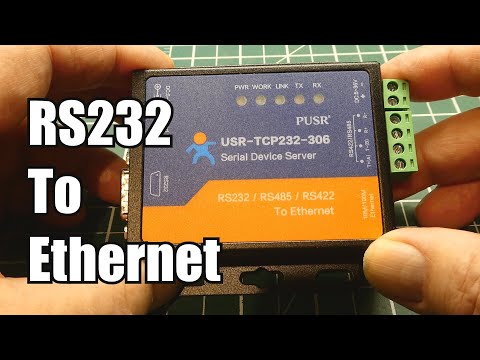
Okay, picture this. You’re knee-deep in a project, everything’s going just fine, and then bam! Connection issues between your RS232 to RJ45 converter pop up outta nowhere. Grrr!
I’ve been there too, you know? It feels like the universe picked today to test your patience. Maybe you’re trying to connect older equipment to modern networks and suddenly… nada! Nothing seems to work.
But hold on, don’t chuck that converter across the room just yet. It’s not as hopeless as it seems—promise! I’ve got some tricks up my sleeve that could save the day.
Let’s untangle this mess together and get those connections back on track, easy peasy! Sounds good?
Ethernet Converter Power Supply Requirements
Okay, let’s chat about Ethernet converters and what you need for their power supply. This might sound a bit techy, but let’s break it down like we’re talking to someone whose only experience with wires is untangling headphone cables!
First off, these gadgets—Ethernet converters, specifically the RS232 to RJ45 converter—are used to change one type of connection (RS232) into another (RJ45), which is your typical Ethernet port. These converters are like translators between different “languages,” so your devices can chat smoothly.
Now, onto power requirements. You see, just like how your phone needs charging to keep going through the day, an Ethernet converter often needs some juice too. Not all of them do though; sometimes they’re powered directly by the device they’re connected to. But in cases where they need external power:
- Check for External Power Supply: Look for a little socket on the converter labeled “DC” or something similar. That’s usually where you’d plug in a separate adapter.
- Power Ratings Matter: You’ll want an adapter that matches the voltage and current indicated on your device—usually found on a sticker or engraved somewhere on it. Look out for terms like “5V DC” or “12V DC.” Using something different could fry the device!
- Plug Type: Make sure the plug fits! Sounds basic, but if you’ve ever tried jamming different charger ends into sockets in hope they’ll fit… yeah.
Imagine you’re trying to charge your phone with a charger meant for another brand—it’s sort of similar here if you get it wrong.
Sometimes people run into trouble with connection issues between RS232 and RJ45 interfaces because of power problems. If you’ve got everything hooked up and it’s not working? Double-check that power supply! Maybe even try unplugging everything and starting fresh—that old IT support trick.
Anyway! Hope this sheds some light on those mysterious little boxes converting signals behind our screens without much fanfare. Let me know if there are other mysteries you’d love untangled—we all have ’em with tech at times!
RS232 Connection Signal Testing
Oh, RS232 and RJ45 connections… they’ve been around forever! Sometimes it feels like solving a puzzle when you’re trying to get them to talk to each other properly. If you’ve got RS232 connection signal issues, let’s chat about that.
The mischief usually begins with signal testing problems between these two technologies. Here’s how you can try sorting it out:
- Check your cables: Always start with the basics. Make sure all cables are firmly connected. A loose cable can be sneaky!
- Pin configuration: Double-check the pin settings from your RS232 to RJ45 converter manual. The wiring might not be what you think.
- Use a multimeter: This handy device can help test if there’s any actual signal coming through those pins.
If you’re using an adapter or converter, here’s something crucial: They sometimes require very specific settings or drivers. You may want to check if there’s a driver update available for your device. Trust me, those updates can work wonders!
- Configuration software might help: Some converters come with software that lets you tweak settings for optimal performance—think of baud rates and such.
- No data transfer?: Make sure both ends (the computer and whatever it’s connected to) are using compatible communication protocols.
An emotional anecdote from my tech-filled life—I remember this one time: I spent hours trying to identify why on Earth my cash register couldn’t communicate with my computer at the store via RS232 connection, right? Turned out I had mixed up pins because I didn’t read the manual thoroughly when setting up an RJ45 adapter! Lesson learned—so much wasted time over a simple mistake!
If you’re still stuck after all these steps, don’t worry (been there!). It could be helpful reaching out online forums where folks love solving technical mysteries just like this.
RS232 to RJ45 Windows Compatibility Requirements
Sure thing! Let me take you through the basics of RS232 to RJ45 compatibility on Windows, and we’ll try to keep it simple and friendly.
Alright, imagine you’ve got an old-school piece of equipment that still uses the RS232 interface. It’s kind of like a relic from the past when compared to today’s USB or wireless connections. But man, some machines just don’t quit, right? Meanwhile, your modern computer probably has only an RJ45 port for network connections. So there you are with this dilemma: connecting the two.
Enter the RS232 to RJ45 converter. This little gadget is like a magic bridge 🪄!
- Cables and Adapters: First off, you’ll need a converter cable that can physically connect these two different ports.
- Drivers: Your Windows system may need specific drivers so it recognizes what on earth you’re plugging in there!
- Baud Rate Settings: Oh boy, this one’s important—set your baud rates correctly! Think of it as the speed both devices communicate at; if they don’t match up? Chaos—or nothing happens at all.
- Compatibility Mode: Sometimes older software wants to dance to its own beat—consider running compatibility mode for older apps.
Troubleshooting Tips:
– Check Device Manager: Hit up your Device Manager (right-click the Start button). You’re looking for any mysterious yellow exclamation marks next to your ports.
– Update Drivers: Did I mention drivers? Make sure they’re fresh as daisies 🌼.
– Test Software Settings: Some software may have settings that need fiddling with too.
Now remember when I was trying one of these setups once? I spent hours pulling my hair out 😩 until someone suggested changing COM port numbers in settings—it can solve weird conflicts sometimes.
Adapting old tech into new systems can feel like translating between languages. But it’s totally possible and super rewarding once you do it successfully!
You know, tech issues can be like the gremlins of our digital world. If you’ve ever dealt with an RS232 to RJ45 converter, you might’ve felt that frustration creeping in. Once, I tried setting up some old serial devices with RJ45 ports; it was supposed to be a straightforward task. Oh boy, was I wrong! Things went anything but smoothly.
Now let’s get this straight. The RS232 is one of those old-school connectors, often used in legacy equipment. And then there’s the RJ45 – that’s your typical Ethernet connection for networking gear today. When you’re connecting these two worlds together using a converter? It’s like putting an adapter on a plug and hoping it fits just right.
Sometimes, connection problems arise simply because of mismatched configurations or outdated drivers – like trying to make new friends without understanding their language first! First things first: double-check all your cables and connections. Believe me; they love coming loose when you least expect them too.
Then there’s the age-old issue of pinouts not aligning correctly between both connectors. Like when socks go missing from a laundry load, this can mess up everything if left unchecked – common ground or data lines swapped around could cause everything from minor glitches to major failures!
Another sneaky problem could be power supply inconsistencies – RS232 devices occasionally demand specifics that aren’t met by every standard power source out there (they’re quite picky!). Ensuring compatibility here is crucial for avoiding unnecessary head-scratching moments down line.
Perhaps most importantly though: patience should always remain close at hand throughout process because ultimately technology requires human touch before playing harmoniously together again peacefully… every single time!