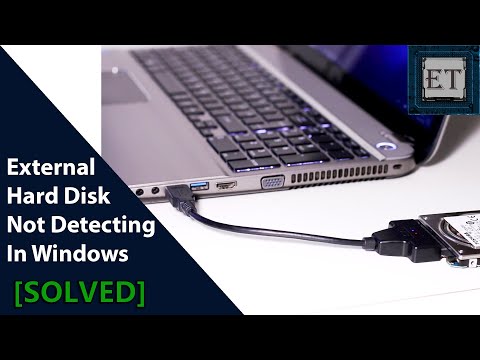
Picture this: you’ve just got a brand new SATA 6Gb/s HDD. You’re all excited, ready to load it up and get things rolling. But then… the computer doesn’t recognize it. Ugh, right? It feels like hitting a brick wall when all you want is smooth sailing.
You start checking connections, peeking inside the case, maybe even giving the HDD a little encouraging pat. Nothing. And there’s that tiny voice in your head whispering, “What now?”
But hey, before you panic or throw in the towel—let me walk you through some stuff that might help get things back on track. You know how sometimes it’s just a little sneaky setting or cable thingy playing tricks on us? Yeah, maybe it’s one of those! Let’s see what’s up!
SATA 6Gb/s HDD Not Recognized in Windows 10
Oh, I feel your pain with this whole “SATA 6Gb/s HDD not recognized” issue. I’ve been there myself. It’s like finding a jigsaw piece missing from a puzzle when all you want is to get things up and running.
You know how it goes: you plug in that shiny new SATA 6Gb/s hard drive, expecting Windows 10 to instantly recognize it—because, why wouldn’t it? But then… nothing happens. No ding sound, no “new hardware found” pop-up… nada. It’s frustrating!
Here’s what might be going on and how you can turn things around:
- Check the Connections: Sometimes it’s as simple as a loose cable. Make sure to firmly connect both the SATA cable to your HDD and the port on the motherboard.
- Try Another Port: Maybe the SATA port you used is not functioning properly or is disabled in BIOS? Plugging into another port could just make everything click.
- Dive into BIOS: Reboot your computer and enter BIOS/UEFI settings (usually by pressing F2 or Del during startup). Verify if the hard drive shows up there. If not, enable it if needed.
- Is Disk Management Showing It? Once in Windows, press Win + X, then choose Disk Management. You may notice an unallocated disk space; all you have to do is initialize it by right-clicking and choosing “Initialize Disk”. Easy-peasy!
- Check for Driver Issues: Missing or outdated drivers can throw a wrench in recognition process. Look for updates by navigating to Device Manager (using Win + X) and expanding “Disk drives”. Right-click on your disk and hit “Update driver”.
- Cables Matter:. Truth be told, some cables are finnicky! Testing with another cable might save you loads of headaches.
- A Spin at Power Settings:. Head over in Control Panel under Power Options > Advanced Settings—and disable features like ‘Turn off hard disk after’ which sometimes leaves HDDs lurking under radar.
If you’re still scratching head after all this—hey don’t worry too much! Mistakes happen—we’ve all been culprits of overlooking something silly now & then (like trying power outlet upon realizing one forgot switch ON). If things persist though there might some other quirks needing attention further assistance from techie friends/personnel.
SATA 6Gb/s HDD Detection Issues
Oh, the joy—when technology decides to throw in an unexpected curveball, right? Especially when your computer does that annoying thing where it suddenly just… can’t recognize your trusty SATA 6Gb/s HDD. It’s like one of those surprises you really could do without.
So, let’s imagine this: you’ve got this hard drive, and it’s not showing up on your system. It feels like trying to find your glasses while they’re right on your head. Now, before you start thinking the worst, there are a few things you can do.
Check Physical Connections
- First things first—take a peek inside your computer case. Make sure all cables are snugly connected. It might sound too simple, but sometimes these connectors can wiggle loose.
- If you’re feeling adventurous (and cautious), try a different SATA cable. Cables can get worn out or damaged over time, and swapping them might just do the trick.
BIOS/UEFI Settings
- When you power up your PC, press that key (usually DEL or F2) to enter BIOS/UEFI mode—it’s like the control room for booting up.
- Check if the drive is listed there under storage settings. If it’s not showing here either, we might have deeper fish to fry.
SATA Port Configuration
- Your motherboard got multiple ports? Try connecting the drive to another SATA port—it might be just as rewarding as completing a puzzle piece swap.
SATA Mode Setting:
Make sure it’s set correctly (AHCI is preferred). Sometimes these settings can cause unnoticed issues.
Disk Management Check:
Windows users can launch “Disk Management” using Windows Key + X and see if it pops up there as unallocated space.
Real-life heads-up: I once spent absurdly long hours troubleshooting only to find out that the drive was disabled in Disk Management—felt goofy when enabling fixed everything.
If none of these work? Well then… it’s worth considering whether the problem lies with the hard drive itself. Testing it in another machine or using an external adapter could shine some light on that puzzle piece.
Oh, and hey! When you’re at this tech tango again—back up data regularly! Saves one from pulling their hair out later on.
You’ve got this!
SATA 6Gb/s HDD Not Recognized via USB
Sure, let’s tackle this issue together. You know, dealing with hardware issues can sometimes feel like a puzzle—but once you get the hang of it, it’s really just about connecting the dots. So if your SATA 6Gb/s HDD isn’t being recognized via USB, you’re definitely not alone.
First things first: let’s make sure we understand what we’re talking about. A SATA 6Gb/s HDD is a hard drive that uses a special type of connection that’s designed for faster data transfer speeds. Now when you use an adapter or enclosure to connect this drive to your computer through USB, occasionally things don’t connect right away.
- Check Connections: Verify if the connection between your HDD and the USB adapter is tight. Sometimes, loose cables could be the sneaky culprit! Make sure both ends are firmly connected.
- Power Supply: Hard drives often need more power than what a single USB port can provide (especially those larger ones). If possible, use a powered USB hub or an adapter with its own power source.
- Try Another Port or Cable: Cables go bad—happens way more than you’d think! Swap out that current cable and try another port on your computer.
You might also want to take look at Device Manager. In Windows, navigate there by searching for it in the search box on your taskbar. Once open:
- If there’s an unknown device listed under “Disk drives” or “Universal Serial Bus controllers,” right-click and select “Update driver.” This might help Windows recognize it!
- If nothing changes after updating—you could uninstall any unknown devices shown here then restart your computer so they automatically install again correctly when detected.. Kind of like giving them fresh start!
On another note: have you tested this drive separately? If possible connect directly inside desktop using internal cables check whether it works properly there.
Sometimes problems arise due outdated drivers software patches missing altogether—it happens anyone overlooked these updates before noticing issue later down line unexpectedly cropping up seemingly nowhere… Crazy right?
Remember always important back data keep safe secure just case worst ever does happen Although frustrating moments arise don’t lose hope most issues eventually solvable some elbow grease patience persistence Course Monday blues humor little bit faith thrown mix helps too .
Ah, the ol’ “SATA 6Gb/s HDD not recognized by computer” conundrum—it can be a real head-scratcher, right? Imagine this: you’ve just got your hands on a shiny new hard drive, and you’re all excited. You’ve got plans. Maybe you’re finally going to store that massive digital photo collection or perhaps start that long-awaited gaming marathon. But then, unexpectedly, your computer seems to be giving you the silent treatment! The drive doesn’t show up anywhere. It’s frustrating!
You know what’s funny? Sometimes it’s the simplest things that trip us up. Picture this—it could just be a loose cable! You might have accidentally nudged it while trying to plug things in. Can happen to anyone, really.
Of course, there’s also the chance your motherboard doesn’t fancy talking at 6Gb/s speeds yet. A techie puzzle if there ever was one. It’s like they’re speaking different languages and it takes a bit of coaxing—maybe through an update—to get them on speaking terms.
And let’s not forget about BIOS settings—that mysterious realm where settings hide away from day-to-day computer life. Sometimes these gadgets need a nudge or two in BIOS to tell them there’s something new onboard.
Anyway, that’s technology for you—it can be quirky like that! You’ve just got unplug and replug things sometimes until they find their groove again… kinda like us humans figuring out our way some days!