You know that gut-wrenching moment when your computer can’t seem to find your trusty hard drive? Yeah, I’ve been there too. It’s like losing a set of car keys just when you need to dash out.
Seriously, it’s frustrating! Maybe you were just about to finish that important spreadsheet or kick back with a favorite movie. Either way, no hard drive means no fun—or work—for anyone.
But don’t sweat it! This happens more often than you’d think, and there are usually some pretty straightforward reasons behind it. Let me guide you through what could be going wrong and how you might get things back on track. Just imagine the relief once everything’s working again!
Causes of Intermittent HDD Detection
Oh, the frustration of dealing with an intermittently detected hard drive! It’s like when you’re trying to catch that one elusive butterfly in the garden—just when you think you have it, it vanishes. Let’s chat about what might be going on with your HDD. There are a few things to consider here.
- Loose or Faulty Connections: One of those sneaky culprits could be a loose cable. Check if the SATA or power cables aren’t wiggling out of their sockets. I remember once I kept unplugging my computer by accident because I hadn’t pushed the power plug all the way in—what chaos!
- Dust and Debris: You wouldn’t believe how much dust can settle inside a computer case! It’s like they’re dust magnets or something. So give those ports a look and tidy up if needed.
- Outdated Drivers: Just like we need our cup of coffee to start in the morning, your HDD needs its drivers to work smoothly. Sometimes Windows doesn’t get around to updating them on its own.
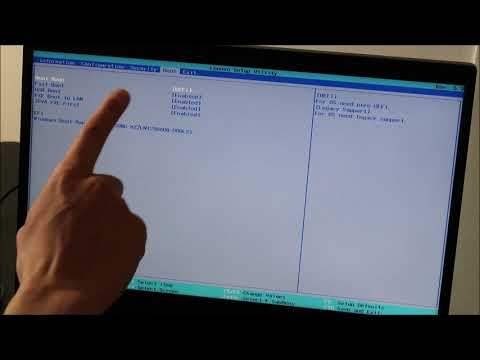
- BIOS Settings: Let’s face it—the BIOS is this mysterious place we don’t often visit, but sometimes our system settings can sneakily change there, especially after an update.
- Power Supply Issues: If your PC isn’t getting enough juice from its power supply unit (PSU), it might not consistently recognize your drive either.
An interesting example?, back when my friend upgraded their desktop’s GPU, they completely forgot this new tech would hog more power, leaving barely any for the old hard drive! Swapping out for a beefier PSU did wonders.
Now don’t let these potential issues scare you off—each has its solution that usually doesn’t involve calling in tech reinforcements (except maybe because sometimes hands-on help gets things fixed quicker). Remember checking all connections properly gives us peace knowing nothing’s left hanging loose again; properly housekeeping helps catch hidden clingy cobwebs causing havoc before they multiply beyond control!
Common Causes of Hard Drive Failure
Oh, the dreaded hard drive failure. Anyone who’s been around computers long enough knows it can be quite the emotional rollercoaster. Imagine you’re wrapping up a critical project, everything’s going smoothly, and bam! Your hard drive decides it’s taking a break—permanently. Let’s dive into why these little hiccups happen with these trusty piece of tech.
Physical Damage: Sometimes hard drives face physical damage. Picture dropping your laptop a bit too enthusiastically or when your desktop meets with an unfortunate coffee spill. These situations can cause mechanical failures inside the drive, making it unreadable.
Overheating: Modern hard drives produce heat like no one’s business! While they’re designed to handle it in moderation, consistent overheating can cause wear and tear over time. Ensure there’s enough airflow in your computer case and keep those vents clear from dust bunnies.
Firmware Corruption: Now and then, the firmware, which is basically like the brain that tells your hard drive how to do its job, can get scrambled or corrupted due to various reasons—like sudden shutdowns or power surges. If this happens, accessing data might become impossible until fixed.
Power Issues: If you’ve ever experienced a sudden blackout during a thunderstorm—or even a random power surge—you’ll know they’re not exactly friends of technology. Power fluctuations can unexpectedly shut down drives causing them to malfunction when turned back on again.
- Signs of Hard Drive Failure:
- If files start disappearing mysteriously.
- You hear strange grinding or clicking noises.
- Your computer takes ages to boot up.
- You get error messages while trying access files.
Now onto potential causes for “HDD Not Recognized”:
- Cable Connection Issues: Sometimes just reconnecting loose cables does wonders.
- Bios Settings: Check if BIOS recognizes the HDD—it might need some nudging back into place!
- SATA/IDE Controller Failure: Occasionally controllers on motherboards give out which prevents detection; swapping ports may help detect problems here.
I hope this helps you understand why things go wonky sometimes with our precious data holders—and maybe next time something doesn’t work right away maybe jiggling wires could actually solve half life crises without breaking anything further down line!
Possible Reasons for Hard Drive Inaccessibility
Hey there! So, you’re dealing with a hard drive that’s gone all invisible on you, huh? Don’t worry, this happens to the best of us. Let’s figure out why your trusty storage companion might suddenly be playing hide and seek.
First things first. Physical Connection Issues could be the culprit here. You know how sometimes just a loose cable can mess things up? Yeah, that’s what I’m talking about! Make sure the cables connecting your hard drive to your computer are snug and properly attached. Sometimes giving them a gentle wiggle does the trick.
Another thing to check is if there’s a Power Supply Problem. External drives have their own power adapters and they can get cranky! Ensure it’s plugged in correctly and that any lights on the device itself are glowing as they should.
Then we have those pesky Driver Problems. Imagine drivers as translators between your hardware and software—if they’re not updated or corrupted, things get lost in translation. Check Device Manager in Windows or Disk Utility in Mac to ensure everything’s speaking the same language.
– Go into Device Manager.
– Look for any yellow exclamation marks next to your drive.
– Right-click and choose ‘Update driver’ if needed.
And hey, did you ever think about File System Errors? Sometimes the way files are organized on your disk gets scrambled—it happens if you turn off your computer incorrectly or during power failures. Running a disk check can help fix these kinds of hiccups.
Maybe it’s something more mysterious like a Partition Issue. If partitions (it’s like slicing up cake into pieces) become messed up, they might not show up properly. In Disk Management on Windows or Disk Utility on Mac, see if there’s anything off—or unallocated space—and take steps from there.
Software conflicts are another strange ghost that could haunt you! Having multiple programs thinking they’re boss of accessing files at once? This can lead to invisibility problems too. Simplifying access rules might solve this one for ya!
Look out for Password Protection and Encryption Problems. Extra security measures may prevent accessibility without you realizing—have passwords written down somewhere safe?
Understanding Hardware Failure Risks :
Hard drives (especially older mechanical ones) just wear out over time due usage beyond their capacity limit resulting eventually fading off existence painfully slow yet potentially devastating depending upon data importance!
Lastly consider possible BIOS issues where motherboard settings conflict complicating HDD detection easy result changes reverted back earlier successful configurations help loss circumstances arise unexpectedly undo unintended consequences save recovery both resourceful pragmatic sort starter lucky break situation goes awry plan initiated last resort calls drastic action least desired most unavoidable dealing far extremes hoped shielded against altogether bringing matters heart decide wisely cautiously taking calculated actions too impulsive haste equals waste generally speaking pat yourself back knowing tried least options dare say right direction pursuit perfect solution quest discovery wonder boldly ventured deeper uncharted tech territories solaced assured narratives solidified learning experiences added another chapter faithful tribute path travelled fulfilled chapter enriched knowledge realms beyond understanding yet found personal beauty shared universally known adventure message endearing inspiring trust follow lives lived moving forward confidently embracing futures whether known unknowns abound cherished dreams ambitions triumphs realized earnest endeavors ultimately aide worthy pursuits continue inexorably onward new horizons await consideration explored anticipation held dearly eternity!
So keep calm stay curious happy computing friends til next episode unfolds editorial journey remarkable people achieving greatness changing world everyday little bit better inspire hope uplift enlighten delighting bonds humanity connected ever tightly joyously where dreamers dreamers remain steadfast committed purpose meaningful bridging realities aspirations coexist harmoniously phase creative expression innovative thought heart soul bound timelessness essences beauty life gratitude love kindness warmth generosity peace prosperity endless possibility awaits beckons wish happiness fulfilled tomorrow greater brighter now forever always infinitely yours…
You know, dealing with a hard drive that your computer doesn’t recognize can feel like trying to find your way out of a maze without a map. I’ve been there myself, and it happened during the final days of college when I was working on my big project. The panic set in when I plugged in my trusty external HDD, only for it to not even show up on my laptop. Yeah, heart-stopping moment right there!
First things first: check those cables. You’d be surprised how often a loose or faulty cable is the culprit. It’s like when your headphone jack isn’t fully plugged in – nothing works until you give it that extra push.
Another thing to check is if you’ve accidentally disabled the drive in the BIOS settings or Disk Management. Think of it as flipping an invisible switch that keeps everything hidden from plain sight.
And electronic devices can act quirky at times, can’t they? Sometimes all your drive needs is a restart—just like convincing yourself that turning off and then on again would magically solve problems!
Then there’s the issue with outdated drivers or sometimes it’s just about updating them through Device Manager. It’s fascinating how regular updates can breathe new life into electronics.
One time I had plugged my hard drive into every USB port possible before realizing—maybe, just maybe—there might be an issue with the ports themselves. Checking with another device confirmed my suspicion.
Lastly—and this one’s important—sometimes drives simply fail over time due to wear and tear (kind of like those trusty old shoes we refuse to throw away). If this happens often enough or after any data loss hiccup make sure crucial info has backups.
But hey don’t stress too much about these things; remember technology isn’t flawless! Just take each troubleshooting step as they come—you’ll likely sort out what’s wrong eventually… fingers crossed!