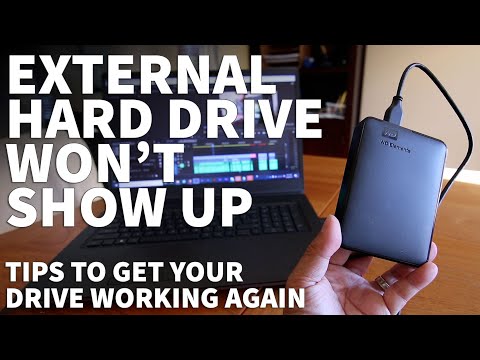
Oh man, isn’t it a bummer when your Adata 1TB external hard drive decides to play hide and seek? You plug it in, expecting instant access to all your files, photos, maybe even those sneaky work documents you keep tucked away. And then… nothing. Just crickets.
I totally get it. That feeling of panic when a piece of tech doesn’t do what it’s supposed to? It’s like watching your favorite show freeze right at the good part.
But hey, you’re not alone in this digital mystery! Happens more often than you’d think. Like that time I was all set for a long weekend movie marathon. I had everything saved on my drive—snacks ready, cozy blanket—and poof! My computer just wouldn’t recognize the darn thing.
But don’t worry too much! There are usually straightforward ways to coax your computer into playing nice with your drive again. Yeah? Let’s figure this out together.
Windows Compatibility for Adata 1TB External Hard Drive
Oh, the good old external hard drive not being recognized—it’s like one of those annoying hiccups in your day. So, you’re dealing with an Adata 1TB External hard drive, huh? Well, let’s see if we can get you back on track.
First off, check the basics. Ensure your USB cable’s plugged in properly. Seems simple enough to miss when you’re multitasking. Try switching it into another port if nothing happens right away; sometimes computers just need a little encouragement.
Okay, so you’ve got it plugged in and still no dice? Don’t worry—you’ll want to dive into the “Disk Management” tool in Windows. Here’s what to do:
- Press the Windows key + X on your keyboard.
- Select “Disk Management” from that nifty menu.
What’re we looking for here? Well, check if your drive shows up. If it does but lacks a letter (like D:, E:), assign one by right-clicking and following prompts for “Change Drive Letter and Paths.”
Still no sign? Let’s delve deeper—your drivers might be playing hide-and-seek! Head over to “Device Manager”:
- Press Windows key + X again.
- Select “Device Manager.”
Look under “Disk drives” or “Universal Serial Bus controllers.” If there’s a yellow triangle next to your device—oh boy—it needs updating or reinstalling:
- Right-click the problematic device.
- Select “Update Driver” or “Uninstall Device,” then restart your computer.
Ever felt relief wash over you after figuring out something puzzling? Experience that when plugging directly into another PC—just another way to ensure it’s really not acting moody due simply incompatible software with Windows OS itself!
Finally—and say this while crossing fingers—a firmware update from Adata might resolve quirky errors. Head on their site make sure check any downloads specifically tailored precisely model using ones listed found rapid-support pages there.
Feeling more tech-savvy now? Sometimes overcoming these hurdles feels pretty darn satisfying!
External Hard Drive Recognized but Not Visible
Oh boy, nothing’s more frustrating than plugging in your shiny Adata 1TB external hard drive, only to find it doesn’t show up on your computer. You’re not alone in feeling slightly vexed about this—trust me, many have been there too.
First things first: let’s check those connections. Sometimes the simplest explanations are right under our noses. Ensure your USB cable is firmly connected to both the drive and your computer. Give it a little jiggle—because we’ve all encountered that particular port that needs a bit of coaxing now and then.
If it’s still not showing up, open Disk Management. Here’s how: hit the Windows Key + X, and select “Disk Management.” If you see your drive listed there but without a letter, that’s our culprit! Assigning it one should make it visible. To do this: right-click on the drive, choose “Change Drive Letter and Paths,” then add a letter that isn’t already in use.
No signs of life? Let’s delve into Device Manager (another handy tool!). Use Windows Key + X again and select “Device Manager.” Scroll down to where it says “Disk Drives,” and check if your Adata is flagged with a yellow exclamation mark—an indication that drivers might need updating or troubleshooting.
- If it’s flagged: Right-click on the device, choose properties, and head to the driver tab for an update.
- If it’s not there: Still nothing? Try different USB ports or another computer altogether; if showing up elsewhere means there’s something up with original port settings.
Also—and I know this feels obvious—but check if power settings are interfering with visibility. Sometimes external drives slip into energy-saving mode unnoticed! Go back into Device Manager; expand “Universal Serial Bus controllers,” double-click each USB Root Hub entry one by one until finding “Power Management” tab—uncheck ‘Allow computer to turn off this device’ box just because sometimes over-zealous conservation can hide devices!
This typically resolves most cases where hard drives mysteriously vanish—even when recognized behind-the-scenes—but feel free shout-out anytime another pesky issue arises!
External Hard Drive Detection Fix
Oh no, your Adata 1TB external hard drive isn’t showing up on your computer? That’s like totally frustrating—especially when you have important files on there. But hang in there; a few tweaks might bring it back up.
First things first, let’s make sure the basics are covered. Check the USB connection. Yeah, I know it sounds too simple, but sometimes a different USB port does the trick. If you’re using a USB hub, try connecting directly to the computer instead. This way you’re eliminating any chance that the hub is causing interference.
Now let’s dive into some settings—don’t worry, it’s easier than it sounds! Open your Device Manager. If you’re on Windows, just press Windows Key + X, then select ‘Device Manager’. Look under “Disk drives” for your external drive. Don’t see it? Check for any devices marked with a yellow triangle. That could mean there’s an issue with drivers.
So what do you do if there’s a triangle? Click on that device and hit “Update driver”. Sometimes it’s as simple as letting Windows handle the update from there.
You know sometimes computers act like they have their own personalities–a bit moody! If it’s still not showing up after updating drivers, jump into Disk Management. Press Windows Key + X, and choose ‘Disk Management’. Your drive might show as “Unallocated” or “Offline”. To fix this:
- If it’s “Offline,” right-click and select “Online.” Bam!
- If showing “Unallocated,” right-click and format or allocate space.
Honestly though, don’t rush if you’ve got crucial stuff saved—think twice before formatting anything!
And hey—if all else fails—it never hurts to try another cable. I once spent hours stressed out over an ‘unresponsive’ drive only to discover my cable was busted.
Just remember: always keep backups of important files—and I mean always! Drives can be fickle creatures sometimes. Hope your Adata gets recognized soon!
Oh man, isn’t it just maddening when your computer decides to give you the silent treatment, especially when you have that Adata 1TB external hard drive with all your important stuff on it? You plug it in, full of hope and anticipation, and nothing – nada. It’s like trying to contact an old friend who has just vanished without a trace.
I remember this one time I had a similar issue. I was prepping for a big presentation at work, and of course, every crucial file was stored on my trusty hard drive. Everything seemed fine until I plugged it in one evening for some last-minute tweaks – and my laptop acted like the drive didn’t exist! Panic mode activated.
The first thing we often forget? Check the basics. Like if that USB port’s still alive or try using another cable. You wouldn’t believe how many times a dodgy cable has been the culprit!
Sometimes it’s all about letting your device take its time – give it a moment to recognize the new addition you’ve plugged in. And oh! Checking ‘Disk Management’ can be eye-opening since sometimes drives like to play hide-and-seek there. Who knew technology could be so playful?
But hey, if these simple fixes don’t do the trick, diving into driver updates or even looking up specifics about Adata products online might save the day.
It’s frustrating—no doubt about that—but there’s always some light at end of this tech tunnel usually! And next time your hard drive decides to go incognito again? Well… you’ll be more than ready for round two!