Okay, so picture this: you’re sitting at your desk, trying to transfer those huge files because, let’s face it, who doesn’t have them these days? You know the ones I’m talking about. Anyway, it’s like watching paint dry!
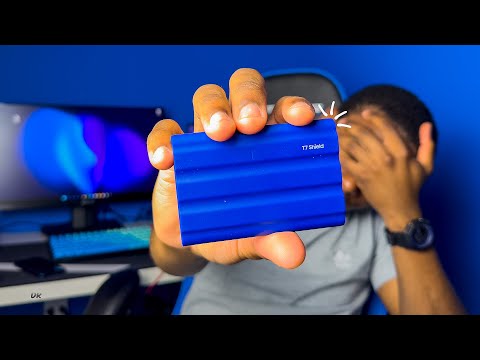
Now enter the Samsung Portable SSD T7 1TB. This little gadget is a game-changer for anyone who’s been frustrated by data transfer delays. Imagine speeding things up without breaking a sweat—or a cable.
It’s kind of like switching from dial-up to high-speed internet back in the day—remember that? Zap! Everything just faster and smoother. Feels magical almost.
If you’re tired of twiddling your thumbs while waiting for files to move from point A to B, keep reading because this could be just what you need. Trust me; you and your patience will thank me later!
Mac Compatibility with Samsung T7 for File Transfers
Sure thing! Let’s explore the compatibility of Mac systems with the Samsung T7 for transferring files and sort out those pesky data transfer delays, alright?
First off, compatibility issues. If your Mac is being fussy about connecting with your Samsung T7, don’t fret too much. Macs and external drives are generally friendly with each other. But sometimes they might need a nudge to play nice. Ensure that your Mac’s operating system is up-to-date. Older versions like macOS Sierra or below might face hiccups.
Now, onto connecting the drive. When you plug in the T7 via USB-C, it should appear on your desktop or Finder window. You’ll want to make sure it’s formatted correctly for macOS. The default format is exFAT which works both on Windows and Mac but for optimal use on a Mac, you can consider formatting it to APFS or HFS+. Here’s how:
- Open Disk Utility: Find this in Applications > Utilities.
- Select Your Drive: Locate “Samsung T7” from the list.
- Erase & Format: Click ‘Erase’, choose ‘APFS’ under format options, and confirm.
What about those annoying delay issues during transfers? When file transfers seem slow as molasses, it might not be the drive’s fault entirely. Several factors could come into play:
- Cables Matter!: Using non-certified cables can bottleneck speeds. Stick to the one provided with your SSD or buy certified replacements if necessary.
- Check Port Speeds: If using an adapter or older USB ports (like USB-A instead of USB-C), this could affect speed significantly.
- Background Tasks:: Other active processes in macOS might hog resources resulting in slower file operations.
And don’t forget security settings too! There’s hardware encryption available on these drives which adds a layer of protection but could slightly influence performance if enabled without proper setup.
Personal story time: I once had such an issue—my nephew borrowed my laptop while visiting just last summer – left me wondering why things crawled so slow after he tried importing his entire movie library using some odd cable he’d found somewhere… Anyway!
Feel free to ask more questions if needed because technology sometimes requires these little chats!
Samsung T7 Firmware Update Compatibility
When you’re dealing with a Samsung Portable SSD T7 1TB and facing data transfer delays, it can be super frustrating. One of the ways to address these issues is by checking if a firmware update is needed for your drive. Firmware upgrades can sometimes improve data handling, speed, and even fix bugs that cause slowdowns.
Here’s what you want to do:
– **Check Your Current Firmware Version**: First up, you need to know the firmware version your SSD T7 is currently running on. You can usually find this using the Samsung Magician software, which not only shows you the firmware version but also provides tools for managing your SSD performance.
– **Visit Samsung’s Official Website**: Head over there for the latest firmware updates. They have a support section where you can enter the details of your device and see if there’s a new version available. Look for any specific notes or instructions provided since those often indicate what’s being fixed or improved in that update.
– **Compatibility Check**: Make sure that any new firmware is compatible with your operating system. It’s common sense but still gets missed sometimes! Keep an eye out especially if you’re using something less standard than Windows or MacOS.
– **Updating Your Firmware**: If an update’s available and compatible, go ahead and follow Samsung’s instructions carefully—step by step—to apply it without problems. Most times it’s just downloading their update tool and letting it work its magic while you grab a coffee or something.
Now let me tell you about my friend Alex who found themselves in a similar pickle. They were editing videos off their Samsung T7 when suddenly everything slowed down to like dial-up internet speeds – not cool! Turned out their drive was on an older firmware version that struggled with larger file sizes over prolonged periods of time (ugh!). After updating through the official site – bam! Smooth sailing again!
Remember just how interconnected all these tech bits are; keeping everything up-to-date really helps keep headaches away. Don’t forget also to do regular back-ups before major updates… just incase anything unexpected happens during installing process!
Hope this helps clear things up so far!! Feel free get back if unsure!!
Causes of Samsung T7 Shield Slow Transfers
Hey there! So you’ve got a Samsung T7 Shield and you’re noticing it’s kind of dragging its feet when it comes to transferring files, huh? You’re not alone, and I totally get how that can be frustrating. Let’s chat about some reasons why your transfer speeds might be slower than expected.
Connection Type
- USB Ports: First things first, what USB port are you plugging into? The T7 benefits most from a USB 3.2 Gen 2 port. If you plug it into an older USB 2.0 port—those ancient things!—the speed will drop significantly.
- Cables: Using the right cable matters too! A mismatched or damaged cable could slow everything down.
System Compatibility
- Operating System: Is your operating system up-to-date? Sometimes outdated software can bottleneck the data flow!
- Hardware Specs:: Your computer’s age and specs could be another factor. Slower processors or lower RAM can affect performance.
Sufficient Power Supply
If the drive isn’t getting enough power through the connection—common with those unpowered hubs—you might see slower speeds.
Drive Fragmentation or File Sizes
- Diverse File Sizes:: Transfer rates fluctuate depending on file sizes. Huge files tend to transfer continuously, while lots of tiny files may disrupt speed.
Saturation of USB Bandwidth:
If you’re like me and love plugging in multiple devices into the same hub, listen up: too many devices vying for attention might clutter that bandwidth!
I had a similar issue when I was transferring my photos, videos—you know how we hoard all this stuff—and all it took was using a different cable that came with the drive for everything to work like a charm.
Also tried another port on my newer laptop (which has those blue-colored ports) just to test things out, and voilà! Speed limits no longer an issue.
So keep these points in mind next time you’re moving around those cherished digital memories or essential work docs with your Samsung T7 Shield—it should make life easier!
Alright, so let’s chat about the Samsung Portable SSD T7 1TB and those pesky data transfer delays some folks run into. You know how it is when you’re in a rush to transfer files, and the progress bar just seems to move at a snail’s pace? It can be super frustrating!
I remember this one time, I was helping my cousin with a video project. We were transferring tons of footage last minute for her film editing class. We used her new Samsung Portable SSD T7 because everyone told her it was like lightning fast. But then, boom—unexpected delay! We both stared at the screen, hoping we’d meet the deadline.
First things first: it’s usually pretty quick. Samsung’s known for zippy speeds with these SSDs, which makes any slowdown feel like a punch in the gut. If your transfers are dragging their feet, there might be several reasons why.
Consider this: cable quality matters! Just like how you wouldn’t use any old string to fly your prized kite—using a subpar cable can bottleneck that speedy SSD of yours.
Or perhaps there’s an issue with firmware updates. These little software tweaks keep everything running smoothly; skipping them could lead to compatibility hiccups with newer devices or systems.
The device you’re connecting to also has its own responsibilities here. Older USB ports may not support maximum speeds possible by the T7—I mean come on! You wouldn’t expect grandma’s rotary phone to match up with today’s smartphones either right?
Performance settings might be another thing tripping you up too! Sometimes drives aren’t set for top performance because they’re trying preserve energy by default—it’s kind of thoughtful if annoying when all you want is speed!