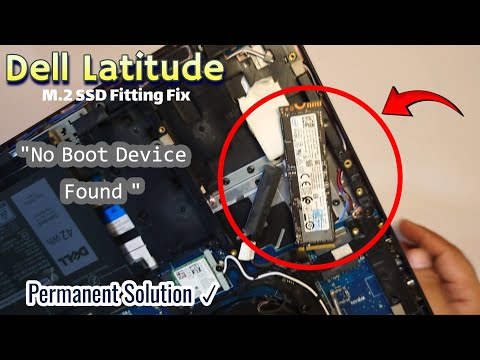
You ever been excited to dive into your work or catch up on a show, and then bam!—your laptop just won’t boot? Yeah, it’s like the universe saying, “Not today, friend!” Happens more often than we admit.
Now picture this. You’ve got this shiny 1TB internal SSD that promises speed and efficiency. It should be running like a dream, right? But here you are chatting with a blank screen instead of streaming your fave series or finishing that project.
Let’s face it, tech can be both a blessing and a curse. But hang tight! Together we’ll get that beast up and roaring again. Let’s roll up our sleeves and figure this out.
SSDs and Boot Issues Causes
There you are, staring at your laptop screen that’s refusing to budge beyond that boot-up dance. It’s got this shiny 1TB internal SSD you expected to make things fly, and yet… here we are. This can be a real head-scratcher, right?
Common Causes of Boot Issues with SSDs
Now, let’s dive into some usual suspects when it comes to SSD boot issues.
- Incorrect BIOS Settings: Sometimes your system’s BIOS or UEFI might not be configured properly for the SSD. It’s like trying to read a book with the wrong prescription glasses.
- Faulty Connections: Ah, those pesky loose cables! Ensure that all connections between the SSD and motherboard are snug as a bug in a rug.
- Corrupted Data: Occasionally, files on the drive might get corrupted during an update or file transfer gone bad.
A Little Story
I remember trying to help my friend Sarah with her laptop. She was super excited about getting stuff done quickly thanks to her new SSD but suddenly it wouldn’t even start up! We went through the basics and learned it was her BIOS settings not playing nice with the new drive.
Troubleshooting Tips
If you’re facing these troubles too, take a deep breath because there’s always something you can try:
- Check Your BIOS/UEFI Settings: First off, ensure that your BIOS recognizes your SSD correctly. Set it to AHCI mode if it’s not already—it tends to work better with faster drives like SSDs.
- Tighten Those Cables: It’s unbelievable how often a loose cable can be the culprit! Double-check both power and data cables connected from your motherboard.
- Data Backup & Reinstallation: If data corruption is suspected—back up what you can (maybe using another computer) and reinstall Windows from scratch on that speedy drive.
-
If none of these work, well sometimes devices just need professional help.
Like when you’re under caffeinated—some days just call for expert hands.
You see those technical blips happen even to tech-savvy folks sometimes; nobody’s perfect (machines included). Remember patience helps solve most tech puzzles eventually!
Does this make sense now?, if anything feels fuzzy feel free turning more rocks over because there’s always an answer around somewhere out there hiding like Easter eggs!
Diagnosing SSD Corruption Symptoms
Oh gosh, you know how frustrating it can be when your laptop just decides not to boot up one fine morning. It’s like an uninvited surprise when you’re in the middle of juggling with a hundred things. And if your trusty machine has a 1TB internal SSD, there’s a chance SSD corruption could be playing the villain in this story. Let’s explore what symptoms to look for and get some clarity.
What are SSD Corruption Symptoms?
Well, imagine sitting there, waiting impatiently as your system struggles to start. One of the first signs might be sluggish performance during booting or frequent errors when loading Windows. It feels like watching a snail race sometimes.
Common Red Flags:
- Slow Boot Times: Your laptop seems to take forever just to reach the login screen.
- Error Messages: You might see errors popping up during startup—messages like “disk error” or something about failure detected on drive.
- File Access Issues: Oh! That dreaded moment when files suddenly become inaccessible or disappear entirely.
- Frequent Crashes: Random shutdowns are another nuisance that can signal trouble in paradise.
These quirks might point towards potential corruption issues with the SSD.
Troubleshooting Tips
Before panic sets in, try not to fret too much—it’s natural for technology to have hiccups occasionally!
- S.M.A.R.T Checkup: Use built-in S.M.A.R.T tools (Self-Monitoring Analysis and Reporting Technology) if available on your device. They can help identify health problems affecting drives quickly without requiring additional software installations!
- Check Connections: If comfy opening laptops up doesn’t scare ya silly—and it’s safe—sometimes reseating cables/connectors gives fresh lease life where things felt dead-ended initially…
- Boot Order Mess Up: Your device could be trying to boot from something other than that shiny new SSD.
- Secure Boot is Blocking You: This feature ensures only trustworthy software boots up—but sometimes it gets overly suspicious.
- SSD Connection Issues: Especially common if you’ve been tinkering under the hood—check those cables!
- Dive into UEFI settings: Find ’em by restarting while holding down Shift—select Restart from power options menu.
- Nurture Boot Order: Once inside UEFI/BIOS interface (it’ll look kinda blue), make sure that internal SSD takes first place.
- Tweak Secure Boot Settings: If stubborn errors persist due mismatched keys or certificates, consider turning off secure boot temporarily just until everything runs smoothly again.
Ultimately though — get professional help too!
And hey…don’t forget backups folks—they save precious memories from certain demise!
UEFI Boot Troubleshooting in Windows 11
Getting into UEFI boot issues on Windows 11, particularly with a 1TB internal SSD, can feel like wandering through a maze. That said, let’s untangle things step by step. When your laptop decides not to boot as it should, it’s often related to the little secrets hidden in its UEFI settings.
Right out of the gate, UEFI stands for Unified Extensible Firmware Interface. It’s like the modern version of your computer’s ancient BIOS. One advantage? It’s faster and more secure than its predecessor! When setup gets scrambled in there, though, booting hits a snag.
So here’s what could be going wrong:
A friend’s laptop suddenly refused to start one morning; he swore he hadn’t touched anything (as they always do). It turned out, his SSD was moved down in priority list after an update tried fiddling around without warning him about it!
Here’s what you can do about this situation:
A quick note on Secure Boot: Turning it off might solve persistent issues but reduces security slightly — keep protection layers intact afterward!
And anyway—it’s lucky we have forums buzzing with folks ready share quirks they’ve seen during such endeavors too; remember nothing beats firsthand experiences neighbors who’ve wrestled similar ghosts!
Oh boy, dealing with a laptop that refuses to boot is like trying to start your car only to hear the dreaded silence. Been there, right? You might have recently upgraded to a shiny 1TB internal SSD, hoping for lightning-fast performance and more storage than you know what to do with. But now it seems like your laptop’s not quite on board with this plan.
First thing’s first, let me tell ya—a vast majority of boot issues are usually simple fixes. Often, it’s just about making sure that you’ve connected everything properly when you installed the SSD. It’s kind of like putting together a jigsaw puzzle; all the pieces need to fit snugly into their spaces.
If you’ve double-checked connections and still no luck, it might be time to jump into BIOS or UEFI settings. These are like the control panels that manage how your computer boots up. Maybe your machine needs a gentle reminder that you’ve got this new SSD all ready and waiting for action.
Now and then it could be something as tiny as having the wrong boot order set up—meaning your laptop’s looking in the wrong place on startup. Other times it’s about updating firmware or software drivers, which sounds fancy but is basically giving your system a little tap on the shoulder saying: “hey wake up!”
One day I was working on my own stubborn laptop, and after what felt like ages of tinkering, I realized I had been overlooking an outdated driver update! Once updated things started rolling smoothly again—like finally figuring out which puzzle piece was missing!
Anyway, if all else fails (and fingers crossed it doesn’t come to this), reaching out for professional help can sometimes save piles of frustration…especially if patience isn’t exactly one’s strong suit!
Remember though—these tech hiccups often become learning moments in disguise—they keep us sharper than we think!