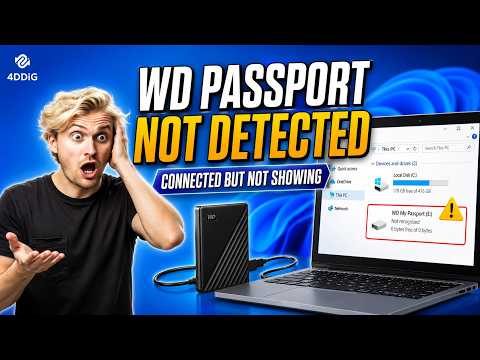
Alright, so you’ve got this shiny WD My Passport SSD. 1TB of space just ready to store all your precious files, movies, and photos. Sounds dreamy, right? But then—bam! Windows 10 doesn’t even give it the time of day.
It’s like your computer suddenly decided to play hard-to-get with your brand-new drive. Frustrating? Tell me about it!
You plug it in expecting fireworks but get silence instead. It’s like planning for a weekend trip and realizing you’ve left your suitcase at home.
I remember this one time when I bought a new gadget and spent hours trying to figure out why it wasn’t working. I was basically on my fourth cup of coffee before I realized what was wrong!
So here we are trying to make sense of why Windows 10 can be so picky with recognizing external drives sometimes. Don’t worry though—we’ll navigate through this weird tech maze together!
USB Drive Recognition Issues in Windows 10
Oh, the woes of technology! You’re trying to plug in your WD My Passport SSD 1TB, and boom—your Windows 10 computer just plain ignores it. Frustrating, right? Let’s have a heart-to-heart and try to tackle this hiccup together.
First things first, make sure that pesky issue isn’t something super simple. Here’s what you can do:
- Try a Different USB Port: Sometimes it’s just a matter of port preferences. Unplug it from one USB port and try another. Who knows? It might like its new home better.
- Check Cable & Connections: Look at your cable! Is it snugly connected or looking kind of loose? Maybe even swap it with another one, if you can.
- Listen for Signs of Life: Does the drive light up or make any sound when you plug it in? If not, maybe it’s not getting power?
Okay, now that we’ve played with the easy stuff, let’s get into some slightly techy territory. But don’t worry—I’ll walk you through this.
Device Manager: This is like your computer’s backstage pass where all connected devices are listed.
- Access Device Manager: Right-click on the Start button and select “Device Manager.”
- Look Under Disk Drives: Check if your SSD appears here. Or look under “Universal Serial Bus controllers” for any “Unknown Device.”
- If you spot anything odd or unknown there might be driver issues.
Having trouble finding a solution so far? Don’t lose hope yet!
Tweak Your Drivers: Sometimes these little fellas need an update or reset to perform their best.
- Update Drivers: Right-click on your device (or suspicious item) in Device Manager and choose “Update driver.” Don’t expect magic overnight; sometimes Windows needs an extra nudge by selecting “Search automatically for updated driver software.”
- If no luck yet…
- You could try uninstalling drivers instead by choosing “Uninstall device.” Afterward unplug then replug—you may find fresh recognition!
Dive Into Disk Management: This place helps manage all storage attached on-board but beware—it looks really serious!
- Sneak into Disk Management: Press & hold (wink-wink: wink key+R), type diskmgmt.msc then hit Enter!
- If seen unallocated sectors—they may need formatting (don’t freak out)! Just right click new volumes plus follow prompts cautiously as losing data ain’t fun!
Maybe—just maybe—the universe conspires against us every time our gadgets misbehave despite these tricks mentioned above…
But keep faith alive cause often patience coupled with persistence pays off at last crossing fingers crossed…
External Drive Not Detected in Disk Management
Ah, the joys of technology! Sometimes you’re just all set to transfer some files when your trusty external drive doesn’t pop up where it’s supposed to. If you’re seeing “,” don’t sweat it. Let’s walk through this sluggish situation together, especially focusing on that WD My Passport SSD 1TB with Windows 10.
So first things first: Check Your Connections! I know it sounds basic, but you’d be surprised how often a loose cable is the culprit. Double-check that your USB cable is firmly connected to both the drive and your computer.
Now, assuming everything’s snug but still no show in Disk Management—let’s go deeper:
Try Different Ports or Devices
- Switch USB Ports: Plugging it into a different USB port can sometimes miraculously solve the issue.
- Test on Another Computer: This isn’t just for fun; checking if another device recognizes the drive helps figure out if it’s your computer or the drive that’s being difficult.
Dive into Device Manager
Look here: Type “Device Manager” in your start menu search bar and open it up.
- If you see any yellow triangles under “Disk drives” or “Universal Serial Bus controllers,” right-click and hit Update Driver.
- No yellow icons? Try right-clicking and selecting “Uninstall device.” Restarting your computer will force Windows to reinstall these automatically. Fingers crossed!
Still nothing? Let’s poke around in Disk Management itself:
- Initialize a New Disk: If “disk unknown” appears with unallocated space, right-click on it and choose ‘Initialize Disk’ (be careful not to format anything!).
- You’ll need to pick between MBR (Master Boot Record) or GPT (GUID Partition Table). Go with MBR for older systems; GPT is modern-friendly though.
Remember when I promised an anecdote? Once my friend tried everything possible only to realize she’d actually plugged her charging cable into her keyboard instead of her laptop! Oh dear…
If after these steps WD’s lovely SSD still plays hard-to-get you might want serious help from Western Digital Support.
Hope this helps sort things out pronto! Feel free reach out again if more questions pop up—happy computing!
WD My Passport Detection Issues on Windows 11
Oh no! Your WD My Passport isn’t showing up on your Windows 11? How frustrating, right? Don’t worry, we’ll try to sort it out together. Imagine needing to transfer some files and your trusty external drive is nowhere to be seen on your computer. It’s kind of like when you can’t find your keys and you’re about to leave the house…
First things first, let’s check a few basics.
Check Physical Connections:
- Ensure that the USB cable is firmly connected both to the drive and the computer. Sometimes it’s as simple as a loose cable!
- Try using a different USB port on your computer. Occasionally, ports can act up.
- If possible, use another USB cable altogether. A faulty cable can be deceptive.
Verify Drive Visibility in Disk Management:
You might think this sounds fancy, but it’s basically a way Windows lists all storage disks attached.
1. Press `Win + X` and select “Disk Management” from the menu.
2. Look for your drive here—sometimes it’s just not being assigned a letter or initialized properly.
If you see it listed without a letter:
- Add/Change Drive Letter:
- Right-click on the drive and choose “Change Drive Letter and Paths.”
- Select “Add” or “Change,” then assign a new letter.
In case it’s showing as unallocated:
- Right-click on it and select “Initialize Disk.”
- You might have options like MBR or GPT—most often GPT works for modern systems like Windows 11.
(Careful: Initializing will erase data if any is already there!)
Troubleshoot in Device Manager:
- Open Device Manager (hit `Win + X` again).
Find “Disk Drives,” expand it, see if WD My Passport shows any error symbol next to it.
Trouble?
– Right-click > “Update Driver.”
– Choose “Search automatically for updated driver software.”
If still nothing,
– Try uninstalling by right-clicking > “Uninstall device” then restart your machine; this sometimes refreshes things!If Your Device Is Hidden:Your passport may be shy; unfold its presence by clicking View > Show hidden devices.}
Is It Just You?
Hampered with sharing cables among friends/family across systems? Access another PC/Mac just confirm article faults don’t emanatefrom prior electronic collision encountered elsewhere too much!Here’s hoping we’ve wrestled techno goblins away enough returning compensations was prior stalwart performance standard i.e., Engaging excellent experiences flipping flash setting arrangements numerous memory misses adept agility seize upcoming assignments fulfilled delight should encourage evermore challenges showcasing open-door possibilities ahead prioritize insight achieved herein-all directed amicable serves bridging once-conjoins unattainable dream reality odds ongoing while navigating digital landscape lifelong companions cherished joyous occasions aplenty beginnings repeat!
Oh, the dreaded moment when technology lets you down. You plug in your trusty WD My Passport SSD 1TB to your Windows 10 machine, and… nothing happens. It’s like the universe is having a laugh at your expense, right? I mean, there you are with all your important files stored safely—or so you thought—on this nifty little device that’s now playing hard to get.
I remember this happened to me once with an external drive. It felt like losing a digital limb; panic creeps in, and you’re thinking about all those photos, documents or whatever you’ve got stored away. The thing is, even the best gadgets have off days. Don’t let them fool you with their sleek designs and promises of durability.
Alright, let’s get into it. You know how sometimes a simple solution is just staring at us but we overlook it? First things first: make sure the cable’s not loose or damaged (sounds silly, but hey), try another USB port just in case that one’s acting up.
Now if it’s still throwing attitude and refusing to show up on Windows File Explorer—check Disk Management by right-clicking on “This PC” then selecting “Manage.” Sometimes it appears there but needs a gentle nudge with a new drive letter assignment.
What if that’s not working either? Device Manager should be your next stopover under “Universal Serial Bus controllers”. Find out if it’s listed as unrecognized; maybe those drivers need updating or reinstalling entirely.
Technology teaches patience more than anything else; those little roadblocks remind us how dependent we’ve become on these devices yet how resilient our problem-solving skills truly are when tested!
This checks if there’s any weird driver issue.