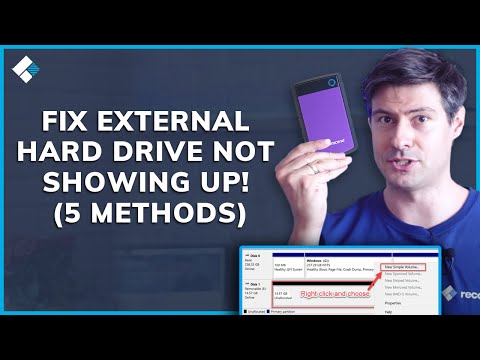
You know that feeling when you’re all set to get some work done or maybe just binge-watch your favorite series, and bam! Your computer decides it won’t play nice with your portable hard drive? Yeah, super frustrating.
It’s funny how these little gadgets seem to have a mind of their own. One minute they’re working perfectly fine, and the next minute, nada. It’s like they’re playing hide and seek with our files!
Before you start panicking or thinking your precious data has disappeared into the digital abyss, chill for a sec. There could be some simple reasons why this is happening.
And hey, trust me—you’re not alone in this. So many people have been there!
Let’s see what might be going on.
Checking External Drive Connections
Oh, the frustration when you plug in your portable hard drive, only to have your computer stare blankly back at you. Let’s dive into how to check those external drive connections and get things running smoothly again.
Firstly, the thing is that cables can be quite tricky. They might look perfectly fine on the outside, but sometimes they’re just not making a good connection on the inside. So try using a different cable if you suspect it might be faulty. You never know!
Secondly, consider the USB port you’re using. Computers have all sorts of ports these days, and some provide more power than others. If your drive isn’t getting enough juice, it might not show up at all! Switch ports and see if that helps; front ports often receive less power than rear ones.
- Restart your computer: It sounds cliché, but restarting can refresh connections and hardware settings.
- Check device management: On Windows, use “Device Manager”. On a Mac, try “Disk Utility.”
- Update drivers: Outdated drivers can be sneaky culprits. A quick update could solve everything.
And let’s not forget about those dusty old drive issues! Sometimes external drives just need a little rejuvenation—perhaps they’ve been sitting idle for too long or need formatting for compatibility with another system.
When I was working late one night on a deadline-driven project (aren’t they always?), my own trusty hard drive refused to connect after months of perfect service. Turned out that giving it a gentle wiggle in another port was all it needed!
Remember: each step is like trying different keys to open up possibilities—and hopefully restore communication between your device buddies again!
Windows 11 Won’t Recognize Portable Hard Drive
Oh boy, dealing with a portable hard drive that just won’t show up on Windows 11 can be super frustrating. I feel you! Sometimes, you plug it in and expect it to appear like magic, but no dice. Let’s walk through some things that might get your computer to finally recognize it.
Check the Basics First
Before diving deep into technical stuff, make sure the simple things are covered first.
- Try Another Port: Just unplug the drive and pop it into another USB port. You’d be surprised how often this does the trick!
- Dabble with Cables: Could be a faulty cable causing all the chaos. If you have another one lying around, give it a whirl.
- Restart your Computer: Ah yes, the timeless fix-all solution is often underrated.
Dive into Disk Management
Sometimes Windows likes to play hide and seek with your devices.
- Open Disk Management: Type “Disk Management” in that little search box next to Start Button and click on “Create and format hard disk partitions.”
- If your device shows up there as unallocated or without a letter, that’s probably where things went astray.
- Add or Change Drive Letter: Right-click on your drive (if visible) and choose “Change Drive Letter and Paths.” Assign a letter if there isn’t one or change if needed.
The Device Manager Thought Process
Sometimes it’s not just invisible—it’s also misbehaving.
- Poke at Device Manager:: Search for “Device Manager” in Windows search bar.
- If you see your external drive listed there with a black bar or saying “Unallocated,” it means the disk needs formatting or assigning a letter.
- Just remember formatting will erase all data.
- In Disk Management again, right-click on your external drive.
- Select “Change Drive Letter and Paths.”
- Add a new drive letter if it doesn’t have one already.
Snoop around under “” or ”
LLI IF yOU SPOT A YELLOW TRIANGLE RIGHT-CLICK IT AND JUST UPDATE DRIVER SOFTWARE (it sounds fancy). Maybe Windows knows what’s wrong behind curtains.
emorable anecdotes can sometimes give insights… If these steps don’t help consider friendlier faces nearby who may know stuff better than I do online forums after all we’re never alone! 😊
Detected but Not Visible External Hard Drive Issue
Oh no, your external hard drive is acting all mysterious, showing it’s there but refusing to let you in! It’s like trying to open a door with an invisible key—super frustrating. But don’t worry; I’ve got some ideas that might help. Let’s figure this out together!
1. Check the Basics:
First things first, let’s start simple. Make sure everything is plugged in correctly. Try another USB port on your computer if possible. Sometimes those little connections can get a bit finicky!
2. Look at Disk Management:
Now, I want you to open Disk Management on your computer. You can do this by right-clicking on the Start button and selecting “Disk Management.”
3. Change Drive Letter and Paths:
Here’s another trick that sometimes does wonders:
4. Update Your Drivers:
Sometimes technology just wants some fresh updates! Head over to Device Manager (right-click Start button > select Device Manager). Find your external hard drive under “Disk Drives,” right-click it and select “Update driver.” Let Windows search for new drivers online.
5. Try Another Computer or OS:
Doesn’t hurt to test if something else recognizes it either by connecting the hard drive to another computer or using a different operating system (like swapping from Windows to Mac).
And check this real-life friend example: A buddy of mine once had his portable hard drive not show up because his USB cable was faulty—can you believe that? Switched cables, problem solved! Really hoping yours turns out just as easy.
So yeah, hang tight while going through these steps—you got this! And sometimes problems bring surprises: who knew updating drivers could give such relief?
Oh, dealing with a portable hard drive that’s not recognized by your computer can be quite the head-scratcher, can’t it? I’ve been there myself—sitting at my desk with a project deadline looming. I plugged in my trusty portable hard drive, brimming with crucial files and documents, only to see… nothing. No reassuring chime or notification pop-up. Just silence.
First things first, you might want to check the basics like the USB connection. Sometimes it’s just a matter of reseating that little plug-in end. It’s like trying to fit a new bulb in an old socket—sometimes you gotta give it a couple of tries for the magic to happen.
Now, if that doesn’t do the trick, it could be worth checking out if other devices recognize your external drive. It’s kind of like when your TV remote suddenly stops working; sometimes you need another device to confirm whether it’s really busted or just your TV acting up.
And hey, don’t forget about those mysterious settings on your computer! Give Device Manager or Disk Management a peek—a little exploration can go a long way here. You might find that your hard drive is visible but not mounted or assigned any letter yet. Like discovering an old friend lost in crowd—you just have to acknowledge them so they can come over!
Software updates could also play tricks on us sometimes without us realizing it. So keeping everything updated is often helpful too—it’s kind of like making sure all the players are reading from the same script during game time!
Lastly—and nobody likes this one—but there’s always possibility of hardware failure. That’s when having backups becomes even more vital—they’re lifesavers during these moments! Modern technology is fantastic until something doesn’t work; then you remember why redundancy saves sanity.
So even if our gadgets occasionally decide they’re taking their own sweet time waking up (or downright refusing), remember there are some steps we can try before calling them stubborn relics doomed for recycling bin fate!