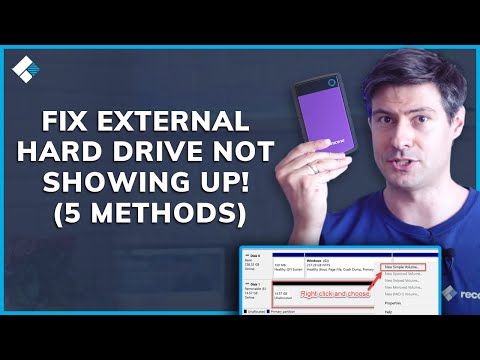
Hey! So you plugged in your portable drive, right? Expecting to see all your files pop up on the screen. But nada. Nothing happened. Your heart sinks a bit. What’s going on here?
I mean, we’ve all been there, haven’t we? Just when you thought technology was your friend. Sometimes it’s like it has a mind of its own!
No worries though, this kind of thing is usually kinda simple to sort out once you know what to look for. Promise.
Hang tight while we explore some easy ways to get that drive talking with Windows 10 again! It’s not rocket science—just a bit of tech magic!
External Hard Drive Recognition Check
You’re about to transfer some important files, and suddenly, your Windows 10 machine decides it doesn’t want to recognize your external hard drive. Frustrating, right? Let’s break down a few things that could be going wrong and how you might fix them.
First off, check the basics: Connections. Sometimes it’s as simple as re-plugging the USB cable into another port. Sounds silly, I know! But you’d be amazed at how often this works. USB ports can get finicky at times.
Now if reconnecting didn’t do the trick, dive into the Device Manager. Here’s a quick way you can do that:
- Press the Windows key + X and choose “Device Manager” from the list.
- Look under “Disk drives” for any indication of your hard drive.
If it’s listed but with a yellow triangle or an error symbol next to it, you might have a driver issue. Right-click on it and try updating or reinstalling drivers.
Another thing that sometimes causes problems is that pesky “Power Management” setting on USB hubs. You don’t want Windows randomly cutting power to save energy when you’re trying to use your device!
- In Device Manager again—look under “Universal Serial Bus controllers.”
- Right-click each “USB Root Hub” and click “Properties.”
- Check out the “Power Management” tab and uncheck “Allow the computer to turn off this device to save power.”
Take a peek in Disk Management if those solutions haven’t worked yet. To access:
- Right-click on Start menu button (or press Windows + X), then select Disk Management.
Here you should see all connected drives—even if they’re not showing up elsewhere. If yours is there but without a letter (like D: or E:), right-click it and choose “Change Drive Letter and Paths…” Then add one! This weird little oversight can stop an otherwise perfectly healthy drive being detected.
Anecdote time! I remember helping my friend Lauri once; her external hard drive wouldn’t show no matter what we tried until we found out there was something as small as needing another letter assigned! It felt like magic seeing all her files pop back up again instantly!
Anyway whether good old plugging-and-unplugging solves everything quickly or deeper fixes are needed—it’s usually possible restore connection without losing data altogether unless hardware itself is damaged beyond repair…which fingers crossed isn’t happening here!
Always good luck fixing these tech gremlins wherever they pop up next because let’s face reality—they will—eventually somewhere somehow again someday yeah.
USB Detection Troubleshooting in Windows 10
Oh, the frustration when your trusty USB drive suddenly goes undetected on your Windows 10 computer! It happened to me once when I was at a friend’s house, trying to share some important files. I plugged in the USB and…nothing. It’s just one of those moments when you take a deep breath and think: “Now what?”
Okay, don’t worry. Let’s walk through some steps that might bring that sneaky drive back to life.
1. Check the Basics First
Start simple: ensure your USB port is working fine by plugging in another device. If it works, we can be pretty sure the port itself is okay.
2. Try Another Computer or Port
Sometimes a different USB port or another computer can trigger recognition. Give it a shot to figure out if it might be a port issue.
3. Restart Your Computer
Yes, you’d be surprised how often just restarting helps! It resets things and sometimes solves minor software glitches.
4. Update Your Drivers
Outdated drivers are like those old comfy shoes—they work until they don’t:
- Go to Device Manager. You know where that’s at? Right-click on the Start menu.
- Look for Universal Serial Bus controllers. That’s where the magic happens.
- If there’s any yellow exclamation mark, right-click and choose Update Driver Software…
- Select “Search automatically for updated driver software.” Fingers crossed!
5. Uninstall Hidden Devices
Windows sometimes keeps ghosts (hidden devices). They can mess with new ones:
- You’re still in Device Manager, right? Click on “View” and toggle “Show hidden devices.” All sorts of stuff might pop up!
- If you see any greyed-out devices under USB controllers—right-click them and hit Uninstall.
6. Use Disk Management Tools
Press Windows key + X and find yourself in Disk Management territory:
- If your USB appears there but lacks a drive letter (strange but happens), right-click it.
- Select “Change Drive Letter and Paths”, then add one.
A Story About Cables & Connections…
I once helped my neighbor who was convinced his brand-new portable drive was broken because it wouldn’t show up on his laptop—turned out he had connected an external hard drive with a broken cable! A simple cable change fixed everything!
Anyway these tips should help with most troubles related getting your USB recognized again без нервов . If not though more detailed inspection by professional might need done look after tech vibes good luck!
Connection Compatibility Requirements
Oh, that moment when you plug your portable drive into your Windows 10 computer and nothing happens. Frustrating, isn’t it? To figure out what’s going on, let’s look at some of the connection compatibility requirements. These can help you sort out why your drive isn’t showing up.
Check the USB Port: First things first, make sure the USB port is working. You’d be surprised how often this blip gets overlooked! Plug another device into that same port and see if it’s recognized. If not, try a different port or even a different computer.
Drive’s File System Compatibility: The file system can also trip you up. Windows 10 mainly uses NTFS and exFAT file systems, while some drives come pre-formatted with systems like HFS+ for Macs or ext4 for Linux. If your drive uses an unfamiliar file system, Windows might not recognize it right off the bat.
- NTFS (New Technology File System): Best choice for compatibility with Windows.
- exFAT: Works with both Windows and Mac for larger files.
Remember Sarah from last week? She bought a shiny new drive to transfer vacation photos but didn’t realize it was formatted in a Mac-only format until her PC couldn’t see it.
Power Supply Considerations: Some drives need more juice than others—particularly those without their own power source. Try connecting directly to your laptop or PC without any intermediaries like USB hubs which might hinder power supply.
Example: Imagine Richard’s heavy-duty external hard disk that required dual USB connectors just to operate! Yeah, not all drives need such odd stuff—most are fine with one connector—but double-checking never hurts.
Cable Quality & Type: Believe it or not good ol’ cable quality matters too; flimsy cables can lead to poor data transmission resulting in non-recognition by devices…Try using another cable if you’ve got one handy!
Also there’s age-old confusion between USB versions:
- USB-A versus USB-C: They’re shaped differently…
- Your ports must match them!
At this point maybe you’re taking baby steps unplugging/replugging hoping something magical happens—truthfully sometimes closures need gentle coaxing (or multiple attempts).
Lastly do yourself one favor….Always back up critical through clouds/external sources—it’ll save headaches down track!
Oh man, nothing quite like that moment of plugging in your portable drive and your computer giving you the silent treatment. It’s like talking to someone who just stares blankly back; frustrating, right?
Picture yourself getting ready to show some old family photos at a gathering. You know, those ones from that epic camping trip where uncle Joe accidentally dunked himself into the lake trying to catch a fish… Classic! All packed on that little portable drive, supposed to be our magic gateway to memories, but instead, nah – just crickets from Windows 10.
Anyway, if you’re dealing with this too, there might be a few culprits. Could be something as simple as the USB port playing tricks on you. Sometimes they get all picky about which device they’ll say hello to. Plugging it into another port can do wonders!
And drivers… These little software bits are like translators for your computer and gadgets. If they’re out of date or went AWOL during an update – guess what? Your drive might end up being unrecognizable.
File systems can add their share of confusion as well. Let’s say your drive is formatted for Mac and you try using it on Windows without proper setup? Yeah, not happening smoothly.
It really brings back memories of rummaging through old CD cases when my PC decided it wouldn’t read half of them due to scratched surfaces or whatever mysterious reasons. Some days technology feels so reliable; others it’s showing its mood, leaving us in a bit of a puzzle-solving mood ourselves.
And hey! Before jumping off the deep end thinking the worst about lost files forever—because that’s not fun—checking in with another machine might avoid unnecessary panic too!
At times these issues turn us into accidental tech wizards by figuring things out one step at time—or over-the-shoulder cheerleaders when calling up more tech-savvy pals or support lines because sometimes all we need is someone else’s pointer (no shame!).
So yeah – doesn’t this situation feel like an “Aha moment” waiting inside? Once sorted out ultimately makes life slightly easier next round—it becomes another skill under digital belts no matter what comes around again!