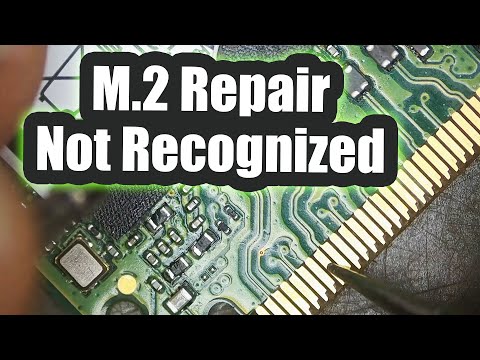
Alright, imagine this. You just got a shiny new Samsung MZVLB256HBHQ SSD. It’s all the rage now, you know? You’re excited to make your computer zip around like a race car. But uh-oh! Your system’s like, “Huh? What SSD?”
Now, don’t panic just yet! It’s not the end of the world. You know, computers can be a bit finicky sometimes—kind of like trying to explain a simple concept to your cat.
So why isn’t it showing up? There can be a handful of reasons behind this mysterious disappearance. But fear not, together we’ll get to the bottom of it.
We’re going on an adventure through cables, settings and maybe even some bios stuff! Got your screwdrivers ready? Let’s untangle this tech mystery together and bring that SSD back to life!
SSD Detection Troubleshooting Steps
Ah, the frustration of dealing with a device that isn’t being detected by your computer! It’s like misplacing your keys—you know they’re supposed to be there, but somehow they just aren’t. If your Samsung MZVLB256HBHQ SSD isn’t showing up, let’s try to tackle this together and figure out what’s going on.
First off, let’s go through some essential checks:
Basic Connections:
It’s always good to start simple. Make sure the SSD is properly connected. I know it sounds obvious, but I’ve once spent hours troubleshooting only to find out my hard drive wasn’t seated correctly in its slot. True story! Double-check that the physical connection is snug and secure.
BIOS Settings:
The system BIOS might not be recognizing the SSD. Reboot your computer and enter BIOS setup (usually by pressing something like F2 or Del during startup). Look for any settings related to storage devices or boot order. Ensure that the drive is listed there.
- SATA Mode: Set it to AHCI if it’s different.
- Boot Order: Make sure the SSD is in an appropriate position.
Cable Issues:
Sometimes, a faulty cable can be the culprit. Try using a different SATA cable or port if you’re using an M.2 slot on your motherboard—it doesn’t need cables but ensure it’s not obstructed by other components.
Driver Updates:
Outdated drivers can play hide and seek with new hardware! Access your device manager on Windows (Win key + X then select Device Manager) and look for any exclamation marks next to storage devices. Right-click on drivers marked with issues and update them.
So far so good? If these steps don’t resolve it, we might want to think broader about potential motherboard issues or even software conflicts:
- Firmware Update: Check if there’s a firmware update available from Samsung’s support site.
- Operating System Recognition: Sometimes Windows needs a little nudge; check Disk Management (search “Create and format hard disk partitions”) to see if it’s simply unallocated space needing initialization.
And hey don’t forget: sometimes just reseating everything—turning things off completely and unplugging them—can do wonders. You’d be amazed at how often that works like magic!
If you get through all this still scratching your head, don’t worry! Computers can be tricky little creatures sometimes but hang in there—you’re doing great trying all these steps yourself!
Samsung Magician Mac SSD Detection Issue
I can definitely help with the issue you’re facing where your Samsung SSD isn’t detected by Mac’s Samsung Magician. It’s frustrating, right? Let’s dig into it together.
First of all, it’s essential to know that Samsung Magician software is primarily designed for Windows-based systems. This doesn’t mean your Mac can’t work with a Samsung SSD, but the software won’t support it natively. That said, here are some insights into why your Samsung MZVLB256HBHQ SSD might not be showing up and what you can do about it.
- Compatibility: Since Samsung Magician is not available for macOS, it won’t recognize the SSD directly through its interface on a Mac system. However, this doesn’t prevent your Mac from using the drive; just means you can’t manage or optimize through Magician itself.
- SATA Mode: Make sure that in the BIOS settings (if you’re using Boot Camp or a similar environment) the SATA mode is set to AHCI. Sometimes an incorrect setting can lead to detection issues even if you’re trying to run a dual-boot setup.
- Cable Connections: It sounds basic but double-check those cables! Loose connections could be causing this problem. An older friend once spent hours diagnosing his hardware failure only to find he’d merely disconnected something by accident.
- Nvme Support: macOS does support NVMe drives natively now but ensure that any necessary firmware updates are applied if applicable before installing or configuring them within your setup.
- Troubleshoot Using Disk Utility:If all else fails: fire up Disk Utility on your Mac – look under ‘Internal’ for detection problems there too because sometimes drives need formatting/reformatting especially when newly installed/upgraded in order to appear correctly as expected during boot time process itself!If visible—and fingers crossed—initialize them properly via APFS/HFS+, whichever works best according usage requirements/preferences today after all things considered at last 😊. Example from my own life: last summer while swapping computers external backups saved me numerous headaches caused primarily simple oversight like forgetting previous step altogether!.You follow me here? Hang tight & give these ideas a try before resorting extreme measures okay?., Thank’s! 😊💻🛠️.
Samsung Magician Incompatibility with SSD T7
You know, running into issues with your Samsung SSDs can be a real head-scratcher. You’ll be glad to know you’re not the only one who’s felt this frustration.
Let’s say you’ve got a Samsung T7 SSD that just won’t play nice with Samsung Magician software. It can feel like banging your head against a wall, right? I’ll try to help you make sense of it.
Why the Incompatibility?
It’s like trying to fit a square peg in a round hole—Samsung Magician was primarily designed for its internal drives, not portable ones like the T7. So when you plug in your T7 and expect things to work seamlessly, well, it might not quite go that way.Common Causes:
- Incorrect USB Port: Your T7 may not be detected if plugged into USB ports that don’t support high-speed transmission.
- Driver Issues: Sometimes old or missing drivers can stop things working smoothly.
- Platform Limitations: Certain operating systems might have quirks or settings blocking detection.
I know what you’re thinking—how do I fix this? Here’s where you start:
Troubleshooting Steps:
- Check Connection: Make sure you’re using the right cable and port. Fast connections often need USB 3.0 ports (you’ll recognize ’em by their blue color).
- Update Drivers: Head over to your device manager and check if any updates are missing for your external drive interface.
- Your Operating System: Refresh update settings on either Windows or Mac; sometimes it’s just an update away from solving quirks.
Now when we’re talking about updating those drivers manually it’s kind of like making spaghetti for dinner without having ever cooked before—with patience it’ll work out eventually!
Some folks have found success with these steps:
– If using Windows: Go into device manager, find “Universal Serial Bus controllers,” look for anything related directly under there regarding disks.
– On Macs: Look through Disk Utility… pull up everything available about connected devices—and verify settings seem optimal!Weirdly enough occasionally unplugging then reconnecting after initializing procedures does wonders too… strange huh?
So anyway—if none these solutions pan out maybe reaching towards Samsung support could lend some insight/help more focused goodness toward resolution!
Feeling better now?! Hopeful yours gets sorted soon!
You know, it’s kind of frustrating when you’re all set to fire up your computer, and then—pow!—your SSD just vanishes into thin air. I had a buddy who swore up and down that his new Samsung MZVLB256HBHQ was top-of-the-line stuff. He was waving it around like it was the Holy Grail of storage solutions. Then, not a week later, he’s calling me in a panic because his PC isn’t recognizing this magic device anymore.
This whole situation can have you pulling your hair out if you don’t know where to start looking for answers. Sometimes it’s something small—like your BIOS settings being off-kilter. Those little menus can be tricky, huh? You gotta make sure the SSD is actually enabled over there.
And then there’s the physical side of things. My buddy—being a bit clumsy with tech—didn’t realize that cables need to be snug as bugs in rugs. Like, those connections should be rock solid! If not, well… no wonder the system acts like it doesn’t see the drive.
Speaking of seeing things… drivers are another sneaky culprit here. If they’re outdated or incompatible with the latest OS updates, you’ll find yourself back at square one too often for comfort!
Some folks overlook power issues; if that SSD doesn’t get enough juice from your rig’s power supply…well…let’s just say it’s not going anywhere fast—or anywhere at all—for matter.
And remember how some devices need specific slot types? Yeah—it’s easy to miss when these details are tucked away in microscopic text on manuals we scarcely read nowadays.
So next time your Samsung or any other gadget has gone AWOL from detection lists: check those connections first (both software AND hardware). Tinker around with BIOS settings (carefully though), verify power outputs from PSUs aren’t being stingy—and keep an eye out for compatibility notes hidden within driver updates too while troubleshooting!
My friend did eventually get everything sorted after running through these possibilities one by one—not without some head-scratching moments along way mind you—but hey!, such is life in tech land where nothing ever goes exactly how plan right?!