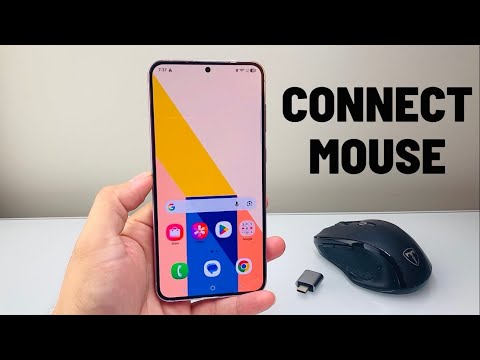
Oh boy, there’s nothing worse than sitting down to get some work done—or maybe enjoy your favorite game—only to find out that your Samsung mouse just won’t connect. Frustrating, right? You’ll sit there shaking the mouse around, clicking for dear life and thinking, “Come on! Why isn’t this working?”
But hey, don’t worry too much. You’re not alone in this battle with stubborn technology. We’ve all been there at some point. One minute everything’s smooth sailing, and then bam—peripheral chaos ensues.
Maybe it’s a Bluetooth hiccup, or maybe it’s something about those pesky batteries again? We’ll dive into all those usual culprits and figure out how to get you back on track in no time.
Seriously though, let’s make that mouse behave—like a trusty pet! You deserve a tech setup that’s as chill and reliable as you are.
Intermittent Mouse Connection Issues
Having trouble with your Samsung mouse cutting in and out when you’re trying to get stuff done? It’s super annoying, isn’t it? Let’s dig into why this happens and find ways to fix it. I’m here to help guide you through some straightforward solutions.
1. Check the Batteries
It’s surprising how often low battery power can mess with your mouse’s connection. If you’re using a wireless mouse, try swapping out the batteries for fresh ones. And make sure they’re positioned correctly! I’ve totally put the batteries in wrong a couple of times myself.
2. Verify Connection Settings
If it’s a Bluetooth connection, make sure both devices are paired correctly. Sometimes just turning off Bluetooth on your computer and then turning it back on can help re-establish the connection.
- Go to your computer’s settings.
- Select “Devices” or “Bluetooth & other devices.”
- Locate your mouse from the list and ensure it’s connected.
3. USB Port Issues
For wired mice or those using a dongle, sometimes debris can get into USB ports—like little crumbs or dust that you can’t see right away! Try different ports on your computer, or give them a gentle clean using compressed air.
4. Update Drivers
Outdated drivers can cause unexpected headaches too! Keeping drivers up-to-date ensures that everything runs smoothly:
- Visit Samsung’s website or use device manager tools built into your OS to check for updates.
- If there are no updates available, you might want to reinstall the current driver as a last resort.
5. Interference from Other Devices
Wireless devices sometimes don’t play nice with each other because of signal interference:
- Cordless phones, microwaves—even other wireless devices—can interfere with signals.
- If possible move these away from where you’re working.
I once had my gaming console set up nearby that threw my whole setup off balance! So relocating things can really save some frustration.
Finally remember technology isn’t perfect; stuff happens now and again even after doing everything right but understanding what may trigger these issues gives us control back—or at least helps calm our nerves until all is running smoothly again!
Samsung Laptop Mouse Not Responding
Oh no! Your Samsung laptop’s mouse is giving you a hard time, right? I know how frustrating that can be. Let’s figure this out together.
Key Causes for the Mouse Not Responding:
- Batteries might be dead: If you’re using a wireless mouse, one of the first culprits is usually the batteries. Make sure they’re not just sad and lifeless.
- The connection isn’t happening: Sometimes the connection between your laptop and mouse decides to take a break. Double-check that they’re paired correctly.
- USB Port issues: If it’s a wired mouse, maybe it’s the USB port acting up. Try swapping to another port just in case.
- Driver troubles: Drivers are like translators between your hardware and software – maybe they need an update or reinstallation.
Steps You Can Try for Fixing It:
- Switch those batteries: Yeah, it sounds obvious, but swapping out old batteries with fresh ones could revive your wireless mouse quickly!
- Reconnect or pair again: For wireless mice, make sure it’s properly synced with your Samsung laptop. Sometimes turning it off and back on helps.
- Dabble with another USB port: If you’re using a wired option, try plugging your mouse into another USB port on the laptop to see if there’s any change.
- Sneak around in Device Manager: : Wondering what that is? It’s like this list in Windows where you see all what’s connected to your computer:
– Press “Windows + X” and select “Device Manager.”
– Find “Mice and other pointing devices” then check if there’s a warning sign.
– Right-click on yours–choose “Update Driver” or “Uninstall” followed by restarting the computer so it can reinstall automatically.
All done but still stuck? Perhaps consider checking for Windows updates as they often hold fixes too! And don’t hesitate asking help if needed because technology loves puzzles—but they’re meant for solving not stressing over!
Hardware Issues Causing Mouse Malfunction
Oh, the frustration of a mouse that refuses to cooperate! Let’s dive into some potential hardware issues that might be causing this misbehavior. Especially when it comes to **Samsung mice**, they have their quirks but nothing we can’t tackle together. Picture a day when your trusty mouse simply won’t connect or stop responding in the middle of something important. Annoying, right? Well, let’s see what could be going on behind the scenes.
First up, it’s crucial to check whether your **USB port** is functioning properly. You know how sometimes you plug in a device and nothing happens? That USB port might not be delivering power or data as it should. To see if that’s the case, try plugging your mouse into a different port on your computer.
Possible causes:
- Loose Connection: Ensure that the USB connection is snug and not wobbly.
- Damaged Port: Check the condition of your USB ports for any visible damage or dust accumulation.
Another sneaky culprit could be **power-related issues**. If you’re using a wireless model, make sure those batteries are fresh as daisies. Even if they seem okay, give them a swap just to rule out this simple fix.
Batteries and Power:
- If rechargeable: Check if it’s properly charged; sometimes charging cables can wear out too.
- If disposable: Replace them with new ones to see an improvement.
Next on our checklist is examining potential **compatibility problems** between your Samsung mouse and the computer’s operating system. Although most devices these days are pretty cross-compatible, sometimes drivers create hiccups where there shouldn’t be any.
Driver Updates:
- Outdated Drivers: Head over to Samsung’s support page online—they often have updated drivers ready for download which can solve unexpected quirks.
- Operating System Conflicts: After updating drivers—if things still aren’t right—consider checking for Windows updates or MacOS updates depending what platform you’re using since these offer fixes too!
Finally—and I think every tech fan has faced this at least once—let’s talk about possible **interference from other wireless devices** around us like Wi-Fi routers or Bluetooth speakers causing interruptions especially among Bluetooth keyboards/mice community enthusiasts!
Troubleshoot Interference Issues:
- *Try relocating affected devices further away from other electronics* (routers/cell phones etc.). Making space matters!
- *Reset pairing settings directly on both peripherals involved.
Oh, the little frustrations of technology! You’re all set to start your day, coffee in hand, ready to conquer the world—or, you know, just do some work—and then bam! Your Samsung mouse won’t connect. I mean, what’s that about? It’s like technology conspires against us sometimes.
I once had this happen right before a big video call—talk about stress. I remember scrambling around trying different things like unplugging and plugging it back in frantically. Sometimes these gadgets need a bit of old-school encouragement, right?
Anyway, when your Samsung mouse decides to go on vacation without notice, a few usual suspects might be causing the issue.
- First off: batteries… duh! We’ve all been there and overlooked this simple fix. Occasionally they just need replacing or recharging.
- Next up: signal interference. If you’re using a wireless mouse and it’s not behaving properly—check for other devices messing with its signal.
- Software being naughty is also an option—it could be outdated drivers acting up or Windows/Mac updates throwing things out of whack.
- Sometimes it might even be as straightforward as unplugging that dongle and giving it another go or switching USB ports—who knew?
Remember though we’re often quick to blame our gadgets but sometimes simply restarting the computer does wonders… classic move!
It’s these little hiccups that keep us humble in our tech journeys; reminding us that even smart devices need some tender loving care now and then—you know? Love seeing how folks deal with similar niggles online too; turns out you’re never alone!
So if your Samsung mouse decides not to cooperate again soon (and fingers crossed it doesn’t), try running through these ideas before tearing apart your workspace—I mean—who needs extra chaos anyway?!