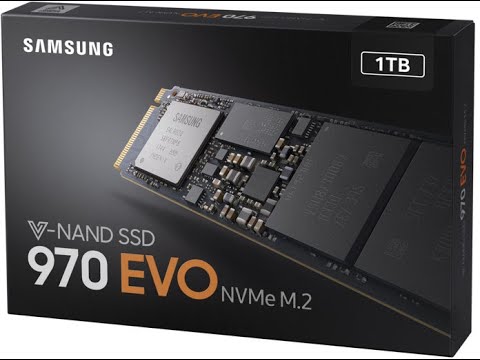
Oh wow, so you’ve got a shiny Samsung 970 EVO 500, but it’s being all shy and not showing up in the BIOS. That can be super frustrating, right? It’s like having a great party and the guest of honor just doesn’t show.
You probably planned this sweet setup with your solid-state drive to make everything super fast and smooth. And then… nothing. Nada. Zip! I know the feeling—almost like when you misplace your keys just when you need to leave in a hurry.
But hey, don’t sweat it too much. This kind of thing happens more often than you’d think. Sometimes our tech gets a little rebellious or plays hard to get, you know?
It’s more common than people realize, so don’t worry—you’re definitely not alone in this tech dilemma!
BIOS Compatibility Check for SSD
Alright, let’s have a go at this! So, you’re facing an issue with your Samsung 970 EVO 500 SSD not being detected by the BIOS. This can be a bit puzzling, I know. But don’t worry, you’re definitely not alone in this.
Now, before diving into possible solutions, let’s take a moment to understand what might be going on here. When an SSD isn’t showing up in BIOS, it could be due to some compatibility hiccups or configuration settings.
Check Physical Connections:
First off, take a look inside your computer and make sure everything’s snug and secure:
- Double-check that the SSD is properly connected to the M.2 slot on your motherboard.
- If you’ve got another compatible slot available, maybe try switching to that one.
Update BIOS:
An older BIOS version might not recognize newer hardware like the Samsung 970 EVO.
- You can check for any available updates from your motherboard manufacturer’s website.
- Updating is straightforward but do follow their instructions carefully so nothing goes amiss.
SATA vs NVMe Configuration:
Understandably tricky! The Samsung 970 EVO is an NVMe SSD.
- Your BIOS needs to be set up to handle NVMe instead of SATA where applicable.
- Dive into Advanced Settings in BIOS and locate Storage Configuration section.
Compatibility Modes:
Sometimes changing these settings can help:
- If there’s an option for AHCI or RAID mode under Storage Configuration—ensure it’s set correct for NVMe SSDs which often prefer AHCI.
- You may also want check if Legacy/CSM mode versus UEFI has effect since some setups vary here too!
.
So those are basic checks you could start with; addressing common roots behind undetected drives sounds pretty simple but can really hit hard!
Lastly remember each PC model behaves differently based manufacturer preferences/settings ecosystem overall—it’s nuances after all! It could also explain why configurations differ across systems even using same drive equipment sometimes frustratingly enough right?
Hope things work out—best luck sorting issue out soon!
Samsung 970 Evo 500 Not Detected in BIOS
Ah, the sudden panic when your Samsung 970 EVO 500 SSD isn’t showing up in BIOS, right? It’s like waking up to find out your car keys are missing. Let’s figure this out together.
1. Check Physical Connections
You know how sometimes we forget to plug in our phone charger properly? Yeah, it happens with SSDs too. Make sure your SSD is snugly connected to the M.2 slot on your motherboard. Double-check all screws and ensure it sits tight—loose connections can be sneaky little culprits.
2. Update Your BIOS
Think of BIOS updates like giving your computer a caffeine boost—it helps things run smoother and catch new tech changes. Head over to the motherboard manufacturer’s website and look for any updates that might include better compatibility with SSDs like yours.
3. Navigate BIOS Settings
Dive into your BIOS settings (usually pressing the “Delete” or “F2″ key during startup). Once there, look for sections under storage configurations or boot options to see if there’s anything related to NVMe drives that needs enabling.
- Enable CSM: In some instances, switching Compatibility Support Module (CSM) settings on or off helps.
- Set Storage Mode: Ensure it’s set correctly—some motherboards need AHCI mode specifically enabled for M.2 drives.
4. Test Another Slot or Device
If fiddling with settings doesn’t help, pop another M.2 device into that slot (if you have one) or try placing the Samsung SSD in a different compatible slot if available—this will discern whether the issue is specific to a particular part of your setup.
5: Power Cycle Your System
It sounds really basic, but sometimes powering off everything completely helps reset any temporary glitches keeping the hardware from being recognized—turn off the system completely before turning it back on again after about 30 seconds.
If none of these steps do wonders today? Reaching out directly with support teams could provide more tailored assistance based on deeper technical scenarios involved here! Hang in there—you’ll get this sorted…
Samsung 970 Evo 500 Not Detected in BIOS on Windows 10
Oh, the frustration of when your trusty Samsung 970 Evo 500 is playing hide and seek with your BIOS on Windows 10! I know how it goes—you’ve got everything set up and ready to roll, only to find out your computer isn’t recognizing your SSD. Let’s unravel this mystery together.
First off, let’s just pause for a second to appreciate what an SSD like the Samsung 970 Evo can do. These drives are little powerhouses that make both boot-up times and file transfers seriously fast. But when they aren’t getting detected, it’s another ball game altogether. Here’s the lowdown on what might be going wrong.
- Check Connections: Start by making sure everything’s plugged in properly. It might seem basic, but you’d be surprised how often loose connections are the culprit! Unplug and replug the SSD; sometimes reseating it does wonders.
- BIOS Settings: Boot into your BIOS settings by tapping a key like DEL or F2 right after powering on—depends on your motherboard model. Once there, make sure AHCI mode is enabled under SATA configuration. If it’s not set right, the drive might go unnoticed.
- BIOS Update: An outdated BIOS can also cause such problems. Visit your motherboard’s website to see if there’s an update available that supports newer hardware like NVMe drives.
- M.2 Slot Compatibility: Double-check if you’ve placed the SSD in a slot that supports NVMe drives specifically—not every M.2 slot does, oddly enough!
- SATA Mode Conflicts: If other drives are connected using older SATA modes alongside AHCI or RAID setups—it can create conflicts disrupting detection.
Alright, if none of this works out thus far—we dig deeper:
- SATA Ports/Slots Disabled: Sometimes specific settings disable certain ports or slots due to resource allocation—check that too while you’re in BIOS!
- Cable Issues (if applicable):, Ensure there aren’t any faulty cables involved between connectors when using adapters for setup verification purposes apart from direct placements!
If all else fails?: Reach support teams both from Samsung as well as Motherboard manufacturers—they help troubleshoot peculiar cases effectively having more insights globally than us end users alone!
It’s kind’of thrilling solving these puzzles isn’t it?, stick around tech forums online frequently offers solutions via community experiences too!
Oh boy, the old “Samsung 970 EVO not detected in BIOS” dilemma, right? Imagine this: you just got your hands on a shiny new 500GB Samsung 970 EVO SSD. You’re all excited, ready to give your machine that speed boost it so badly deserves. You install it and… nothing! The BIOS acts like it hasn’t even been invited to the party.
First of all, have you ever felt like your computer is playing a prank on you? Like you’re in one of those moments when you swear you’ve done everything correctly but the universe decides to give you a little nudge. Anyway, there are a few things we can look into here.
Let’s start with the simple stuff. Sometimes it’s just about checking if the SSD is properly seated in its slot. Yeah, I know it sounds basic, but these little things tend to escape us sometimes—like when you’re sure you’ve locked your car and then spend five minutes searching for keys only to find them in your pocket! Make sure there’s no dust or particles interrupting that connection too.
Another thing worth peeking at is whether your motherboard settings support NVMe drives. It’s possible that an update for your motherboard’s firmware could be necessary here—the manufacturer’s website can be surprisingly helpful for this sort of update.
Finally, beyond incorrect connections or out-of-date firmware —maybe double-checking how BIOS is set up might help too? Because sometimes it’s configured not quite right and ignores new hardware entirely. Look around for settings under something like “SATA mode” or “PCIe slots”. Adjustments here might wake up those devices currently hiding from sight.
Remember also: these issues can occasionally feel super frustrating; makes you want pull hair out doesn’t it?! But most times they turn out simpler than expected once step-by-step approached methodically with patience rather than panic—like puzzles coming slowly together until picture finally emerges clearly before eyes…maybe try rebooting after changes because magical resets work wonders sometimes don’t forget either!
Long story short: keep calm & troubleshoot away knowing solutions often closer realize they seem—you got this!