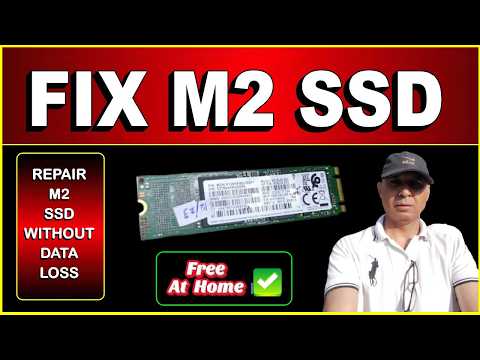
Ah, the classic “device not detected” dilemma! If you’re scratching your head wondering why your Samsung PM991 NVMe isn’t appearing in BIOS, you’re definitely not alone. I mean, who hasn’t faced tech glitches that make you want to pull your hair out?
Picture this: You’re all set to dive into a new project or maybe lose yourself in a game, and bam! Your trusty storage just plays hide-and-seek with you. Suddenly it feels like your computer’s got its own plans.
Now what? Well, don’t sweat it too much. This little gremlin is actually pretty common. There might just be a few little tweaks needed here and there. In the end, nothing beats that sweet satisfaction when everything clicks into place again!
BIOS Settings for NVMe Detection
Oh man, it can be really frustrating when your Samsung PM991 NVMe isn’t showing up in BIOS, right? Let’s take a closer look at what might be going on.
First things first, let’s talk BIOS. You know that bit of software that kicks in as soon as you power up your computer? That’s the BIOS. It’s like the director of a play making sure everything shows up where it’s supposed to.
Checking Compatibility: Not all motherboards support every single NVMe type off the bat. Crazy but true! Be sure that your motherboard is compatible with Samsung PM991 NVMe drives. Sometimes just double-checking online or glancing at the manual can save hours of head-scratching.
BIOS Version: Keeping your BIOS updated is critical! Manufacturers often release updates to add support for new hardware. If there’s an update available for yours, grab it from the manufacturer’s website and follow their instructions to install it.
- Accessing BIOS: To get into the BIOS, you’ll usually hit a key like F2, Delete, or ESC right after hitting power on—depends on your system though.
- Storage Configuration: Once you’re in, look for something about storage configuration or similar wording.
- M.2/NVMe Settings: Ensure any settings related to M.2 or NVMe drives are enabled.
Imagine working with an old-school film projector and trying different lenses until things come into focus—same kind of deal here!
SATA Mode Switch: Some BIOS versions have options that toggle between AHCI and RAID modes which can influence how devices are recognized:
- If your drive isn’t detected under RAID mode try switching over to AHCI (or vice versa).
Cable Connections: Even little things like loose connections could mess stuff up! Double-check everything is snugly plugged in—including cables leading from motherboard slots if applicable.
If after tweaking these settings still nothing appears maybe try slotting it into another M2 slot if available—it sounds silly but hey…sometimes simplest solutions are best!
Let me know how you get along with these ideas—I’d love hearing those magical words “It worked!
NVMe SSD Detection Issues
Oh, NVMe SSD detection issues can be a real head-scratcher, can’t they? They’re like that weird mystery you sometimes encounter with your hardware. You’re thinking everything should just work, and suddenly, your Samsung PM991 NVMe isn’t showing up in the BIOS. Annoying, right?
First things first. Let’s go over some basics so you can get a clear picture of what’s happening.
Check the Connections:
Make sure that your NVMe SSD is properly seated in its slot. Seems simple? But believe me, sometimes it’s just a matter of undoing and reconnecting things snugly.
BIOS Settings:
You might want to take a peek at your BIOS settings too. Look for options related to storage configuration.
- Change SATA Mode: Make sure it’s set to AHCI mode instead of RAID. This is crucial because the wrong setting here could mean your drive won’t be detected.
- Enable UEFI: Your system should have UEFI enabled instead of legacy mode for an NVMe drive.
Mobo Compatibility:
Now here’s something some folks overlook. Does your motherboard support this particular type or capacity of NVMe drives? Older systems might not play nice with newer drives.
Firmware & Drivers:
They can also cause trouble if they’re out-of-date or mismatched.
- Firmware Update: Check Samsung’s website for any firmware updates for the PM991.
- NVM Express Driver: Though Windows often handles this automatically, manually installing the latest drivers could help.
Now let me share a little story – I once had an old laptop where nothing I tried seemed to get my new shiny drive detected! It wasn’t until I’d exhausted every possibility that I realized my BIOS itself needed an update. After updating it, voila! There it was!
There’s always that sneaky detail hiding somewhere that makes all the difference! Remember patience is key when dealing with tech glitches – especially ones like these!
If these steps don’t do the trick yet (fingers crossed), considering reaching out on tech forums to see if anyone else has run into similar trouble or contacting customer support with detailed descriptions about what’s going awry… More often than not someone else has walked through those woods before you!
So there we go! A few things to try and hopefully soon you’ll be back on track with all systems go!
Samsung SSD Detection Issues
If your Samsung PM991 NVMe SSD isn’t showing up in the BIOS, it’s like trying to find your keys, but they’re not where you left them. Annoying and puzzling. Let’s break this down together.
Why isn’t it detected?
This could be due to several reasons — connection issues, BIOS settings, or compatibility problems with your system.
Check the physical connection
I know this sounds super basic, but double-check that the SSD is seated correctly in its slot. You’d be surprised how often a gentle nudge can solve big problems.
Look at the BIOS settings
When you enter the BIOS, verify if there’s an option for NVMe or M.2 slots being disabled. If you’ve accidentally changed this setting — or perhaps someone else did — you’ll need to re-enable it for detection.
- Enable Secure Boot: Sometimes toggling Secure Boot on or off can help with detection.
- SATA Mode: Ensure it’s set correctly; options like AHCI or RAID make a difference.
Update your drivers and BIOS
Honestly, keeping things up-to-date can be a lifesaver. Outdated drivers or an old version of BIOS might not support the newer hardware properly.
- BIOS Update: Visit your motherboard’s manufacturer website; they usually have the latest version available.
- Nvme Driver Update: Check Samsung’s site for any specific driver updates related to your SSD model.
The Compatibility Check
Every now and then mismatched components cause hiccups too. Confirm if your motherboard actually supports that model of SSD. Sometimes specs don’t match as you’d expect.
You know what? When I faced something similar with my setup last year, swapping out cables and testing connections eventually pinpointed where things went wrong. It’s not always quick but pays off once you’re back running smoothly!
Feel free reach out if these steps don’t help solve your dilemma… I’m here hanging around ready get my hands virtual dirty again!
Oh, boy! Running into an issue where your Samsung PM991 NVMe drive isn’t detected in the BIOS can be quite the puzzle, huh? I remember a time when a friend of mine got super excited to upgrade his laptop. You know how it is, dreaming of that faster storage speed! He spent hours researching and finally bought that shiny new Samsung PM991 NVMe. But then… surprise, surprise. The laptop wouldn’t even acknowledge it like it was some invisible ninja.
Picture him with his jaw dropped and his fingers frantically typing away on forums trying to figure out what in the world was happening.
First thing’s first—does your system even support NVMe drives? Some older devices might not have the right compatibility. Imagine trying to fit a square peg in a round hole. Whoops!
Checking connections is always worth a shot too. As silly as it sounds, something might’ve slipped during installation or maybe there’s dust—computers seem to have this insatiable appetite for dust sometimes.
Another key suspect could be your BIOS settings. If there’s one thing computers love doing (aside from misbehaving at crucial moments) it’s having endless options hiding behind acronyms like AHCI and RAID that can affect SSD recognition.
Firmware updates might also play their part here. These are kind of like little refreshers for your hardware components; keeping everything speaking the same language in tech terms.
And if none of these theories provide any leads? Maybe shoot out an SOS to tech support—they’ve likely seen this mystery before!
These sorts of gremlins can sure test our patience…but fixing them makes us feel like we’ve scaled Everest without breaking too much sweat! Have you tried any specific tricks so far—or perhaps found triumph over similar hiccups yourself?