Oh man, computers. They’re like these magical boxes that do everything for us until suddenly—they don’t. Ever had that heart-stopping moment when you turn it on, and it’s just… well, not right? Like there’s something wrong deep inside?
I remember this one time, my laptop just refused to boot up. Kept saying something about a “corrupted partition.” I was like, “A what now?” Turns out it has to do with how the computer organizes all your stuff. You know those filing cabinets at work? It’s kinda like that for your files.
Anyway, there’s this nifty trick using the Command Prompt (CMD) to fix it up without breaking a sweat—or at least without breaking too big of a sweat! It’s way simpler than it sounds. Keep your cool; you’ll get there in no time!
Corrupted Partition Table Symptoms
Hey there! Let’s dig into this topic of corrupted partition tables. It’s a pretty crucial thing on your computer, you know? When the partition table goes haywire, it can really mess with your system’s ability to find and use data stored on the disk.
What is a Partition Table?
Alright, so imagine your hard drive is like a big book. The partition table works kind of like a table of contents for that book. It tells your computer where each section (or “partition”) starts and ends. Without it, things get pretty chaotic!
Symptoms of Corrupted Partition Table
When that partition table gets messed up, you’ll notice some telltale signs. Here are a few common ones:
- Boot Errors: One day you might turn on your PC and boom! Instead of booting up normally, you see an error message saying something about “missing operating system” or “disk boot failure”. That’s often a hint.
- Operating System Issues: Sometimes, things run slower than usual or can’t load at all because the OS relies on those partitions being in tip-top shape.
- Data Access Problems: Can’t find your files? Or maybe programs refuse to open properly? Yup, that’s another sign.
- The Wrong Drive Letter: Your drive letters might shuffle around unexpectedly – which is super confusing.
An Anecdote
I remember this one time my friend Derek was working hard on his thesis when suddenly his laptop wouldn’t boot. Panic mode activated! Turned out it was just that tricky little partition table acting up.
Tackling the Problem with CMD
Now what if you’re in this boat? Using Command Prompt (CMD) could be one way out. It’s like calling in the cavalry!
Here’s how it generally goes:
1️⃣ Boot from installation media (like a Windows setup disk). You’re not loading Windows normally; you’re going through alternative channels here.
2️⃣ Get into CMD: Shift + F10 usually does it while you’re setting things up.
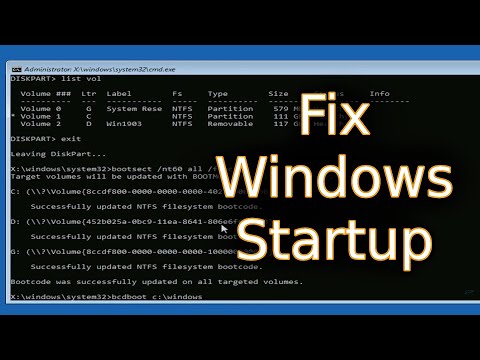
3️⃣ Use commands like `diskpart` to list disks and volumes – see what’s what.
4️⃣ Try using `bootrec /fixmbr`, `bootrec /fixboot`, or even `bootrec /rebuildbcd` if necessary – these help repair that pesky Master Boot Record and related bits.
Hope springs eternal when you know how these tools work together! Remember though: If you’re feeling unsure or shaky on any steps – especially when handling precious data – consider getting help from someone who’s done this dance before.
So next time anything seems off with drives whispering distress signals… well now you’ve got some insights ready at hand 😉 Take care!
Using Command Prompt to Repair MBR
Sure thing, let’s dive into the world of command prompts and MBR repair! So, you’re here because your computer isn’t booting up properly? That can be a real pain. But don’t worry, there’s a nifty way you might be able to fix this by using the Command Prompt to repair the Master Boot Record (MBR).
What is MBR?
Before we jump in, let me tell you what the MBR is in simple terms. Think of it as a tiny section on your hard drive that tells your computer how to start up. If it gets messed up somehow, your machine doesn’t know where to find all its bits and pieces. Imagine not being able to find your car keys—kinda like that.
Accessing Command Prompt
To repair the MBR, you’ll need access to Command Prompt through Windows Recovery Environment (Windows RE). Here’s how:
- First off, insert a Windows installation media or create one if you don’t have it handy.
- Restart your PC and boot from this media.
- Select language preferences and hit “Next”.
- You’ll see “Repair your computer” option at the lower part of the window—click that one!
- Head over to “Troubleshoot,” then go for “Advanced options” and choose “Command Prompt.”
Repairing MBR Using CMD
Alrighty! Once you’re within Command Prompt, follow these steps:
- `bootrec /fixmbr`: This command helps write a new master boot record onto the system partition. Kinda like giving your car a new ignition.
- `bootrec /fixboot`: This writes a new boot sector compatible with Windows.
- `bootrec /scanos`: Maybe there are multiple OSs lurking around? This scans for them—it’s an OS detective!
- `bootrec /rebuildbcd`: Helps rebuild boot configuration data if needed – reassembling all those little parts so they fit together neatly again.
One day I helped my friend Maria with this exact problem when her computer just refused point-blank even starting… panic-ville right there! Luckily after using these commands everything worked out like magic—sometimes technology surprises us positively too!
A few notes:
– If things still aren’t working smoothly afterward—you might have deeper issues at play (like hardware faults), which may need more than software fixes.
Let me know if there’s anything else bugging ya’. Good luck tinkering away!
Correcting a Corrupt MBR or Partition Table
Oh boy, dealing with a corrupt MBR or partition table can feel a bit like finding out your favorite sock has a hole in it—unexpected and frustrating. But, don’t worry too much, ’cause I’m here to walk you through this in the simplest way possible.
First things first, let’s explain this MBR thingamajig. The MBR (Master Boot Record) is kinda like the lifeguard of your hard drive. It’s what kicks in when your computer boots up, saying “Hey! Let’s get everything loaded right.” When this goes haywire, it’s game over for starting up your PC normally.
And then there’s the partition table, which is like an index card that tells your system where everything’s organized on the disk. If it’s messed up? Well, finding files gets tricky.
- Access Command Prompt: You’ll need to use CMD (Command Prompt), but you have to *run it as administrator*. Just search for “cmd” in Windows Search, right-click on it and select “Run as administrator.”
- Backup First: Before doing anything risky, back up any important data if you can access it. A USB or cloud storage works wonders.
- Select Disk: Now type in
diskpart. Press Enter. Next type:list disk, and hit Enter again to see all connected disks. - Select Problematic Disk: Let’s say you’re working with Disk 1—type:
select disk 1. Make sure you’re choosing the right one! - Select Partition (if needed):> Type:
list partition, find yours from there. - Fix MBR : b > Now comes action time! Type:
-
For fixing only MBR-type recovery console command :
- First off, you’ll want to fire up Command Prompt with administrator privileges.
- Then there’s that little gem called ‘diskpart’. Just type it in and press Enter.
- You’ll want to take note of which disk you’re working on – usually done with ‘list disk’.
- Choose the right disk – that’s where you’d use ‘select disk {number}’.
- And finally, you’d use something like ‘list partition’ or other commands to manage partitions.
◦ For older systems : fixmbr code >
◦ For newer ones : utilize: `bootrec /fixmbr` li >
ul >Or try repairing both :
◦ Use : bootrec / fixboot code >
◦ Then maybe fill gaps lost pieces: bootrec / rebuildBcd code > li >Consider these steps nice’n’ easy-peasy — think chef sprinkling recipes rather than Hurricane Heidi blowing through towns abruptly!
Keep check around things operate; might do repeats cautiously sometimes though… persistence tends triumph eventually mostly (!).
Wishing success laptop/desktop no longer giving grief odd errors mysterious crashes boot-up morning start—all smiles instead productivity eagerly awaiting warmly 😊 !
Oh dear, partition table issues can really give you a bit of a headache, right? I mean, imagine you’re all set for a movie night. You grab some popcorn and get cozy on the couch, only to discover that your movie library is inaccessible because of a wonky partition table! Frustrating doesn’t even begin to cover it.
So here’s the thing: the partition table is like the map of your hard drive. Without it, your computer doesn’t know where one part begins and another ends. It’s kind of like having an unmarked treasure map—you’re not going to find much without clear directions!
If you ever find yourself in such a predicament, there’s hope. Command Prompt can be quite handy if you’re comfortable following a few steps. It’s not too far off from following grandma’s secret recipe: just take it one step at a time!
Here’s what you’ll typically dig into:
Nervous about messing things up? That’s completely understandable! It’s like when I tried baking bread for the first time. It took patience and care – but once you nail it down…it feels pretty amazing.
Remember though: if things seem too dicey or it’s above your comfort zone, reaching out for professional help is totally okay. Better safe than sorry when dealing with precious data.
Anyway, hoping you never have to face such troubles again anytime soon!