Oh man, have you ever had one of those days when you just can’t remember your Microsoft PIN? It happens more often than we’d like to admit, right? Don’t worry, it’s a common hiccup and you’re definitely not the only one this happens to. We’ve all been there—you’re in a rush to get something done, and wham! The screen is just staring back at you like it’s holding secrets.
But hey, let’s not panic. It’s more like a little puzzle to solve. And once we piece it together, everything’s back on track. I remember scrambling once because I was locked out right before an important meeting! Yeah—talk about stress city.
Anyway, recovering that pesky PIN isn’t such a big deal if you know what steps to follow. We’ll have you sorted out in no time with just some simple actions you can take on your own. Ready to dive in? Here we go!
Recovering Your Forgotten Microsoft PIN
Oh no, losing your Microsoft PIN can feel like misplacing the keys to your digital kingdom, right? But hey, don’t stress too much. There’s a way to sort things out, and it’s easier than you might think. Let’s get into it.
First off, let’s make sure we’re on the same page about what the Microsoft PIN is all about. Think of it as a straightforward little code—usually four digits—that you use to log into your Windows device instead of typing out your full password every time. It’s a nifty little convenience, but sometimes they just slip our minds.
Here’s what you can do:
- Use Security Questions: If you’re prompted with security questions after too many failed attempts, you’re in luck! Respond correctly and you’ll be able to reset that pesky PIN.
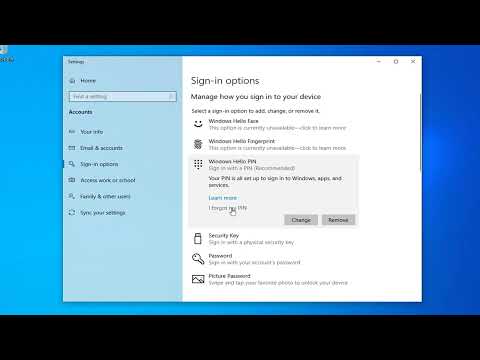
- Password Reset Option: Click on “I forgot my PIN” during the sign-in attempt. You’ll be guided through using your Microsoft account password instead. It’s like having a spare key under the mat.
- Windows Hello Recovery: On some devices, if you’ve set up Windows Hello (like facial recognition or fingerprint), this can serve as an alternative way in until you get things sorted.
- Check for Recovery Emails or SMS: Sometimes when setting up accounts we opt-in for recovery options via emails or text messages. Look around these places for any helpful prompts from past-you.
- Powershell Command (For Advanced Users): If you’re feeling techy and have admin access, launch Powershell as an administrator and enter:
"Disable-TPM-Virtualization"
. This disables TPM temporarily so proper configurations take place allowing new configurations thereafter including possible retakes over lost credentials such as pin etc., Remember though curiosity kills more cats than actual danger here!
- If none of these are sticking with ya try visiting Windows official support pages at ‘support.microsoft.com’ always willing lend hand digitally speaking!
You follow me so far? Now if things aren’t working out still consider visiting nearest tech help center where professionals dwell await perils computing related tasks eagerly seemingly mysterious ways…
Resetting Your Microsoft PIN on Windows 11
Having a Microsoft PIN on your Windows 11 device is pretty handy, right? It’s like having a shortcut to access your computer without typing in a long password. But every now and then, you might forget it, or maybe just want to change it for security reasons. Let’s go through how you can reset it.
First off, if you find yourself locked out because you’ve forgotten your PIN—or it’s just not working—don’t stress too much. It’s happened to me too. Feeling that momentary panic until I remembered there’s usually an easy fix!
Here’s what you can do:
- Open the Settings app: Click on the Start button at the bottom-left of your screen. Then select the Settings (looks like a gear icon). If you’re using touch-enabled devices, tapping works fine!
- Navigate to Accounts: In Settings, you’ll see several categories on the left-hand side. Choose Accounts. This option helps manage everything related to who uses that computer.
- Acess Sign-in options: Over on the right side under Accounts, click on Sign-in options. Here’s where all those different ways of signing into Windows live.
- Select PIN (Windows Hello): You’ll notice different sign-in methods, but we’re focusing on “PIN.” Click where it says change or adds PIN.
- Picking ‘Reset’ PIN:If ya forgot what yours was—or never set one up—you’ll have this handy reset button here! Sometimes they ask for Microsoft account credentials—just part of keeping things secure!
- Create new PIN:You’ll finally get prompted for creating something new perhaps with numbers meaningful only—to YOU!
And voila! You’ve got yourself shiny new access code primed perfectly unique enough hackers won’t simply guess given planet knowledge today yet memorable clearly overriding frustrating forgetfulness later adventures future times needed most unexpected occasions arise suddenly disappear mysteriously.
Any outages or failures during such steps may simply require rebooting restarting initially great ideas repetition refreshes connectivity needed completion effectively entirely start over again hopeful fresh result productive otherwise missing crucial detail key missed explained overlooked appearing quietly hiding somewhere settings previously assumed previously tried incorrectly numerous trials prior illuminating particular quirk only noticed far lesser explored route unexpectedly visible completely unrelated series paths seemingly unrelated scenarios resolved happy surprise finding resolution eventually delightfully relieved solving mysteries technology amusingly unpredictable encounters undoubtedly rewarding satisfying problem-solving journeys ultimately end triumphantly successful enjoyable enlightenment rendering past persistence great fondness empowering newfound wisdom keen insight gained enhanced awareness!
Changing Microsoft PIN on Mobile Devices
Hey there! Changing your Microsoft PIN on mobile devices might seem a bit daunting at first, but don’t worry, it’s really not as tricky as it sounds. Let’s jump in and go through it step by step.
First off, why would you even consider changing your PIN? Well, maybe you forgot it or think it’s not secure enough anymore. It happens to the best of us!
Getting Started:
- Open your settings: On your mobile device, start by navigating over to the Settings. This is like the control panel where all the magic happens.
- Account section: Look for something that says “Accounts”, “Users & Accounts” or even “Your Profile”. You’ll find all the juicy personal stuff here.
Now here comes the fun bit.
Navigating to Security Options:
- Password and Security: Within that account section, there should be another tab for Password & Security. Go ahead and tap into that.
- Your Microsoft Account: You might have multiple accounts listed like Google or others. Find your Microsoft account from this list.
Alright! You’re halfway through it already!
Changing Your PIN:
- Edit option: Once you’ve selected your Microsoft account, look for an option saying “Edit Security Info” or something similar. It’s usually near a little pencil icon!
- PIN section: Here’s where you’ll spot an area marked “PIN” or “Create/Change PIN“. Tap it to dive deeper.
- Create new PIN: Now you can put in a shiny new set of digits – just make sure they’re ones you’ll remember!
A quick story: I once changed my own PIN after realizing my brother kept sneaking into my device without asking – siblings can be such a pain sometimes! So if privacy’s important, take these steps seriously.
Finally:
Troubleshooting Tips: If there’s any hiccup along the way:
- No access due to forgotten security questions?: You might need other recovery options like email verification instead.
- If errors pop up during setup they often resolve with simply restarting everything from scratch—good ol’ tech trick!…
.
.
.Oh boy, forgetting a PIN can be such a head-scratcher, right? It’s like those moments when you walk into a room and completely forget why you’re there. But hey, don’t worry, you’re definitely not alone in this. If you’ve ever found yourself locked out of your Microsoft account because the PIN just slipped your mind, you know how it feels.
So picture this: You’re all set to log into your computer one morning with a coffee in one hand. As you sit down and type what you *think* is your PIN, the screen gives you that dreaded look—”incorrect.” Ugh! Panic might set in for some of us. You try once more and… nothing. Nada.
Here’s the thing about Microsoft accounts: they’re pretty secure by design. The system uses this nifty little thing called a Personal Identification Number (yes, that’s what PIN stands for!) to add an extra layer of security beyond just passwords. It’s kinda like having two locks on your door.
Now if we talk about getting back inside that locked account of yours—the process is thankfully quite user-friendly. First up? You need to get to the sign-in screen on your device and look for “I forgot my PIN.” Yeah—it’s almost as if they’ve read our minds with such options! Following their prompts will guide you through verification steps like entering other details or maybe even confirming via email or phone number linked to the account.
Now here’s an interesting tidbit: sometimes people go through these steps only realizing at step five they actually remembered their original PIN all along… Classic human error!
So there it is: remembering everything under high pressure is no easy feat—and tech stuff always throws this curveballs our way occasionally—but hopefully knowing these little steps can help ease similar future annoyances too!