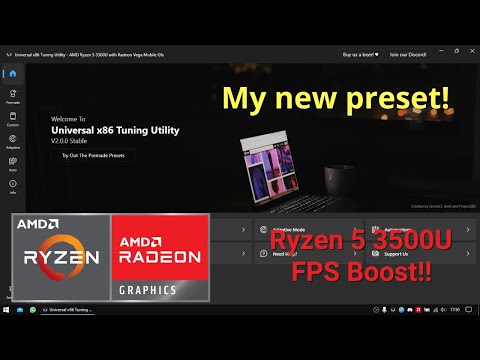
You know how it is when you expect something to just work perfectly? And then, bam! It doesn’t. That’s the story with some folks when they team up the AMD Ryzen 5 3550H with those Vega graphics. Sounds familiar?
Imagine you’re all set for some gaming action or maybe a bit of video editing. You’re pumped, right? But then you hit this wall of performance issues. Talk about a buzzkill!
I mean, it’s like having the perfect car but finding out it sometimes decides not to start. You get me? It can be super frustrating.
Anyway, if you’ve ever scratched your head over why things aren’t running as smooth as butter, you’re definitely not alone in this gig. Let’s dive into what’s going on here!
Ryzen 5 3550H Gaming Performance
Navigating the landscape of gaming performance with the AMD Ryzen 5 3550H can be like a thrilling ride. This processor, often found nestled within budget-friendly gaming laptops, offers a decent balance between power and efficiency. It might not compete with the top-tier CPUs out there, but it sure holds its ground for many everyday tasks and moderate gaming scenarios.
Now imagine you’ve finally snagged that laptop you’ve been eyeing—sporting the Ryzen 5 3550H—with dreams of venturing into expansive virtual worlds. But maybe you’re wondering if it can keep up in those action-packed games? Let’s break it down.
- Cores and Threads: The chip comes equipped with 4 cores and 8 threads. Think of these as the brainpower behind your machine’s ability to handle multitasking. For most popular games like Fortnite or Overwatch, this is quite sufficient.
- Base Clock Speed: Running at a base speed of 2.1 GHz, it’s like having a trusty sedan—you know it won’t win Formula 1 races but gets you to the finish line comfortably.
- Boost Clock: When gaming demands peak performance moments, say hello to its boosted clock at 3.7 GHz. Flash memory for some headroom during heavy rendering scenes!
- TDP (Thermal Design Power): With a TDP of around 35W, it’s designed not just for performance but also efficiency—perfect for maintaining battery life during less intense use.
Even though it seems powerful on paper, some folks have faced hiccups using Vega graphics during demanding titles—like drop in FPS or stuttery frames. This could be due to thermal throttling where heat management is crucial!
Here’s an illustrative moment: A buddy once called me over because Call of Duty was behaving sluggishly on his rig with this very chip! We discovered his cooling fan was dustier than my attic! After cleaning things off and reapplying thermal paste? Bam! Smoother gameplay!
Tweaking settings could go miles: b>
- Simplifying graphics settings can help reduce strain—and honestly sometimes highest textures aren’t missed. li>
If possible, aim adjusting resolution scaling especially combined laptop-GPU setups. li >
ul >You gotta remember combining faster RAM alongside optimizing software patches enhances overall experience keeping those late-night battles smoother–makes sense now right?
Oh hey one more thing before powering down—that’s integrating SSD storage speeds up load times minimizing pesky lags ensuring uninterrupted adventures next time!
AMD Vega Graphics Performance Overview
Hey, let’s chat about AMD Vega graphics and the whole performance thing, especially mixed with the AMD Ryzen 5 3550H. There’s a good chance you have questions if you’re getting slower-than-expected results or maybe just curious how these components fit together.
Understanding AMD Vega Graphics
Vega graphics, part of AMD’s lineup, try to bring powerful gaming and multimedia capabilities even without a separate graphics card. Sounds cool right? They’re integrated into processors like the AMD Ryzen 5 3550H, aiming for decent gaming experiences on laptops that don’t cost an arm and a leg. It’s like having your cake and eating it too!
- Integrated Magic: Vega uses shared memory from your system. This means more RAM equates to better performance generally. Imagine squeezing out some extra juice by tweaking settings!
- Efficient Processing: Even though it’s built right into the CPU (yeah it’s all in one), Vega is pretty efficient at handling common tasks and casual games.
Tackling Performance Issues
Running into slowdowns can be frustrating! Sometimes it’s not really fault of the hardware itself but rather how everything is set up or interacting.
- Driver Updates: Keeping those drivers fresh is super important! Outdated drivers are like using an old map – things could get bumpy on newer roads (or games).
- System Settings: Explore settings in your OS for power options that might be pulling back resources needed elsewhere.
- Avoid Overloading: Too many programs running at once might mean something isn’t getting all its due attention… kind of like trying to do homework while watching TV.
Example: Check out websites or use software tools to see if there are driver updates waiting around for you.
Tweaks For Better Performance
You can often make improvements without being some sort of tech wizard!
- Dedicating Resources: Allocating more RAM to your integrated graphics can sometimes help if you feel things dragging their feet.
- Laptop Cooling Tips:: Maintaining decent temperatures keeps your laptop happy; excessive heat slows everything down quicker than you’d think!
Ryzen 5 3550H Integrated Graphics Availability
Alright, let’s dive into this. The AMD Ryzen 5 3550H is quite the chip, huh? It’s like the go-to for laptops that need a good balance between performance and power consumption. Now, what makes it special is that it has integrated graphics—a neat little package without needing an additional graphics card.
Vega Graphics:
The integrated graphics in the Ryzen 5 3550H are based on AMD’s Vega architecture. This technology allows you to run games and handle tasks like video editing without a dedicated graphics card. It’s not gonna replace a high-end GPU, but it’s pretty handy.- Performance: People often consider it decent for light gaming. Don’t expect to play the latest triple-A titles at ultra settings, but games like CS: GO or League of Legends should work fine.
- Anecdote: I remember my friend using this chip while we were trying to finish a group project. We ran everything smoothly—PowerPoint presentations with animations and all! Quite impressive.
Availability Issues:
There have been whispers about performance hiccups… several folks reported problems with Vega Graphics not reaching their full potential.- Drivers Importance: Keep those drivers updated! I know it’s tempting to skip updates because they seem pesky sometimes, but they’re vital for improving performance and stability.
- Laptop Design: Sometimes, laptop cooling systems aren’t up to par with what the CPU/GPU can demand under heavy loads. Ever felt the heat on your lap? Yeah, that’s a thing.
Now remember: drivers can be downloaded from AMD’s official website—and updating them could solve some of those niggling issues around performance.
It’s funny how tech stuff sometimes feels like tuning an instrument; each component needs just right setup before playing its song perfectly! So keep your system tidy and updated for keeping things running smooth as butter.
You know, it’s kind of interesting how technology can sometimes be this amazing blessing but also a bit of a head-scratcher. My friend was so excited when he first got his laptop with the AMD Ryzen 5 3550H and Vega Graphics. He was all set to dive into some serious gaming sessions and tackle his work with lightning speed. But things didn’t exactly go as planned.
I remember him calling me one evening, sounding super frustrated. “Why is my game lagging?” he asked, like there was a glitch straight from outer space! We both thought it was going to blaze through everything effortlessly. And hey, on paper it sounded just perfect, right? But in reality—well, let’s say it hit a few bumps.
The performance issues with this combo weren’t because the hardware wasn’t capable (it definitely packs a punch), but sometimes settings just need little tweaks to get them purring like kittens. It’s almost like tuning an instrument—you have to find that sweet spot where everything harmonizes beautifully.
For starters, making sure drivers are updated is key. These little software bits are sort of like traffic cops keeping everything running smoothly on the system highway. When they’re out of date or missing something vital, things can get messy quickly.
There’s also managing expectations especially when multitasking heavy-duty applications or running newer games at max settings—it might not always keep up without some fine-tuning here and there. Power settings can play tricks too; if they’re not optimized for performance mode that could throttle speeds down unexpectedly leaving you scratching your head wondering what gives!
Of course heat can be another sneaky culprit; when things get too hot under the hood due largely from demanding tasks or poor ventilation—it throttles back again trying protect itself hence affecting overall experience without us realizing often times until its late!
In moments like these patience becomes our best friend learning curves made manageable through trial error good old fashion deep breaths coffee breaks—cause honestly nothing beats feeling triumphant over technical challenges once unraveled feels incredible!
Example: Dive into BIOS/UEFI settings where it’s possible allocate additional memory specifically for graphics tasks! But remember playing around here should be done carefully.