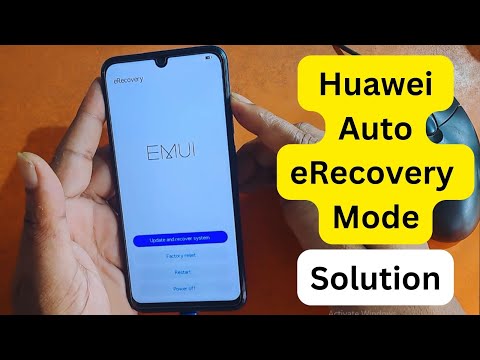
Oh man, it’s the worst when your phone decides to stage its own little protest during an update, right? You’re all set for some smooth sailing with the latest firmware, and then bam—stuck like glue. I remember my cousin Sarah going through this with her P Smart 2019. She called me in a panic because her screen was frozen mid-update.
We’ve all been there or know someone who has. It’s like expecting one of those perfect Instagram sunsets and getting… well, clouds instead. Frustrating! But don’t worry too much; there are a few tricks you can try before totally losing it.
Updates are supposed to be that pat on the back your software gives itself after a job well done—but sometimes they just dig their heels in and become stubborn mules. Why does this happen? Heck if I know—I mean, the universe is full of mysteries. But hey, stick around, we’ll figure this out together!
Resolving P Smart 2019 Firmware Update Stuck
Oh, getting stuck on a firmware update with your P Smart 2019 can be a bit of a headache. I’ve been there too, more times than I’d like to admit. Let’s figure out how we can sort this out for you.
Common Causes
Before diving into the solutions, it might help to understand why your update is stuck. Imagine you’re trying to download a big movie with a weak Wi-Fi signal—frustrating, right? It’s similar here.
- Poor Internet Connection: A stable connection is crucial for downloading updates.
- Insufficient Storage Space: Updates need room to stretch. If your phone’s bursting at the seams with apps and pictures, it might not have space left.
- Battery Woes: Your phone won’t proceed with an update if it thinks it’s going to run out of juice midway.
Troubleshooting Steps
Alright, let’s jump in and see what we can do.
- Check Your Connection: Make sure you’re connected to Wi-Fi and not relying on mobile data, which can be less stable for large downloads.
- Create Space: Free up some storage by deleting unneeded apps or moving photos to the cloud or an SD card if you have one installed.
- Battery Life Matters: Your battery should be charged above 50%. Even better? Keep it plugged in during the process.
- Restart the Device: A classic move! Restarting your phone might just clear whatever was causing the hiccup.
- Tweak Time Settings: If all else fails here’s something quirky that surprisingly works: Set date and time automatically using network-provided values. It sounds odd but if time settings are off sometimes updates struggle!
-
For example:
– Press and hold the power button.
– Tap “Restart” when prompted.
If Problems Persist
If you’ve tried these steps without success consider reaching out directly to Huawei support or visiting their service center nearby—I know it’s not ideal but sometimes those support folks are miracle workers!
Hope this turns things around quickly for you!
Resolving Stuck Firmware Update on P Smart 2019
Oh man, getting stuck on a firmware update can be so frustrating, right? It’s like that one time I was baking cookies and forgot to preheat the oven—everything just stops. So, let’s get your P Smart 2019 back in action, shall we?
Understanding Firmware Updates
Firmware updates are like your phone’s special vitamins. They keep things running smoothly and fix any bugs that might have crept up. But sometimes, things don’t go as planned.
Common Reasons for Stuck Updates
- Network Issues: If your Wi-Fi is acting up, the update might not download completely. You know how it is when you’re trying to stream a movie and the internet keeps buffering!
- Low Battery: If your battery’s under 50%, some devices pause the update to avoid shutting down mid-process.
- Lack of Storage: Your phone needs enough space for new firmware. It’s like trying to squeeze into pants that used to fit—a bit snug!
Troubleshooting Steps
Alright, let’s walk through some steps to unstick this update.
- Check Your Internet Connection: Make sure you’re connected to a strong Wi-Fi network. Maybe try restarting your router?
- Free Up Space: Delete apps or transfer photos/videos you don’t need on the device right now. Your phone will breathe easier.
- Sufficient Battery Life: Plug it in! Even if it seems like an obvious move, believe me—I’ve overlooked simpler fixes myself too.
If the Update Still Won’t Move
If none of these workarounds help:
- Restart Your Device:: A simple reboot can work wonders with technology—it’s almost magical!
- Caching Issues?: Try clearing cached data (those bits saved temporarily) through settings under storage options.
Sometimes even after trying all this stuff out yourself at home doesn’t quite cut—in those cases bringing professionals onboard might become necessary especially if it persists repeatedly happening—that could indicate deeper software faults in play needing attention beyond DIY scope alone unfortunately dear friend!
So hopefully now tackling stuck updates won’t seem daunting anymore–you got this—happy updating!
Steps to Resolve P Smart 2019 Firmware Update Issue
Hey! Dealing with a stuck firmware update on your P Smart 2019 can be super frustrating, I totally get it. You probably just want your phone to work smoothly again, right? Don’t worry, I’m here to help you get through this. Let’s go through some straightforward steps to tackle that pesky issue.
First things first, let’s ensure your phone is charged enough before diving into any troubleshooting. It can be a bit of a letdown if the battery dies midway through.
Step 1: Check Your Internet Connection
Good internet is key when you’re updating software. Make sure you’re connected to a stable Wi-Fi network. You wouldn’t want the update freezing halfway due to connection issues, you know?
Step 2: Restart Your Device
Simply restarting the device can solve more issues than you’d think! Long press the power button and then tap “Restart.” Sometimes a fresh start is all it needs.
Step 3: Free Up Some Space
Updates often require extra space for new files and data. Head over to your settings and check how much storage you have left. If it’s running low, try deleting some unused apps or moving photos and videos elsewhere.
Step 4: Clear Cache Partition
This one’s like spring cleaning for your phone’s system cache without losing personal data:
- Turn off your P Smart.
- Hold down the Volume Up button along with Power till you see the Huawei logo.
- Select “Wipe Cache Partition” using volume buttons to navigate.
- Press power once again to confirm.
Trust me, this step often does wonders!
Step 5: Try A Different Update Method
Sometimes over-the-air updates don’t work out as planned:
- HiSuite: It’s Huawei’s desktop software for managing devices.
Connect your phone with a USB cable and see if there’s an option for updates there.
Alrighty, if none of these budge the issue, there might be something deeper going on—could involve technical support at that point. Remember those folks are there precisely for sticky situations like these!
Hope these tips help clear up that update hassle quickly!
Ah, the classic “stuck update” dilemma—it’s quite the pickle, isn’t it? I remember this one time, my cousin was super excited to get the latest firmware on their P Smart 2019. They were all set for those new features and security patches. You know how it goes—dreaming of a smoother experience with their trusty phone. But then, they hit a snag: the almighty spinning wheel that seemed like it could go on forever.
So there they sat, staring at the screen in disbelief. It was like waiting for water to boil or paint to dry—painfully slow! Anyway, after some shared frustration and laughs—we tried a few things that eventually got everything up and running again.
First off, make sure your phone’s got a strong Wi-Fi connection. A wobbly signal can mess things up during updates. Kind of like trying to watch your favorite show with constant buffering—it’s not gonna cut it!
Next thing you might want to check is battery life. Make sure there’s enough juice in your device before starting any update process—or else you could end up stuck without even realizing why. Charging while updating often does wonders.
Now if an update is still dragging its feet—or just plain frozen—restarting might give it a gentle nudge toward completion! Soft reboots help clear out whatever’s jamming things along under-the-hood by flushing out memory clogs or temporary hiccups that get stuck between gears sometimes.
So yeah—sometimes we’re left scratching our heads wondering how something so simple can turn into such an ordeal… But take heart—it happens even in tech-savvy circles once-in-a-blue-moon-y’know?