Oh man, have you ever been chillin’ on your couch, ready for a Netflix binge or a serious gaming sesh, and then—bam!—your internet decides to nope out on you? Yeah, that’s the worst.
Network issues are like those annoying little bugs that crawl into every crack of our tech life. You know?
You’re not alone in this tech struggle! Everybody’s been there at some point.
The good news is there’s usually a way to fix it without wanting to toss your laptop out the window.
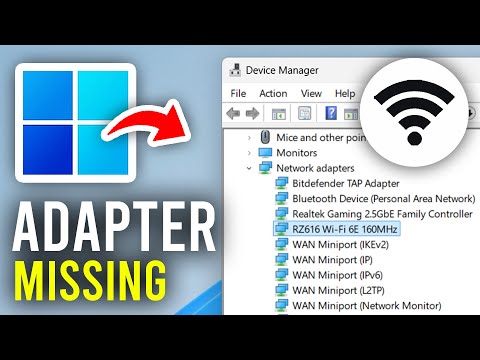
So let’s chat about one culprit: the Network Adapter in Device Manager. It’s that little piece of hardware magic managing your connection mojo.
Don’t worry if you’re not familiar with Device Manager; it’s like peekin’ under the hood of your computer—without getting grease on your hands!
Resolving Network Adapter Connection Issues
Having problems with your network adapter can feel like the most annoying thing ever, right? Imagine you’re in the middle of a video call and BAM!—suddenly things freeze. Let’s try and smooth things out, okay?
First off, when you start having connection issues, head over to the Device Manager. Oh, that place! It’s a goldmine for diagnosing what’s going wrong with your hardware. Here’s what you might see there:
- Yellow Warning Icon: If there’s a little yellow triangle next to your network adapter, it means Windows knows something’s not quite right.
- No Network Adapter listed: Yup, sometimes it just disappears from view. Quite sneaky! This might happen if there’s a problem with drivers.
- Disabled Device: Could be it’s just switched off by accident. You know how these things happen!
Okay, what’s next after spotting these issues? Let’s work our way through them.
The good ol’ yellow warning triangle first:
- Update or Roll Back Drivers: Right-click on that troublesome adapter and select “Update Driver.” Sometimes an update is all it takes. But hey—if this started happening after an update? Try rolling back to older drivers.
And if you don’t see your device in Device Manager:
- Scan for Hardware Changes: Right-click anywhere in the Device Manager window and select “Scan for hardware changes.” It’s like calling out “here kitty-kitty” when your device is playing hide-and-seek!
Say it’s just disabled:
- Enable it!: You simply have to right-click on the device and choose “Enable.”
Okay now—technical hiccups can take interesting turns sometimes! Ever heard about checking the BIOS settings? Sometimes network adapters need enabling at that level too!
Now let’s say none of these are working magic:
- Troubleshooter Tool: It’s not always spot-on but can suggest what could be wrong. Click on “Start,” type “troubleshoot,” and follow the friendly prompts.
Oh boy—I once had my dog take a nap across my router cables; you’d be surprised how often simple physical connections shake up neatly set-up networks!
Anyway do make sure cables are plugged properly (if applicable), or reset them routers if using Wi-Fi. Marvelous devices they are yet quirky nonetheless…
Bouncing between technical fixes isn’t always instant joy; think of each nudge along as steady strides toward stuff getting sorted! Keep patience close—it’ll pay off eventually…
Network Adapter Issue Causes
Alright, let’s dig into network adapter issues. You know, these little hiccups can be super annoying! But don’t worry, we’ll get through it together.
Imagine you’re trying to connect to the internet and nothing works—frustrating, right? Often, the culprit is your network adapter. It’s that tiny part of your computer that helps it “talk” to networks. When it doesn’t work properly, your connection suffers.
Here are a few common causes for network adapter issues:
- Driver Problems: Sometimes drivers get outdated or corrupted, leading to connectivity problems. For instance, maybe you installed something new recently or there was an unexpected shutdown.
- Disabled Adapter: Hey, this happens more often than you’d think! The adapter could be accidentally turned off in the Device Manager.
- Hardware Conflicts: If you’ve added new hardware recently (like a USB device), it might interfere with your network card.
- Power Management Settings: Your system might put the network adapter to sleep to save power. It’s useful until you can’t connect anymore.
Troubleshooting Steps:
First up, always check if **your network driver is up-to-date**. Open Device Manager and look under “Network adapters”. If there’s a yellow triangle next to your device name—yep—driver issues.
If that doesn’t fix it, make sure the **adapter isn’t disabled**. Right-click on the device name in Device Manager and select “Enable”.
Another step is adjusting **power management settings**:
1. Go into the properties of the network adapter.
2. Look for a tab called “Power Management.”
3. Uncheck anything that talks about turning off this device.
And hey—as silly as it sounds—a good ol’ restart sometimes does wonders!
Hope this helps unravel those pesky network mysteries for you!
Symptoms of a Faulty Network Adapter
Hey! Let’s have a little chat about those pesky network adapters and how sometimes they just don’t want to play nice. Imagine being all set for your favorite show’s finale night on your streaming service, and bam! Your internet just says “Nope.” Frustrating? Oh, absolutely. So let’s break down some symptoms of a faulty network adapter.
Slow or Intermittent Connection: You might notice that pages load at a snail’s pace or your video calls freeze like they’re hitting pause without warning. If this happens often, it could be the adapter acting up.
No Internet Access: You’ve checked everything twice, but the browser still insists you’re offline despite every other device in the house having full bars. Sometimes it’s the adapter saying it needs attention.
Error Messages Galore: It’s like road signs popping up on your screen – “Network cable unplugged,” “Wi-Fi not in range,” or “Limited connectivity”? These are classic hints something’s not doing well behind the scenes.
Device Manager Errors:
- Yellow Triangle: A little triangle with an exclamation point means trouble is brewing.
- Error Codes: Codes such as Code 10 or Code 43 can signal deeper issues.
No Network Detected: Your system might suddenly refuse to recognize any available networks. It’s like walking into a party and pretending nobody’s there!
Okay, picture this: my friend, Jane once had her laptop stubbornly disconnecting from Wi-Fi every time she moved rooms. After a lot of trial and error—really bumpy ride—it turned out her network adapter was dislodged slightly when she accidentally dropped her laptop (oops!). Re-seating it fixed everything faster than an express delivery.
If you’re dealing with any of these hiccups, take a peek at Device Manager, right-click on the network adapter name under Network adapters (you know those lists), select Properties, and check if there’s anything odd under Device status. Hopefully now things make a bit more sense!
Oh, those pesky connection issues! It seems like every time you’re in the middle of something important, your network throws a fit. Has that ever happened to you? I remember this one time when I was working on a big project due the next day. And bam! My internet decided to take a vacation.
Anyway, when your internet is being stubborn, your Network Adapter in Device Manager is your friend. It’s like taking a peek under the hood of your car when it isn’t starting. You see, every computer has this Device Manager where all its hardware components hang out and say “hi.” Your network adapter is there too; it’s responsible for connecting you to Wi-Fi or wired networks.
Sometimes, problems pop up because of driver issues or maybe some settings went wonky after an update—it’s kinda common. The first thing I tend to do is open the Device Manager and find that little network adapter icon. Sometimes it just needs a gentle nudge: disabling and then enabling it can do wonders! It’s sort of like turning things off and back on—magical how often that works!
If you notice any yellow exclamation marks near your network adapter, that’s usually Windows throwing up its hands saying “Help!” It might mean there’s something wrong with the driver software—think of drivers as translators between Windows and hardware gadgets. Updating them could solve a lot.
And let’s not forget about power management settings—they can sometimes sneakily turn off devices to save energy but end up cutting your connection by accident!
Despite these tech hiccups being frustrating (especially during crunch time), they’re also pretty rewarding to fix on your own. It’s like solving a puzzle—and trust me—you’ll feel like a superhero once it’s resolved!
Got anything from this? Jumping into troubleshooting can be nerve-wracking at first, but once you get through it once… you’ll approach future issues with way more confidence in yourself!