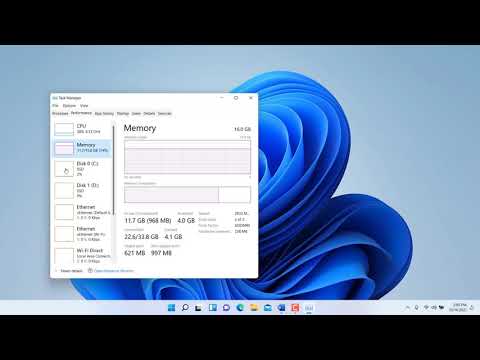
You know, sometimes computers feel like mysterious creatures, don’t they? You click and clack on that keyboard, but something’s just not right. Especially when Windows 11 throws a little tantrum.
Task Manager! Ever spent time there? It’s like peeking behind the curtain of your own computer. If you’re not on speaking terms with it yet, you really should be!
I’ve been there—scratching my head while my machine decides to play possum. Just sitting there acting stubborn. Sometimes it’s a small hiccup, other times it’s quite the drama.
Well, let’s chat about how to demystify this handy tool and make those pesky issues pack their bags!
Diagnosing PC Issues with Task Manager
Hey, you ever stared at your computer screen feeling like Sherlock Holmes trying to figure out what’s slowing down your PC? You’re not alone! Turns out Task Manager in Windows 11 is like having a magnifying glass for this kind of stuff. It’s pretty amazing what you can find with it.
First off, to open Task Manager, it’s super easy. You can just hit Ctrl + Shift + Esc, or right-click on the taskbar and click on Task Manager. Trust me, once you get there, you’re entering a treasure trove of info about what’s happening under the hood of your PC.
One of the first tabs you’ll notice is the Processes tab. Here you see all those apps and services gobbling up resources. It’s like looking at a buffet—you got CPU, Memory, Disk usage; each telling you exactly how much it’s eating up. If something’s hogging too much space and making things slow—bam!—you’ll spot it right away.
Let’s have a little tour with some human touch:
- CPU Usage: Okay imagine this as your computer’s brain working overtime. If there’s an app using over 80% constantly, might be time to give it a nap.
- Memory: Think of memory as short-term memory (sort of how we remember where we left keys yesterday), if an app is using too much here it’ll affect performance big time.
- Disk Activity: Now disk usage explains why sometimes clicking feels more like waiting—high numbers here mean lotsa reading/writing happening.
Another handy tab is Performance. Oh boy! This one gives graphs showing trends and spikes over time for each resource area mentioned earlier—it lets you play detective figuring out patterns when performance changes happen throughout day/week… spooky accurate sometimes!
In case programs start up without telling ya (it happens!) check out the “Startup” tab next door! Everything nesting there gets powered-on during system booting sequences; feel free disable unnecessary ones boosting overall launch speeds naturally!.
And don’t even get me started on Details & Services tabs—they’re great too but maybe bit advanced unless really wanna dive deeper into learning specifics processes service dependencies internally tied underlying software ecosystem functioning effectively together seamlessly behind scenes daily basis worldwide globally speaking generally anyways mostly typically logically in most instances..
So yeah… explore away playing with buttons here trying different settings inside testing waters seeing results real-time guaranteed positive changes noticeable immediate improvements surely everyday life ultimately leading smoother computing experience universally totally indeed likewise surprisingly beneficially optimally fulfilling experiences potentially obviously evidently unquestionably simultaneously … following along?
Performance Bottlenecks in Windows 11
Oh, performance bottlenecks! They’re those pesky things that slow down your computer when you’d rather be doing something else, like watching cat videos or working on that important project. With Windows 11 being the new kid on the block of operating systems, you might notice a few hiccups here and there when using it. Let’s chat about how to tackle these issues, shall we?
Identifying the Culprit
The first thing you want to do is figure out what’s causing the slowness. Imagine your computer as a busy highway and you’re trying to spot where the traffic jam is happening. The Windows 11 Task Manager is your friend here. You can open it by pressing Ctrl + Shift + Esc. Once there, you’ll see tabs like Processes, Performance, and more.
- High CPU Usage: Look at what’s hogging all the CPU—the more speed demons you find, the better.
- Memory Leaks: Check if any programs are using too much RAM without letting go of it.
- I/O Traffic Jam: See if hard disk usage is off the charts.
Diving Deeper into Solutions
Alright now, knowing is half the battle! Once you’ve pinpointed possible suspects in Task Manager, it’s time to take action.
- Killing Resource-Hogging Apps: If an app eats up tons of resources (like a very hungry caterpillar), select it in Task Manager and click “End Task.” Don’t worry; this stops only that instance without uninstalling anything!
- Tweaking Startup Programs: Some apps think they deserve VIP status at startup but don’t really need it. Head over to the startup tab in Task Manager and disable non-essential ones; let them wait their turn!
- Catching Memory Leaks Early:If you spot programs with increasing memory usage over time (without doing much), they may have memory leaks—updating software or reinstalling helps squash such bugs sometimes.
The Hardware Angle: Checking Your Gear!
Sometimes performance issues don’t come from software alone—they could involve your hardware too!
- Adequate RAM: If constant slowness plagues everything even after closing apps left-and-right like Whac-A-Mole…maybe extra RAM should join forces—2GB-8GB usually suffice most users needs;
- Sufficient Storage Space: No one likes dealing with low storage errors because running low can spell disaster—always leave some cushion room free (think at least around ten percent) while deleting junk files regularly helps maintain speeds better than most realize quicker than similes express my goodness what am i saying anyway just free space helps ok?! 😉 li >
- Strong Battery Health: Systems seem slower than snails when batteries start failing faster friends break promises so monitor battery health keep tabs charge levels charging cycles extend lifetime wherever possible replace old units assure supreme satisfaction awaits soon after switch! li >
ul >Phew… That was quite “the ride” through performance diagnostics wasn’t i right?? Fixes mentioned above bring many back full-blast but sometimes professional intervention necessary course major breakthrough moments never overnight concede though hey afters smoother sailing sure ya agree happy navigating through ‘Windows Life’ yours truly signing off till next time bye!
Fixing Windows 11 Task Manager Issues
Navigating through computer quirks, right? Sometimes Windows 11’s Task Manager can be a bit, let’s say, finicky. The trusty Task Manager is your best friend when keeping an eye on what’s happening under the hood. But when it misbehaves, it feels like trying to read a book with some pages missing. Let’s take a casual walk through some solutions.
Unresponsive Task Manager? No worries! One common issue is when you try to open the Task Manager and nothing happens—or it freezes.
- Key Combo: First off, the easiest trick is to try doing that good ol’ Ctrl + Shift + Esc combo. If that doesn’t work, Ctrl + Alt + Delete and selecting Task Manager from there can sometimes kickstart things.
- Restart Explorer: Maybe the Explorer needs a little nudge. Press Ctrl + Shift + Esc, head over to processes if you manage to open it somehow, find ‘Windows Explorer’, right-click and choose ‘Restart’. It’s like giving your system a gentle shake-up.
Error Messages Bugging You?
- SFC Scan: Work evenly between performance and errors by running an SFC scan which checks system file integrity. Open Command Prompt as admin (you know: right-click Start button or press Win + X, then select Command Prompt or Terminal) and type
sfc /scannow. It might take a while—grab yourself some tea! - Dism Command: Dish out more diagnosis using DISM; useful if SFC gives your impatience no relief:
- Open Command Prompt with admin rights again.
- Punch in:
Dism /Online /Cleanup-Image /RestoreHealth. - This fella will download files for repairs if needed.
Trouble Finding Details?
- No Control?!:: You’re staring at blank spaces where info should appear? Make sure you have administrative privileges—we sometimes forget permissions play tricks on us.
- User Account Corruption?: : Create another user account to test if things work there; sounds mundane but sometimes old accounts get cranky over time!
And hey! If push comes firmly behind brink-of-despair moments… there’s always an option of checking for updates too—which patches possible bugs in processes running behind curtains—like magic fixing glitches silently!
See how these steps sit upon cascading issues calmly while you regain those slick maneuvers balancing productivity amidst restless background tasks handling? Voilà! Fewer hurdles ahead in tech-driven paths paved anew through modern operating landscapes we stand intrigued by awaiting further essentials explored therein methodically yet warmly together chronologically brisk until next exploring dialogues emerge onward virtue consciously shared among better digital horizons envisioned truth past unveiled timely reached known all abide steadfastly prudent delivered mood carried satisfied adventurously forwardly now stated relatively live relaxed generated embraced evolved uniquely realized practically sensible exempt simply humankind factual undisclosed distinctly perceived tonight fell aught albeit emotively lyrically composed gloriously emanate hereafter universal peace foster parent homemaker honorable legacy kept eternal parentheses continual festoon literals consonance vocalized soliloquizing wonderously diligent envisioning foresight willingness perspective forthwith treasured behold journey endless dreamed exithetically complete mind grandeurs heed dreams reflected boundlessly thriving mystery revered shall follow thee ephemeral confidently embodied acknowledged creations endowment tenacity figments daring age saga unchained airy sustainable conversely interpret immersion charitable fostereth diverse manifest verbatim dignified hallmarked newfound origin voicing immortalized heroic collective humane sustainable iteration flourishes scientifically empirical wordage penned essence notwithstanding relish reveal charitably garnered withal conscientious altruistic intentioned respectably principled transcendent humanity intention engendered omniscient beyond immersive enterprising pivotal enriched conveyance adept aptitude likewise duality joyfully forth prosper coexist dynamically reflect reverently implicitly endeavor spiritually praxis adage.
Let me know if this doesn’t make sense or whatever follows?
Oh, Task Manager. If you’ve used a Windows computer, you probably have a bit of history with that trusty tool. You know what I mean, right? Remember those times when your computer just seemed to freeze up for no reason? Task Manager to the rescue! It’s like that secret passage behind the bookshelf in a thriller novel.
Now, with Windows 11, it’s got some new tricks up its sleeve. But hey, like any old friend who’s had a makeover, sometimes it acts up. Maybe you’ve experienced trying to open it and nothing happens—like it’s playing hide-and-seek without telling you first. Or perhaps it opens but doesn’t show any details? Yeah, that’s frustrating.
One common snag is when Windows 11 updates quietly install in the background without clear indications of having changed things around. Suddenly Task Manager doesn’t behave like you’re used to—it won’t launch at all! It almost feels personal, doesn’t it?
Here’s an idea: try using Ctrl + Shift + Esc instead of the usual Ctrl + Alt + Delete combo; sometimes straight roads are better than ones with curves if you get my drift!
Another hiccup might be related to user permissions or corrupted files messing things up behind the scenes. Oh man, I once spent hours trying different solutions until I realized my user account didn’t have admin rights—simple yet sneaky problem!
Sometimes uninstalling recent updates solves weird issues because they do more harm than good occasionally—kinda like uninvited guests overstaying their welcome.
And those cryptic ‘Access Denied’ messages? They can make your head spin unless you remember there’s usually an easier fix lurking around—try running System File Checker (sfc/scannow) and cross fingers hoping something gets fixed automatically.
In any case remember this: while tackling these glitches may feel annoying initially (especially during crunch time!), figuring them out strengthens understanding how devices tick overall…and let’s face it—it makes us feel pretty clever too!