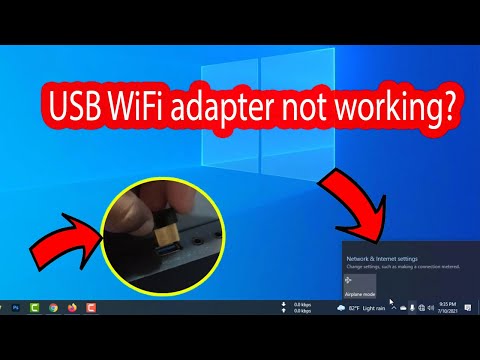
Oh man, isn’t it just the worst when your Wi-Fi decides to act up? You’re in the middle of some important work—or maybe just a hardcore cat video marathon—and boom, your desktop says, “Nope, not connecting to that network today.” Ugh, talk about frustration!
Seriously though, what’s going on with these Wi-Fi adapters sometimes? It’s like they’ve got a mind of their own. One minute everything’s smooth sailing, and the next you’re battling with connection issues like it’s some sort of invisible tech monster.
I had this happen once when I really needed to send off a project. There I was with my desktop stubbornly refusing to connect while my deadline ticked closer. Stressful times! But hey, let’s figure this thing out together and get you back online without all that fuss. Ready? Here we go!
PC Wi-Fi Connection Troubleshooting Steps
Hey there! It’s really frustrating when the Wi-Fi on your PC decides to take a little vacation, isn’t it? Let me share some simple steps you can try to get that connection back up and running. Think of this as a friendly guide for those moments when your desktop Wi-Fi adapter refuses to play nice.
First things first, check the basics. Make sure your Wi-Fi is enabled on your PC. Sometimes it’s just a switch that needs turning on.
- Check the physical connection: If you’re using an external adapter, ensure it’s snugly plugged in.
- Restart your computer: Sounds basic, but oh boy, does it solve so many issues!
Next, you might want to look at the network settings. These can be a bit sneaky sometimes.
- Forget the network: Find the Wi-Fi network you’re trying to connect to and ‘forget’ it. Then reconnect by typing in the password again.
- Network diagnostics tool: Use Windows Network Diagnostics. You just right-click on the network icon and select “Troubleshoot problems.” It guides you through some basic checks.
If you’re still having trouble, let’s dive a little deeper into more settings.
- Update drivers: Go to Device Manager. This one is like your tech toolbox where all devices hang out! Find ‘Network adapters,’ right-click on your Wi-Fi adapter and select “Update driver”. Hopefully there’s something new for you!
- Network reset: Head over to Settings > Network & Internet > Status > Network reset. But careful! This will remove then reinstall all network adapters and set components back their default settings.
And if none of these work? You might need some fresh hardware or even service provider support depends how far you’ve gotten with troubleshooting individually!
Anyway hope these steps help bring harmony between networks at home once again… Good luck!
WiFi Adapter Compatibility with Windows 11
You’re grappling with a desktop PC Wi-Fi adapter that’s being grumpy and refusing to connect on Windows 11, huh? I get it; it can be pretty frustrating when you just want to get online. Let’s help you sort this out.
Compatibility with your Wi-Fi adapter is key. Windows 11 is fresh and all shiny, but not every piece of hardware plays nice with it. Your adapter—kind of like the unique friend in your group—might need a little extra attention.
- Check Driver Updates: Drivers are like translators for your devices and Windows 11. If they’re outdated or missing, your Wi-Fi adapter might just not understand what the OS is saying! You can find driver updates on the manufacturer’s website, or use Windows Update if you’re feeling lucky.
- Look at Device Manager: Think of it as your backstage pass to all connected devices. Type “Device Manager” in the search bar and fire it up. What you want to do here is peek at “Network adapters” section. If there’s a yellow exclamation mark next to your Wi-Fi device, that means there’s trouble in paradise.
- Compatibility List: Sometimes an adapter isn’t on friendly terms with certain operating systems right out of the box. Check Microsoft’s compatibility list for any known hiccups between specific adapters and Windows 11.
- Tweak Adapter Settings: Go into “Network & Internet” settings (found by clicking the network icon in taskbar), then “Properties” for you Wi-Fi connection”. You could try changing settings like “network band.” It might work better on a different frequency.
Troubles going deeper? Here’s where that anecdote slides right in—remember your old headphones that didn’t fit into the new phone jack? Same vibes here! You might consider swapping out for an updated model specifically labeled as Windows-11 ready.
All right! With these pointers, your desktop should get back online without giving much fuss anytime soon!
Resolving Wireless Network Adapter Code 10 Issue
Hey there! Let’s dive into an annoying but common issue: the Wireless Network Adapter Code 10 problem. You’re trying to connect your desktop PC to Wi-Fi, and out of nowhere, it just doesn’t want to cooperate. Frustrating, right? I’ve been there too.
First off, you might be wondering what this Code 10 thing even means. In simple terms, it’s your computer’s way of saying, “I can’t get this device working!” When your wireless adapter throws a Code 10 error in Device Manager, it’s essentially hinting that either there’s a software glitch or the hardware isn’t playing nice.
Start with these basic checks:
- Update Drivers: Head to Device Manager by typing “Device Manager” in the Windows search bar. Find your Wi-Fi adapter under ‘Network Adapters.’ Right-click and choose ‘Update driver.’ Sometimes a quick update is all it takes.
- Try Another Port: If you’re using a USB Wi-Fi adapter, unplug it and try another port. You’d be surprised how often that’s the trick!
Now if those don’t work (and sometimes they don’t), here’s some more detailed stuff:
Diving Deeper
- Rollback Driver: Occasionally, updating can cause more problems than it solves—ironic right? Go back into Device Manager, right-click on your Wi-Fi adapter again and select ‘Properties.’ Under the ‘Driver’ tab you’ll see an option to ‘Rollback Driver.’ This can resurrect functionality if things were messed up by newer software.
- Check Power Management Settings: Some computers like saving power by limiting energy to certain components—like your wireless card! Go back into Device Manager (I know we keep going back there), find your Wi-Fi adapter among network adapters again. Right-click for properties once more then look under ‘Power Management’ tab; untick “Allow computer turn off this device save power.”
- Snoop Around BIOS/UEFI Settings:: Occasionally quirky default settings won’t have necessary components activated such as integrated Bluetooth/wireless cards etcetera—enter system’s BIOS/UEFI via pressing specified key during boot-up sequence (& usually displayed alongside logo screen F2 etcetera). Once inside kindly navigate towards advanced/integrated peripherals section ensuring both Bluetooth/WiFi activation toggled affirmatively prior exiting changes saved exit fully restarting thereafter.
If none worked?
Take breath relax—it could indicate defective hardware unfortunately… Consider replacing said component part altogether possibly reaching out technical support wherever applicable regarding further assistance necessary potentially purchasing newer replacement until satisfactory resolution achieved ultimately desired network connection experience normalcy proper restoration completed!
Hope some bits here help sort things for you!
You know how it is when you’re all set for a cozy evening with your favorite movie or maybe an online game, and then boom—your desktop PC’s Wi-Fi adapter just refuses to connect to the network? It’s frustrating, isn’t it? We’ve all been there. One moment you’re thinking everything’s fine, and the next you’re staring at that little icon with a big red “X”, wondering why technology seems to have it out for you today.
Back in the day, I remember dealing with dial-up connections (yeah, those noisy modems), but even modern technology has its quirks. Let’s face it: Wi-Fi is supposed to make our lives easier. Yet here we are trying to figure out why our desktop’s throwing a fit. Sometimes it’s as simple as moving your computer closer to the router. Other times, oh boy, you might need some detective work.
First thing you’ll want to check: are all other devices connecting okay? If not, could be an issue with the router itself! But if they’re fine and your desktop isn’t playing along, maybe look into updating drivers specifically for that adapter—like giving it a little nudge saying “Hey buddy time to wake up!”
Another trick that’s worked for me is checking power settings; sometimes desktops have settings that turn off devices like these adapters when they’re not being used. Imagine going through menus hunting down these tiny options and suddenly feeling like you’ve cracked some secret code once you find it!
And hey, every so often it’s worth disabling then re-enabling the adapter just like giving it a fresh start without restarting everything else—it works more often than you’d think.
This dance with tech can be daunting yet each hiccup teaches something new; kind of gets under your skin making home networking almost fun—almost! Anyway glad there’s always someone willing get their hands dirty solving those pesky connection issues right?