Oh no! Your trusty USB network adapter has decided to take a spontaneous vacation. Not cool, right?
You’ve plugged it in, and… nothing. Just a silent rebellion from your Windows 10 PC. What gives?
Let’s face it, we’ve all been there—staring blankly at our screens, wishing our gadgets could just cooperate for once.
Maybe you need that internet connection like, yesterday. Panic sets in slightly.
Don’t worry. We can definitely tackle this together and get your digital buddy back up and running!
USB Ethernet Adapter Detection Issues in Windows 10
You’ve got your USB Ethernet adapter all set up, but oh no, it’s just not playing nice with Windows 10. Sounds like a real head-scratcher, right? But don’t worry, there are straightforward ways to tackle this issue. Let’s walk through some tips and tricks to get that pesky adapter recognized.
First things first: check the physical connection. I know this sounds basic, but you’d be surprised how often the simplest things trip us up. Make sure your USB cable is firmly plugged into both the adapter and the USB port on your computer.
- Try a different USB port. Sometimes a port might just be having an off day. Swap your adapter to another one and see if it wakes up.
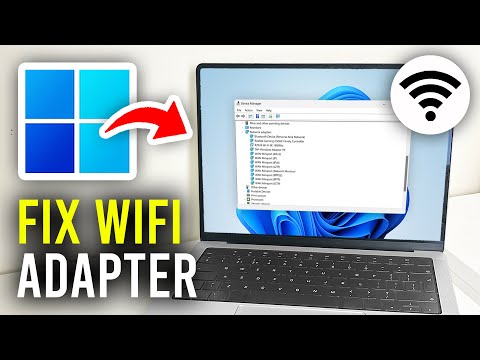
- Update your drivers. Keeping drivers updated can solve so many problems. Head over to Device Manager. You can find this by typing “Device Manager” in the search bar next to the Start button.
Once there:
- Find “Network Adapters” and look for any that seem unfamiliar or show an error icon (like a little warning sign).
- If you see one that might be your adapter, right-click it and select “Update driver.”
Now, speaking from experience here—drivers can sometimes sneakily refuse updates because they’re shy about connecting online by themselves.
If updating doesn’t save the day:
- Uninstall and reinstall: Within Device Manager, spot those familiar error icons on network adapters? Right-click one of them and choose “Uninstall device.” Don’t panic! Just unplug your USB Ethernet adapter afterwards.
Then:
- , visiting product websites directly may have what generic Microsoft versions lack—those details matter!
And hey—some laptops have been tinkered with more settings than necessary thanks lately (or earlier crazy uncle’s visit), so let’s double-check it’s nothing odd undermining connections at home too:
Tweak power management settings if needed!
1) In Device Manager still under “Network Adapters,” locate potential troublemaker again.
USB WiFi Adapter Recognition Steps
Oh, the hassle of a USB WiFi adapter not being recognized in Windows 10! We’ve all been there, right? Let’s take a look at what you can do about it:
Check the USB Port:
Sometimes, switching to another USB port is all it takes. It’s like when your remote control stops working and you give it a little shake. Try connecting the adapter to another port, preferably one directly on your computer.
Update Your Drivers:
Manufacturers constantly update their drivers to fix bugs and improve performance. Look for the latest drivers on their official website. Once downloaded, double-click to install—it’s usually straightforward.
Device Manager Investigation:
Device Manager is your friend here! Press Win + X, select Device Manager, and check for any devices with a little yellow triangle—that’s Windows way of waving at you for attention! If your adapter shows up there, right-click and choose “Update Driver.”
- Select Automatic Search: Let Windows search online for updates.
- Select from available: Or if no luck, browse let’s say manually through your downloaded driver folder.
Troubleshoot Network Settings:
Windows has quite handy troubleshooters built-in. Hit the network icon in your taskbar (next to the clock), click on “Troubleshoot Problems.” Follow what Windows suggests—it sometimes pulls off miracles.
Check Power Management Settings:
Network Adapter Missing in Windows 10
Oh no! It sounds like you’re dealing with a network adapter issue on Windows 10. This can be frustrating, especially when you just need to get online to respond to that important email or stream your favorite show. Let’s see if we can sort this out.
What Causes a Missing Network Adapter?
Quite often, the missing network adapter issue crops up due to a mess-up in drivers, settings gone awry, or sometimes after a system update. You know how updates love to shake things up! If you’re using a USB network adapter and it isn’t recognized, faulty ports might be behind it too.
Steps to Resolve the Issue
Here are some steps you might want to try:
- Check Your USB Connections: Have you already unplugged and replugged your USB network adapter? It seems basic, but hey, sometimes it’s easy to overlook. Try different USB ports if necessary.
- Device Manager Check: Open Device Manager by right-clicking on the Start button and selecting it from the list. Do you see any yellow triangle icons next to ‘Network Adapters’? That could hint at driver issues.
- Update Drivers: Sometimes all it takes is updating the driver for your device. In Device Manager, right-click on the name of your network adapter (or unknown device) and choose ‘Update driver’. Follow through with searching automatically for updated driver software.
- Network Reset: Head over to Settings > Network & Internet > Status > Network reset at the bottom. This rebuilds all connections and settings related to networking back from scratch.
- Troubleshooter Tool: Don’t forget Windows’ built-in troubleshooter tool under Update & Security in Settings. You’d be surprised how often this little guy finds something amiss!
Anecdote Time!
I remember once when my own Wi-Fi seemed invisible on my laptop out of nowhere—it was like it had vanished into thin air! Turns out there was an unnoticed hardware switch flipped off during cleaning… Can’t blame dust-busting for trying extra hard!
Anyway—it’s good practice checking physical switches too—even though they might not always impact external adapters!
If nothing above works… well maybe there’s another gremlin lurking around—we’ll keep digging deeper! Just hang tight; we’ll find what’s causing trouble sooner rather than later!
Oh, the joys of technology, right? Just when you think things are running smoothly, you plug in your USB network adapter, and bam! Windows 10 decides it doesn’t want to play nice. I’ve been there. That sinking feeling when you’re all set for some high-speed internet action and your computer throws a fit. It’s like it’s saying, “What’s this alien device you’re trying to introduce me to?”
Anyway, first things first: Let’s remember that technology isn’t perfect—which is what makes it so… fun sometimes. Uh-huh. Often what’s happening is that Windows just hasn’t installed the drivers it needs for the adapter. Drivers are like tiny tour guides that help your computer understand how to handle new hardware.
One time my friend Mike was all excited about his new gaming setup but found himself facing this very issue—USB network adapter being stubbornly unrecognized by his PC! Oh man, he was frustrated—and rightfully so! But with some patience and a dash of troubleshooting (and coffee), he got through it.
If you find yourself in this spot: make sure you’ve tried unplugging it and plugging it back in another USB port—that little trick works more times than you’d think!
Also, please don’t ignore those annoying pop-up windows on updates; they could be the key here! Sometimes an updated driver hides behind them waiting to solve everything.
And if things still look bleak? Maybe visit the manufacturer’s site because there might be fresh drivers waiting there ready for download—worth giving a shot if Windows doesn’t seem up-to-date enough itself yet.
The thing with tech troubles is after each triumph over these hurdles—it leaves us feeling pretty accomplished—even if only momentarily until next challenge pops up again soon enough—but hey who doesn’t enjoy those small victories anyway?