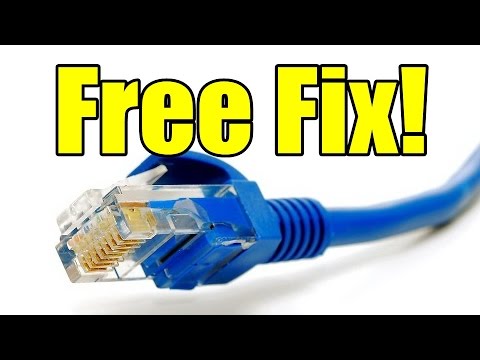
Oh man, have you ever tried setting up your home network and then—bam!—you’re hit with one of those pesky ethernet connection problems? It’s like everything is going smoothly until it’s not. The router’s where it should be, cables everywhere, and for some reason… nothing works.
So you’re thinking maybe it’s the cable, or worse yet, something way more complicated. But hang tight! Sometimes all it takes is a little tweak or piece to get things back on track. You know those RJ45 adapters? They might just be your new best friend.
The thing is—or at least what I’ve seen—they’re like magic for sorting out weird cable connections. Believe me, when my internet was acting up last month (and I was on the brink of losing my mind!), an RJ45-to-RJ45 adapter was my perfect rescue. If only life’s other problems were that simple to fix!
Anyway, let’s take this little journey and see how these adapters work their magic in solving bothersome ethernet issues. You good to go?
Checking Ethernet Cable Connection
Hey, checking your Ethernet cable connection can sometimes feel like investigating a mystery! Let’s dive into what you can do to get things sorted.
First thing, you need to check the Ethernet cable itself. Is it plugged in securely? Sometimes it’s as simple as that—one side of the clip isn’t fully clicked into place, and boom, no internet for you. Happens more often than you’d think!
Then, have a look at your Ethernet ports. They are those little slots on your devices that gobble up the RJ45 connectors at each end of an Ethernet cable. Here’s what you might want to do:
- Inspect for damage: Are there any bends or kinks? If it looks like a dog’s favorite chew toy, that’s probably where your problem lies.
- Swap cables: Got another cable lying around? Give it a try! It helps determine if the issue is with the existing one or somewhere else.
Now, about those RJ45 to RJ45 adapters… They act as middlemen when you’re trying to extend connections between cables. Sometimes they become loose or corroded over time.
- Tighten connections: Ensure both ends are snugly fitted into the adapter.
- Test without adapter: If possible, connect directly without using an adapter and see if the connection improves.
And hey, don’t forget about the device settings and network configuration! You want everything set right so there’s no hiccup there either:
- Check network settings: Make sure it’s configured properly for wired connections and not stuck on Wi-Fi mode.
- Restart devices: Just like how we sometimes need a fresh start after a nap! Turn them off then back on; might just fix things up!
So yeah you’ll be back online soon enough once these steps are taken care of. And remember: even seasoned techies encounter similar blips now & then—it’s nothing personal against you!
Network Detected but No Internet Access
Hey, I totally get it. You’re all set up, you see your network on your device, but bam! No internet access. It’s like trying to open a door with the wrong key. Frustrating, huh? Let’s see if we can figure this out together.
So, you’re using an RJ45 to RJ45 adapter to connect your ethernet cable? Those little adapters can be super useful. But sometimes they seem to have a mind of their own!
Here’s the thing: an adapter might cause connection issues if it’s not working properly or isn’t compatible with your hardware. Let’s explore why you could be facing this pesky problem and what you can do about it.
- Check the Connection: Make sure both ends of the cable are plugged in firmly to the adapter and into your devices. A loose connection can make all the difference!
- Cable Quality: Not all Ethernet cables are created equal, you know? Check if yours is damaged or worn out.
- Check the Adapter: Sometimes adapters just aren’t doing their job right. Swap it for another one if you have a spare lying around.
- Your Network Settings: Yep, sometimes it’s as simple as checking settings on your computer or router.
Now imagine this: there was a time when my friend tried connecting his gaming console through an adapter. Wouldn’t work at all! After pulling some hair out—literally—he found that resetting his router worked wonders.
A router reset, by unplugging it for about 10 seconds and plugging back in again, often helps clear any glitches blocking internet access.
Another possible culprit is an IP conflict where devices end up fighting over who gets which address on the network playground–sounds wild though! To resolve this:
- Release & Renew IP Address: Use Command Prompt (Windows) or Terminal (Mac). Type “ipconfig /release”, hit Enter then “ipconfig /renew”. Same idea with “ifconfig” commands for Mac users!
- Update Network Drivers: Keeping network drivers updated ensures smooth communication between software and hardware parts of our PC puzzle pieces after each update we receive from tech companies worldwide – kinda cool right?
P.S.: These steps usually do trick most times unless problem lies deeper within faulty device components needing professional help thereafter diving further into rabbit hole solutions possible here today been solved end-all fix yet unfortunately no universal silver bullet exists each case unique nature :).
Hope these get things back up running sharp soon without too much hassle involved along way ahead smoother browsing experience ever thought imaginable ensured every step taken counts progress shaping future brighter accessible world full endless information adventures waiting discover further beyond horizon next chapter begun anew today forward shared journey together connected purposes greater good enjoyment learning mastery gained endured traversed hardships encountered learn thrive grow embrace challenges overcome strive best selves become reality envisioned dreams hold value desired goals achieved fulfillment attained contentment found success celebrated joyous moments treasured lives enriched meaningful ways enriching empower better tomorrows promise strength unity love compassion gratitude kindness shown acts random presented daily encounters lives change touch hearts inspire hope possibility future generations lead onward building foundations stable pillars support lasting legacy long after.”
Anyway maybe give those ideas shot see results looking achieve; fingers crossed works wonders expected desired outcome desired attainable reachable feasible viable solution quick win!!!
Ethernet Connection Issues While Wi-Fi Works
Ah, the joys of technology! You’ve got Wi-Fi working perfectly, but your Ethernet connection is acting up. If you’re scratching your head wondering why this is happening, you’re not alone. Let’s see if we can make sense of this puzzle.
First things first: check the basics. Ensure that both ends of your Ethernet cable are securely plugged into the right places. A loose connection can be sneaky and cause all sorts of headaches.
Now, imagine you’re looking at an RJ45 to RJ45 adapter sitting between two devices—a handy little tool when trying to connect cables that just don’t quite reach or match up on their own.
Think about these potential issues:
- Cable Quality: Your Wi-Fi might work fine because wireless signals don’t rely on physical cables that could be damaged or worn out. Check for visible damage on the cable.
- Adapter Compatibility: An adapter might seem like a quick fix to combine two cables, but it could introduce complications if not compatible with your devices.
- Port Issues: The Ethernet port on either your device or router could be faulty. Try using a different port if available.
It’s like one time I was setting up my friend’s home office—everything was going smoothly until we tried connecting his laptop via Ethernet for a more stable connection. Guess what? He’d accidentally plugged the cable into a broken port… Oops!
If all else fails, it might help to double-check device settings:
- Network Drivers: Ensure they’re updated. Outdated drivers can be troublemakers.
- Network Configurations: Make sure there are no incorrect settings causing conflicts in the Device Manager (just search “Device Manager” in Windows’ start menu and have a peek).
And hey, don’t forget about the possibility of interference from other electronic devices, though it’s less common with wired connections.
So whether it’s simply swapping out some cables or tweaking those network settings, you’ll find that usually patience pays off here. And always—gotta remember those little adapters aren’t magic wands; while useful they’re not fixing everything by themselves!
You know, dealing with network issues in this digital age can feel a tad overwhelming sometimes, right? Like, there was this time I was setting up my home office. Everything should have been smooth sailing, but as luck would have it, the Ethernet connection just wouldn’t cooperate. Nothing like those little hiccups to remind you of life’s unpredictability!
Anyway, a device that often comes in handy in these situations is the RJ45 to RJ45 adapter. It might not sound exciting at first glance but trust me, it’s surprisingly useful for solving certain Ethernet connection woes.
Picture this: You’ve run your Ethernet cable across your home or office and realize it’s about 10 feet too short. Instead of replacing it entirely (talk about waste!), you could simply use one of these adapters to join two cables and extend your reach. You see? It bridges the gap between them seamlessly.
Here’s another thing: Maybe you’ve got an old cable with a broken clip. Those tiny clips seem so fragile sometimes! An RJ45 adapter could save the day here too because once the two cables are connected through the adapter, you won’t need that clip for stability anymore.
Of course, as with any tech solution, it’s always good to remember its limits. While these adapters can be lifesavers in a pinch, they aren’t miraculous cures for all network ailments. If there’s an underlying issue with your setup or if poor quality cables are at play—well—that’s another story.
So whether you’re dealing with short cables or trying to give new life to old ones—or even acting on those “whoops” moments where something didn’t go as planned—having an RJ45 to RJ45 adapter around can sure be handy! Sometimes small tools lead big solutions!