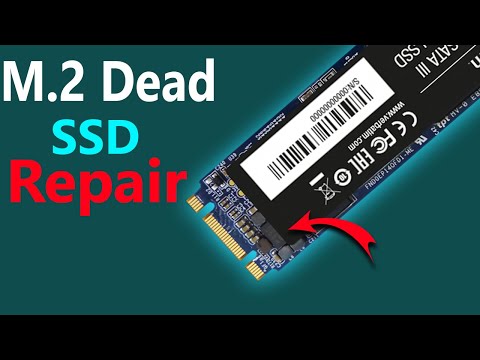
Oh boy, have you ever booted up your computer only to find that it doesn’t recognize your shiny new M.2 2280 SATA drive? It’s like going to the fridge expecting a cold drink and finding nothing inside—frustrating, right?
So there I was, excited to try out this speed demon of a drive, expecting my computer to rocket off faster than a spaceship. Instead, my system stubbornly insisted it couldn’t find the thing at all. It’s like your computer suddenly forgot how to read maps!
Before panic sets in and you start regretting every tech purchase decision you’ve ever made let’s walk through what might be going on here. Because really, it could be just a tiny hiccup in the matrix that we can work out together.
Feel me? Alrighty then! There are some common things we can check out. Little gremlins hiding in settings or connections that might just need a poke or two.
M.2 SSD Detection Troubleshooting Steps
Alright, let’s dive into this! You’re dealing with an M.2 SSD that’s not being detected, huh? I’ve seen this happen a lot. It’s like when you misplace your keys, and you can’t leave the house. Frustrating, right?
First up, you should check if it’s properly seated in its slot on the motherboard.
Here’s what you should do:
– Power off your computer completely.
– Open up the casing to access the motherboard.
– Gently remove and reinsert the M.2 SSD to make sure it’s snug.
Sometimes it just needs a little adjustment!
Now, another thing to consider is compatibility. You see, there are different types of M.2 keys: B-key and M-key. Your motherboard needs to support the one you’re using.
Check these:
If everything looks good but it’s still invisible in BIOS or Windows, let’s shift gears and focus on software updates—BIOS updates can sometimes magically solve weird issues like this.
Take these steps:
But hey if none of that works? It might be something as simple as checking drive settings in BIOS itself.
You’ll need to:
- Restart the system and enter BIOS (usually by pressing Del or F2 during boot).
- Dive into storage configuration settings; enable any necessary options like NVMe support or AHCI mode for SATA compatibility.
Remember how I mentioned misplacing keys earlier? Well sometimes they’re not lost—they’re just hiding behind some files or jackets… Similarly faulty connections happen because devices fight over resources they don’t have enough space for!
There could already be too much going on between other connected components such as GPUs which share bandwidth lanes with our dear old friend—the undetected solid-state drive!
Get rid of extras:
– Remove unnecessary peripherals temporarily
– Try uninstalling non-essential drivers within Windows Device Manager
And finally before giving up entirely consider trying another machine altogether;
Pop-out troubled unit place where possible ensuring detection elsewhere helps rule out suspicious system malfunctions rather than standalone part failures!
SATA Hard Drive Detection Issues
Oh boy, having your SATA hard drive not detected can be quite a hassle, right? It’s like going to open your favorite book and finding out it’s suddenly disappeared. Let’s dive into what’s going on here and see if we can sort this out together.
Understanding the Issue: First off, when your system doesn’t detect an M.2 2280 SATA drive, it might be due any variety of reasons. Sometimes it’s something as small as a poor connection; other times it could be a tricky BIOS setting.
- Loose Connections: This is one of those “oops” moments that happens to everyone at some point. Make sure the drive is snugly connected to its slot. You know how sometimes the HDMI cable isn’t fully in? It’s kinda like that.
- BIOS Settings: Technology loves to hide things in settings! Check if your BIOS needs an update or adjustment—sometimes it just doesn’t automatically recognize new hardware.
- Conflicting Configurations: Adding a new device might cause conflicts with existing configurations (kind of like two traffic lights turning green at once!). Ensure there aren’t settings competing for resources.
- Driver Issues: Drivers are kind of like guides that tell your computer how to use new parts. If they’re outdated or missing, you may need to download the latest ones from your motherboard manufacturer’s website.
- Faulty Drive: It could also just be that the drive isn’t working properly—sadly these things happen. Test with another system if possible!
Troubleshooting Steps:
- The Simple Reseat: Power down and reseat the M.2 SATA drive, ensuring it’s clicked perfectly into place.
- Dive Into BIOS: Accessing BIOS usually involves pressing Del or F2 during startup (watch closely for prompts). Look under storage options to ensure everything’s enabled for M.2 drives.
- Update Everything: Both firmware (for drives) and drivers (for components) are crucial here; visit manufacturer sites for official updates—it makes a world of difference! For instance, try downloading from Asus’ site if you have one their motherboards installed at home right know… li >
- Swap & Test : i > If there ‘s another machine handy—or maybe even close friend who can help out —try testing whether problem persists elsewhere . li >
Seek Expert Help : i > When all else fails , reaching professional assistance often does trick … think phone-a-friend option when stuck crossword puzzle ! li >
ul >
Remember: patience pays off . Just stay calm while troubleshooting through solutions above ; before long , mystery should unfold itself pass away peacefully too… Have fun ! Who nods quickly most frequently ? Not sure myself either?
Reasons for SSD Detection Failure
Alright! Let’s dig into the whole SSD detection business, especially when we’re talking about those fancy M.2 2280 SATA drives. You know how it is – sometimes, these little storage devices don’t show up, and you’re left scratching your head.
Loose Connections:
One of the most common culprits is a simple loose connection. Think of it like this: if you don’t plug your headphones all the way into your phone jack, you won’t hear anything, right? Same deal with SSDs sometimes.Incorrect BIOS Settings:
BIOS can be a tricky beast. If it’s not set correctly to recognize an M.2 2280 SATA drive, it’s like giving someone directions to fetch a ball without telling them where it’s actually hidden.- SATA Mode Selection: Switching between modes like AHCI and RAID can make or break detection.
- NVMe vs SATA: Ensure that BIOS knows whether you’re using an NVMe or SATA type M.2 drive.
Compatibility Issues:
Sometimes not everything fits perfectly together. Older motherboards may only work with certain types of SSDs. It’s like trying to fit a square peg in a round hole—it just doesn’t quite work out.Mismatched Slot Type:
M.2 slots come in different flavors—some just support NVMe and others handle both NVMe and SATA. Imagine having glasses but trying to read without wearing them!Power Supply Problems:
If there’s not enough power reaching your SSD, it’ll be as effective as a flashlight with dead batteries—not very useful at all!Firmware Problems:
Outdated firmware? That’s another sneaky reason for detection failures! It’s kind of similar to running old software on your phone—it just doesn’t cooperate sometimes.Example: A friend once had his brand-new M.2 2280 seemingly vanish after installation—turned out he hadn’t updated his motherboard’s firmware!
Okay then, hope this sheds some light on why those sneaky little drives might play hide-and-seek with your system!
Oh, the dreaded moment when your M.2 2280 SATA isn’t being recognized by your computer! It’s like, you know that feeling when you’re sure you’ve picked up everything for a road trip, but then you realize you’ve left behind the most important thing? Yep, just like that. For anyone who has faced this, don’t sweat it too much.
First off, let’s chat a bit about what an M.2 2280 SATA is—just in case you’re scratching your head. Imagine it’s this tiny stick full of storage magic that fits snugly into your computer’s motherboard to give you fast and efficient data access. Sounds neat, right? But sometimes computers seem to have a mind of their own and decide not to recognize it.
One common hiccup here might be something as simple as not seating properly. I mean, think of it as trying to fit a puzzle piece—it needs to be in there just right! If it’s angled or loose even by a little bit, it’s not gonna work.
Another thing could be updating the BIOS or UEFI settings on your machine. You know those times you need special glasses for reading tiny print? Updating these settings can feel kinda like that—they’re specific and need extra care!
Power cycling is another trick up the sleeve: turning off everything completely—you know unplugging all those tangled cords—then giving everything a fresh start after sitting tight for 30 seconds.
And oh boy! Motherboards sometimes have multiple slots for these guys with different compatibilities too! Just make sure its home matches where it’s supposed to live ’cause placement matters big time!
So take heart—you’re not alone with tech hiccups; they happen even to digital pros! Even though occasionally we’ll wanna toss our gadgets outta windows (or maybe that’s just me?), taking deep breaths before diving back helps tons!