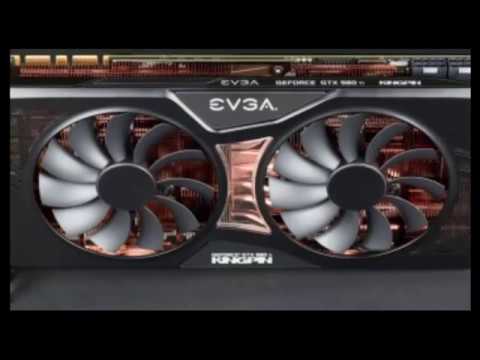
You know that feeling when your computer sounds like it’s about to take off? Yeah, that’s never a good sign. Especially if you’re rocking an EVGA GTX 1080. It’s an awesome graphics card, right? But then it starts overheating… yikes!
So, you’re in the middle of an epic gaming session or maybe working on some hardcore graphic design project, and bam! Your card’s heating up like it’s competing with the sun. And let’s face it: nobody likes unexpected shutdowns or lag just because things are getting too hot in there.
Hey, don’t worry too much though! There are ways to cool things down—literally. It might be something as simple as cleaning a dusty fan or maybe messing around with some settings (no rocket science). Stick around and we’ll figure this whole thing out together!
Reasons Your GPU Is Overheating
Oh, overheated GPUs—they’re such a headache, aren’t they? Let’s dig into why your EVGA GTX 1080 might be running hot. I’ll share some reasons and maybe a few pointers to help you keep things cool.
Why is my GPU overheating? Well, there can be several culprits behind this.
- Poor ventilation: Have you checked your computer case lately? It’s like when you wear too many layers in summer—your poor GPU can suffocate without good airflow. Make sure there’s enough space for air to circulate.
- Dust buildup: Dust is sneaky! It loves to sneak into fans and heatsinks, clogging everything up. If it’s been a while since the last cleanup, grab some compressed air and gently blow that dust away.
- Outdated drivers: Like needing new glasses to see better, your GPU needs updated drivers to function properly. Head over to the NVIDIA website now and get those updates rolling if they’re not yet installed!
- Inefficient thermal paste: You know how sunscreen protects our skin? That’s what thermal paste does for your GPU—transferring heat away from it efficiently. If it’s dried up or poorly applied, consider reapplying fresh thermal paste.
- Poorly positioned components: Sometimes the way things are seated matters more than you’d think. If other components or cables block airflow around your graphics card itself due its position within the case—you may need slight adjustments here too!
And hey! Here’s an example that might highlight one of these issues: I once ignored my PC’s dusty state until it started roaring like Niagara Falls every time I played games! That’s when I realized cleaning really was necessary.
In short terms—not rocket science but still crucial steps these ones above listed will help you address any overheating troubles accompanying EVGA GTX-1080 folks find annoying quite often nowadays…
Evga GTX 1080 Overheating Causes
Oh, the woes of technology overheating! If you’ve ever dealt with an EVGA GTX 1080 that seems to be cooking your PC rather than just graphics, you’re not alone. There are a few common culprits when this card starts running hotter than expected, and knowing them can help you get back to enjoying those pixel-perfect landscapes.
Why is Your EVGA GTX 1080 Overheating?
It’s like having a car engine that suddenly decides it’s tired of being cool. That heat can really mess with your tech. Causes can range from simply needing a good dusting to more complex issues like power supply problems. Let’s break it down:
- Dust Buildup: Over time, dust tends to find its way into every nook and cranny of your computer. It can block airflow in the GPU’s cooling system. Think about it, if air can’t circulate properly, that heat is just gonna stick around.
- Poor Ventilation: If your PC case doesn’t have enough airflow or if it’s crammed into a tiny space without room to breathe, guess what? The heat’s got nowhere to go! Make sure there’s adequate space for air to flow freely.
- Failing Fans: Sometimes, the fans on the GPU itself just aren’t spinning like they should be; maybe they’re even dead (yikes). When this happens, it’s pretty much trying to cool off by waving an imaginary fan in front of itself.
- Poor Thermal Paste Application: The thermal paste helps transfer heat away from the GPU chip into the heatsink where it gets cooled down by fans. If it’s applied poorly or it’s dried out over time–bam! You’ve got overheating.
- Overclocking: Okay so maybe you tried pushing your card beyond its limits for better performance? That’s risky business because sometimes overclocking leads directly straight into overheating territory before you know what’s happening!
If any one (or all!) these hits close home check them out first thing next time something feels off—before living another day baking everything inside there 😜!
1080ti Overheating Causes
Having an EVGA GTX 1080 Ti overheating can be a real bummer, right? You know, one minute you’re deep in a game or crunching numbers for that big project, and the next, your computer starts acting like it’s in the Sahara Desert. Here’s a closer look at what might cause your 1080 Ti to get all hot under the collar.
Dusty Dreams: It’s wild how fast dust can build up inside your PC. It loves to gather on fans and heat sinks. Picture dust as tiny cloaks covering everything—blocking airflow and trapping heat.
Poor Ventilation: Imagine wearing a thick sweater in summer! If your computer case doesn’t have good airflow, it’s like wrapping the graphics card with warmth it can’t shake off. Proper ventilation is key.
Thermal Paste Problems: This paste helps transfer heat from the GPU chip to its cooler. Over time, it can dry out or even be applied unevenly in new cards. This little thing makes more of an impact than you might think!
Aggressive Overclocking: Cranking up performance settings is exciting but generates extra heat. If cooling can’t keep up with these changes? Yep, things get spicy.
Fan Failures: Fans are like tiny wind machines keeping everything cool. If they aren’t spinning as they should due to failure or low speed settings—watch out! It heats up everything quickly.
Okay, now let’s break down these causes further:
- Crammed Space: Check if cables inside are organized neatly so they don’t block any air paths.
- Dusted Components: Gently clean dust from fans using compressed air but don’t go overboard—it should just mean puffs here and there!
- Troubled Paste Areas: Reapplying thermal paste can often help; this involves carefully removing old paste first.
Seeing temperatures rise too high isn’t fun at all! Try keeping tabs on your system temps using monitoring software like MSI Afterburner which gives you real-time insights into how hot things get while under load —super handy tool!
To keep coolness reigning supreme within those PC towers of yours (and potentially avoiding overheating), some preventative setups include adding extra case fans if possible—if not already maxed out—and ensuring nothing blocks any existing fan mounts plus vents around entire rig structure;
Feel free adjusting GPU fan curve through driver tools such as NVIDIA Control Panel among others which allow better control over each setting related specifically towards individual needs & usages per step taken ahead alone whenever seeking optimizations path worthwhile exploring farther down line later onward…
So next time when seeing numbers climbing high remember these little tweaks could make significant difference fighting off unwanted thermal spikes altering systems stability level long-lasting gentle breeze satisfaction no less forevermore ensuring comfort accompanied wherever journey takes one evermore smoothly sailing shared passageway blissfully secured genuinely appreciated properly managed attained safely arrived fruition ultimately cherished enshrined remarkable enduring peace soundly embraced thoroughly fulfilled merry glorious experience…
Ah, the EVGA GTX 1080. It’s like one of those classic cars people love to talk about, you know? Maybe not the newest model on the block, but still holding its ground for many. Now, if you’re dealing with overheating issues on this GPU, it can really be a pain.
I remember once, I was deep into a gaming session—sweat dripping from my forehead as I raced against friends—and suddenly my computer just shut off. No warning or anything! Turns out, it wasn’t me that was overheating; it was my trusty old GTX 1080 struggling to keep its cool.
The causes of overheating can be like a puzzle. First up: dust and dirt. Yeah, it’s wild how tiny particles can cause such a fuss. They clog up your fans and make them less efficient at cooling things down.
Another issue might be airflow in your case. If you’ve got cables all over the place or something blocking air from moving smoothly around your components—it’s like trying to breathe through a straw!
What’s more? Thermal paste wear-off is surprisingly common too. This is the gooey stuff that sits between your GPU and its cooler to transfer heat away effectively.
So what do you do then if your card’s acting like it’s on vacation in a sauna? Give it some TLC! Open ‘er up and give those fans and heatsink a good clean (carefully though). And hey, while you’re at it, check the cable management. Making sure cables aren’t hindering airflow can work wonders.
Reapplying thermal paste could save the day too—just make sure you’re comfortable with doing this yourself because handling components always calls for some care.
And man oh man—don’t underestimate good ventilation where you keep your PC setup; it helps more than we think sometimes!
Ultimately, keeping things cool isn’t just for comfort—it’s what keeps our gear running smoothly without unexpected shutdowns messing all our fun times… So yeah! Hope everything stays chill (literally!) with yours soon enough!