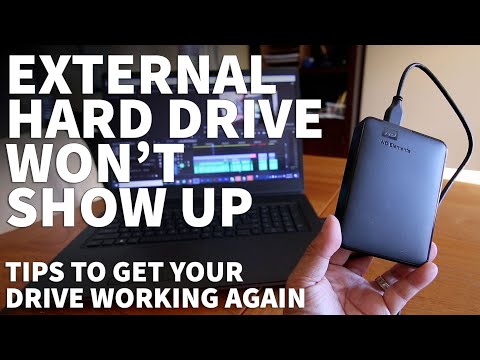
You know that feeling when you open your laptop, ready to dive into work, and—uh oh—it just won’t find the hard drive? Total bummer, right? It’s like that pesky sock that always disappears in the laundry.
Well, you’re not alone on that front. This happens more often than you’d think. Maybe you’re kept up at night wondering if it’s a hardware glitch or something in the software playing hide and seek.
Don’t worry though; lots of folks have been there. And hey, there are usually some straightforward fixes you can try out before you panic and start window shopping new devices.
We’ll chat about common causes like loose connections or outdated drivers—stuff you probably haven’t even considered messing with. So grab your favorite cuppa, get comfy, and let’s tackle it together!
Internal Hard Drive Detection Issues
Oh, the woes of modern technology! Finding out that your laptop’s internal hard drive isn’t being detected can be quite a heart-stopper. But, let’s look into why it might happen and how you could possibly fix it. Alright?
Why is Your Laptop Not Detecting the Internal Hard Drive?
There could be several reasons for this pesky problem, some simple and others a bit more complex. Imagine sitting there with your laptop that’s not cooperating—it can be infuriating! Here’s what might be going wrong:
- Loose Connections: Sometimes, it’s just about the connections inside your laptop. A loose cable won’t allow your laptop to see the hard drive.
- BIOS Settings: The BIOS (that’s like a tiny software boss in charge of waking up your computer’s hardware) may have settings preventing detection.
- Faulty Hard Drive: Sad to say, but hardware failures do occur. Old drives or those with defects often run into this issue.
- SATA Mode Change: Your laptop’s BIOS might have switched SATA modes (those are settings related to how data is transferred), leading to detection issues.
- Driver Problems: Drivers are like translators between the computer and its components. If they’re outdated or corrupt, problems lurk around!
Tackling
Let’s roll up our sleeves and dive right into potential fixes—these are meant to help you get things back on track:
- Check Physical Connections: If you’re tech-savvy enough, opening up your laptop gently (like you’re handling fragile glass!) and ensuring all cables are securely connected may solve the issue.
- Dive Into BIOS Setup: Accessing BIOS during startup typically involves pressing keys like ‘F2’ or ‘Delete’. Once there, look for drive detection settings—sometimes enabling automatic detection does wonders!
- SATA Mode Adjustments:If there’s been a sneaky change in SATA mode within BIOS—from AHCI to IDE or vice versa—reverting it back could sort out problems.
- Your Drivers Need Love Too!: Updating drivers through Device Manager or manufacturer’s website helps keep communication clear between devices.
- If you’ve got an external case handy try connecting HDD externally – sometimes I’ve seen folks discover issues lay within internal parts rather than physical disk itself!
Remember when tackling these suggestions always observe caution regarding electricity hazards by removing battery first if necessary before poking around motherboard etcetera alrighty then ‒ goodluck sorting everything again dear reader!
Checking SATA Cable Connection
If your laptop’s internal hard drive isn’t showing up, you know it can be a bit nerve-wracking, right? One common issue often overlooked is a loose or poorly connected SATA cable. Before diving into complex solutions, it’s worth checking this simple connection.
Why SATA Cables Matter
SATA cables are crucial for transferring data between the motherboard and the hard drive. If any part is disconnected or not seated properly, your laptop might not detect the hard drive at all.
Checking the Connection
1. **Power Off and Unplug:** Safety first! Shut down your laptop and unplug it from any power source to avoid unexpected surprises.
2. **Open Your Laptop:** This step varies depending on your model. Typically, you’ll unscrew a panel on the bottom of the laptop to access internal components like RAM or hard drives.
3. **Locate the Hard Drive:** Usually housed in a bay within easy reach once inside, look for a rectangular component with stickers or labels.
4. **Check the Cables:**
- SATA Data Cable: This thinner cable connects directly to your motherboard.
- SATA Power Cable: A bit wider, providing necessary power from your computer’s PSU.
5. **Reconnect Securely:** Gently disconnect both ends of each cable and plug them back firmly until they click into place.
Testing After Reconnecting
Reassemble everything carefully, plug in any power lines again, and start it up – fingers crossed! If everything’s properly connected now you should see that internal hard drive alive and kicking in the system settings.
Remember this time? Your heart skipped thinking you’d lost all those files when maybe just one small jiggle saved all that stress!
Causes of Laptop Hard Drive Detection Failure
You’re trying to fire up your laptop, and it suddenly can’t find the hard drive. It’s like the digital version of losing your car keys—super frustrating! There can be several reasons why this happens. Let’s break them down, you know?
Hardware Issues
Sometimes the problem is as simple as loose cables inside your laptop. If they’re not securely connected, the hard drive won’t show up, like when something’s hiding in plain sight and you just can’t see it.
Another thing is **physical damage**. Maybe you dropped your laptop a bit too hard—I know I have! So internal components could get damaged or misaligned from a fall or bump.
Outdated BIOS/UEFI Settings
The BIOS (or UEFI) is kind of like a traffic cop directing data between your operating system and hardware. If it’s outdated or misconfigured, it might not recognize new hardware. Checking for updates could make everything run smoothly again.
Software Glitches
Occasionally, software bugs can mess things up too. Viruses are notorious for their antics – they might corrupt files making the hard drive undetectable almost like being ghosted by technology!
Corrupted File System
A corrupted file system could prevent recognition of the hard drive by any operating system—a bit like trying to read a scrambled map without landmarks.
Here’s how you might handle these troubles:
- Tighten Connections: Check inside if you’re confident with tinkering; ensure all cables are snug.
- Run Diagnostic Tools: Use built-in tools from Windows or third-party apps to check disk health.
- Update BIOS: Consult manufacturer guidelines for updating those settings correctly—because messing those up can cause other issues!
- Create Backups Regularly: Keep backups on external drives just incase anything goes awry – think of them as safety nets!
- Avoid Hard Bumps:: Storing laptops carefully reduces risks associated with physical damage! Treat it nice!
In some cases though when nothing works after trying everything—it may mean consulting professionals who have more experience diagnosing these technical things without tripping into extra issues inadvertently themselves!
Ah, the dreaded moment when your laptop just refuses to recognize its internal hard drive. It’s like that time my car wouldn’t start, and I was in the middle of nowhere, with no signal to call for help. Frustrating doesn’t even begin to cover it! But hey, don’t panic yet. There are a bunch of reasons why this can happen, ranging from simple hiccups to more serious issues.
First off, let’s imagine you’re booting up your laptop and suddenly you see this message saying your hard drive is not detected. It’s heart-dropping, right? One common cause could be a loose connection. If your laptop has taken a tumble recently or perhaps traveled in a bumpy bag ride, it’s possible something got jostled around inside.
Another reason could be BIOS settings gone awry. It’s like when someone sneaks into Admin Control and changes things without telling you. Sometimes these settings decide to switch up on their own due to an update or other mysterious forces at play.
Then there’s the possibility of actual hardware failure, which we all dread. Hard drives have moving parts and they can eventually wear out over time—just like that old blender in my kitchen that finally called it quits after years of making morning smoothies.
Now let’s consider some solutions before despair kicks in too deeply! If it’s just a connection issue—fingers crossed—you might solve it by reseating the hard drive (that means unplugging it and plugging it back again securely). Kind of like rebooting yourself after a nap; sometimes all you need is a reset.
For those BIOS setting mischief-makers: getting into BIOS might sound daunting if you’re not techy by nature but following on-screen instructions usually gets you where you need to go. Restoring default settings can often do wonders if something is amiss there.
And when facing hardware failure, well… sometimes it’s best consult professionals or look into getting replacements should they fall within warranty coverage still—never hurts ask!
Experiencing this kind of technical headache really makes me appreciate how seamlessly our devices work most days without any fuss—a little appreciation we tend overlook till they throw us curveballs like these!