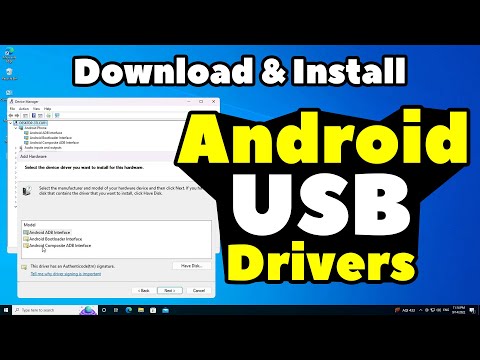
Oh man, isn’t it just the worst when you plug your Android phone into your Windows PC, and—bam!—nothing happens? You’re sitting there tapping all the things, checking cables, doing a little prayer to the tech gods. But nope, it’s still not working. Really frustrating, right?
Like last weekend—let me tell you—I was all set to transfer some fun vacation photos from my phone to my laptop. Everything was supposed to be simple and quick. Except my computer decided it didn’t recognize my phone anymore, like they were total strangers or something!
Trust me; you’re not alone in this tech struggle. These USB driver issues pop up more than you’d think! So let’s grab a virtual coffee and figure out how we can fix this little nuisance together. Sound good?
Android USB Driver Compatibility for Windows 10 64 Bit
Sure, let’s dive into the world of . This can be a bit technical, but we’ll take it step by step.
First things first, when you connect your Android device to a Windows computer, it usually works like magic—just plug and play. But sometimes it doesn’t work out that smoothly. Maybe you’re not seeing your device pop up on your computer? Or perhaps the file transfers are painfully slow.
Why do these issues happen? Well, often it’s because of driver compatibility issues. A driver, in simple terms, is like a translator between your device and the computer. If they’re not speaking the same language—or if their translation book (driver) is outdated or wrong—you might have some problems.
Installing the Right Drivers
To get everything back in sync:
- Update Your Drivers: Head over to your device manufacturer’s website (like Samsung or Huawei) and hunt down the latest USB drivers specifically for Windows 10 64-bit.
- Device Manager Check: On your computer, use ‘Device Manager’ to see if there are any yellow triangles next to your Android device. They signal trouble! Right-click on those and select “Update Driver.”
- Automatic Updates: Sometimes you can just let Windows search online automatically for drivers. It’s hit-or-miss but worth a shot.
Mary from down the street once had an issue where her phone wouldn’t connect at all! It turned out she was using an old cable that wasn’t fully compatible with data transfer—only charging.
Cables Matter Too!
If you’re still having trouble:
- Try Another Cable: Not all USB cables support data transfer; some are made just for charging.
- Troubleshoot Settings: On your phone, head into ‘Developer Options’ and look around USB settings—toggle between different options like MTP (Media Transfer Protocol) or PTP (Picture Transfer Protocol).
And hey if things still seem wonky after all this tinkering? You might wanna think about whether there’s something deeper going on with either end: maybe resetting network settings or asking tech-savvy friend who loves unravelling these mysteries!
You know every now then technology plays tricks us—it happens! Just remember: patience—and good internet connection—can take far toward solving most these hiccups we face every day!
Google USB Driver Installation Steps
Sure thing! Let’s get into how you can install the Google USB Driver on your Windows machine to fix those Android USB driver issues. Ah, I remember a time when I spent an entire afternoon trying to connect my Android phone to my computer, only to realize the right drivers weren’t installed. It’s one of those things that’s maddeningly simple once you know how, but so confusing until then.
Here’s the deal: getting your Android device to communicate properly with your computer often depends on having the right drivers in place. If you’re finding that your Android phone isn’t connecting properly, this might just be the cause. Follow these steps and hopefully it’ll save you some headache.
Step 1: Download the Google USB Driver
Head over to the official Android developer website to download the Google USB Driver zip file. It’s kind of like grabbing a tool from a toolbox before starting a repair job; you’ll need it handy for later steps.
Step 2: Extract the Zip File
Once downloaded, locate the zip file in your Downloads folder (or wherever it landed) and extract its contents. Just imagine unwrapping a present—you never know what helpful little files are inside!
Step 3: Open Device Manager
You’re going to dive into Device Manager next. You can find it by right-clicking on Your Computer/This PC, selecting Manage, and then clicking on Device Manager. It’s like looking under the hood of your car; this is where all connected devices display their pretty faces.
Step 4: Find Your Device
In Device Manager, you should see your device listed under Other Devices. It’ll probably have one of those ominous yellow exclamation marks next to it if things aren’t quite right yet.
- If it’s not there: You might see it under Portable Devices or Android Phone.
- If nothing shows up: Unplug and replug your phone or try another USB port.
Step 5: Update Driver Software for Your Device
Once you’ve spotted your device, right-click on it and select Update driver software…. This will give us a chance to point Windows in just the right direction.
- Select “Browse my computer for driver software.”
- Select “Let me pick from a list of device drivers on my computer.”
Step 6: Install From Disk
Click “Have Disk…” When prompted for location info, navigate over to where you extracted that precious ZIP file earlier (remember?). Select “android_winusb.inf.”
And there ya go! You should now have successfully dumped those pesky connection issues down history lane—and feel free talk geekily with friends about how much fun figuring tech stuff out really is.
Installing Android USB Driver on Windows 11
If you’re getting a little stuck while trying to install Android USB drivers on your Windows 11 computer, don’t worry! Here’s a warm and friendly guide to help you navigate this small tech hurdle.
First things first, you’ll need these drivers to connect your Android device smoothly with your PC. This way, you can transfer files or maybe even work some magic with developer modes.
Here’s how to do it:
1. **Check Manufacturer’s Website**: Sometimes the easiest route is heading over to your phone’s manufacturer website. You can often find the latest USB driver downloads there.
2. **Device Manager Method**: You know that place where all the devices connected to your computer are listed? That’s Device Manager.
- Press `Windows + X` and choose Device Manager.
- Look for any yellow triangles next to devices — that’s Windows waving a flag at you.
- If there’s one next to your Android phone, just right-click on it and hit ‘Update driver’.
3. **Google’s USB Driver**: For developers or those who want an official touch, sometimes Google’s got what you need.
- You’ll have this option in **Android Studio** under ‘SDK Manager.’
- Select ‘SDK Tools’ tab & tick ‘Google USB Driver’.
4. **Enabling Developer Options**: If none of these work like magic spells, try turning on developer options in your phone.
- Go into “About Phone” under settings.
- Tapping “Build Number” seven times makes you feel like a tech wizard.
- A little toast message should say “You are now a developer!”. Neat!
- This grants access needed for different connection settings.
5. **MTP Application Setting:** Double check so that Media Transfer Protocol (MTP) is selected when connecting the phone via cable—it informs computers about transferring media files!
As an anecdote — I once panicked thinking my phone wasn’t compatible with anything because nothing was working until realizing it was really me needing certain specific drivers downloaded manually… oops! Remember—patience helps :).
Hopefully after following these steps successfully get everything synced up properly between devices—it often feels great once things click into place doesn’t it?
Oh, the joys of technology! Ever tried connecting your Android phone to a Windows computer only to be greeted with that stubborn “USB device not recognized” message? Man, it can really test your patience. But hey, you’re definitely not alone in dealing with this. While it can be a bit frustrating, there’s usually a way to sort it out.
Picture this: You’re in the middle of transferring photos from your vacation or trying to back up those precious text messages when suddenly—bam!—the computer decides it doesn’t feel like cooperating. It’s almost as if our devices have moods of their own.
Alright, first things first. We need to find out if the problem is with the USB port or maybe even with the cable itself (sounds silly, but these little things often get overlooked). Try plugging into a different port or using another cable you’ve got lying around. You’d be amazed at how often that’s the fix!
Now, if that’s not doing it for you, we might have something more complex on our hands—the mysterious world of drivers. These little pieces of software make sure your phone and computer speak nicely to each other. Sometimes they need updating—or even re-installing—to keep things smooth.
Here’s one trick I learned after spending endless hours in frustration: head over to “Device Manager” on your PC (just type that into your search bar), and check for any yellow triangles appearing next to any connected devices—that’s waving at you saying something’s up.
If you’ve got one of those triangles by “Android Device,” right-click and choose “Update driver.” If you’re lucky, Windows does all the heavy lifting for you and finds what’s needed online. But sometimes you might need manual intervention—which sounds scary—but involves downloading from either your manufacturer’s website or trusty ol’ Google.
And don’t forget about enabling “USB debugging” on your actual phone! It’s buried under Developer Options; that secret menu you access by tapping “Build number” repeatedly (why do they hide such important stuff?).
Sometimes it’s just a matter of installing some third-party software like Samsung’s Kies or Huawei’s Suite depending on what brand makes life easier once installed—they come bundled with everything necessary including all those elusive driver updates!
Of course every now and then nothing seems work—and then we suspect compatibility issues between different versions/updates…ugh! Another reason people put off these connections till absolutely necessary!
But eventually persistence pays off—you reconnect—and voila!, there’s access again ready sync files seamlessly across platforms without thinking twice anymore wondering why gadgets can’t get along better considering how smart they’re meant become!…You know?