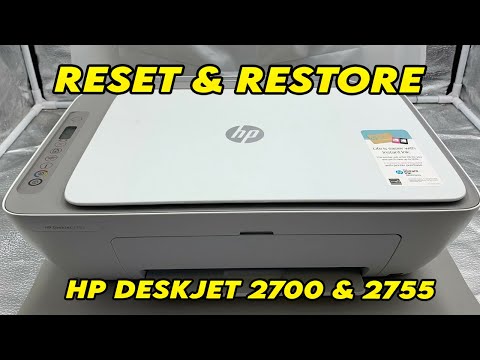
Hey there! Ever had one of those days where getting your printer to work feels like trying to solve a Rubik’s cube blindfolded? Yeah, we’ve all been there. I get it. You’re just trying to print that cute picture of your cat or an important document, and suddenly, you’re in driver installation limbo.
Let’s be real for a sec: the HP DeskJet 2720 is a neat little machine when it’s up and running. Yet, setting it up can sometimes feel like dealing with a stubborn toddler. No worries, though! You and I are going to tackle this together—promise.
We’ll laugh at the small hiccups along the way and cheer when things finally click into place. You got your coffee ready? Cool! Let’s unravel this driver installation adventure step by step—no stress allowed here.
HP Printer Driver Installation Failure
Oh, printer troubles! We’ve all been there. Picture this: you’re all set to print that important document, and suddenly—bam—the driver installation fails. Frustrating, right? Especially with models like the HP DeskJet 2720. Let’s dive into some common hiccups, shall we?
First off, make sure your printer is properly connected. Sounds simple enough, but you’d be surprised how often a loose cable is the culprit.
- USB Connection: If you’re connecting via USB, double-check that the cable is securely plugged into both your printer and your computer.
- Wireless Setup: For wireless connections, verify that your printer is on the same network as your computer.
Got that sorted? Great! Now onto drivers.
Downloading the Driver:
Head over to HP’s official website to snag the correct driver for the DeskJet 2720. Make sure you pick one compatible with your operating system—it matters! If you’re unsure about which version of Windows or macOS you’re using (believe me it happens), just take a quick look in your system settings.
When downloading:
- Avoid installing additional software bundled with drivers unless you need it.
- If there’s an option for a full feature software package versus basic drivers: choose according to need. Basic if you’re short on space; full if you want all functions.
Troubleshooting Installation Issues:
If installation fails again—don’t panic!
- Error Messages: Take note of any error messages during installation—they can often hint at what’s wrong.
- Troubleshoot Other Software: Sometimes it’s not even about the printer at all. Check if any recent updates or software changes might be causing conflicts.
Ever had issues persist after meticulously following steps? Consider giving HP’s diagnostic tools a spin—they’re specifically designed for situations like this and could save loads of time.
Relax; these things happen no matter how tech-savvy we think we are… remember patience is key here folks. Hopefully by now pages are flying off that DeksJet 2720 without further fussing around!
Resetting HP Deskjet 2720 Printer
Oh, the wonderful world of printers! They’re lifesavers when working, yet can be quite the headache when not. So you’ve got an HP Deskjet 2720 and need to reset it? No worries! Let’s dig into that.
First off, resetting your printer can solve a bunch of problems—like it’s acting up after a driver update or maybe freezing mid-print. Been there!
Why Reset?
Sometimes, printers forget their manners (settings), and a reset helps them remember how things should be. Perhaps you’ve been messing around with settings or just want to start fresh.
Steps for Resetting
- Unplug It: Start by turning off the printer. Unplug it from the power source too. A little forced nap helps sometimes!
- Clear Internal Memory: Wait about 60 seconds. This isn’t just a time filler—it clears out any stuck tasks.
- Reconnect Power: Plug it back in and power on your faithful friend.
If you’ve tried these steps and are still facing drama, let’s peek at some troubleshooting tips related to driver installation.
Troubleshooting Driver Installation
Printers need drivers, like our cars need fuel. If your computer’s not talking to your printer properly, it might be this!
- Check Compatibility: Double-check if you’ve got the right driver version for your system.
- Purge Old Drivers: Remove any previous drivers before installing new ones—old stuff lingering around can cause confusion.
- Avoid Overloading on Updates: Download directly from HP’s official site rather than third-party software—the original source is usually more reliable!
Anyway, give these steps a shot! Printers may seem stubborn at times but follow through patiently and it should reward you by printing like new—or at least without hiccups! And remember: patience is key ’cause tech tantrums happen to all of us sometimes!
Manual Installation of HP Print Driver
Sure, let’s dive right in! Sometimes, installing a printer driver can feel like solving a puzzle. But no worries, I’ll help you piece it together. Especially if you’ve got the HP DeskJet 2720 and you’re scratching your head over installation issues.
Why might you need to install drivers manually? Well, sometimes your computer might not automatically recognize your printer. Or maybe you’ve lost the original CD that came with it. Stuff happens!
Now here’s how to get that driver installed:
1. **Download the Driver:**
– Go to the official HP Support website.
– In their “Software and Drivers” section, type in “HP DeskJet 2720” to find the right one.
– Download it onto your computer.
2. **Connect Your Printer:**
– If it’s wireless: Make sure both your printer and Wi-Fi are on.
– If using USB: Simply connect the cable from the printer to your computer.
3. **Run the Installation File:**
– Navigate to where you saved the downloaded driver.
– Double-click on it; this should start up an installation wizard—like a friendly guide through a maze!
4. **Follow On-Screen Instructions:**
– The wizard will guide you step by step—just follow along!
5. **Printer Setup:**
– Ensure that during setup, you’re selecting correct options such as connection type (e.g., USB or Wi-Fi).
6. **Test Your Printer:**
– Print a test page! It’s kind of satisfying seeing it come out correctly after all that work.
Sometimes things don’t go as smoothly as expected, right? If anything feels tricky:
– Check if your computer’s firewall is blocking software installations.
– Restarting both devices can fix little glitches—it’s like giving them both a short nap.
Hope this helps clear things up for you! It might seem daunting at first glance but once you’ve done it you’ll feel like tech-savvy pro already!
Happy printing!
Ah, the joys of setting up a new printer! You know that feeling when you finally unbox your new HP DeskJet 2720, and you’re all excited to get it rolling? You plug it in, hit the power button, and then…drumroll…the driver installation! It seems like something should be a piece of cake but can sometimes throw you a curveball or two.
Imagine this: you’ve got a school project due tomorrow, and all that’s left is printing those final pages. You download the driver from HP’s website—simple enough. But hold on; suddenly there’s an error message staring back at you. Ugh! It’s like running into a traffic jam when you’re almost home.
First things first, double-check if you’ve got the right driver for your operating system. It’s kind of like finding the right puzzle piece to fit; Windows or macOS can be picky about which one works. Keeps things interesting!
Sometimes it might just be your computer playing hard to get with temporary files gumming up the works. A good ol’ restart often helps clear things out. Seriously, computers are like us—sometimes they just need to take a breather!
If it’s still being stubborn after that reboot magic trick? Well, maybe it’s time for some detective work with your USB cables or Wi-Fi connection. Making sure everything’s plugged in snugly or connected properly can solve mysteries faster than an episode of Scooby-Doo.
And don’t forget about those updates lurking around—you’ve gotta keep everything current for smooth sailing, ya know? Outdated software can mess with more than just printers.
Nobody likes getting stuck at this step in setup land but remember you’re not alone in this paper-jam of life! We’ve all had our moments where technology plays hide and seek instead of follow-the-leader.
Take comfort knowing tackling tech hiccups builds patience muscles we didn’t even know we had—and they’ll come handy next time around too (because trust me there will always be another round).
So if now feels like battling Mount Everest—it won’t last forever—I promise!